Translate Interface Strings Inline
The Inline Translation feature in Deepser allows you to edit user interface strings directly from the Deepser Backend, simplifying and speeding up the localization process. This guide walks Administrators through how to enable, use, and disable inline translation.
Preparation
Before you begin translating, complete the following preparation steps:
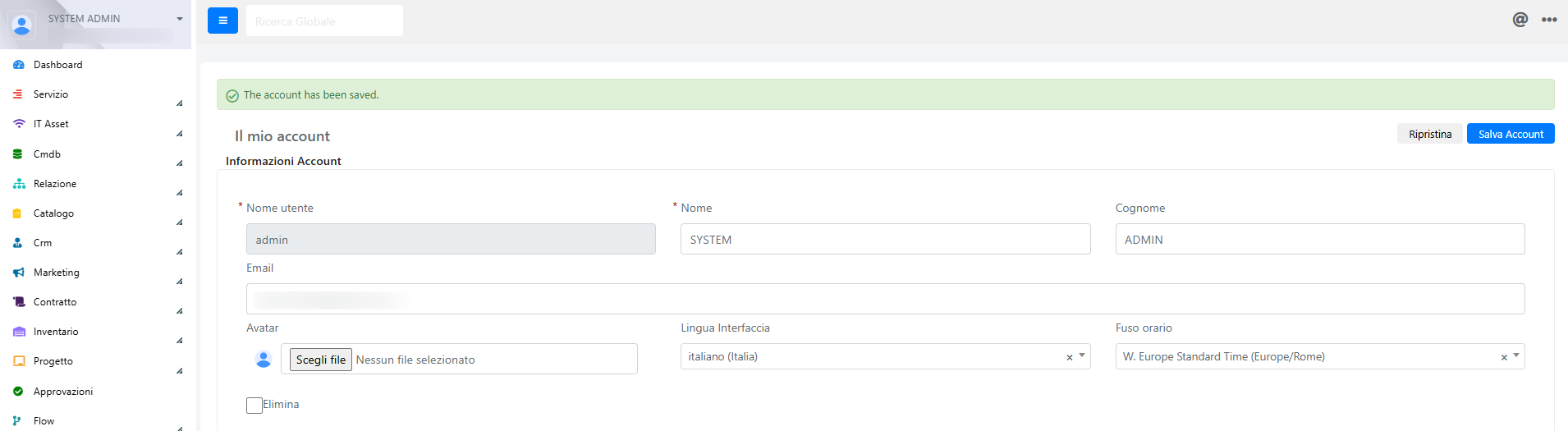
- Access the "My Account" section and select the desired language in the "Interface Language" field.
Open the Required Pages (Optional but Recommended)
To streamline the workflow, open the following paths in separate browser tabs:
- System > Configuration > Advanced > Developer
- System > Cache Management
- The web application page where you will perform translations in Deepser
Authorize Your IP Address
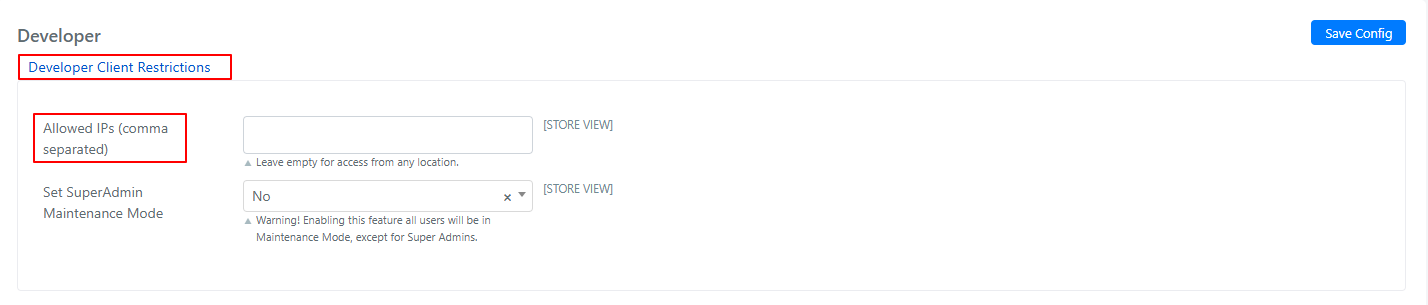
Navigate to System > Configuration > Advanced > Developer > Developer Client Restrictions and add the public IP address from which the changes will be made.
Private IP addresses cannot be added. All devices connected under the same public IP and logged into the Deepser Backend will see the inline translation interface enabled. Using an alternative connection, such as a hotspot, is recommended if needed.
Enable Inline Translation
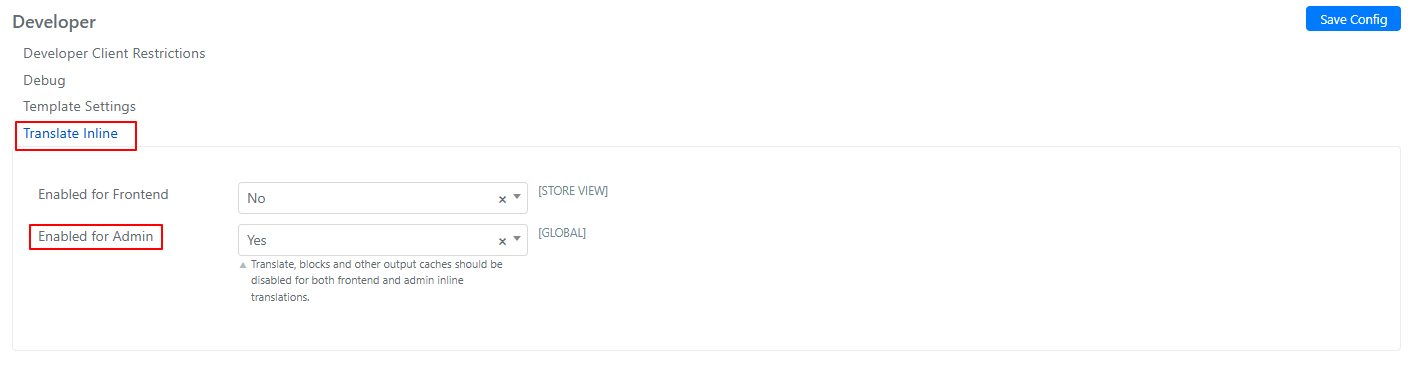
- Open the "Translate Inline" section within System > Configuration > Advanced > Developer.
- Set the "Enabled for Admin" field to "Yes".
- Save the changes.
Disable HTML Output Block
Once inline translation is enabled, reload all open Deepser pages, then disable the HTML output cache:
- Go to System > Cache Management.
- Select the "Blocks HTML output" item.
- From the dropdown menu in the top-right corner, choose "Disable".
- Click "Submit".

Ensure that the status appears as Disabled.

Translate Interface Strings
- Locate the field to be translated and click the "Dictionary" icon.

- In the window that appears, enter the desired translation.
- Save the changes.
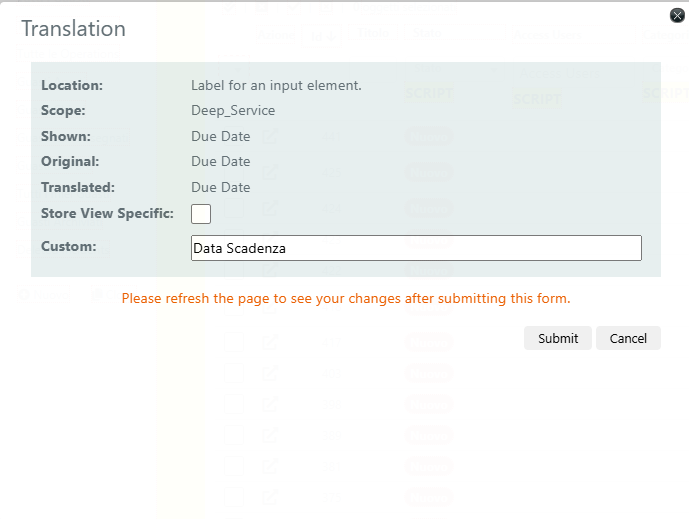
After saving, the change may not be immediately visible. To view the new translation, go to System > Cache Management, click "Flush Cache" in the top-right corner, and reload the page where the change was made.
Repeat the process to translate other interface elements.

Disable Inline Translation
Once all desired elements have been translated, disable the inline translation feature and restore the original system settings.
Disable the Feature
- Return to System > Configuration > Advanced > Developer.
- In the "Translate Inline" section, set "Enabled for Admin" to "No".
- Save the changes.
- Reload all open Deepser tabs.
Re-enable HTML Output Block
- Go to System > Cache Management.
- Select "Blocks HTML output".
- From the dropdown menu in the top-right corner, choose "Enable".
- Click "Submit".

Final Refresh
- Using the same procedure, perform a "Refresh" on "Blocks HTML output" by selecting the corresponding option from the dropdown menu.