Microsoft Intune Integration
Deepser provides a dedicated module for integrating with Microsoft Intune. Through flow configuration, you can automatically retrieve and synchronize managed devices and device categories between Intune and Deepser.
The integration enables the following features:
- Retrieving managed devices in Microsoft Intune
- Retrieving registered categories in Microsoft Intune
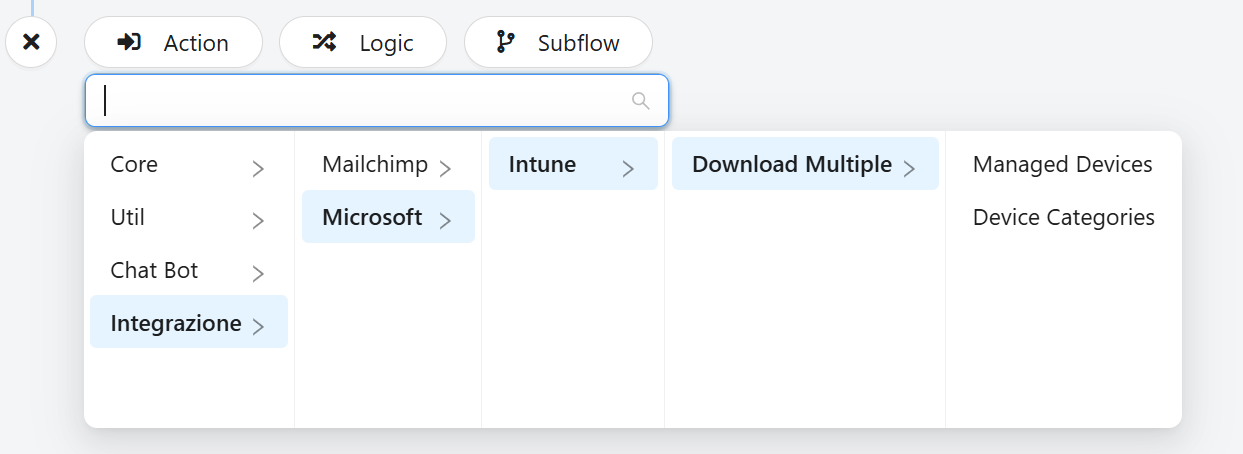
Below is a summary of the actions available in Flow related to the integration:
Enable Integration
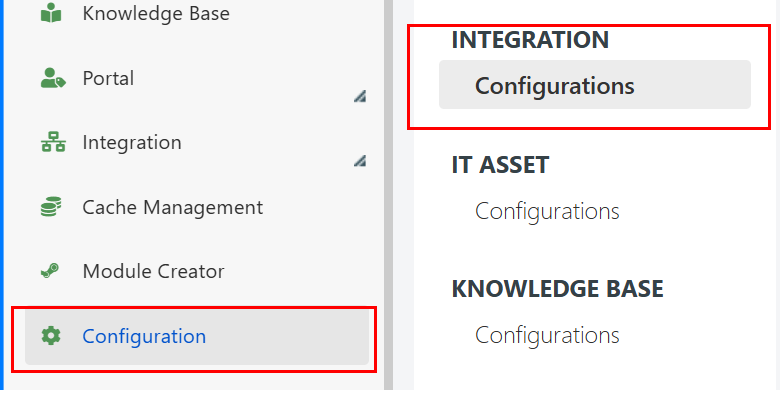
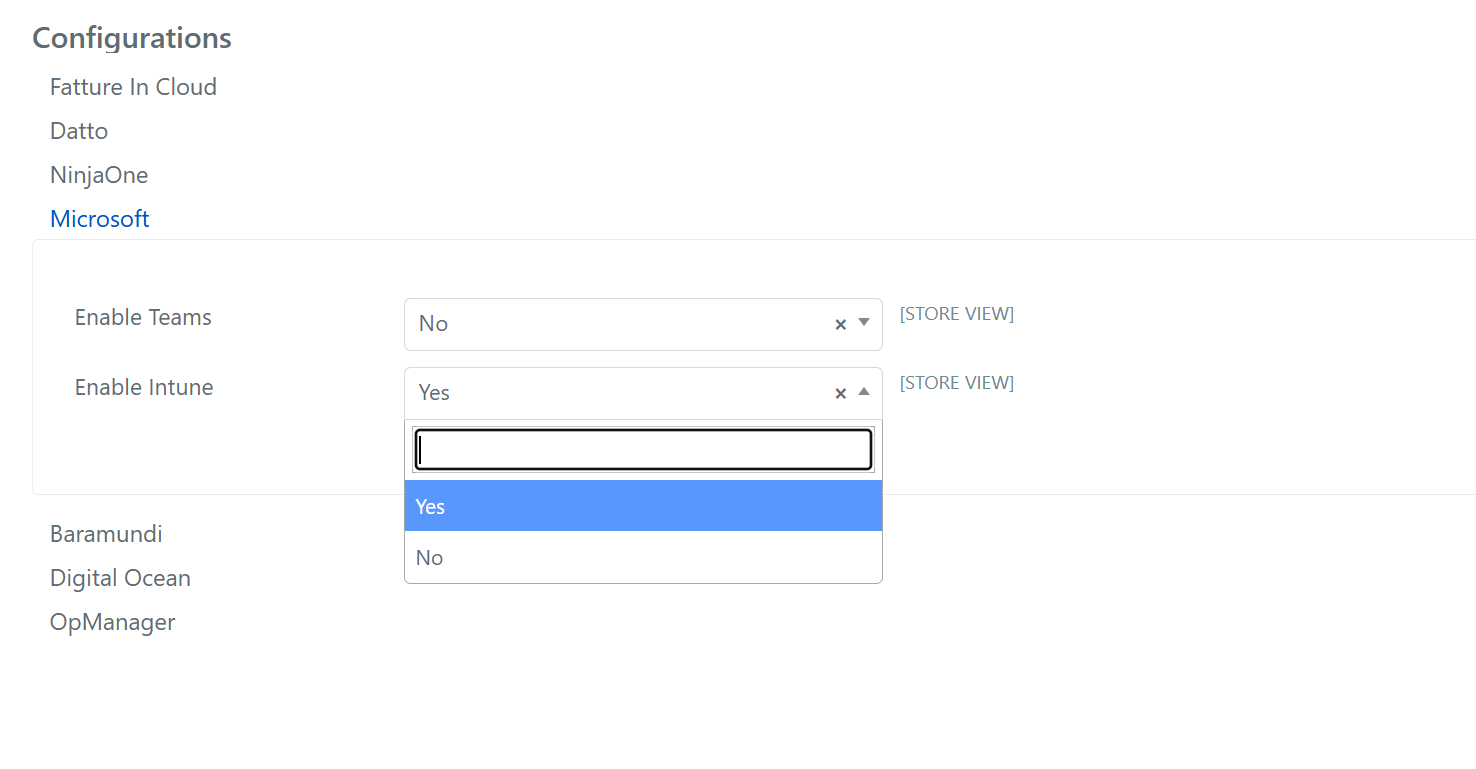
To enable the integration module, go to the Deepser Backend menu: System > Configurations > Integrations – Configurations, select and enable Intune, then save:
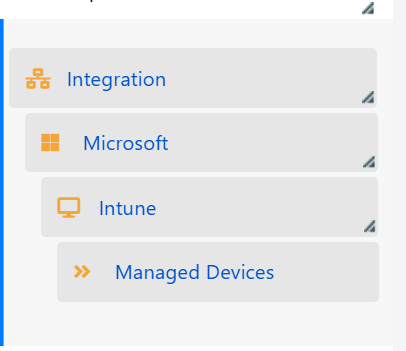
Once the integration is enabled in the menu, you will see the new entry:
Managed Devices
Managed Devices in Microsoft Intune represent all the devices that are registered and managed through the platform. These devices can include smartphones, tablets, laptops, and other mobile or desktop devices that are configured to comply with corporate security policies. The integration of Microsoft Intune with Deepser allows the automatic import of details related to these devices for centralized management.
The integration provides critical device information such as operating system type, compliance status, OS version, encryption status, and more. You can use this information to monitor device security, manage updates, resolve remote issues, and optimize IT operations.
Below are the main fields synchronized in Deepser:
| Microsoft Intune Field | Description |
|---|---|
| id | Unique device identifier. |
| userId | User ID associated with the device. |
| deviceName | Device name, usually visible in the management interface. |
| managedDeviceOwnerType | Type of device owner (e.g. company or personal). |
| enrolledDateTime | Date and time when the device was registered in Microsoft Intune. |
| lastSyncDateTime | Date and time of the last synchronization with Intune. |
| operatingSystem | Device operating system (e.g. iOS, Android, Windows). |
| complianceState | Device compliance status with security policies. |
| jailBroken | Indicates whether the device has been jailbroken (iOS devices only). |
| managementAgent | Management agent used (e.g., Intune MDM). |
| osVersion | Version of the operating system installed on the device. |
| easActivated | Indicates whether the device has been activated via Exchange ActiveSync. |
| easDeviceId | Device ID on Exchange ActiveSync. |
| easActivationDateTime | Date and time of device activation via Exchange ActiveSync. |
| azureADRegistered | Indicates whether the device is registered in Azure Active Directory. |
| deviceEnrollmentType | Device registration type (e.g., automatic registration). |
| activationLockBypassCode | Bypass code for activation lock, if applicable. |
| emailAddress | Email address associated with the device. |
| azureADDeviceId | Device identifier in Azure Active Directory |
| deviceRegistrationState | Device registration status. |
| deviceCategory/id | Device category identifier, if applicable. |
| isSupervised | Indicates whether the device is supervised (iOS devices). |
| exchangeLastSuccessfulSyncDateTime | Date and time of the last successful synchronization with Exchange. |
| exchangeAccessState | Exchange server access status (e.g., allowed or blocked). |
| exchangeAccessStateReason | Reason for Exchange access status (e.g., synchronization errors). |
| remoteAssistanceSessionUrl | URL to access the remote assistance session for the device. |
| isEncrypted | Indicates whether the device is encrypted. |
| model | Device model (e.g. iPhone 12, Galaxy S21). |
| manufacturer | Device manufacturer (e.g. Apple, Samsung). |
| imei | IMEI code of the mobile device (for GSM devices). |
| serialNumber | Device serial number. |
| androidSecurityPatchLevel | Android security patch level (for Android devices only). |
| wiFiMacAddress | MAC address of the device's Wi-Fi connection. |
| subscriberCarrier | Mobile device telephone operator. |
| totalStorageSpaceInBytes | Total memory capacity of the device in bytes. |
| freeStorageSpaceInBytes | Free storage space on the device in bytes. |
| partnerReportedThreatState | Threat status reported by the security partner. |
| requireUserEnrollmentApproval | Indicates whether user approval is required for device enrolment. |
| managementCertificateExpirationDate | Expiry date of the management certificate. |
| iccid | ICCID code of the device's SIM card. |
| udid | Unique device identifier (specific to iOS). |
| notes | Additional notes regarding the device. |
| ethernetMacAddress | MAC address of the device's Ethernet connection. |
| physicalMemoryInBytes | Amount of physical memory in the device in bytes. |
| enrollmentProfileName | Name of the registration profile associated with the device. |
Device Categories
Device Categories in Microsoft Intune allow you to group and classify company devices into predefined categories. This enables administrators to apply policies, filter reports, and create dynamic groups based on device category.
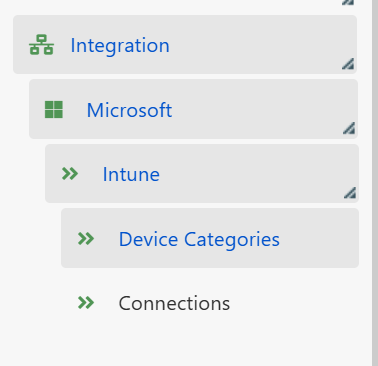
As part of the integration with Deepser, Device Categories are imported and mapped, allowing you to associate devices with logical categories defined in Intune directly in the system. The imported categories are configurable and visible within the System > Integration > Microsoft > Intune > Device Categories section, but you can also select them in the appropriate field in Managed Devices.
Configuration
The following sections explain how to proceed with the configuration on the Deepser side and on the Microsoft side.
Connection
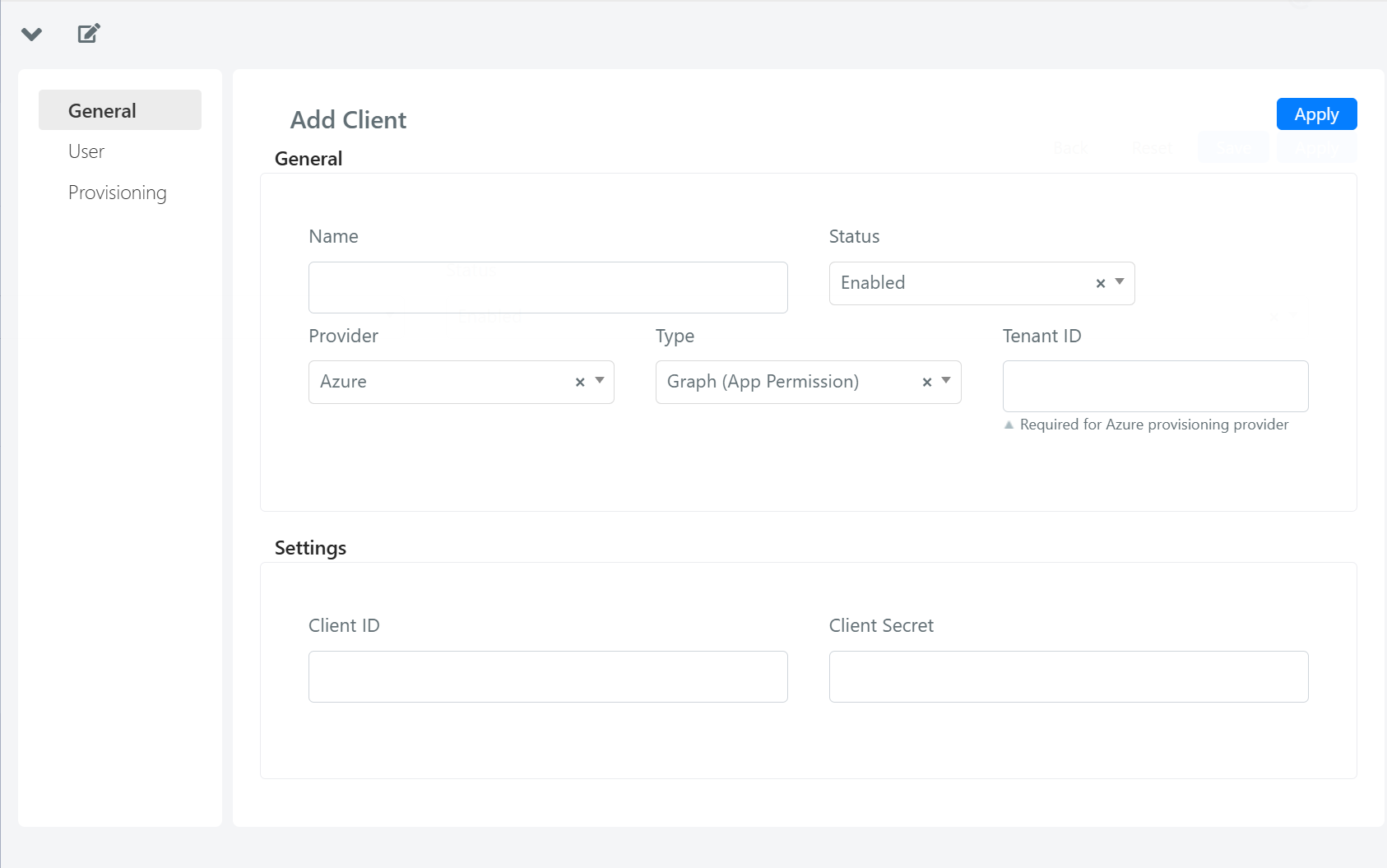
From the Deepser Backend menu, go to System > Integration > Microsoft > Intune > Connections, and create a new connection by clicking the "Add Connection" button.

In the screen that opens, set the following:
- Name: the name you assign to the connection
- OAuth Client: select an existing OAuth client or create a new one by clicking the + button below the dropdown menu

Authentication
In the floating window that opens, set the following fields:
- Name: name of the OAuth Client
- Provider: Azure
- Type: Graph (App Permission)
The following describes the procedure for configuring an OAuth client in Azure.
App Registration Creation
The first step is to register the application on Microsoft Azure.
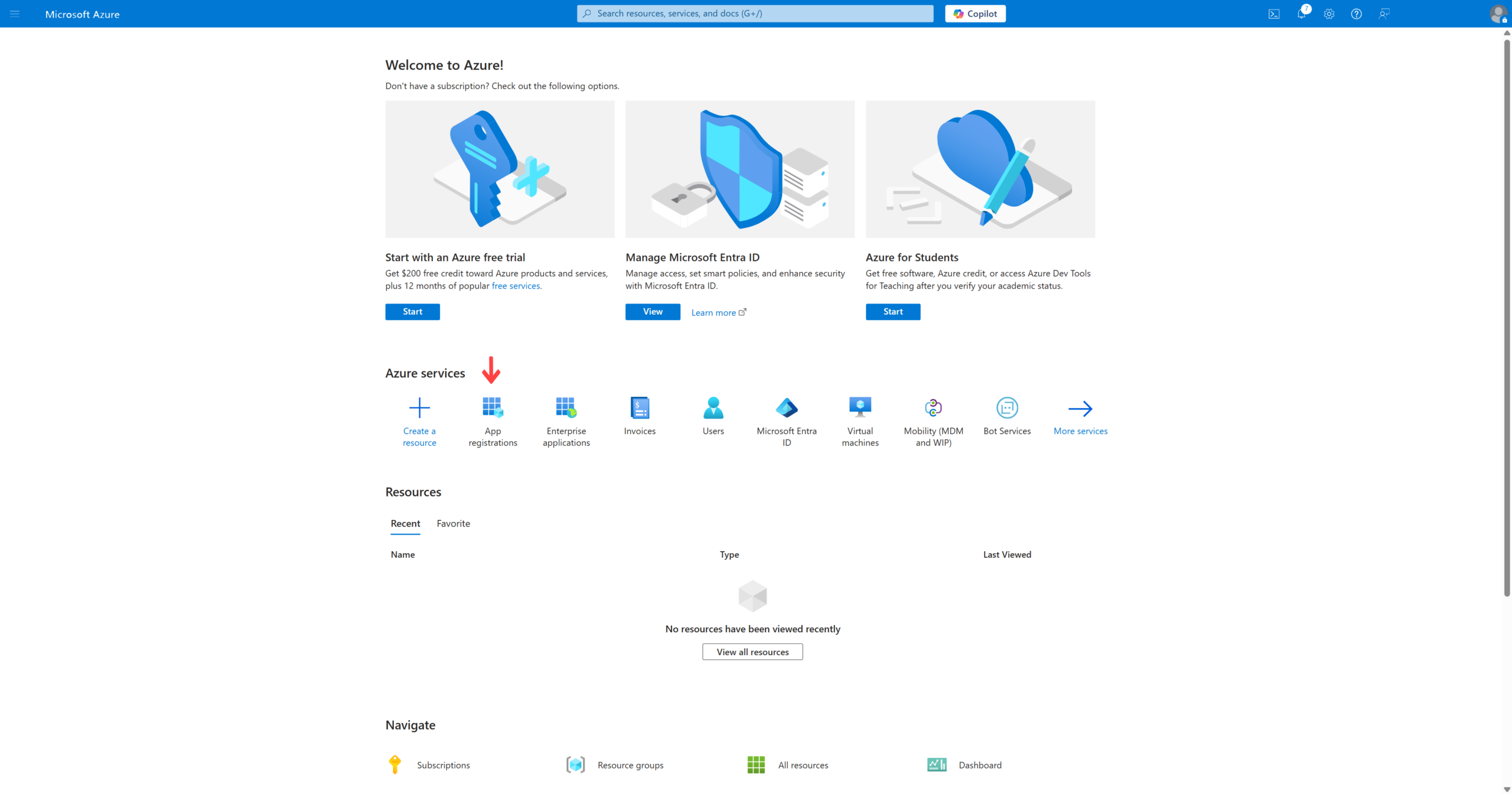
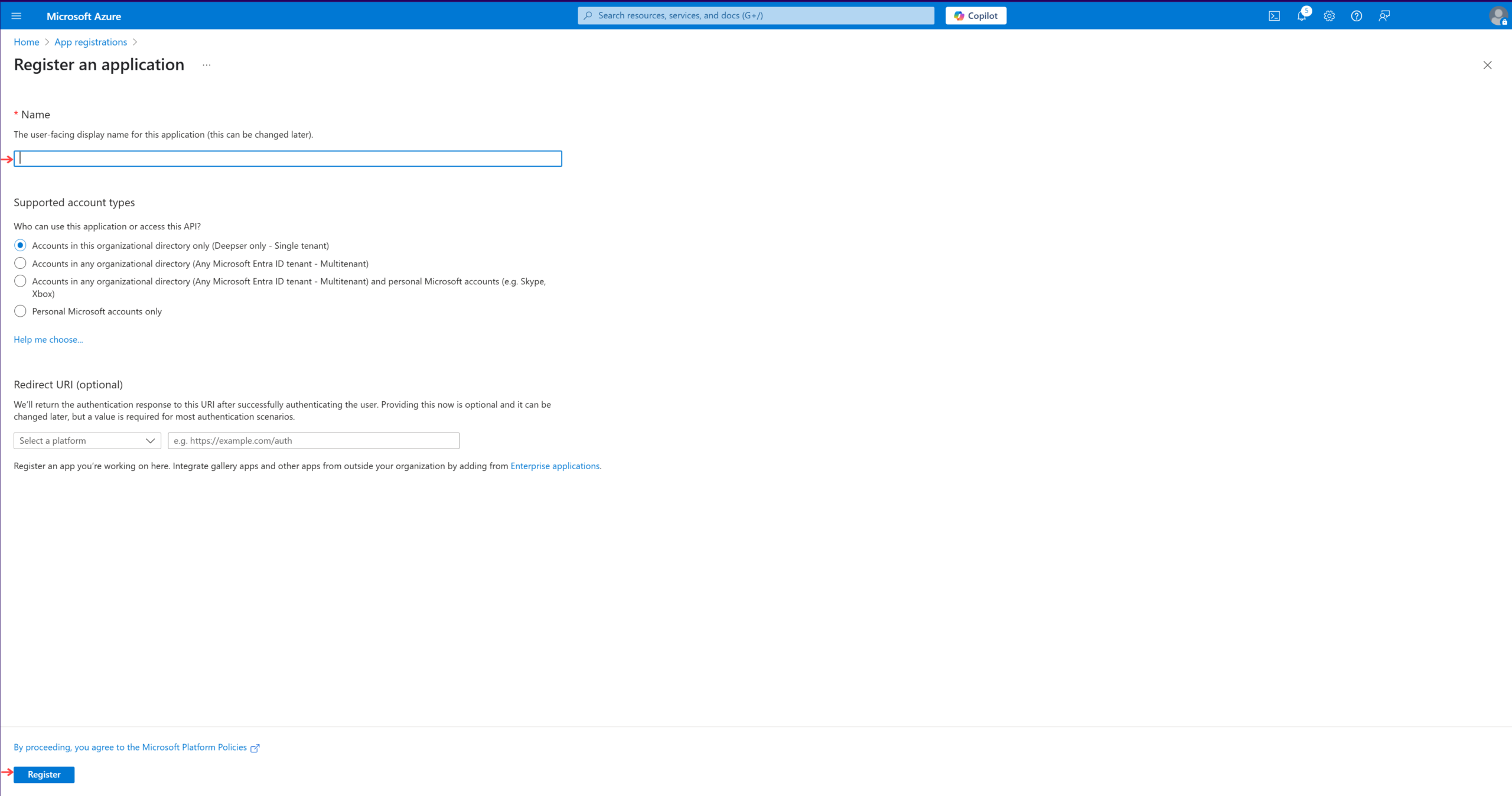
- Log in to Azure and select 'App Registration'
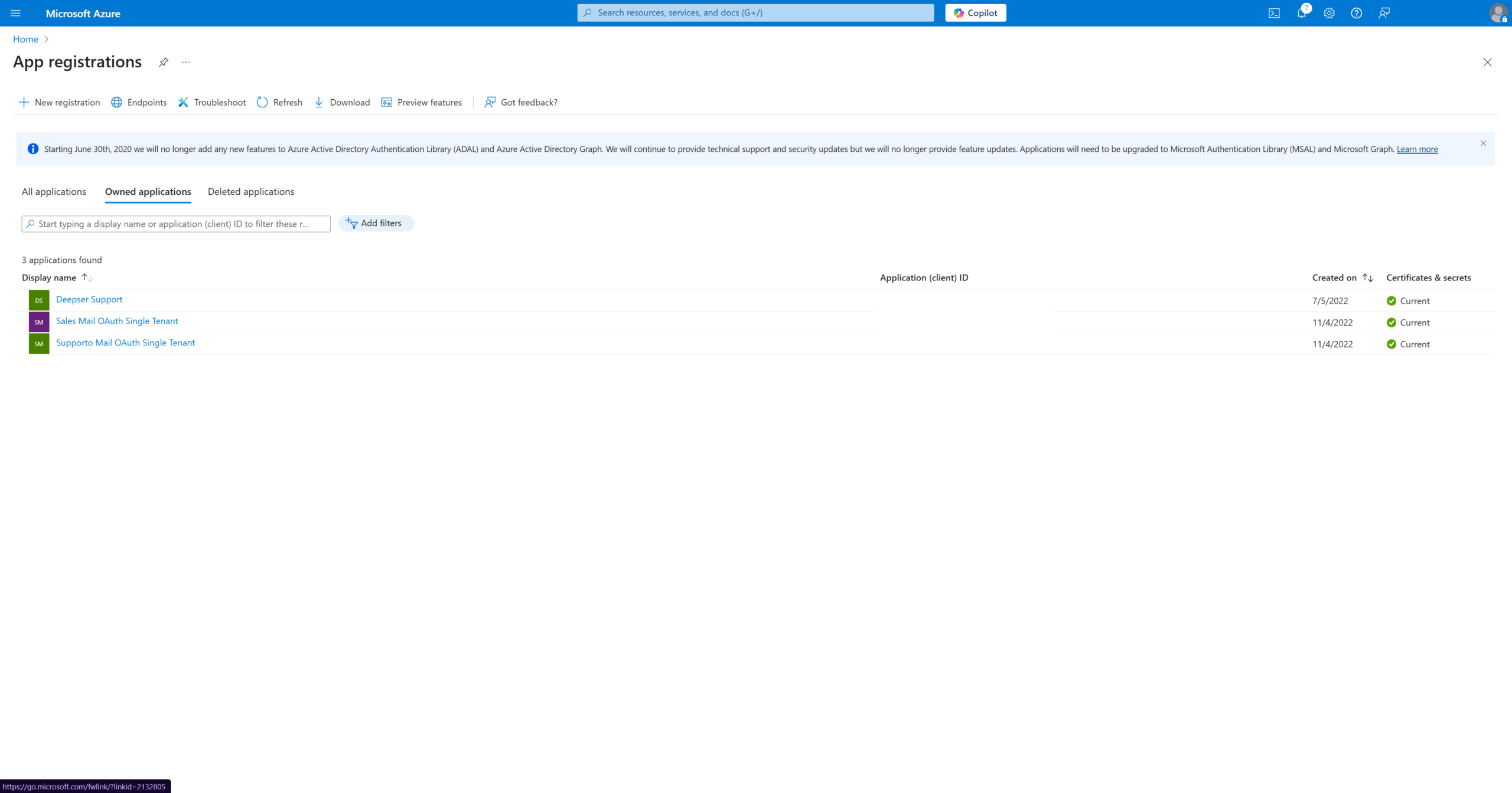
- Click on "New registration".
- Enter a name for the application and click on "Register".
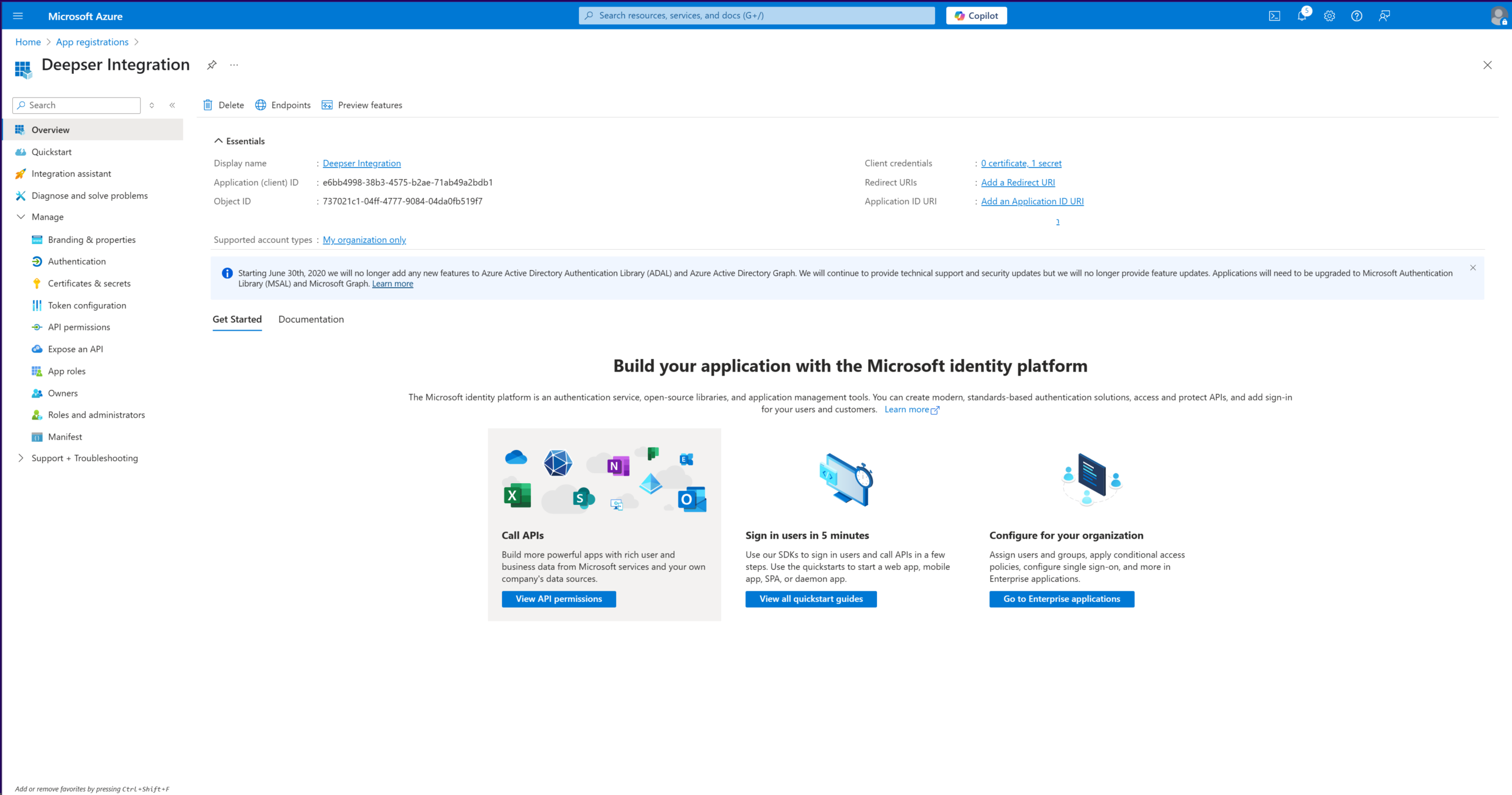
- Once you have registered the app, the data required for configuration will be displayed on Deepser.
Permission Assignment
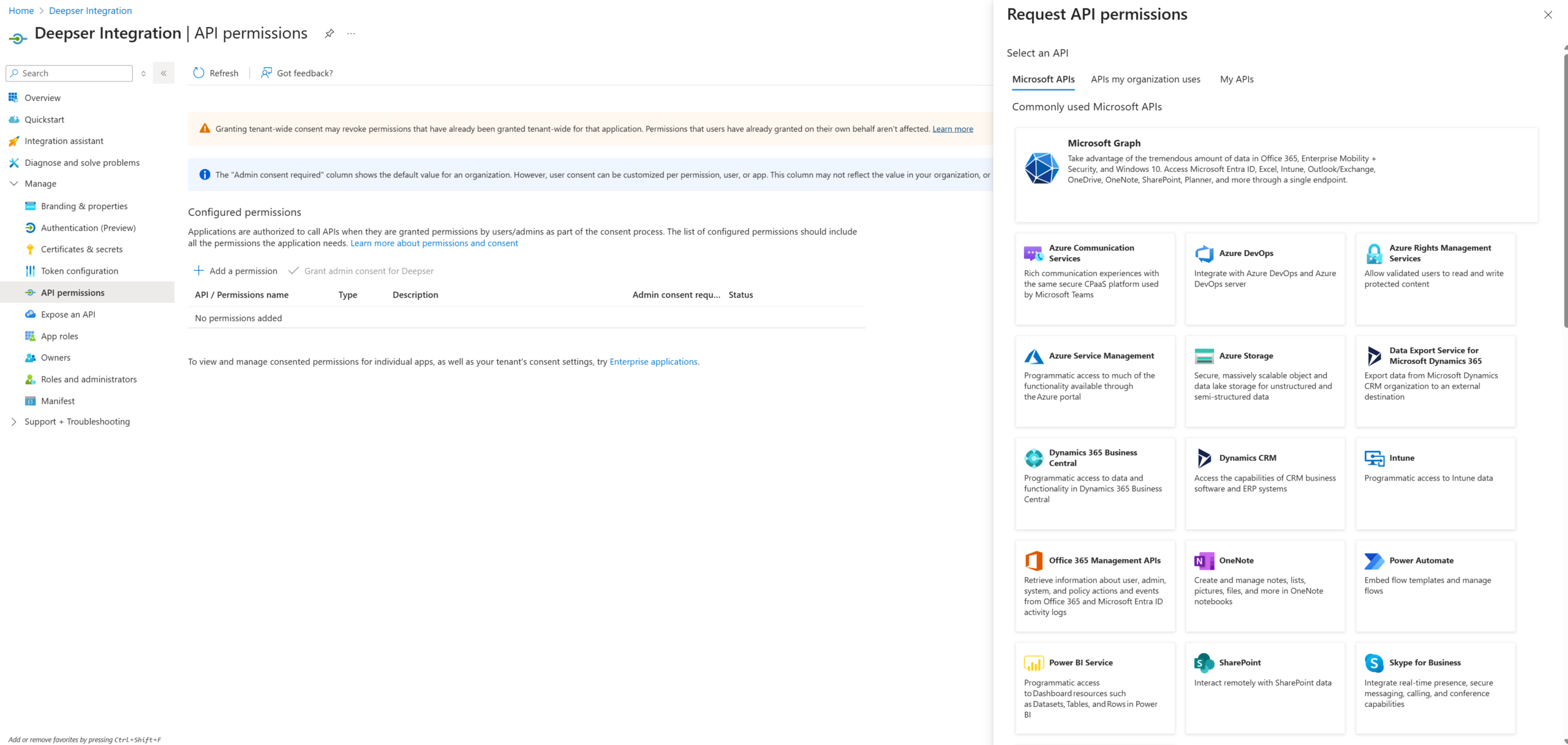
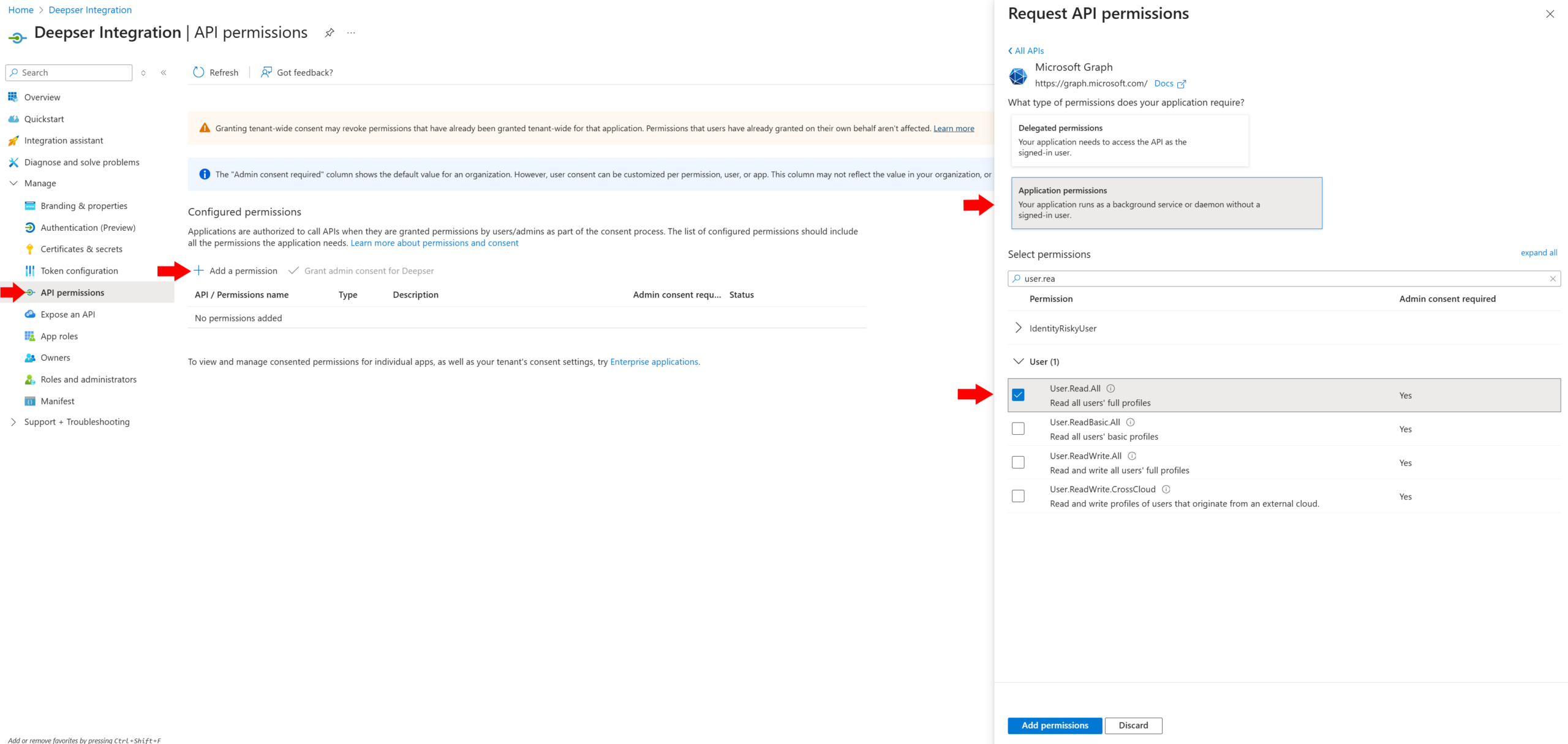
In the 'API permissions' section, you will select and assign the necessary permissions to your application.
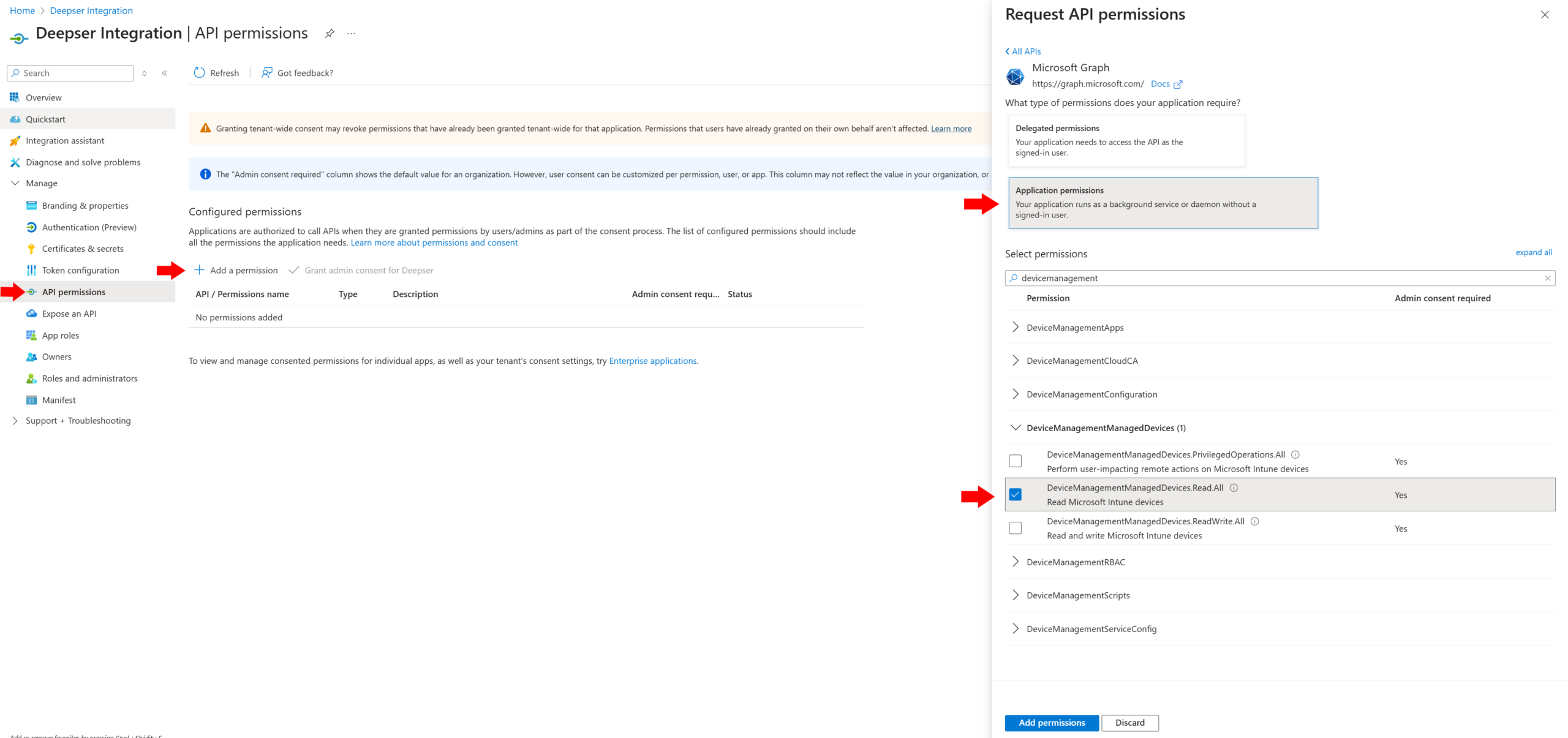
- In the 'API permissions' section, select 'Add a permission'.
- Select the Microsoft Graph option.
- In the window that appears, select "Application Permissions". Select the following permissions:
- DeviceManagementManagedDevices.Read.All
- User.Read.All
- Save by selecting "Add Permission".
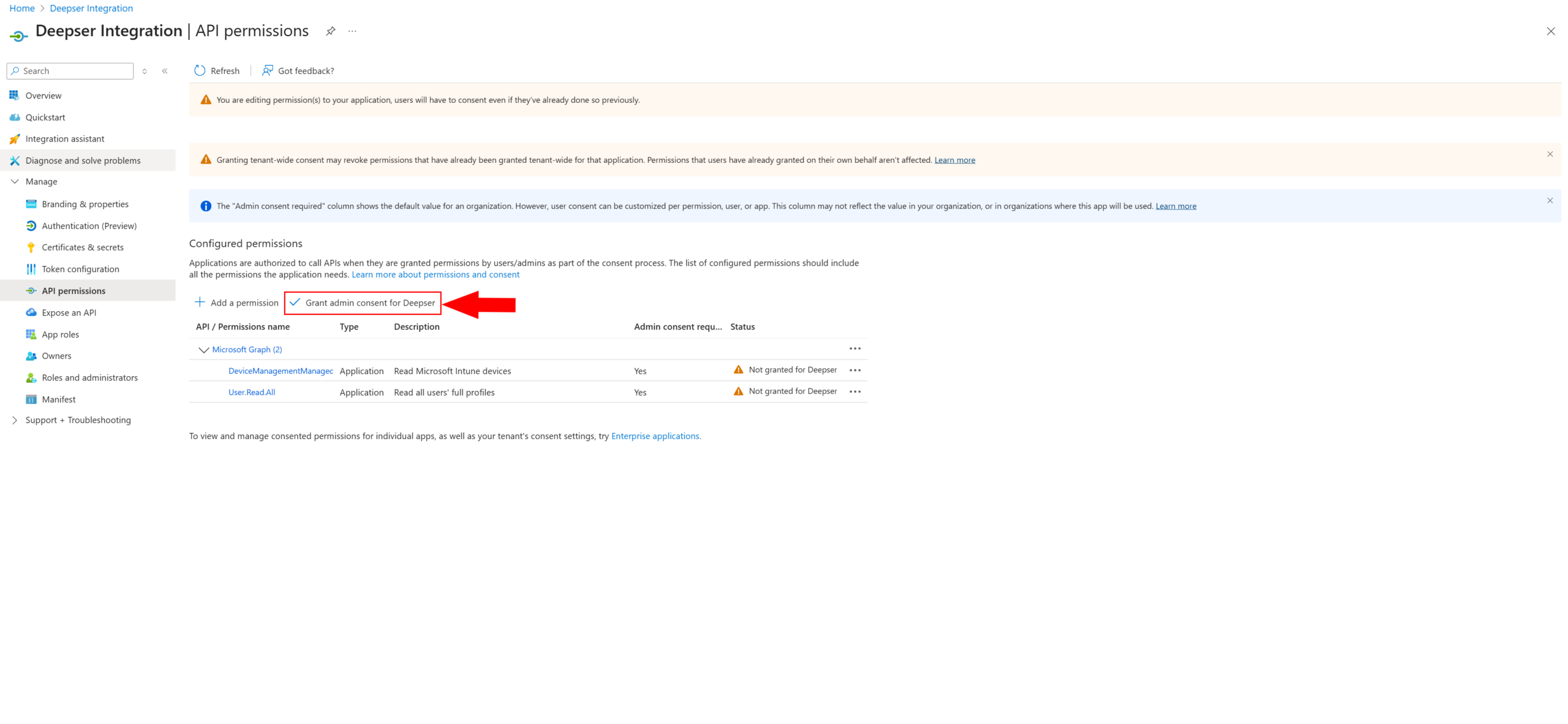
- Click on 'Grant admin consent for Deepser' and confirm with 'Yes'.
Secret Creation
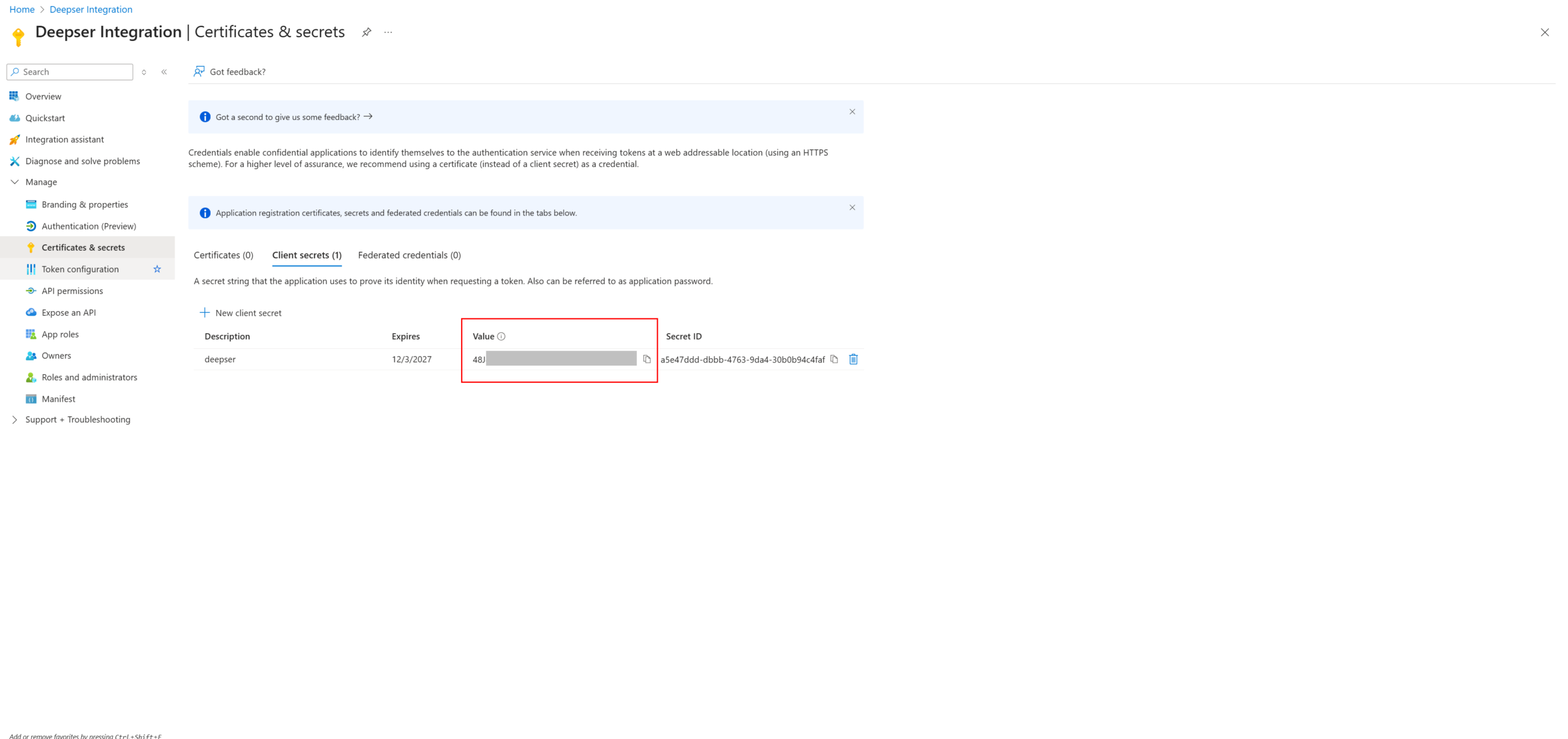
- Go to 'Manage > Certificates & Secrets' and click on 'New client secret' to generate a secret.
- Enter a description and select the duration of the secret, then click 'Add' to save it.
- The SECRET VALUE that is displayed must be SAVED IMMEDIATELY, as it will no longer be visible once you leave the page.
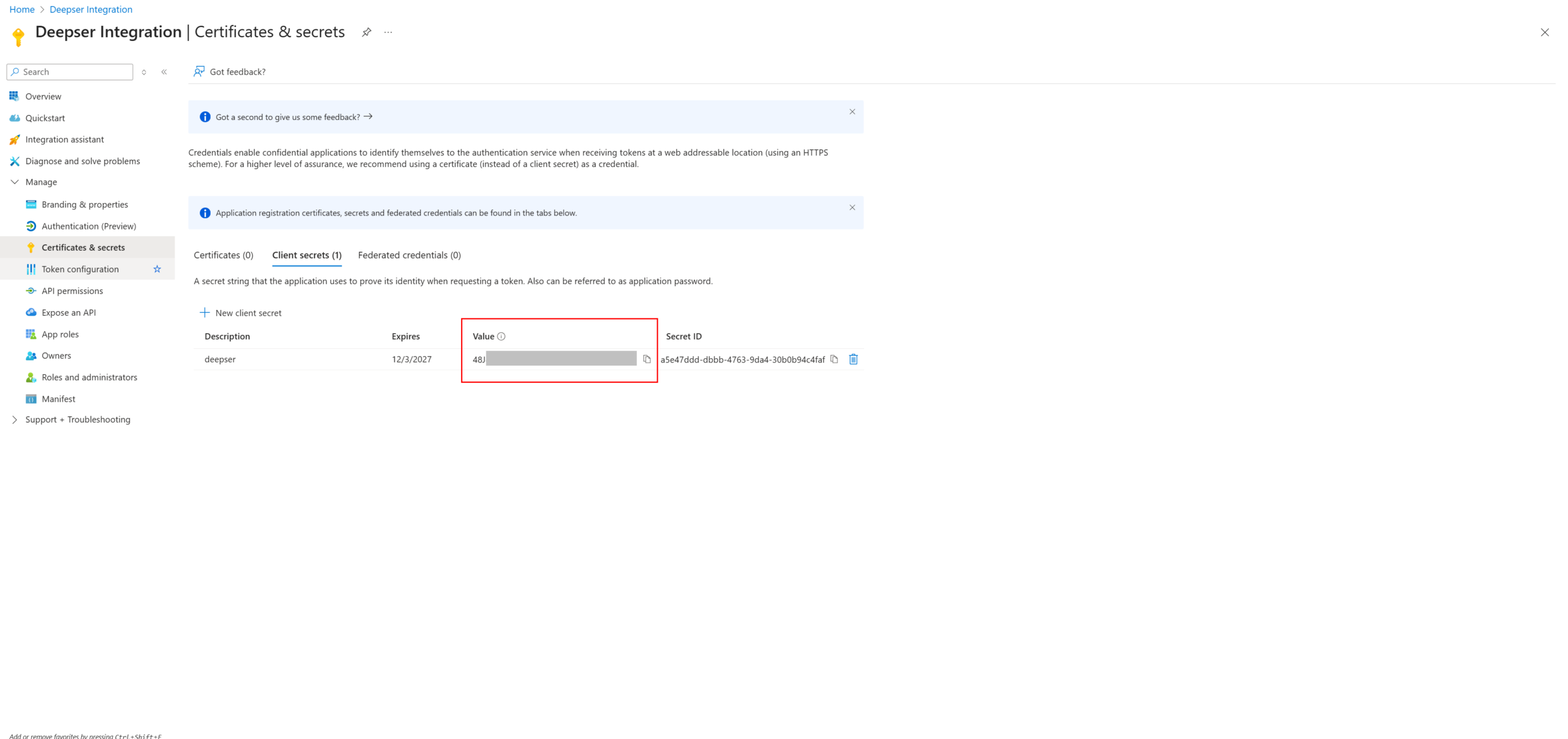
Remember to save the Secret Value immediately. Once you leave the Azure page, the Secret Value will no longer be visible.
The Client Secret has a limited lifespan. If you select a 24-month expiry date, you will need to generate a new secret before the expiry date to ensure that the integration continues to function correctly.
Deepser OAuth Client Configuration
Once you have finished creating the OAuth client in Azure, enter the parameters into the OAuth client in Deepser:
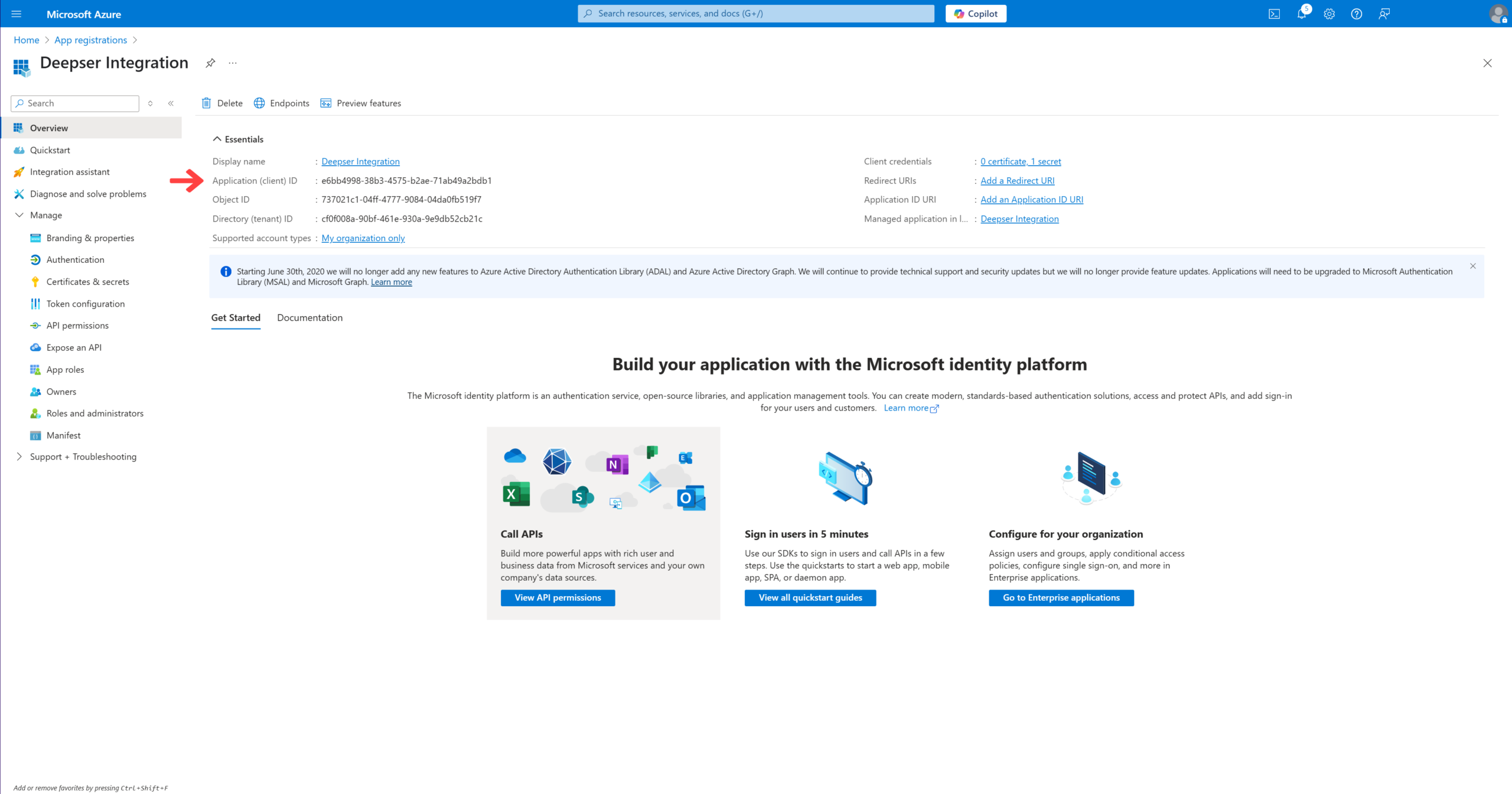
- Tenant ID: Copy from Azure in the Overview > Directory (tenant) ID section.
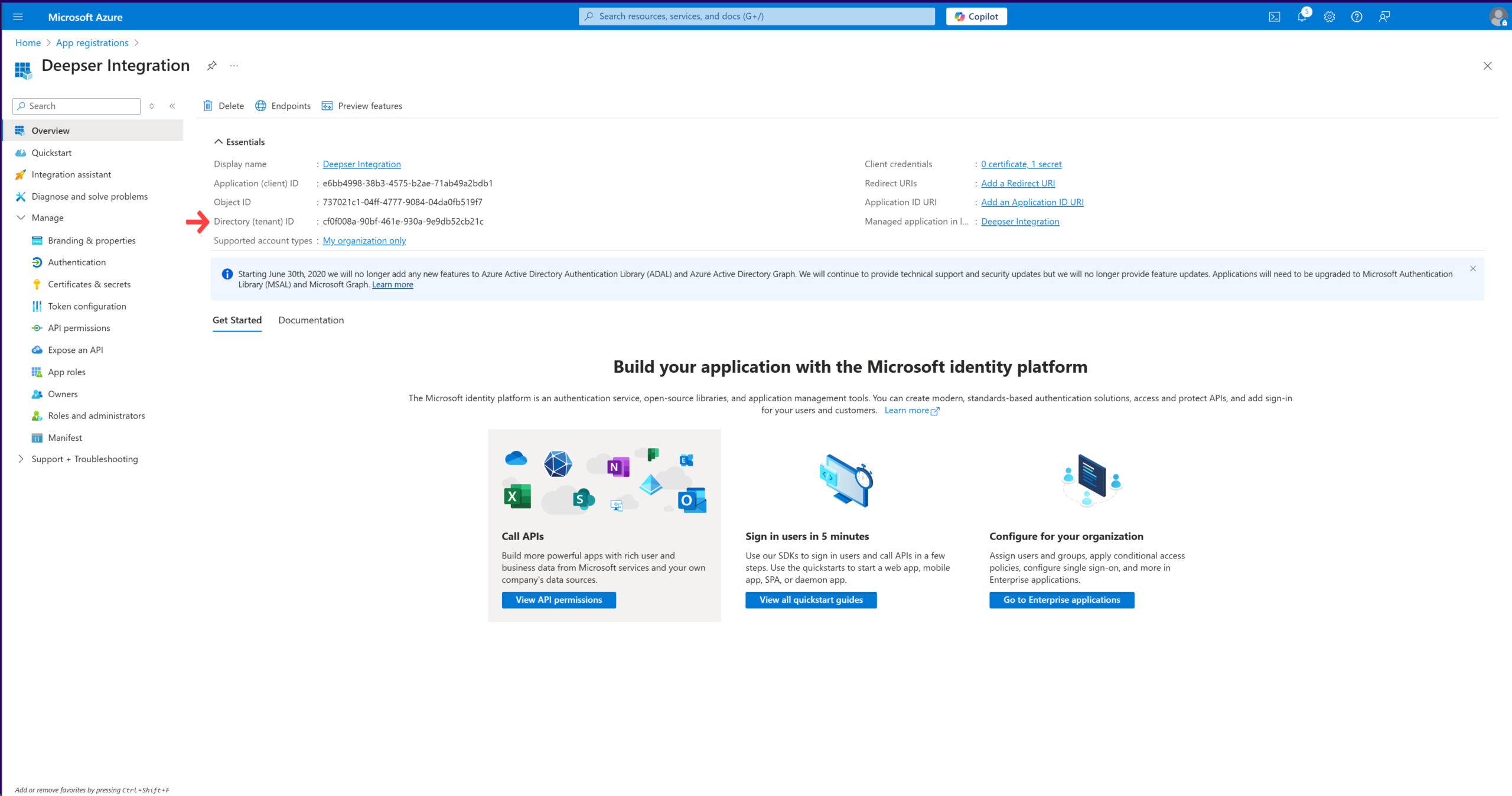
- Client ID: Copy from Azure in the Overview > Application (client) ID section.
- Client Secret: The client secret VALUE you copied previously.
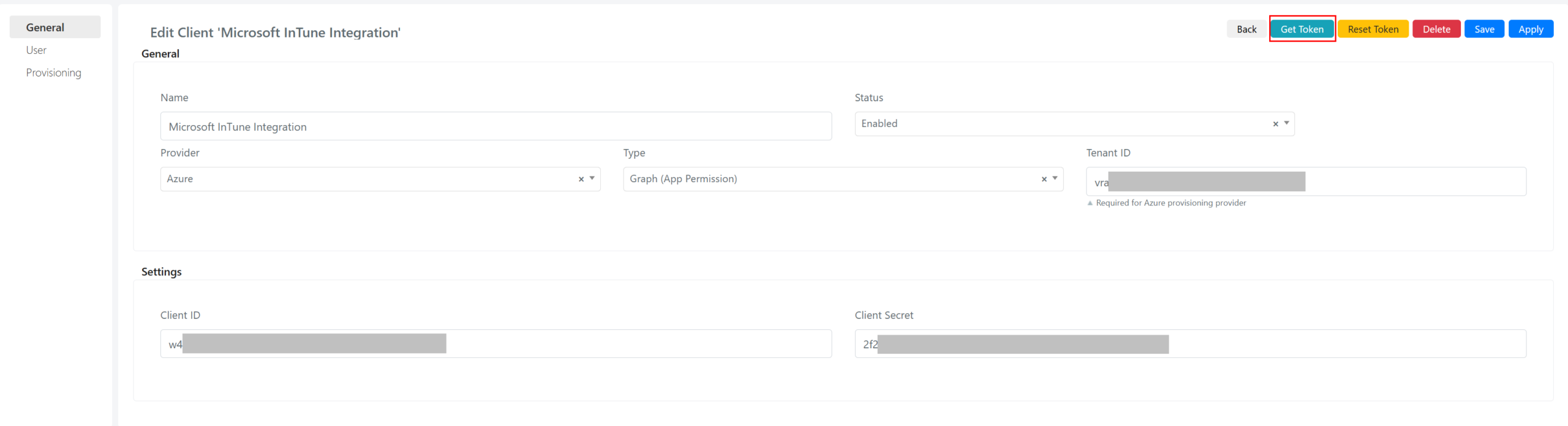
Once all fields have been set, select 'Apply' to save your data.
If everything has been configured correctly, clicking the Get Token button will return the first Access Token.
The Intune OAuth Client is now correctly configured and ready to be used within a Connection. You are now ready to use this connection within the actions of the Microsoft Intune entity download flow.
Get Device Categories
To retrieve and create/update Device Categories on Deepser, you use a flow with a configured cron trigger.
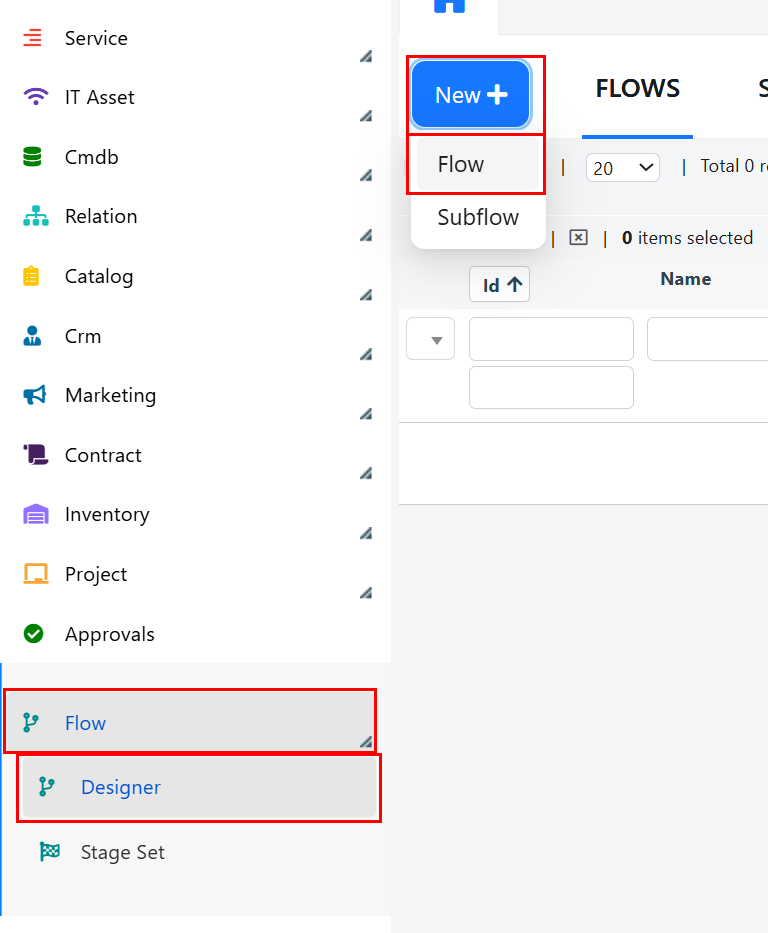
Go to Flow > Designer from the Deepser Backend menu, click the New button and select Flow.
Give the flow a name and click Save.
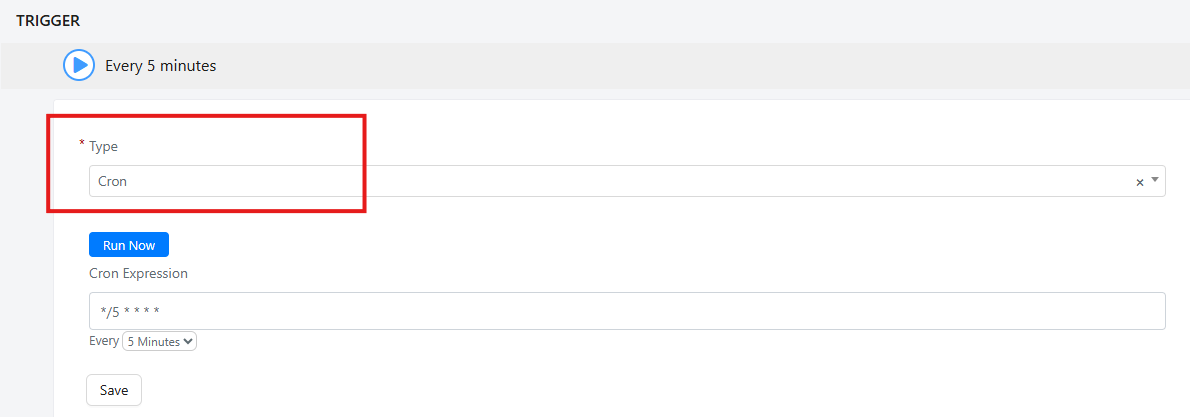
As the flow trigger, set 'Cron' and configure a time value. This value determines how often Device Categories and Devices will be created and/or updated on Deepser.
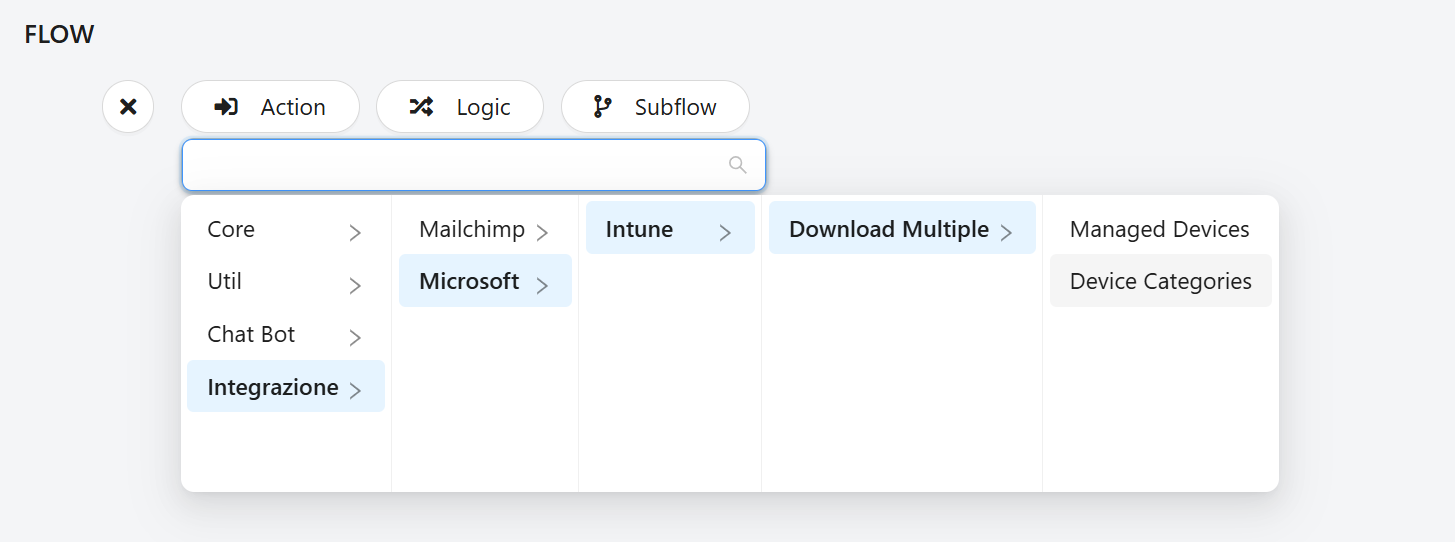
In Flow, click + to add a new node to the flow, then Action.
In the drop-down menu, select Integration > Microsoft > Intune > Download Multiple > Device Categories
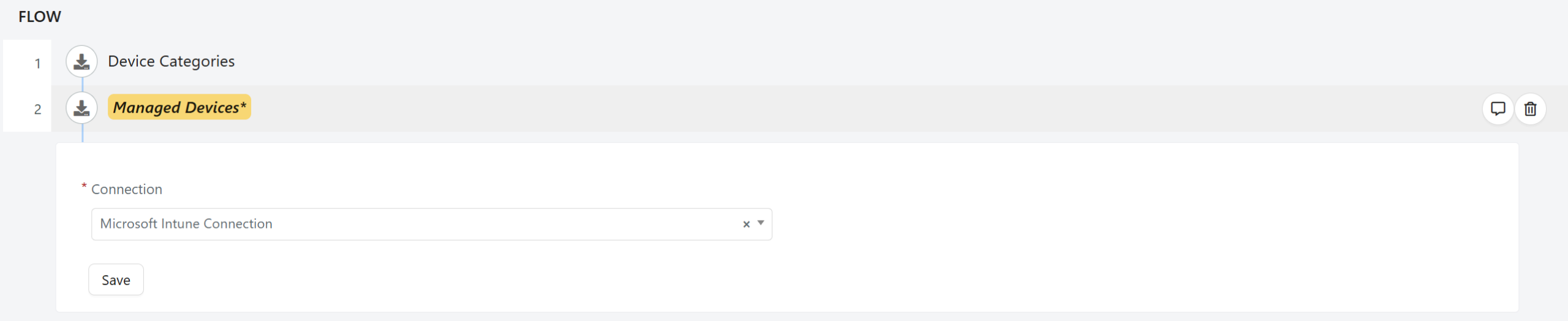
Once the action has been added, select the previously configured Intune connection and click 'Save'.

Once the categories have been retrieved, you can proceed with retrieving all Devices.
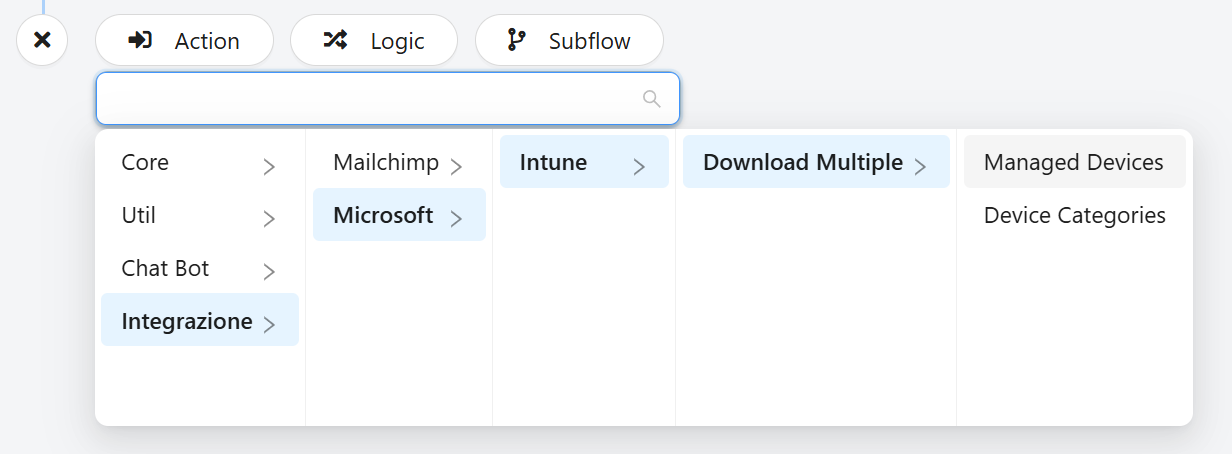
In the drop-down menu, select Integration > Microsoft > Intune > Download Multiple > Managed Devices
Once the action has been added, select the previously configured Intune connection and click 'Save'.
After configuring the flow, you must enable it.
