Configure SSO in Deepser
SSO (Single Sign-On) is the technology that allows you to use delegated authentication to access Deepser. You can configure SSO using Google or Azure as preconfigured providers, or set up other providers using the Client OAuth configurations. This guide covers creating an OAuth client, configuring user mappings, and setting up provisioning.
Configure SSO
To configure a new SSO integration, follow these steps:
-
Go to System > Tools > OAuth > Client.
-
Click on the Add Client button.
-
Assign a name to the client and click Save to get the "Redirect URI" that you will need to configure the provider-side SSO.
-
After saving, continue the configuration. The following screen will open:
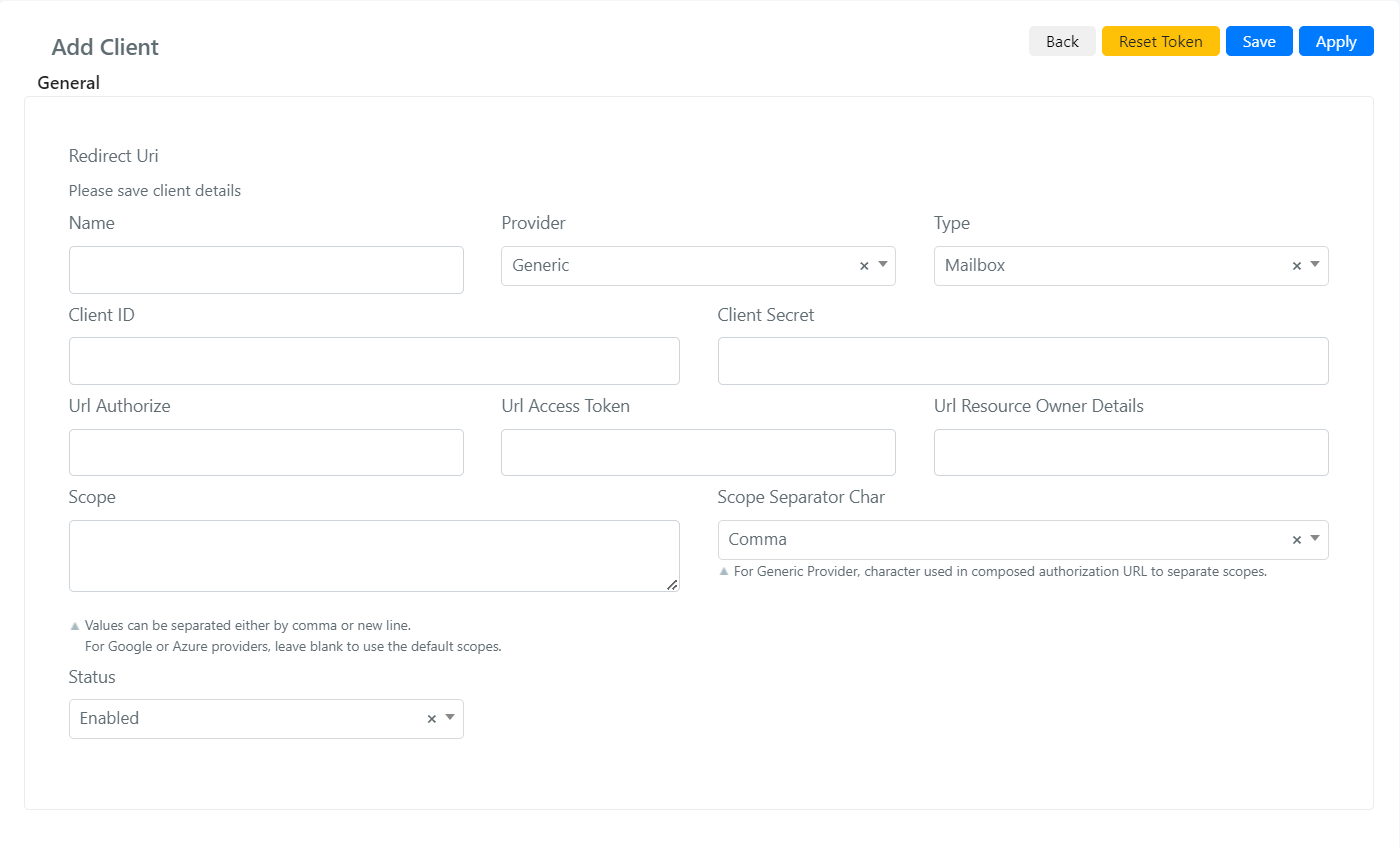
- Fill in the fields described below:
| Field | Description |
|---|---|
| Name | Identification name of the OAuth Client |
| Status | The status of the OAuth Client: enabled or disabled |
| Provider | OAuth provider. This field can take 5 values: Google, Azure, Generic, Datto RMM, NinjaOne. If this field is set to Google or Azure, some fields will be preconfigured. If set to Generic, you will need to manually specify the configuration of those fields. |
| Type | This field contains all the types that a provider can have. The values depend on the selected provider. |
| Tenant ID | Required for Azure provisioning provider |
| Client ID | Enter the client ID provided by the delegated authentication provider. |
| Client Secret | Enter the client secret provided by the delegated authentication provider. |
| Scope | The scopes to which the client will request access to resources. Visible only for the Generic provider. |
| Url Authorize | Authorization URL -- the endpoint to call to obtain authorization. Visible only for the Generic provider. |
| Url Access Token | The base URL to which parameters are added to request the authentication token. Visible only for the Generic provider. |
| Url Resource Owner Details | Base URL of the server responsible for managing resources. Visible only for the Generic provider. |
| Proxy | If set, this proxy will be used to forward requests for delegated authentication. Visible only for the Generic provider. |
| Verify | If you have configured a proxy, you can enable or disable the SSL check. Visible only for the Generic provider. |
| Scope Separator Char | The character the provider uses to separate one scope from another. |
-
Click the Validate button to verify the client.
-
Click Apply.
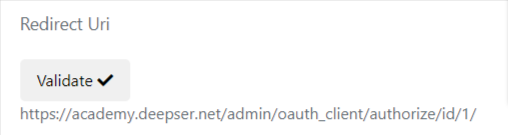
You will be redirected to the login screen of the delegated authentication provider. If everything goes well, you will be redirected to the Deepser OAuth client screen with a success message. In case of errors, the error message will appear at the top of the same page.
User Tab Configurations
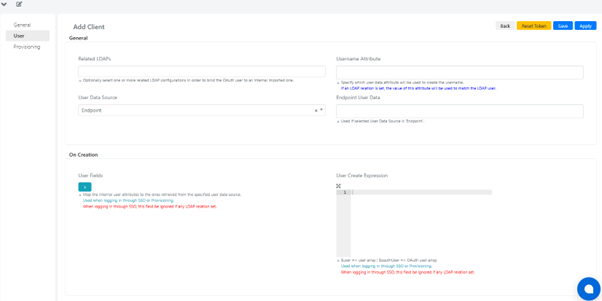
This tab contains the configurations related to users in both the linked provider and in Deepser.
| Field | Description |
|---|---|
| Related LDAPs | You can select one or more options from Public OpenLDAP ForumSys, Public OpenLDAP Debian. |
| Username Attribute | Specify which user data attribute will be used to create the username. |
| User Data Source | Select one of the options: Endpoint or ID Token (JWT). |
| Endpoint User Data | Additional information for the Endpoint user data source. |
| User fields On Creation | A mapping between user fields in Deepser and the related provider. This is used on sign-up with the selected provider or when provisioning a specific user for the first time. |
| User Create Expression | A field that accepts PHP script to map user fields in Deepser to the related provider. This is used on sign-up or first-time provisioning. Default variables are: $user (user array) and $oauthUser (OAuth user array). |
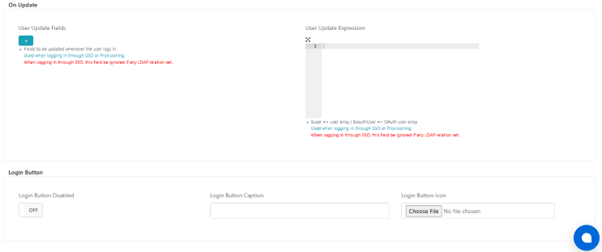
| User fields On Update | A mapping between user fields in Deepser and the related provider. This is used every time a user signs in with the selected provider. |
| User Update Expression | A field that accepts PHP script to map user fields in Deepser to the related provider. This is used every time a user signs in. Default variables are: $user (user array) and $oauthUser (OAuth user array). |
| Login Button Disabled | Hides the login button for the selected provider. |
| Login Button Caption | Changes the text inside the login button. |
| Login Button Icon | Changes the icon inside the login button. |
Configure Provisioning
The Provisioning functionality allows you to automatically create in Deepser the users and groups registered within your Microsoft Azure environment, if they have been enabled for the SSO application. Instead of being created or updated only at each login, you can synchronize the users in Azure who need to log into Deepser with the related user records in Deepser.
You can run provisioning once by clicking the "Provision" button (useful for testing), or schedule it to run multiple times a day by configuring a Cron expression.
To configure provisioning in Deepser, in addition to the steps in the "Configure SSO" section, go to the "Provisioning" tab within an Azure SSO client and configure the necessary parameters.
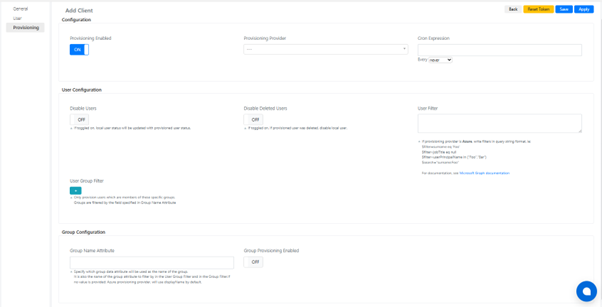
| Field | Description |
|---|---|
| Provisioning enabled | If toggled on, provisioning is enabled |
| Provisioning Provider | If "Azure" is selected, some fields will be available |
| Cron Expression | If "Azure" is selected, some specific fields will appear and others will become required |
| User Provisioning Mode | Select the way in which users will be synchronized. Required for Azure provisioning provider. |
| Disable Users | If toggled on, local user status will be updated with provisioned user status. |
| Disable Deleted Users | If enabled and the provisioned user has been deleted, does not match the filters, or is removed from the application's assigned users, the corresponding user in Deepser will be disabled. |
| User Filter | If provisioning provider is Azure, write filters in query string format, e.g.: $filter=surname eq 'Foo', $filter=jobTitle eq null, $filter=userPrincipalName in ("Foo","Bar"), $search="surname:Foo". For documentation, see Microsoft Graph documentation. |
| User Group Filter | Only provision users who are members of these specific groups. Groups are filtered by the field specified in Group Name Attribute. |
| Group Name Attribute | Specify which group data attribute will be used as the group name. This is also the attribute used for filtering in the User Group Filter and Group Filter. If no value is provided, Azure provisioning uses displayName by default. |
| Group Provisioning Mode | Select the way in which groups will be synchronized. Required for Azure provisioning provider. |
| Group Provisioning Enabled | If toggled on, groups will also be synchronized. |