Create a Company
Companies in Deepser are a key element for managing user visibility and data access. You can create new companies by navigating to System > Companies. This page explains the available fields and how to configure a new company.
Create a New Company
To create a company, follow these steps:
- Navigate to System > Companies.
- Click the Add Company button to open the creation form.
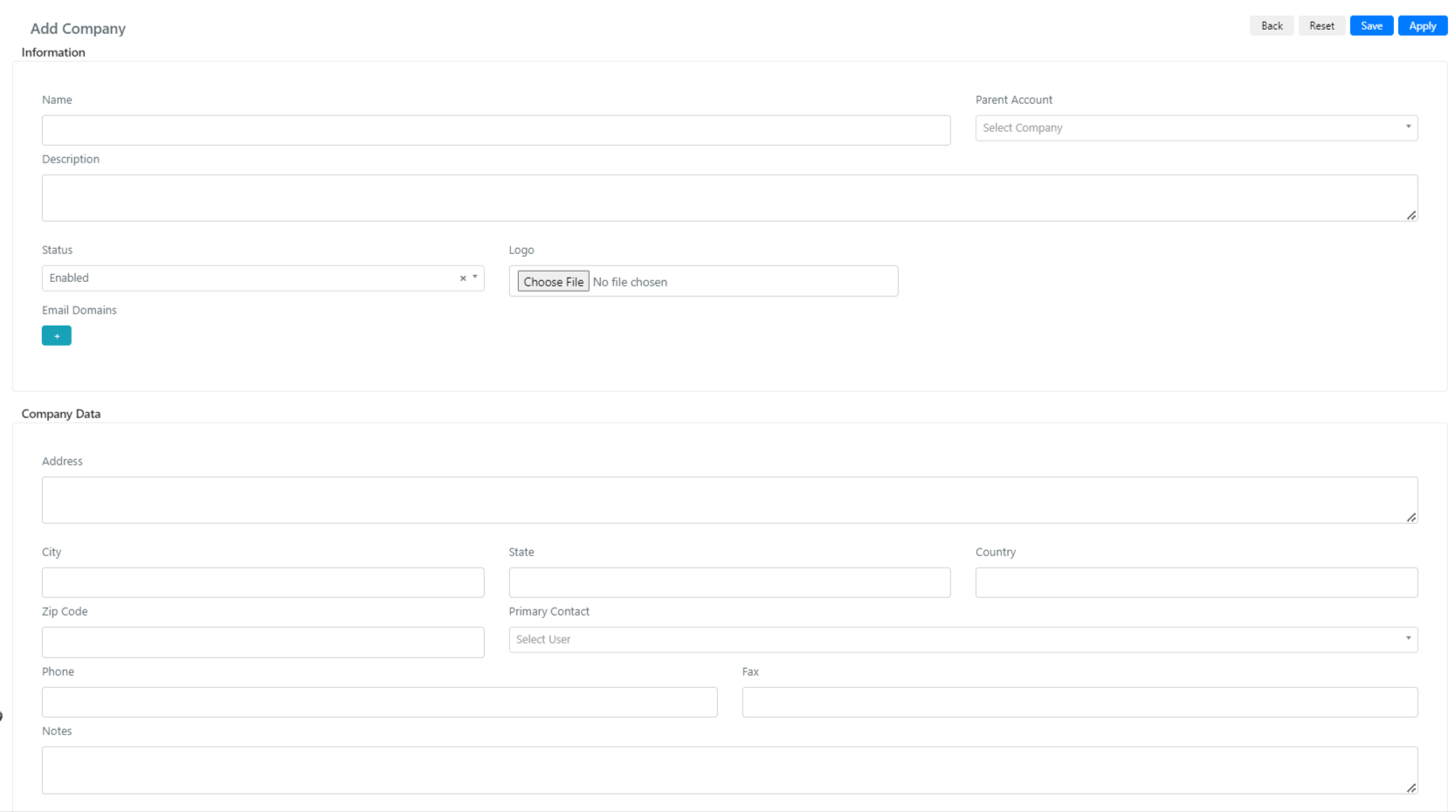
- Fill in the fields described below and click Save or Apply.
Field Descriptions
| Field | Description |
|---|---|
| Parent Account | The parent company. Leave this field empty if the company has no parent. |
| Name | Name of the company |
| Description | Description of the company |
| Phone | Phone number of the company |
| Fax | Fax number of the company |
| Address | Street address of the company |
| City | City of the company |
| State/Province | State or province where the company is located |
| Country | Country of the company |
| Zip Code | Postal code of the company |
| Notes | Additional notes about the company |
| Email Domains | Email domains associated with the company. You can associate one or more email domains so that when an email is received from one of these domains, it is automatically linked to the correct company. |
| Logo | Logo of the company |
| Primary Contact | The user designated as the primary contact for this company in Deepser |
| Status | Indicates whether the company is active. Inactive companies are not displayed in company selection fields. |
For example, to create a company called "Acme Corp," enter "Acme Corp" in the Name field, set the Status to "Active," and fill in address and contact details as needed. After saving, you can associate users with this company through the user editing screen.