Manage Users in Groups
Groups allow you to organize users for permission management and visibility control. This guide explains how to add users to a group and remove them using the Members tab in the group configuration form.
Add Users to a Group
To add users to a group, follow these steps:
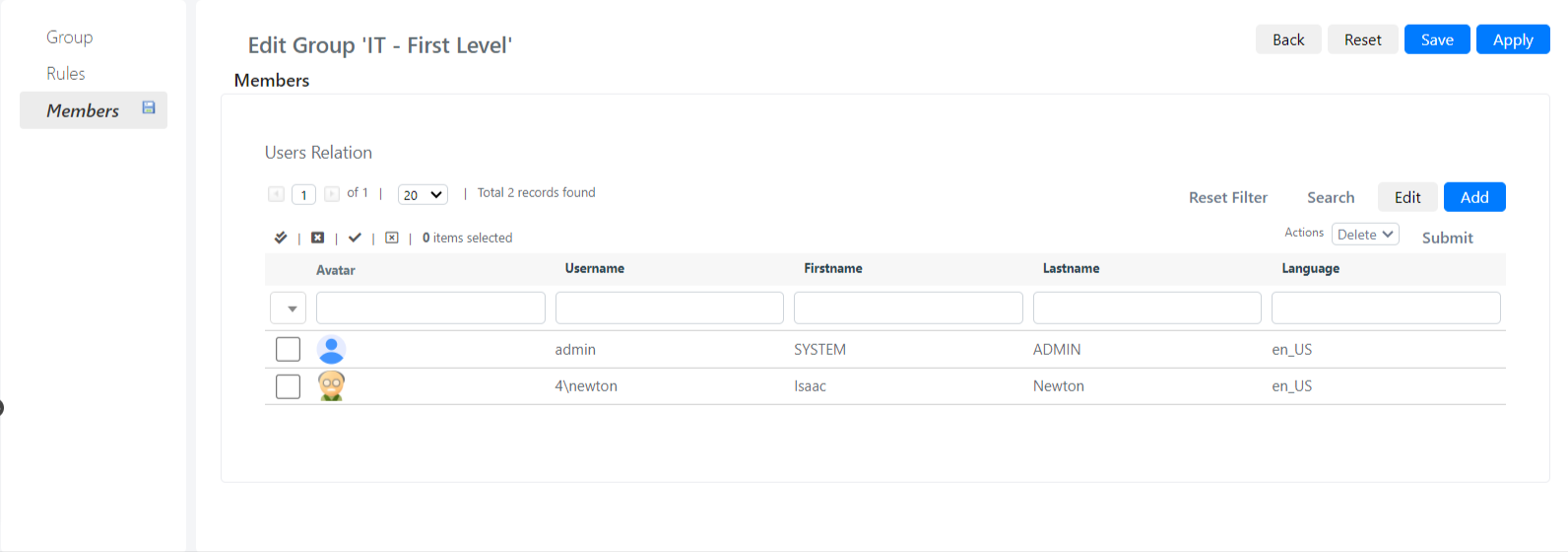
- Open the group you want to modify and click on the Members tab.
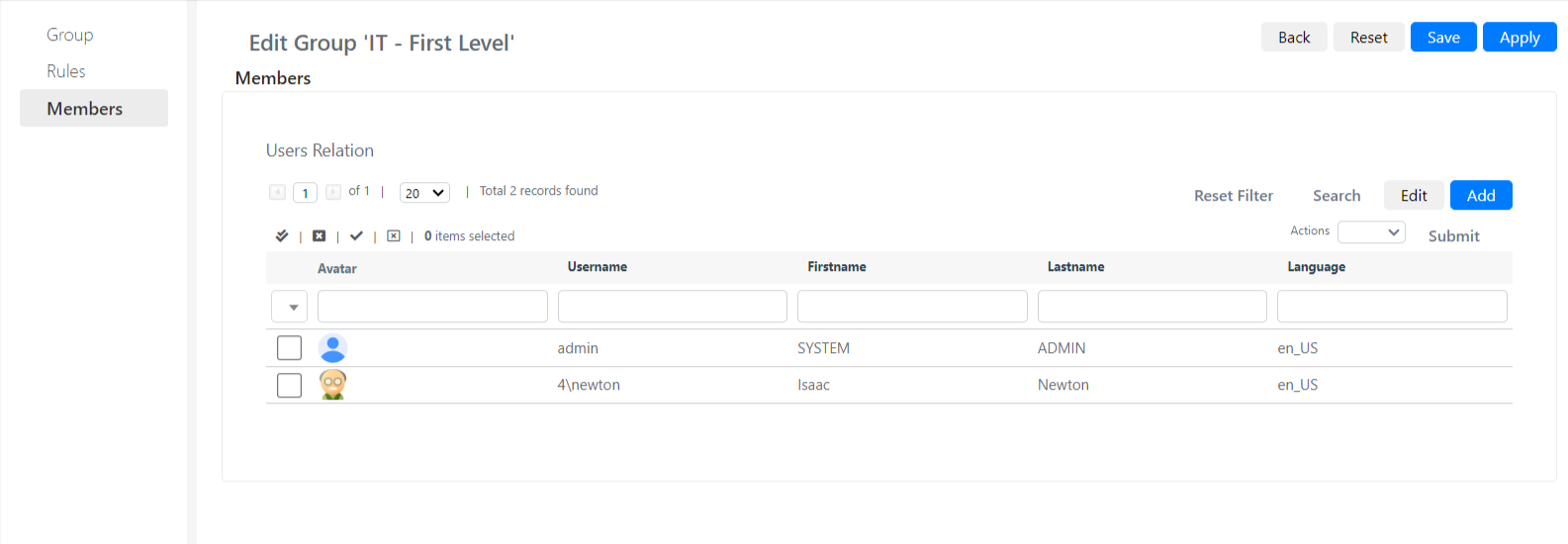
A grid (Relation Grid) will appear, containing all users already present in the group (if the group was just created, it will be empty).
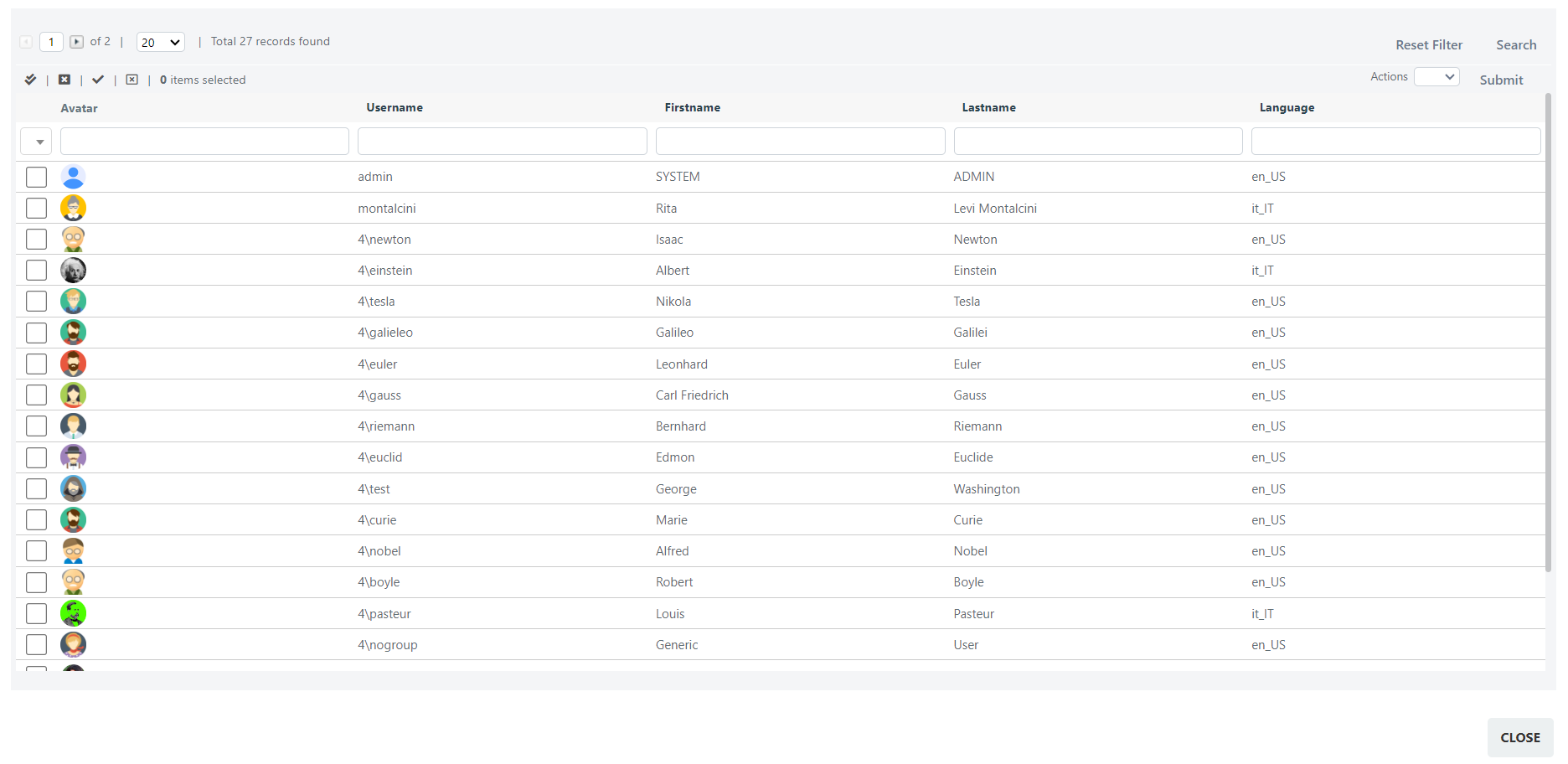
- Click the Add button to open a popup with the list of users in the system.
- Select users using the checkbox on the left.
- Select the Add item in the dropdown at the top right.
- Click the Submit button to confirm the selection.
Remove Users from a Group
To remove users from a group, follow these steps:
- Open the group and click on the Members tab.
A grid (Relation Grid) containing the users in the group will appear.
- Select users using the checkbox on the left.
- Select the Delete item in the dropdown at the top right.
- Click the Submit button to confirm the removal.