Configure Entities Portal Visibility
You can manage the display and configuration of modules on the User Portal from the System > Configuration > Portal Configurations section in the Deepser Backend. This article covers how to configure visibility for each module available on the User Portal.
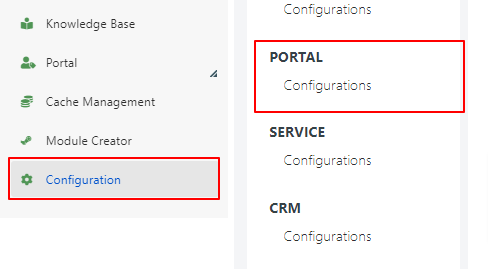
By clicking on Portal Configurations, you can manage the following modules:

Activity -- Worklog Visibility
To configure Activity module visibility on the User Portal, go to System > Configuration > Portal Configurations > Activity.
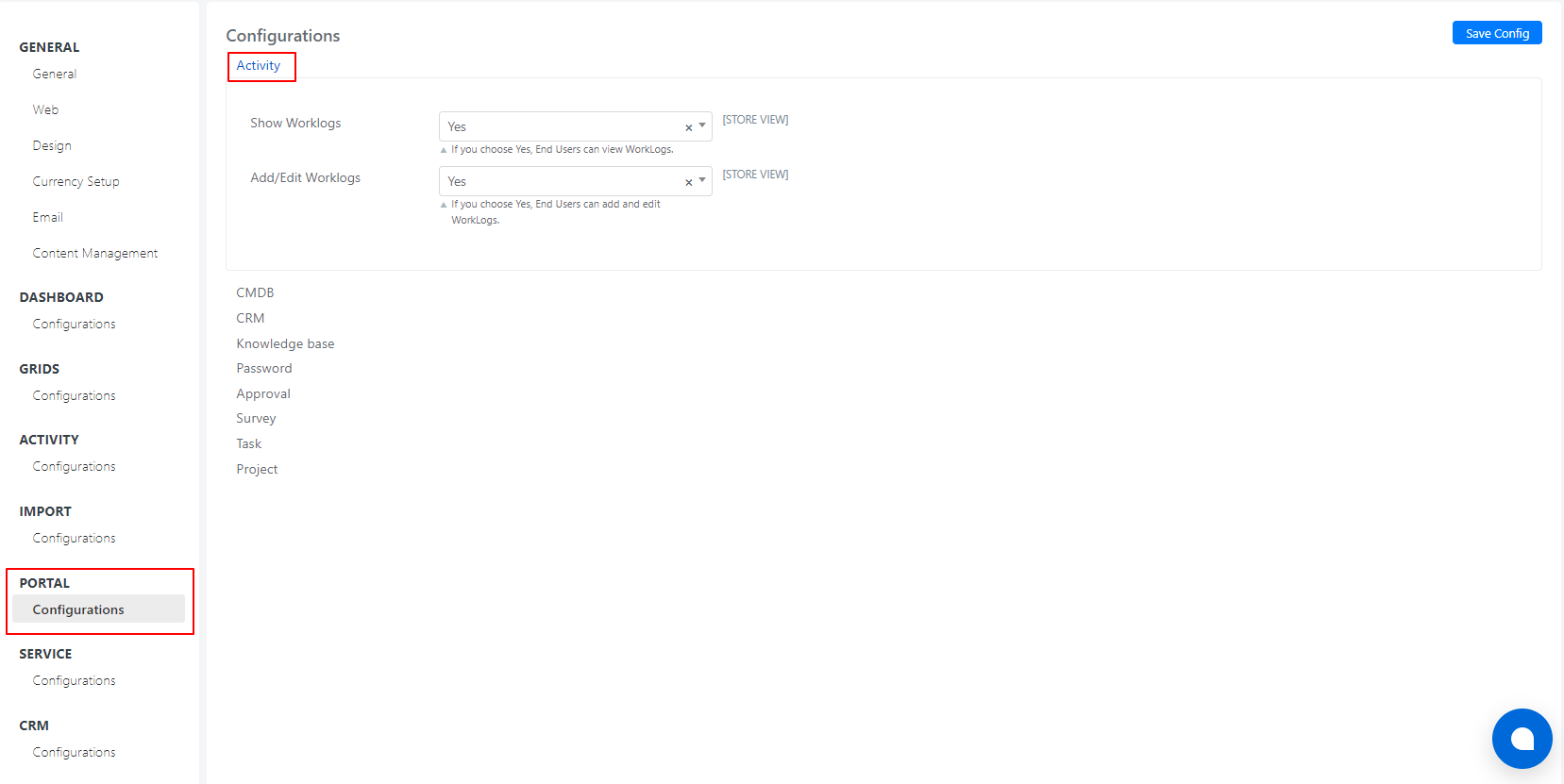
You will find the following configurable fields:
- Show Worklogs: Allows you to display worklog records on the User Portal.
- Add/Edit Worklogs: Allows end users to edit or add new worklogs.
Worklog visibility is based on the entity it relates to. If a user has visibility for a specific entity, they can also see the worklogs if they are added to the form template.
CMDB -- CIs Visibility
To configure CI visibility on the User Portal, go to System > Configuration > Portal Configurations > CMDB.
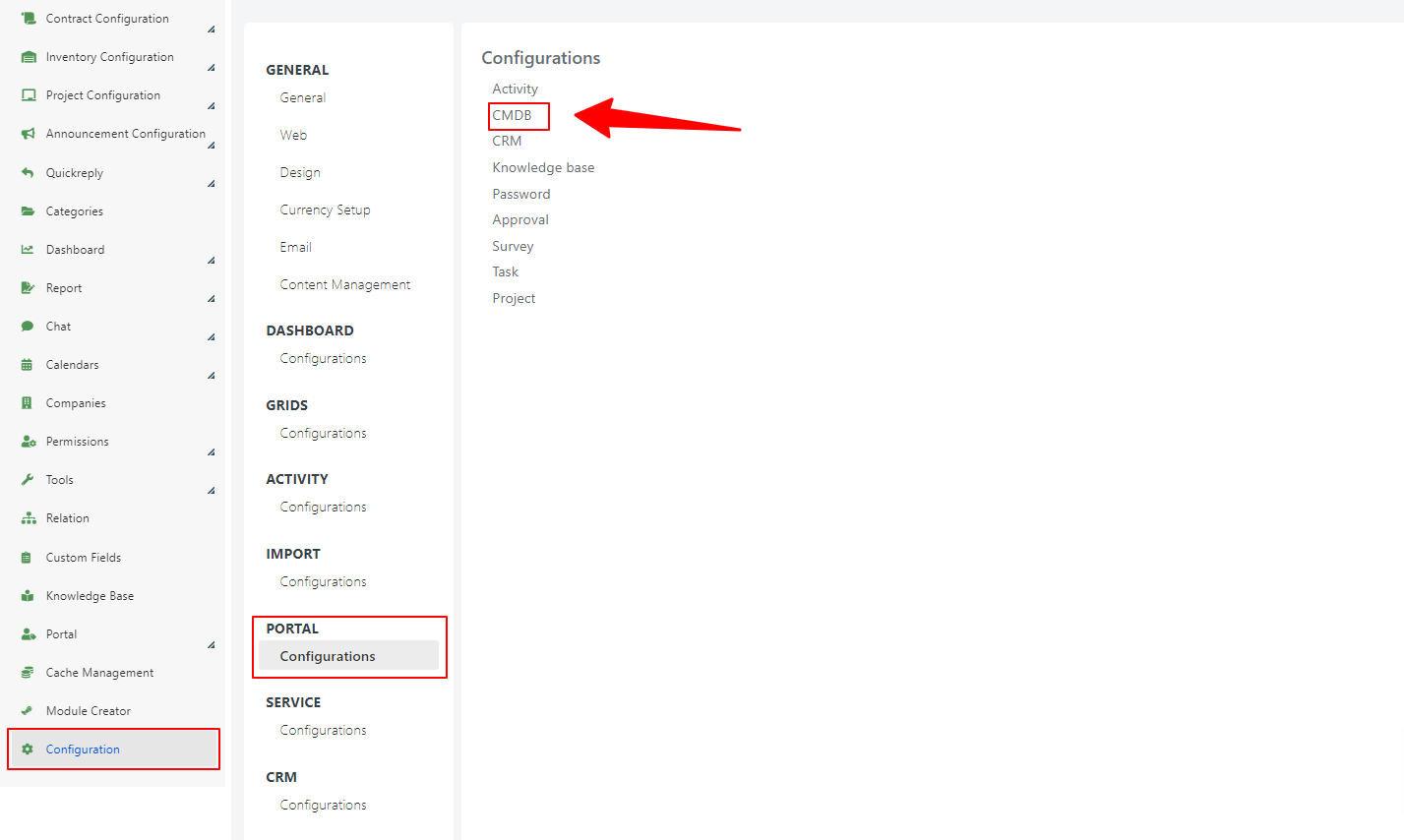
From here you can adjust the configuration:
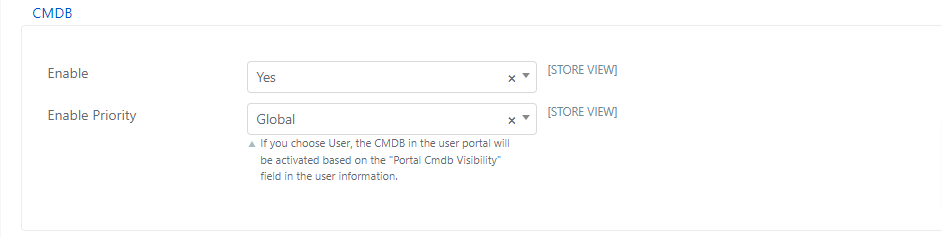
Enable: Allows you to enable or disable CMDB visibility on the User Portal.
Enable Priority: Determines how CI visibility is managed on the User Portal. The selectable values are:
- Global: Displays the CMDB module to all end users without distinction.
- Users: Displays the CMDB module only to end users who have the "Portal CMDB Visibility" field set to "Yes" in their user record (accessible from System > Permissions > Users).
Once the CMDB module display type is enabled and configured, the visibility of individual CI records is managed based on the following fields:
- Owner Company -- if the user's company is the owner company
- Owner Group -- if the user is part of the owner group
- Assigned User -- if the user is the assigned user for that entity
- Status -- if the status of the entity is active
CRM -- CRM Modules Visibility
To configure CRM module visibility on the User Portal, go to System > Configuration > Portal Configurations > CRM.
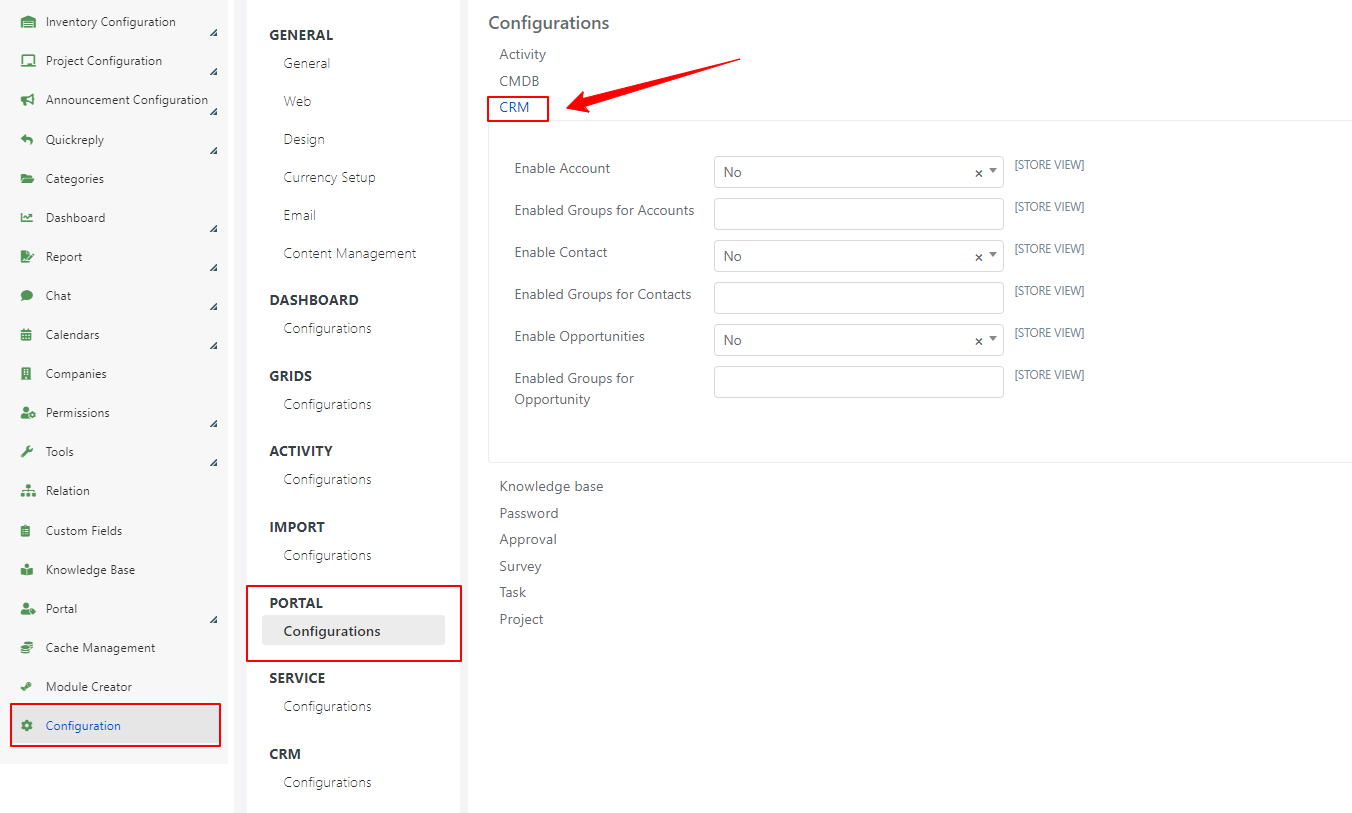
From here you can specify which CRM modules to make visible on the User Portal (Enable Account, Enable Contact, Enable Opportunities fields).
You can also specify which groups can access these modules, or allow all users to access them by selecting All Groups.
Once the CRM section is enabled and configured, individual record visibility is managed according to the "Portal Visibility" field in the reference form. Records are displayed based on the following fields:
- Portal Visibility = Yes
- Linked Company -- if the user's company matches the linked company of the entity
- Parent Company -- if the user's company matches the partner company of the entity
- Owner User -- if the user is the owner of the entity
Knowledge Base Visibility
To configure Knowledge Base visibility on the User Portal, go to System > Configuration > Portal Configurations > Knowledge Base.

Once the KB module view is enabled and configured, individual record visibility is managed according to the "Portal Visibility" and "Kb Group View" fields in the Knowledge Base record configuration:

You can also control the visibility of a single article through the "Portal Visibility" field within the article:
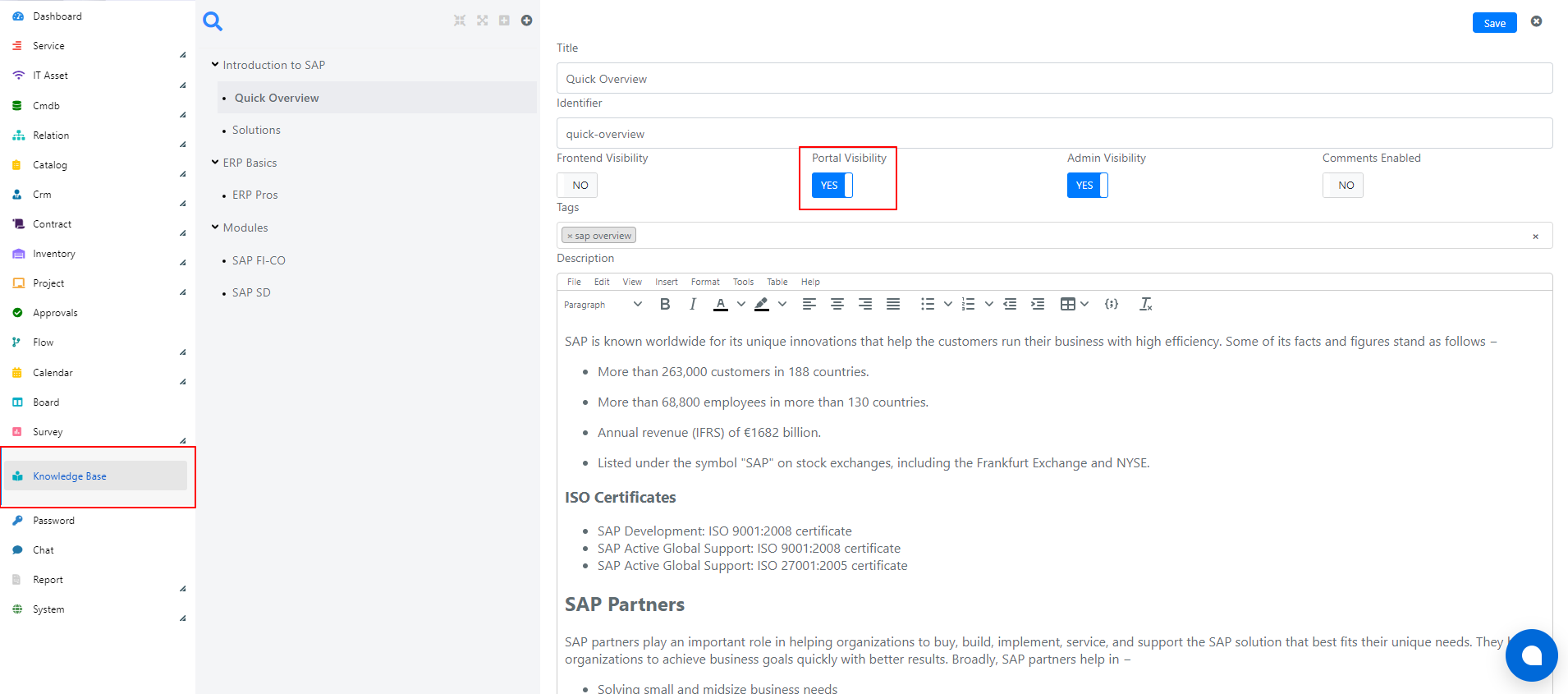
If the "Portal Visibility" field is set to "Yes", the knowledge base or article is displayed on the User Portal.
Password Visibility
To configure Password module visibility on the User Portal, go to System > Configuration > Portal Configurations > Password.
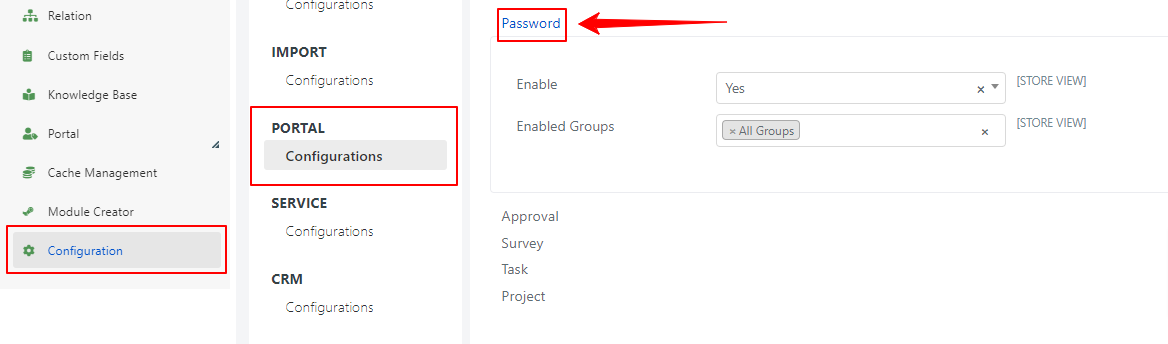
You can enable the Password module on the User Portal through the Enable field.
You can also specify which groups can access these records, or allow all users by selecting All Groups via the Enabled Groups field.
Once the Password module is enabled and configured, individual record visibility is managed based on the following fields:
- View Groups -- if the user is part of the group, they can only see (not edit) the entity
- View and Edit Groups -- if the user is part of the group, they can see and edit the entity
- Use Groups -- if the user is part of the group, they can use the password when provided in other entity fields
- View User -- if the user is selected, they can only see the entity
- View and Edit User -- if the user is selected, they can see and edit the entity
- Use User -- if the user is selected, they can use the password when provided in other entity fields
- Company -- if the user's company is selected, they can see the entity
End users can only save private passwords. Passwords saved from the User Portal are not visible in the Deepser Backend and are available only to the user who created them.
Approval Visibility
To configure Approval visibility on the User Portal, go to System > Configuration > Portal Configurations > Approval.
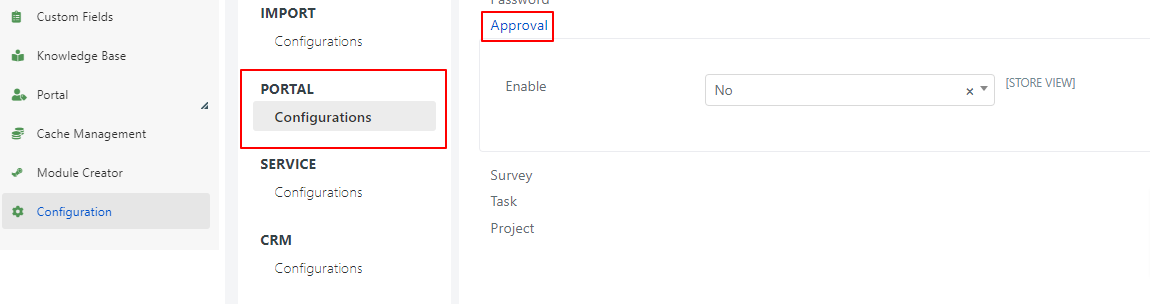
The Enable field controls whether portal-side approvals are available.
Using portal-side approvals requires Empowered End User (EEU) licenses. Only EEU users can use the approvals module.
Survey Visibility
To configure Survey visibility on the User Portal, go to System > Configuration > Portal Configurations > Survey.
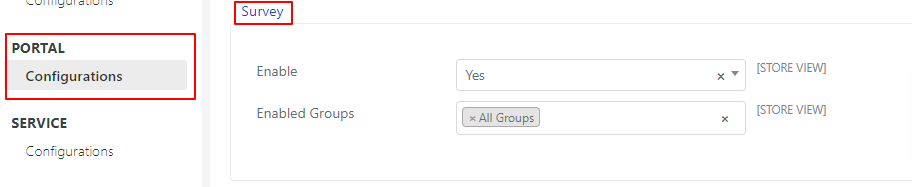
You will find the following configurable fields:
- Enable: Allows you to display survey records on the User Portal.
- Enabled Groups: If the module is enabled, you can restrict survey visibility to selected groups (or allow all users by selecting All Groups).
The visibility of a single survey on the User Portal is managed based on the "Users" and "Groups" fields within the survey record.
Task Visibility
To configure Task visibility on the User Portal, go to System > Configuration > Portal Configurations > Tasks.

You will find the following configurable fields:
- Enable: Allows you to display task records on the User Portal.
- Enabled Groups: If the module is enabled, you can restrict task visibility to selected groups (or allow all users by selecting All Groups).
Task visibility is based on the Portal Visibility field within the task, which must be set to "Yes" to make the task visible on the portal. The Assigned User and Assigned Groups fields determine which users can see the task.
Project Visibility
To configure project task visibility on the User Portal, go to System > Configuration > Portal Configurations > Project.
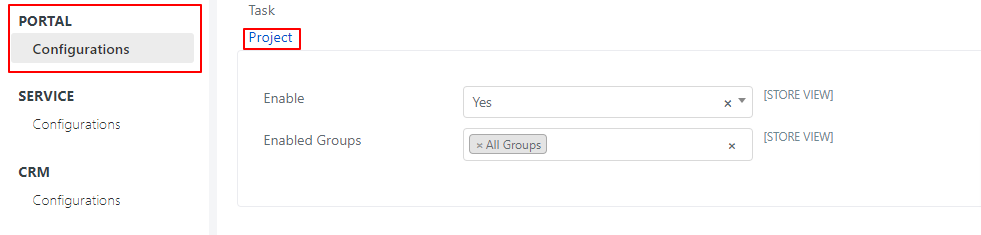
You will find the following configurable fields:
- Enable: Allows you to display project task records on the User Portal.
- Enabled Groups: If the module is enabled, you can restrict task visibility to selected groups (or allow all users by selecting All Groups).
Task visibility is based on the Portal Visibility field within the task, which must be set to "Yes" to make the task visible on the portal. The Assigned User and Assigned Groups fields determine which users can see the task.