Reset or Change a User Password
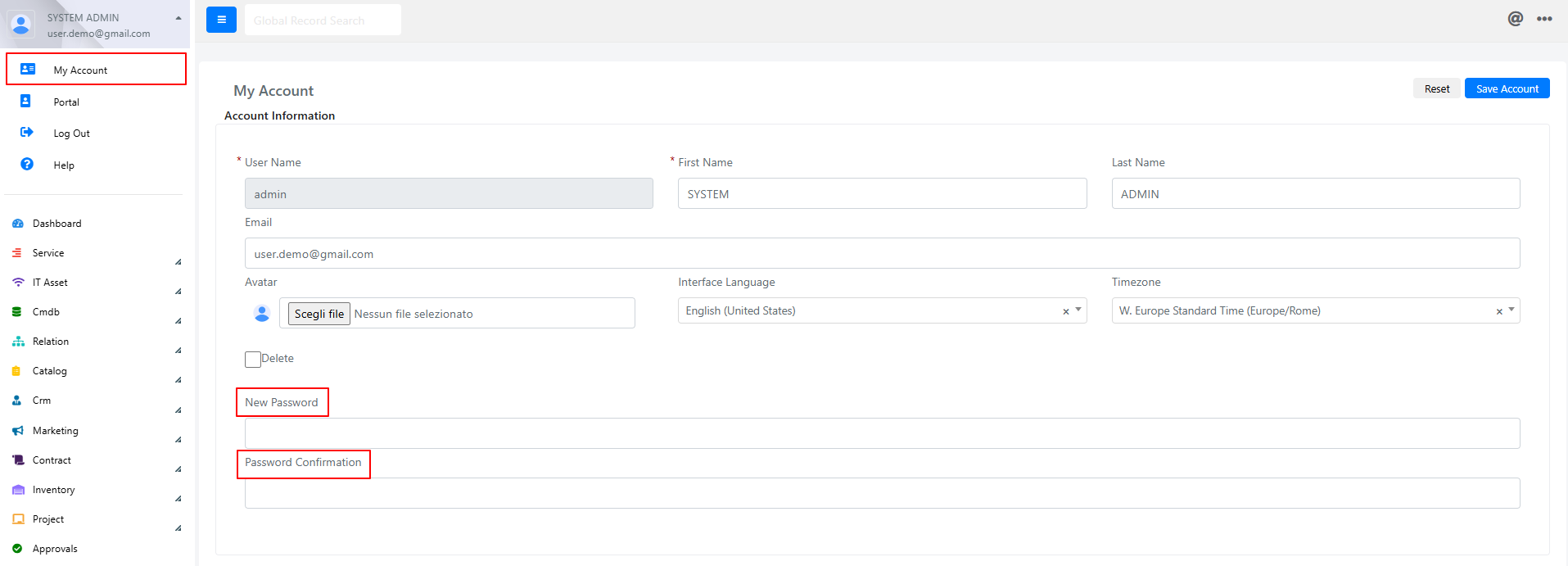
Deepser provides several ways to reset or change passwords. Administrators can update passwords for any user, while end users can reset forgotten passwords or change their own through the My Account section.
Change a User Password as an Administrator
To update a user account password as an administrator, follow these steps:
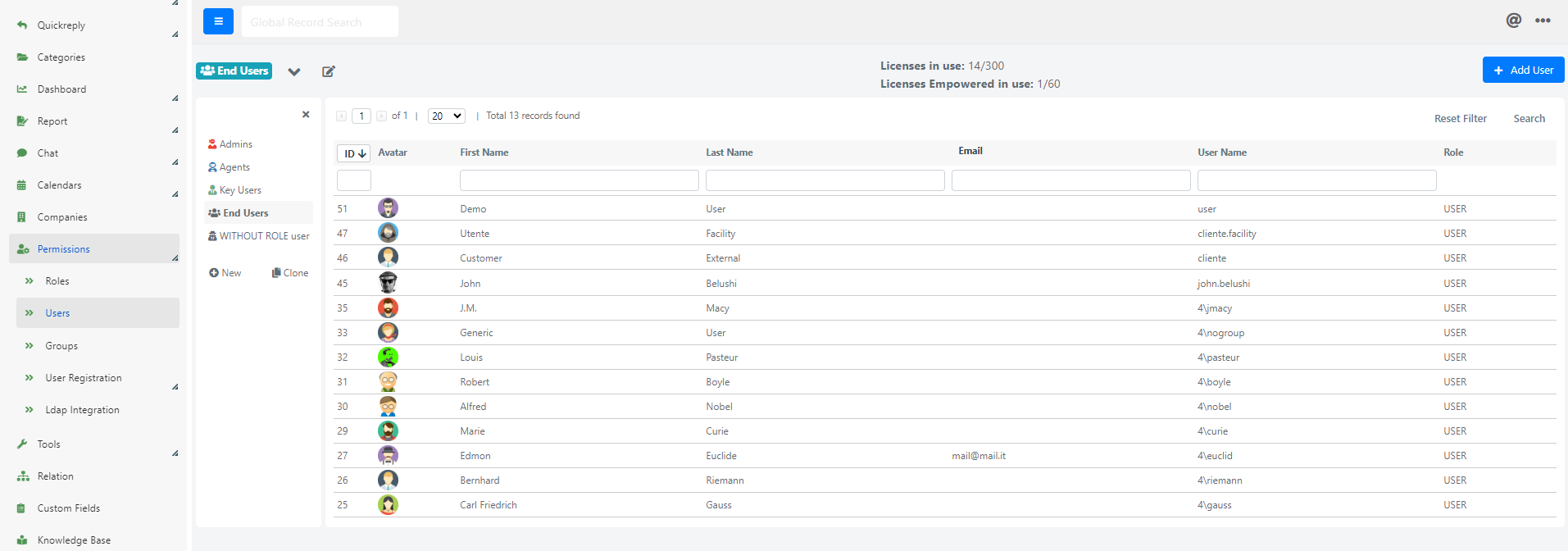
- Navigate to System > Permissions > Users.
-
Select the user whose password you want to change.
-
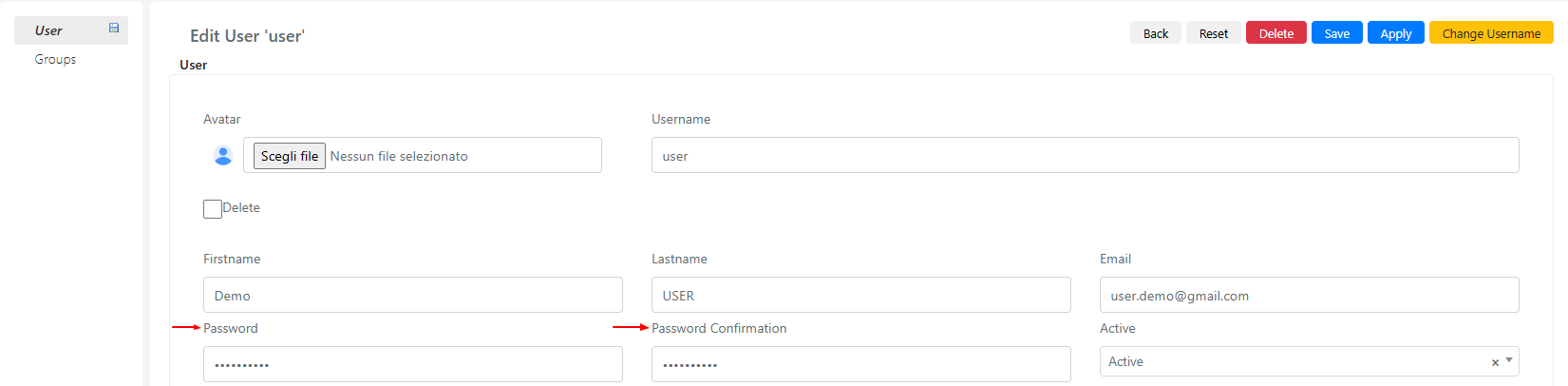
In the user details view:
- Enter the new password in the Password field.
- Confirm the new password in the Confirm Password field.
- Click Save to apply the changes.
Reset a Forgotten Password
If a user forgets their password, they can reset it by following these steps:
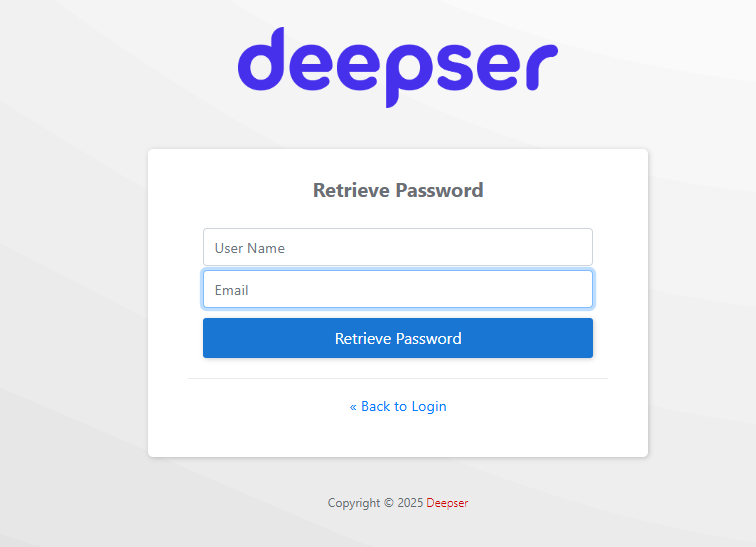
- On the login screen, click "Forgot your password?"
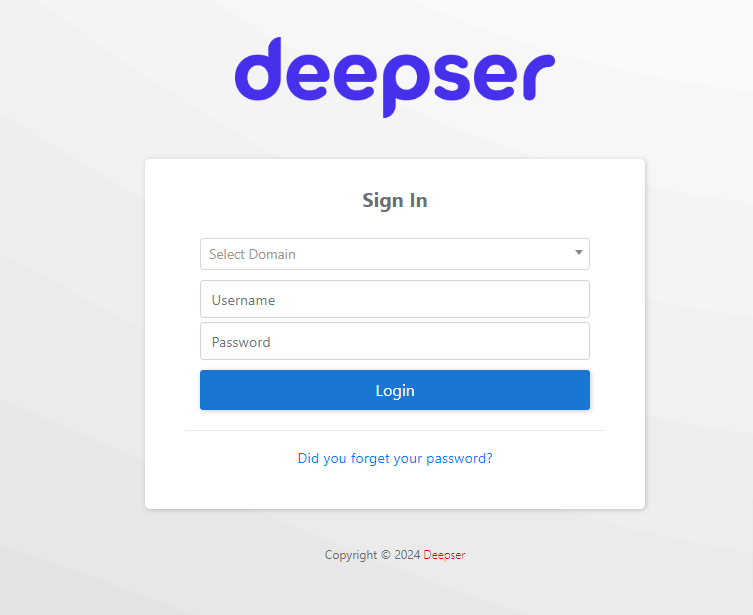
- You will be redirected to a dedicated password reset page.
-
Fill in the required fields:
- Username
- Email address associated with the account
-
Click Retrieve Password.
-
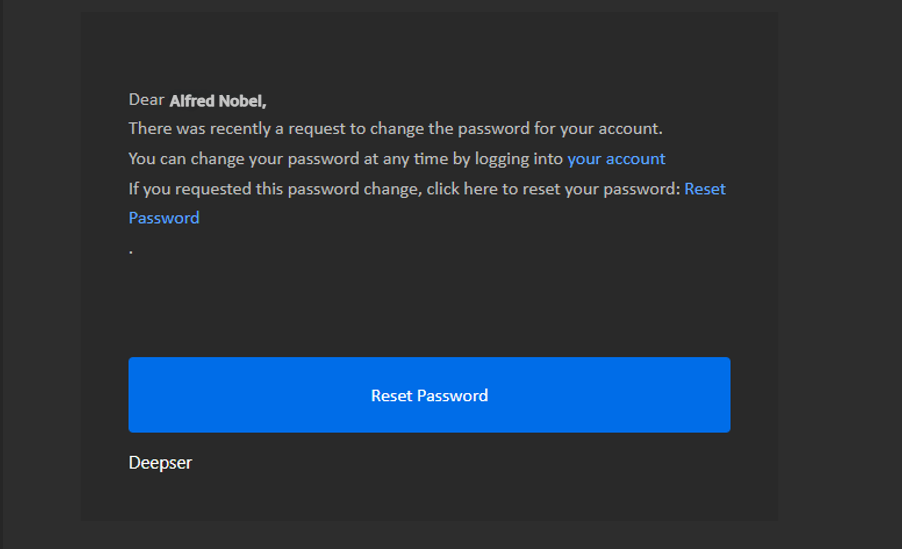
Open the link received via email to access the password reset screen.
- Set a new password that meets the following requirements:
- Minimum of 7 characters
- Must contain at least one letter and one number
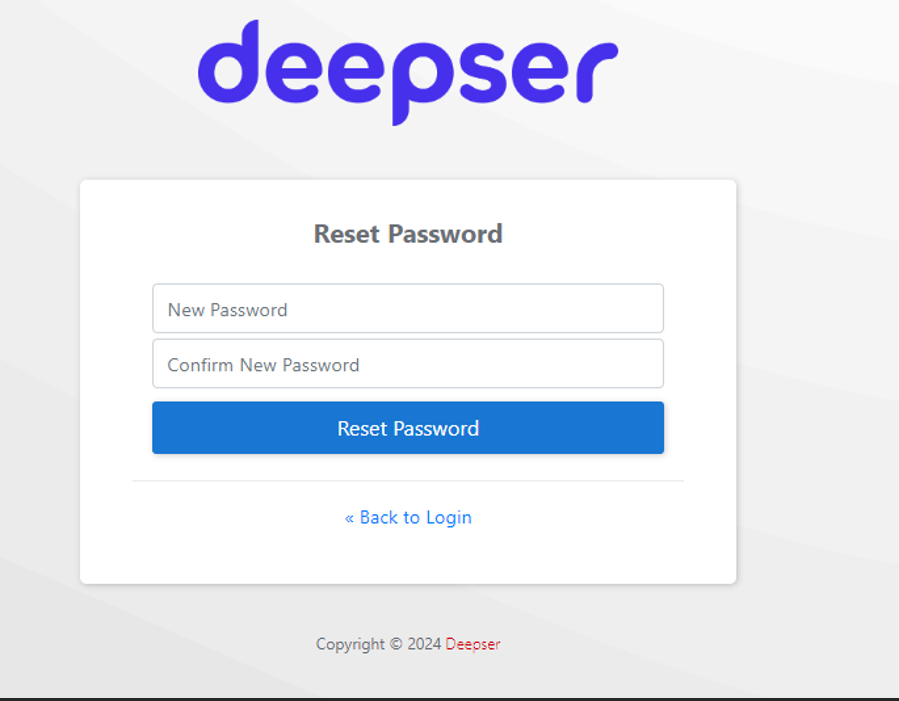
- Click Reset Password. You will be redirected to the login page.
Change a Password via My Account
Configuration by the Administrator
To allow users to independently change their own passwords:
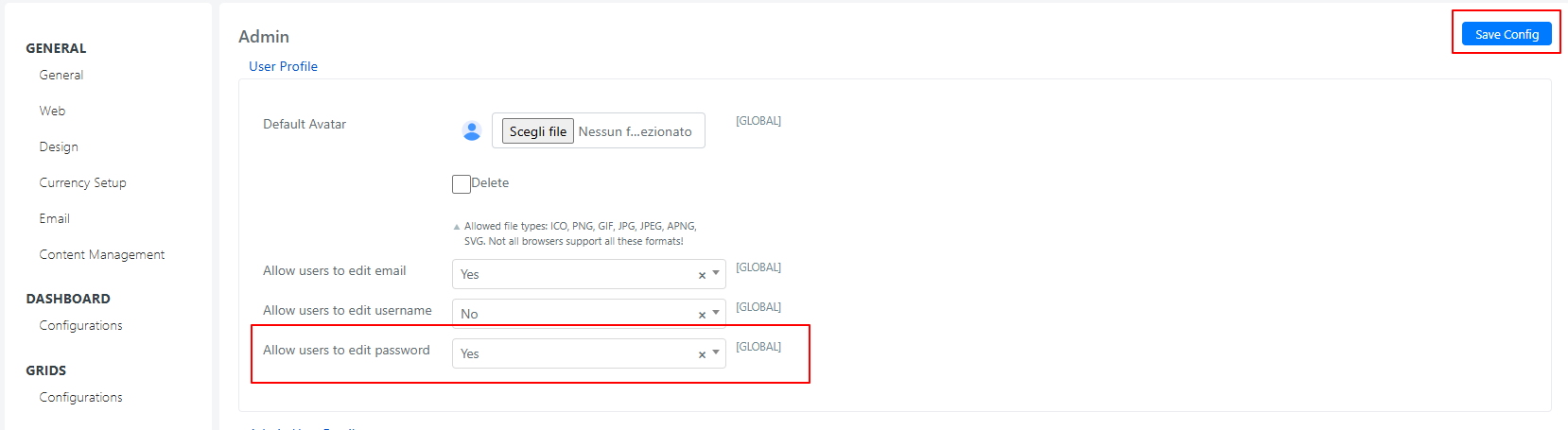
- Navigate to Configuration > Advanced > Admin.
- Set the "Allow users to edit password" field to Yes.
- Click Save Config to apply the changes.
Once enabled, each user can update their password independently.
Procedure for Users
After the administrator enables the option, users can:
- Access the My Account section.
- Fill in the following fields:
- New Password
- Confirm Password
- Click Save to apply the changes.