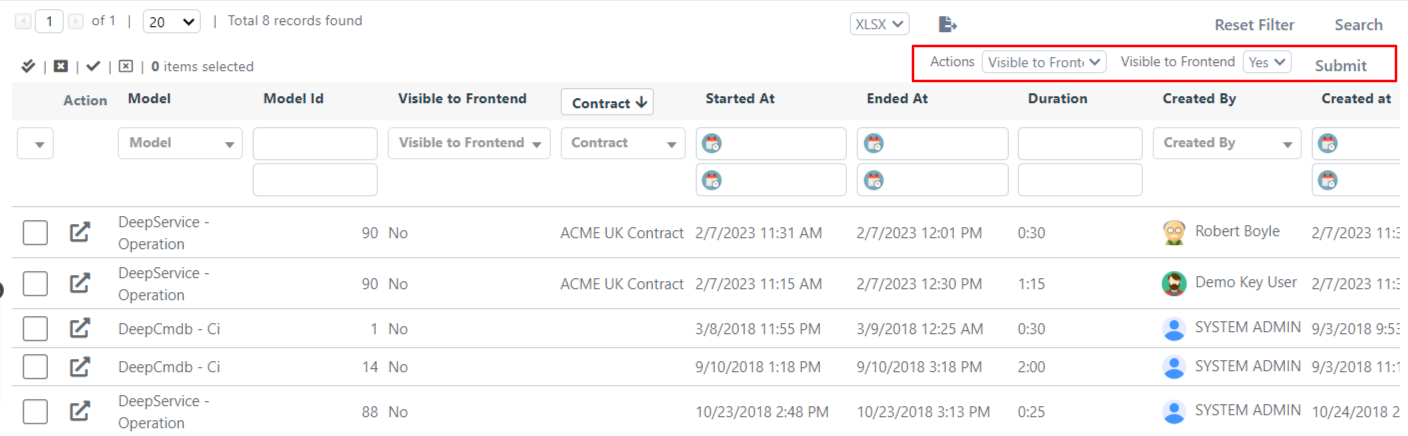
Configure the Activity Global Grid
This guide covers advanced configuration options for the Activity Global Grid, including how to display entity names instead of IDs and how to create custom mass actions.
Display the Title of an Associated Entity
Some fields in work activities contain useful information worth displaying in the grid, but they require a brief configuration to become usable. For example, if you make Contract or Contract Line fields visible in the grid, the grid will display numeric IDs rather than names by default.
To display the name of the contract associated with a work activity:
- Go to the grid modification view and make the Contract column visible.
- Click on the field you just made visible and change its type from Text to Options.
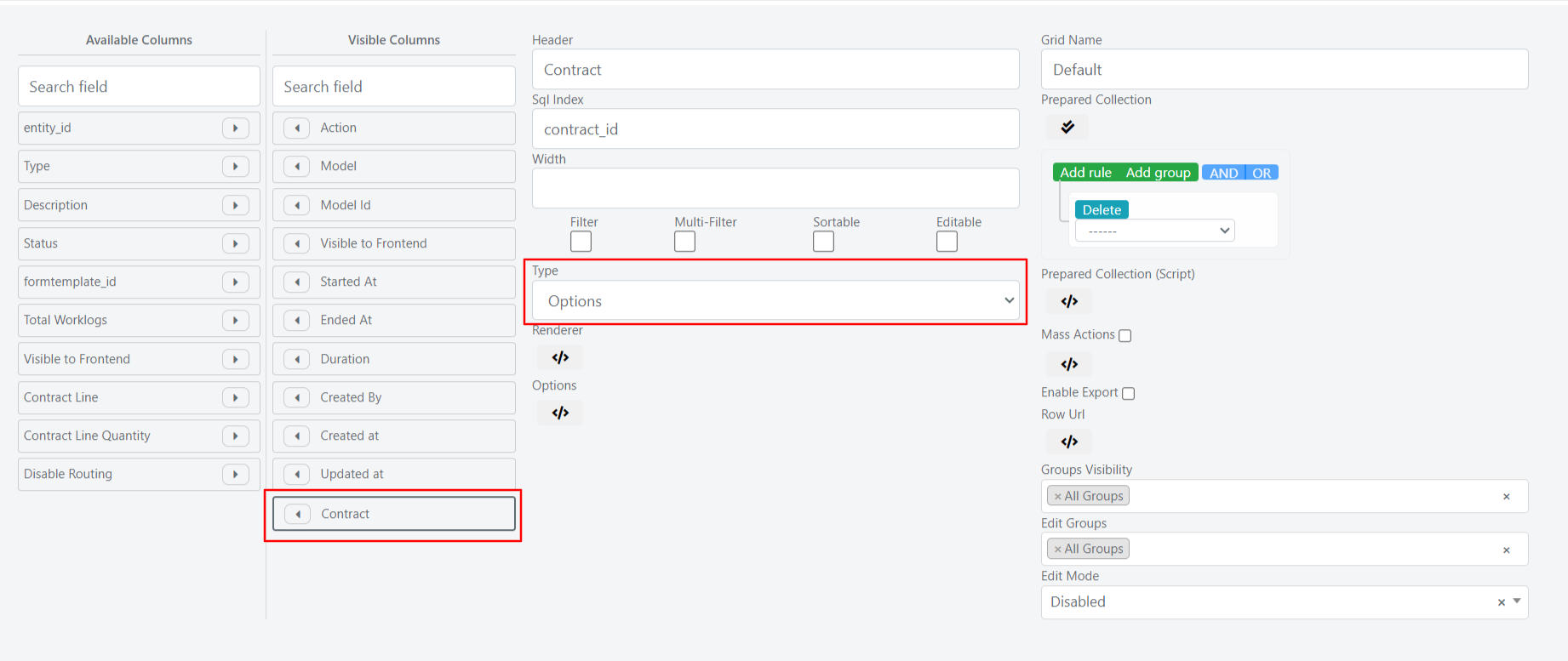
- Press the </> button to open the custom PHP code area. In the Options field, enter the following code:
					// retreive of the Contract collection
$contractCollection = Deep::getResourceModel('deep_contract/contract_collection');
// convert the collection into an associative array
// the key is the Contract Id and the value the Contract Name
$optionsArray = $contractCollection->toOptionHash();
return $optionsArray;
Similarly, to view the name of the Contract Line associated with a work activity, make the Contract Line field visible, change its type to Options, and enter the following code in the Options field:
					// retreive of the Contract Line collection
$lineCollection = Deep::getResourceModel('deep_contract/line_collection');
// convert the collection into an associative array
// the key is the Contract Line Id and the value the Contract Line Name
$optionsArray = $lineCollection->toOptionHash();
return $optionsArray;
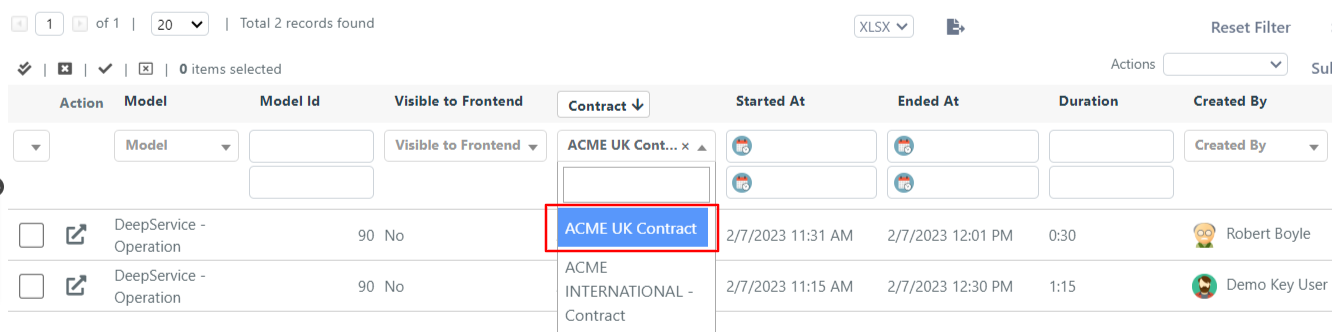
After this configuration, the grid displays the names of Contracts and Contract Lines. You can also make these fields multifilterable and sortable.
Configure Custom Mass Actions
Mass actions allow you to set the same value on multiple activities at once. The only mass action available by default is the physical deletion of one or more activities.
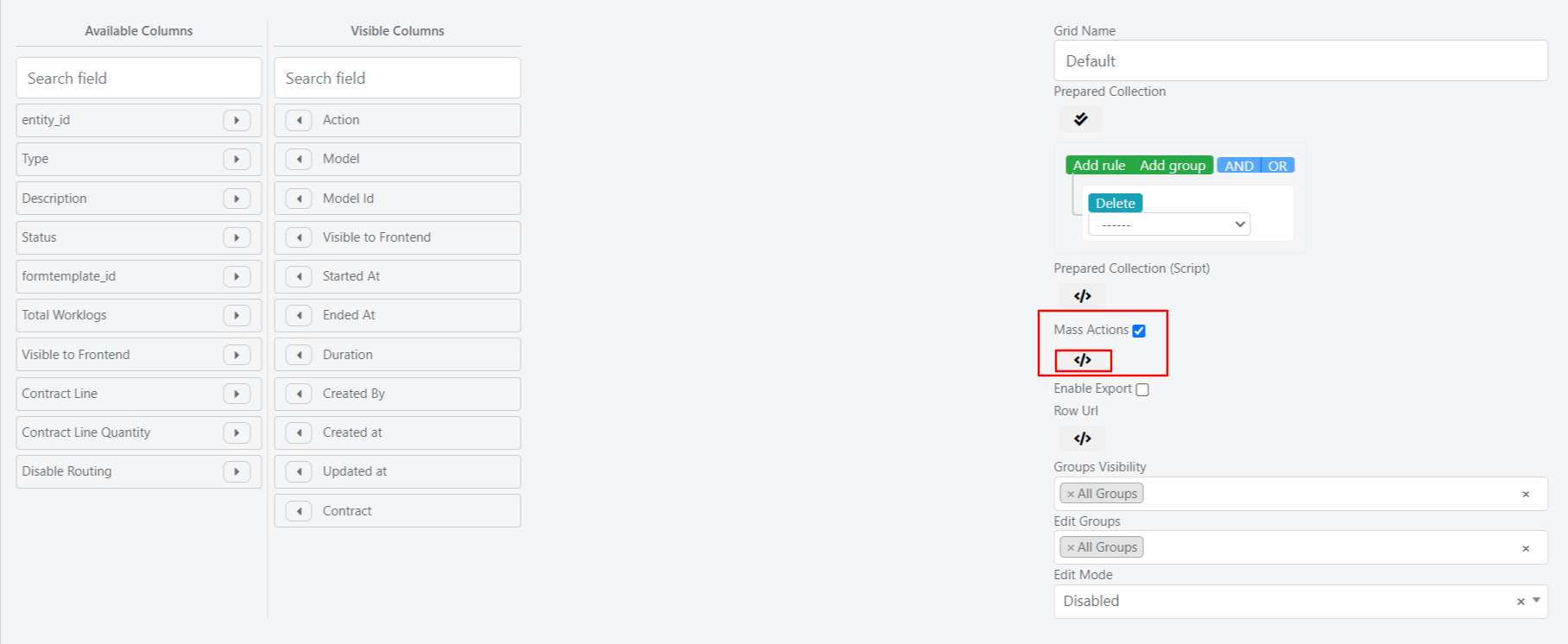
You can configure a custom mass action by accessing the grid modification view. Below the Mass Action checkbox is the </> button that opens the custom PHP script area.
The following example implements a mass action to enable or disable the User Portal visibility of one or more work activities. Insert the code directly into the custom PHP script area:
					// create the array for the option visibility
$visibilityArray = [0 => 'No', 1 => 'Yes'];

// initialize html component
$this->addMassActionItem('visibility', [
    'label' => 'Visible to Frontend',
    'additional' => array(
        'visibility' => array(
            'name'   => 'visibility',
            'type'   => 'select',
            'class'  => 'required-entry',
            'label'  => 'Visible to Frontend',
            'disable_js_select' => true,
            'values' => $visibilityArray,
        )
    ),
    //callback is the method that contains the logic of the action
    'callback' => function() {
        /** @var Deep_Grid_Model_Grid_Massaction_Callback $this */
        /** @var Mage_Core_Model_Resource_Db_Collection_Abstract $collection */
        $collection = $this->getGrid()->getModelInstance()->getCollection();

        //$this->getIds() returns the id of the selected activities
        $collection->addFieldToFilter('entity_id', ['in' => $this->getIds()]);

        // $collection contains the instances of the selected activities and we iterate on them
        foreach($collection as $activity){
            //$this->getValue() contains the id of the new option visibility, the selected one
            //set the new activity visibility
            $activity->setPortalVisibility($this->getValue());
            //save the activity
            $activity->save();
        }
    }
]);
After inserting this script, you can select one or more work activities and decide whether to make them visible in the User Portal.