Add a Comment to a Service Operation
Deepser uses the term Activity to describe actions you can perform on Service Operations. There are two types of activity: Comments and Worklogs, both of which are available -- if configured -- in the Deepser Backend or the User Portal.
Comments are used in Service Operations to connect users and groups related to the Service Operation itself. Through comments, you can communicate updates, share useful information to close the Service Operation, or put end users in contact with Operators.
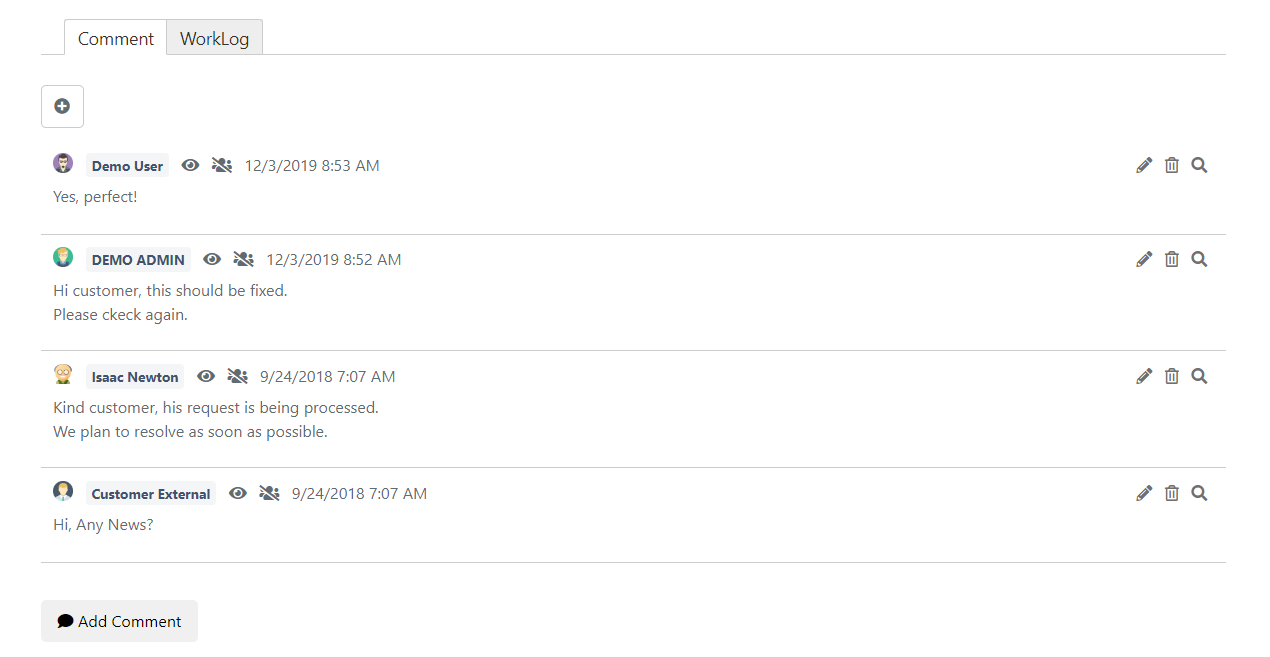
Place a Comment
Step 1 -- Access the Activities Section
You can access the Activities section of a Service Operation through the User Portal or the Deepser Backend, if properly configured.
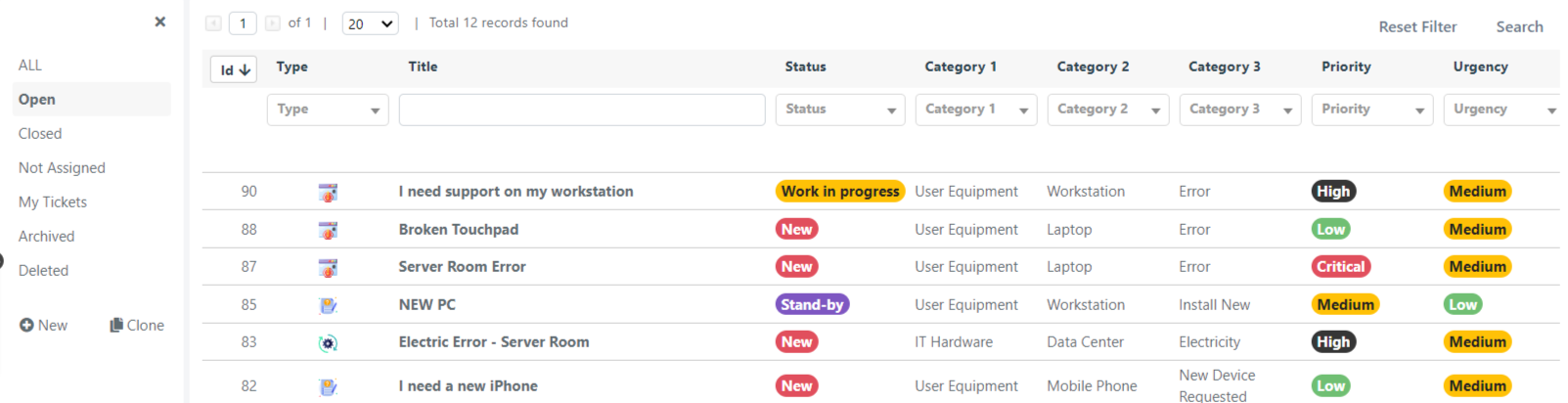
Via the User Portal: Select the Service Operation on which you want to add a comment from the grid.
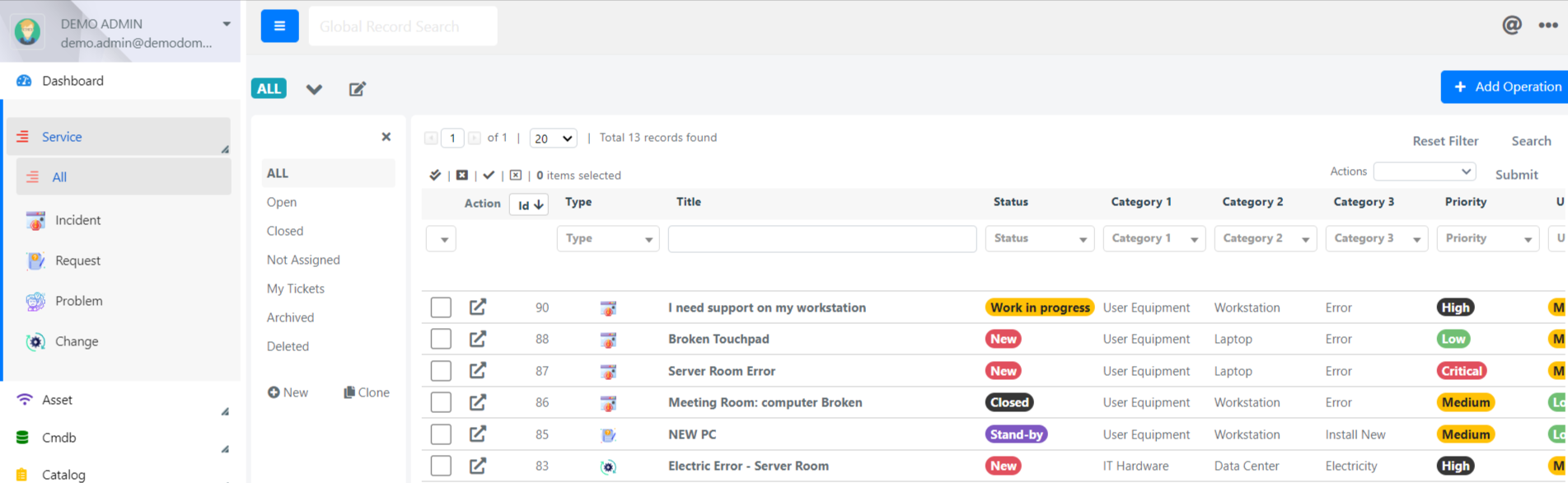
Via the Deepser Backend: Open the Service module through the dropdown menu and click All to display all Service Operations. Then open the Service Operation on which you want to add a comment.
Step 2 -- Open the Comments Tab
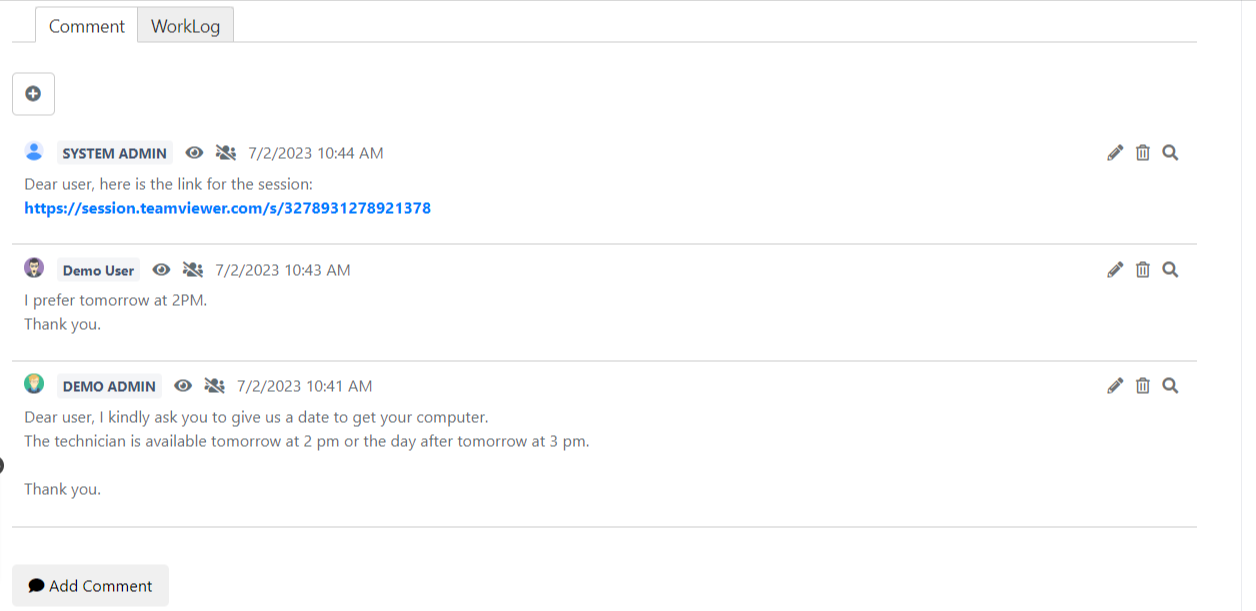
Scroll down to the Activity section, where comments and Worklogs are visible. The Comments tab will already be highlighted by default.
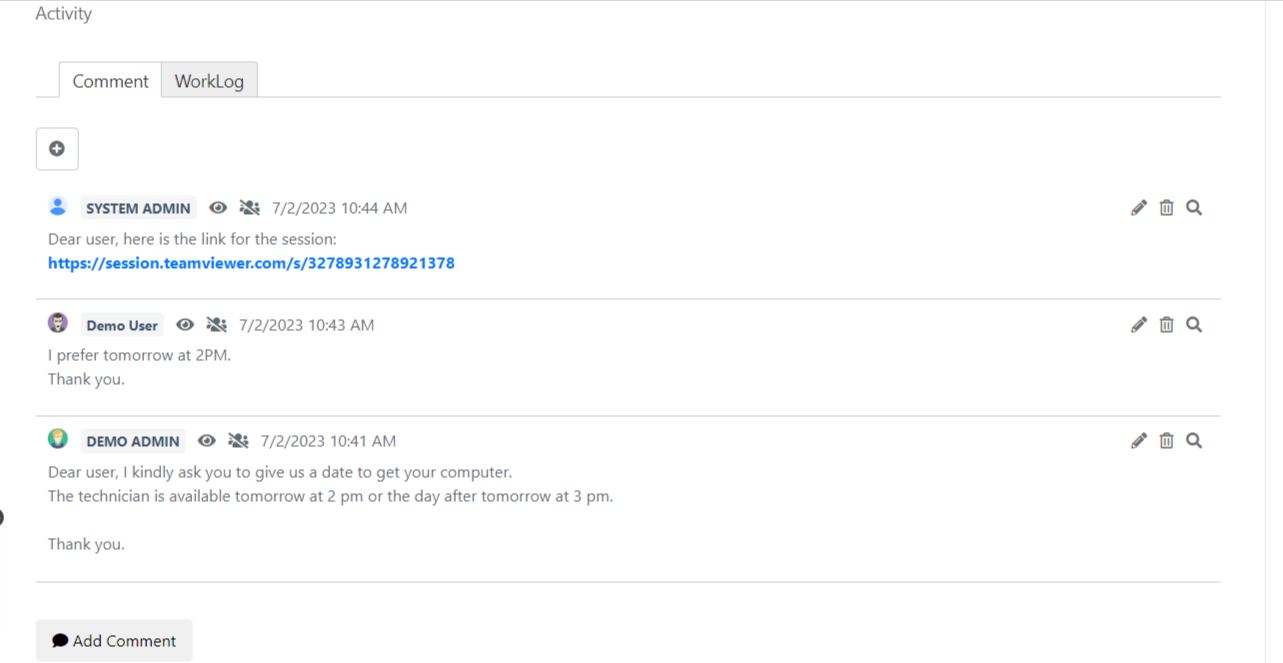
Click Add Comment.
Step 3 -- Fill In the Comment Form
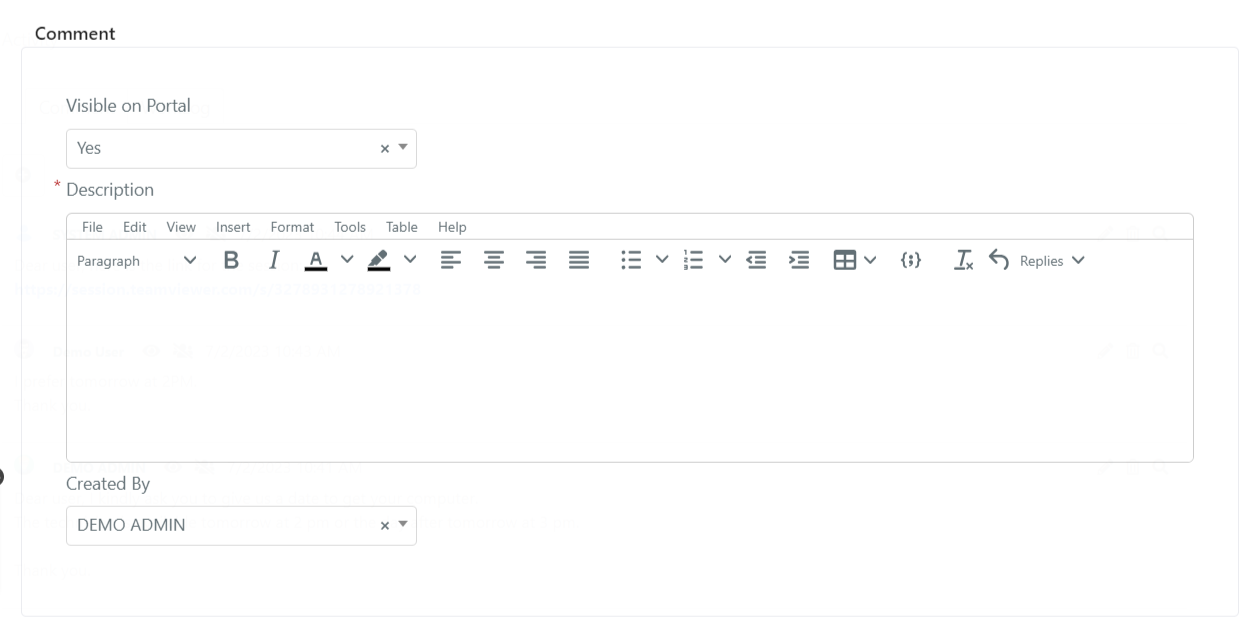
The form for inserting a comment is shown below.
| Field | Description |
|---|---|
| Visible on Portal | Specifies whether the comment should be visible in the User Portal to end users. |
| Created By | Indicates the creator of the comment. This is automatically filled with the current user. |
| Description | The text of the comment, which can be formatted with images and structures such as tables. |
| Comment Attachments | Allows you to attach files to the comment. The files will not appear as Service Operation attachments, but only on the comment itself. |
Step 4 -- Save the Comment
Click the green checkmark in the upper right corner to save.

Step 5 -- View the Result
The comment will then be displayed under the Service Operation.