Enter a Worklog
Deepser uses the term Activity to describe actions you can perform on Service Operations. There are two types of activity: Comments and Worklogs, both of which are available -- if configured -- in the Deepser Backend or the User Portal.
Worklogs are a useful tool for tracking each individual activity performed to bring a Service Operation to closure. You can also use Worklogs in reporting to provide a cumulative calculation of the total work hours per user performed on a Service Operation.
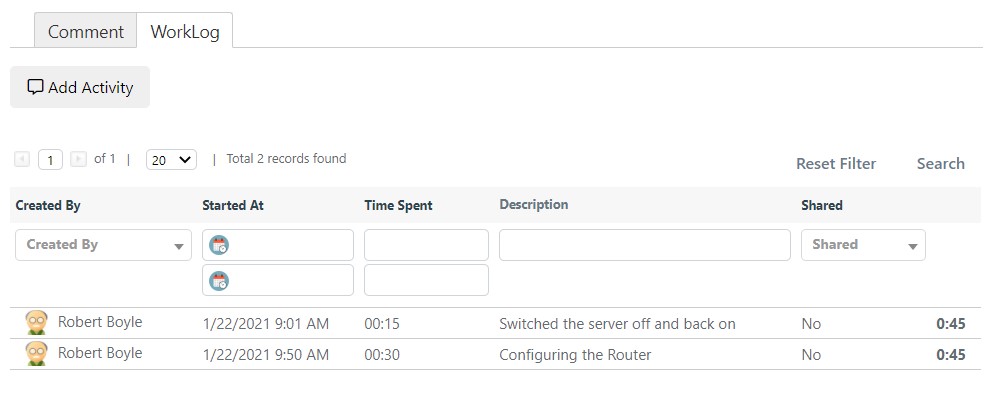
Create a Worklog
Step 1 -- Access the Activities Section
You can access the Activities section of a Service Operation through the User Portal or the Deepser Backend, if properly configured.
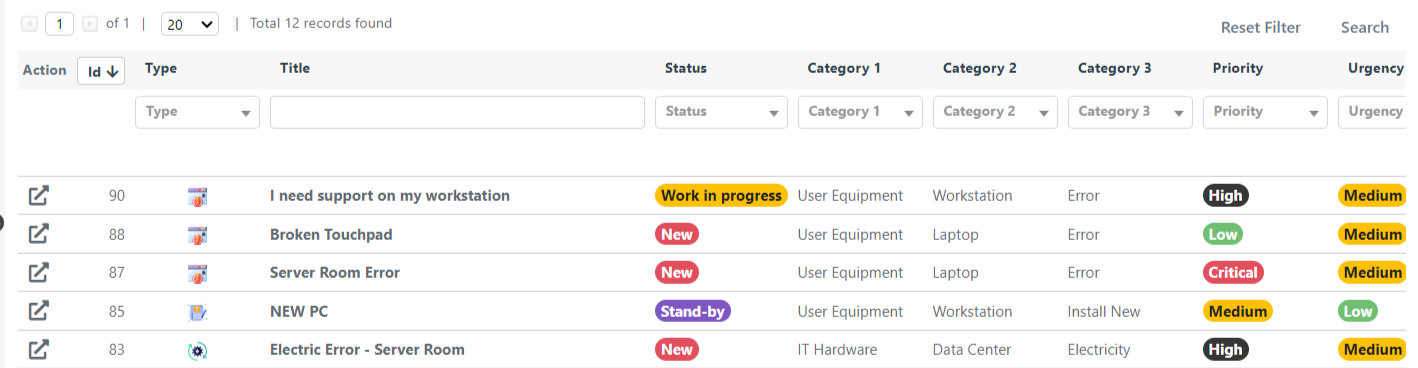
Via the User Portal: Select the Service Operation on which you want to add a Worklog from the grid.
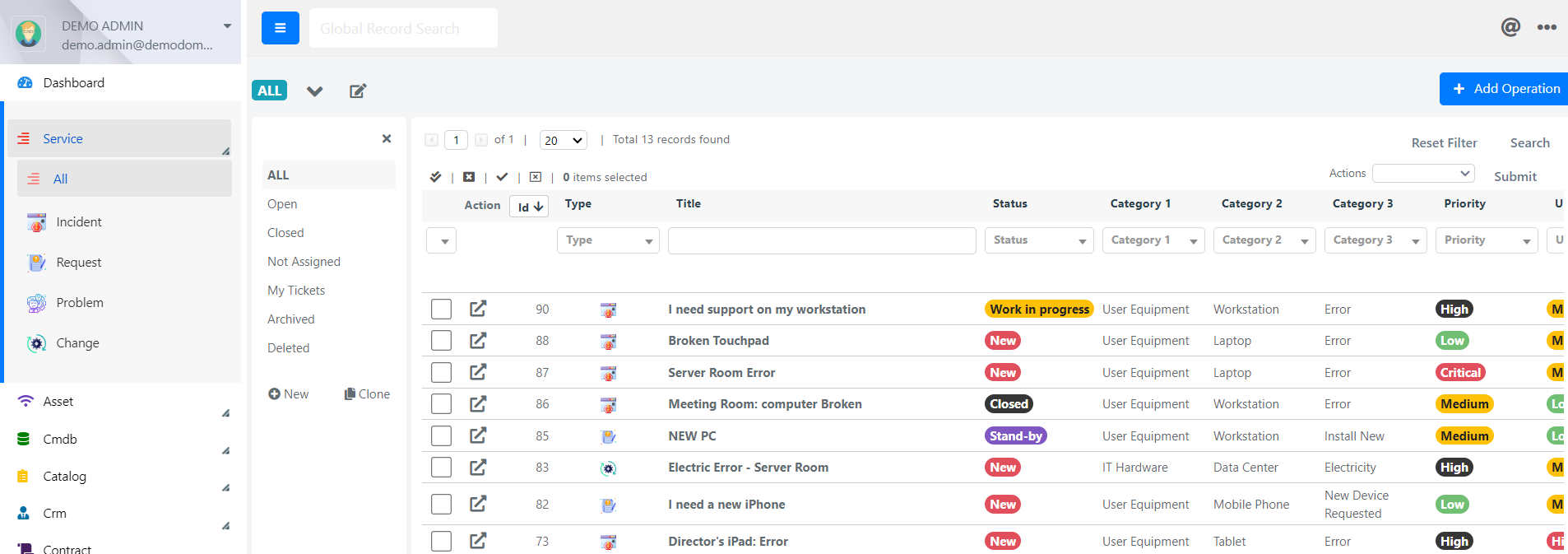
Via the Deepser Backend: Open the Service module through the dropdown menu and select All to display all Service Operations. Then open the Service Operation on which you want to add a Worklog.
Step 2 -- Open the Worklog Tab
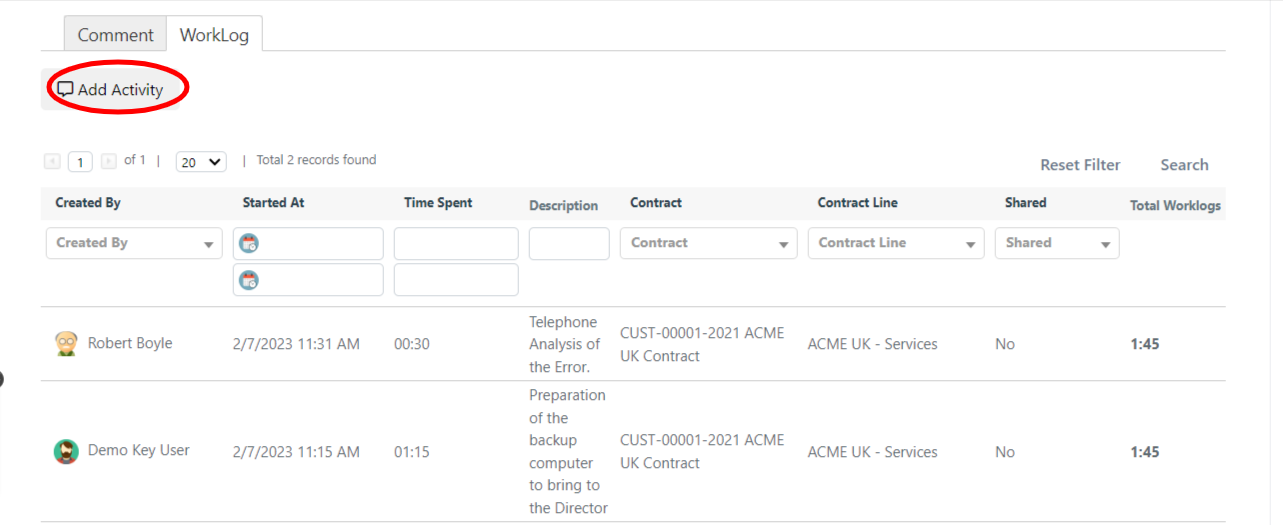
Scroll down to the Activity section, where comments and Worklogs are visible, and select the Worklog tab.
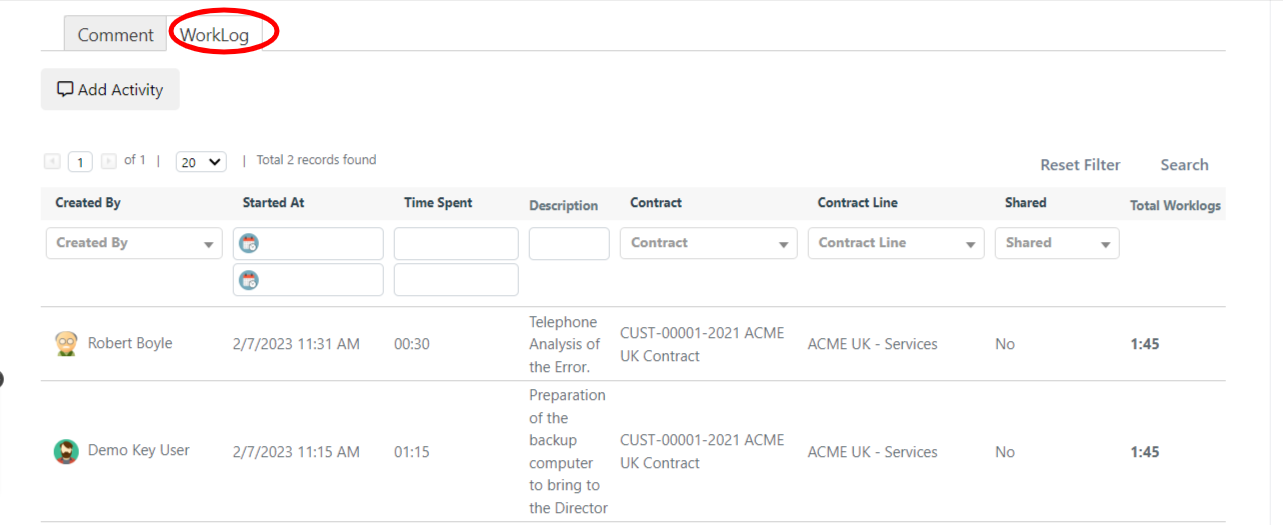
Click Add Activity.
Step 3 -- Fill In the Worklog Form
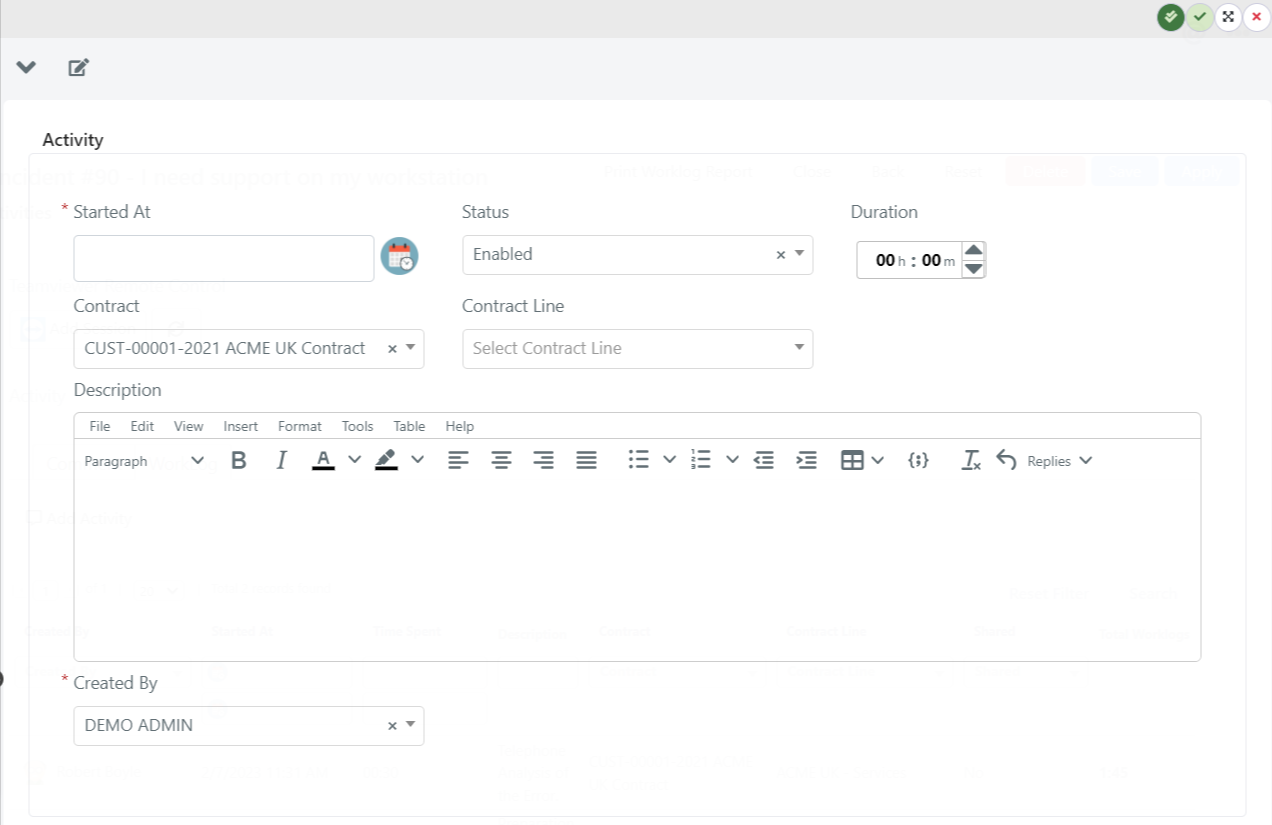
The form for inserting a Worklog is shown below.
| Field | Description |
|---|---|
| Started At | Indicates the day and time when this activity began. |
| Status | Indicates the status of the activity. |
| Duration | Indicates the duration in hours and minutes of the activity. You can use this parameter in reporting to calculate total working hours. |
| Description | The text with the description of the work activity, which can be formatted with images and structures such as tables. |
| Created By | Indicates the creator of the activity. This is automatically filled with the current user. |
Step 4 -- Save the Worklog
Click the green checkmark in the upper right corner to save.

Step 5 -- View the Result
The Worklog will then be displayed under the Service Operation's Activity section.