Create and Manage Freeform Boards
Freeform boards let you build a fully custom Kanban board in Deepser. Unlike Live boards, Freeform boards are not connected to a data model -- they contain standalone entries that you create and manage manually. This guide walks you through creating, accessing, customizing, and sharing a Freeform board.
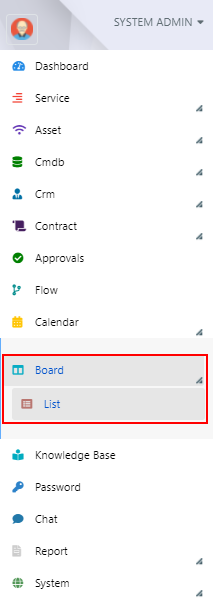
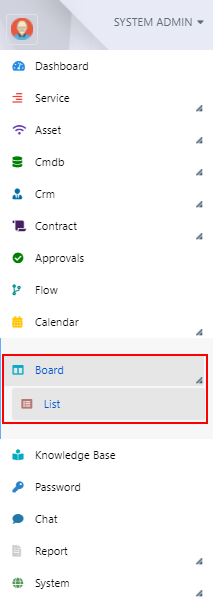
To create a new Freeform board, navigate to Board > List.
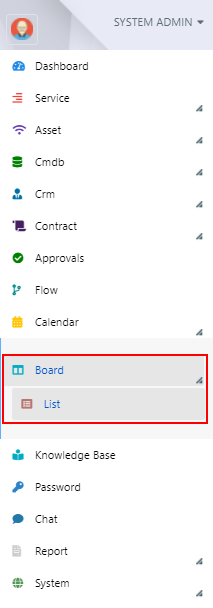
Click the + button in the top-left corner:

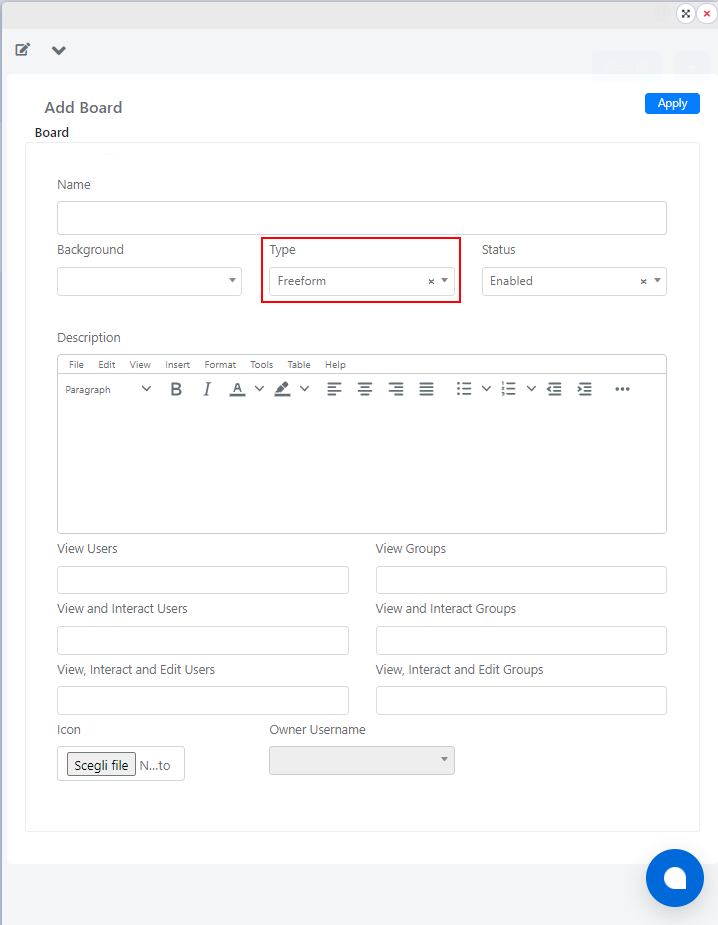
On the page that opens, set the type to Freeform.
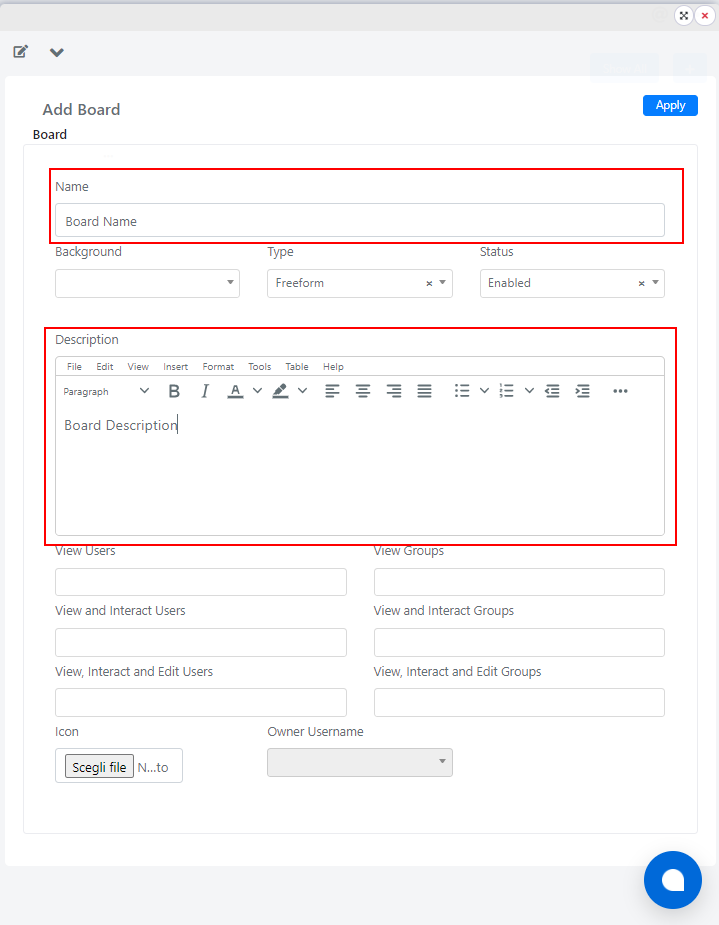
Enter a name in the Name field and a description in the Description field. The description is displayed on the new board.
Verify that the board status is set to Enabled, then click Save to create the board.
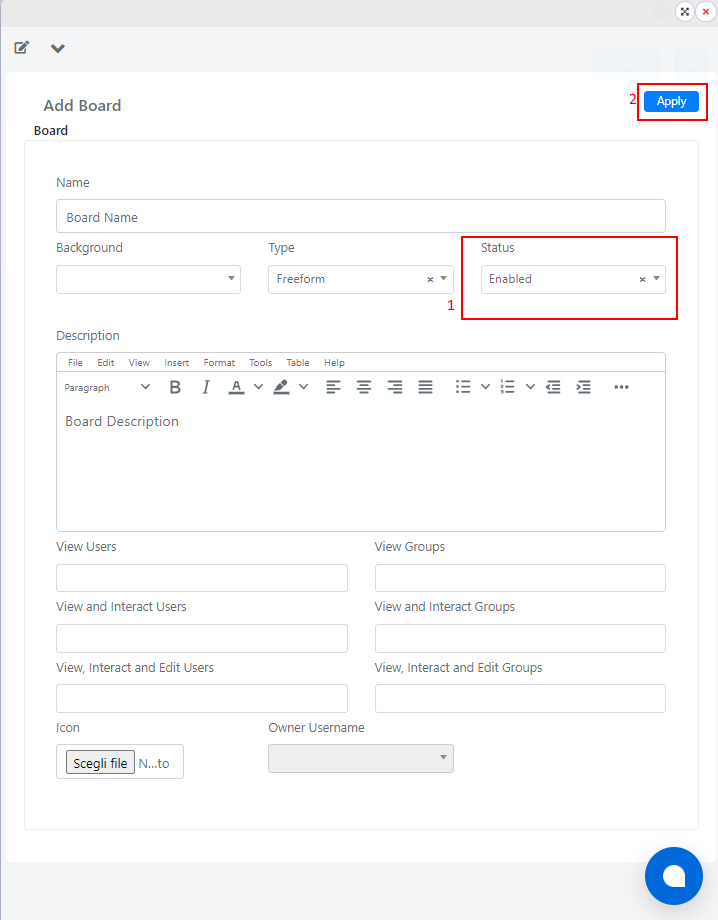
Your new board is now created.
Access a Board
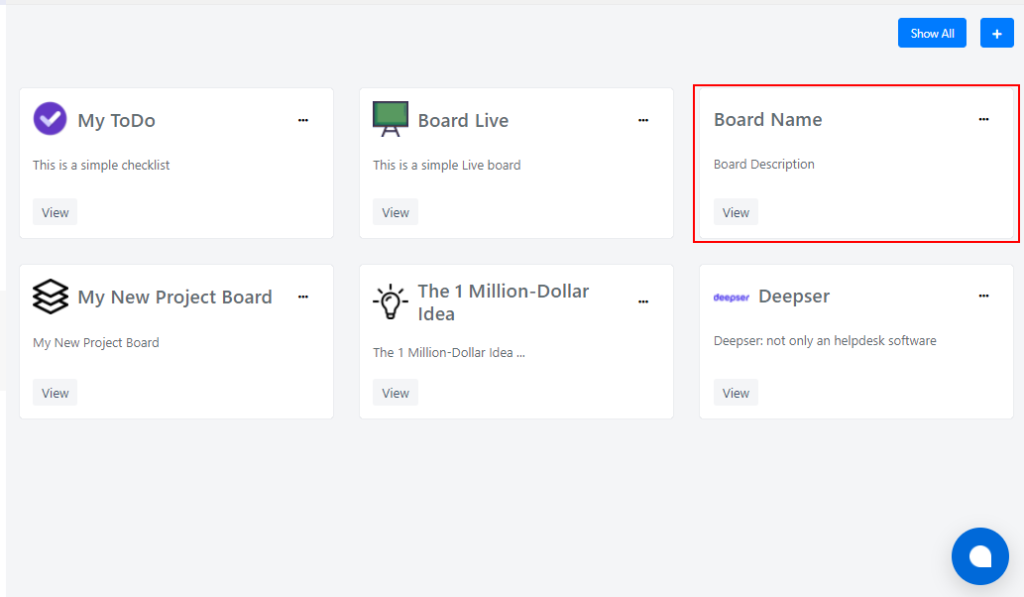
To access a board, navigate to Board > List.
Locate the board you want to view and click the View button.

Customize a Board
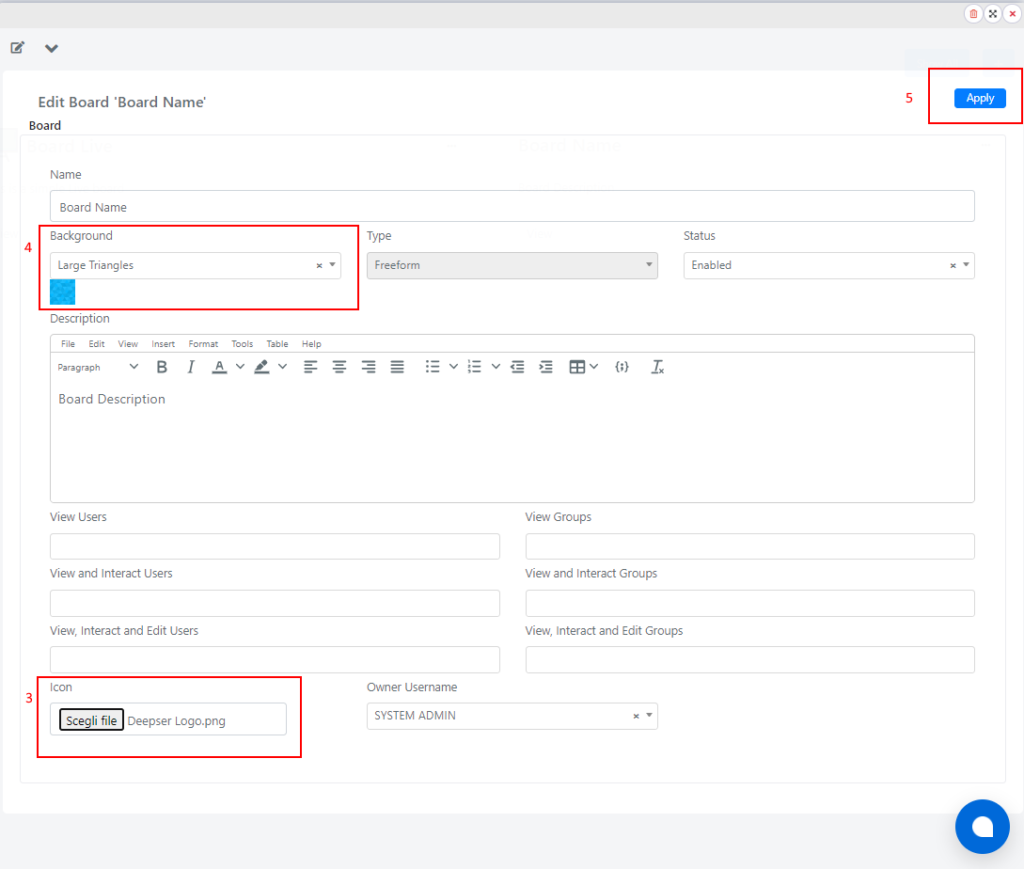
To customize a board, navigate to Board > List and click the three-dot menu on the board.

From here you can:
- Add an icon by clicking the Choose File button (3).
- Select a background for the board using the Background selector (4).
- Click Save (5) to apply your changes.
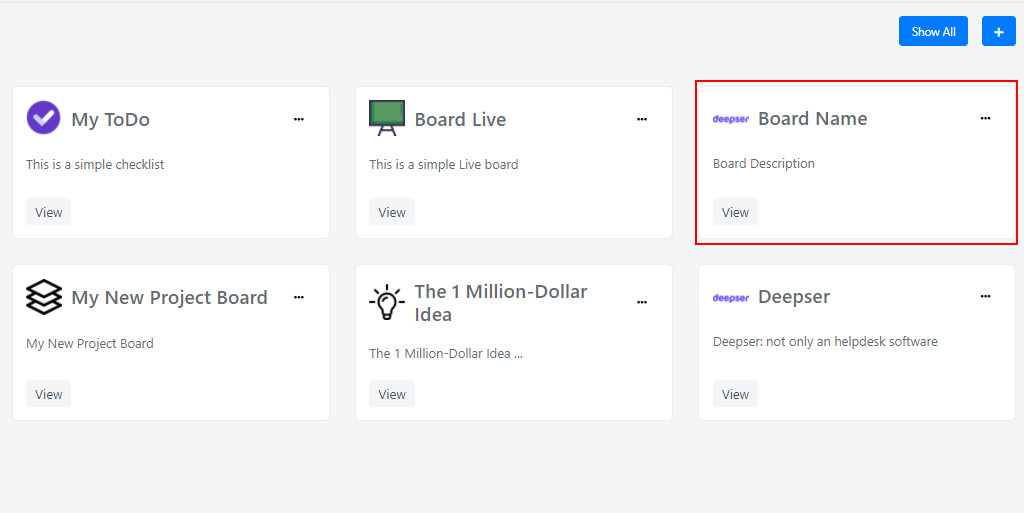
The logo now appears on the customized board.
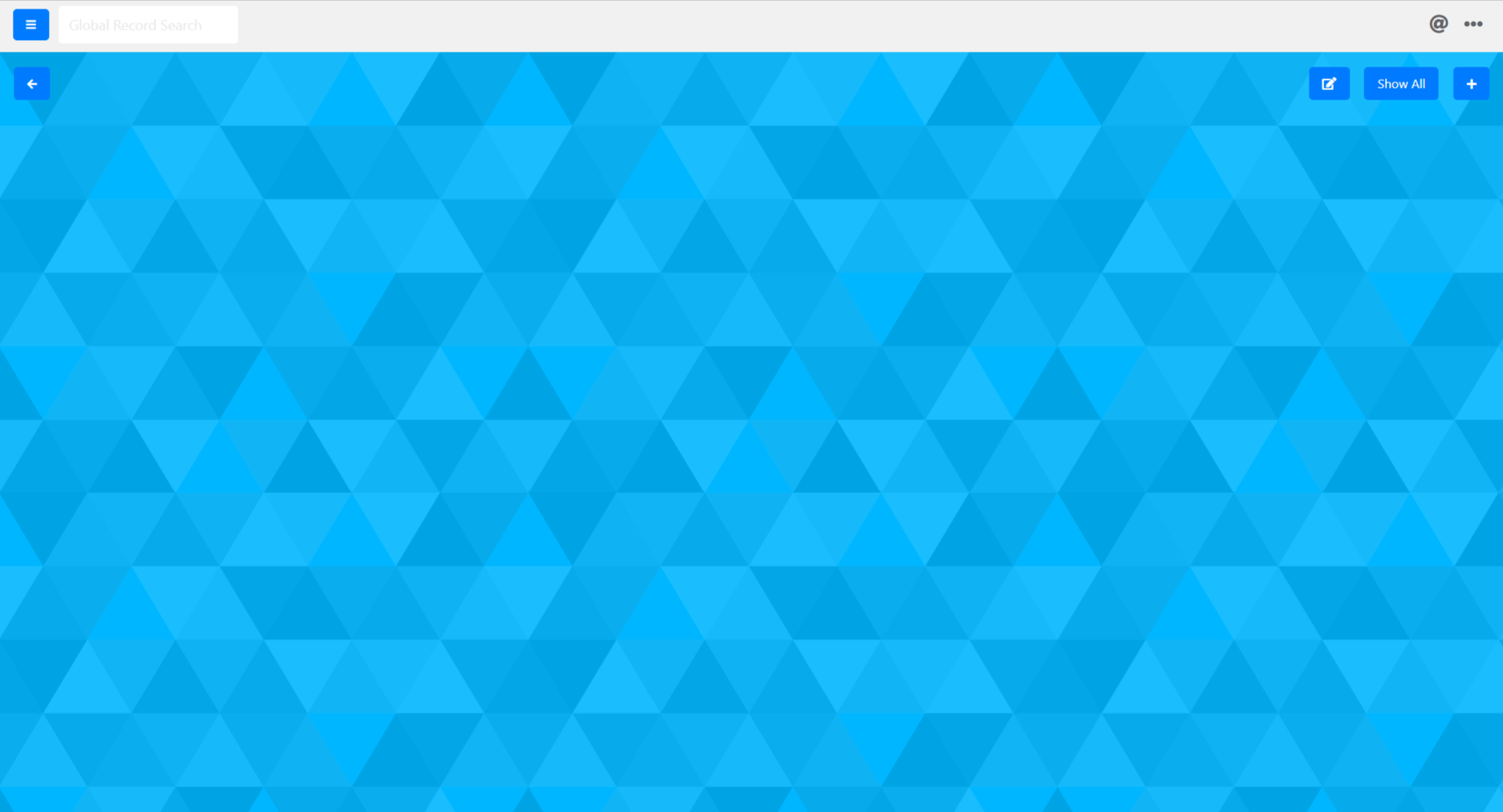
To view the background, open the board you are customizing.
Share a Board
Deepser lets you share a board with different permission levels to support collaborative work on complex processes. You can grant one of the following access levels:
- View — read-only access to the board.
- View and Interact — view the board and move items, but not edit or delete them.
- View, Interact, and Edit — full access to edit, move, and delete entries on the board.
To share a board, navigate to Board > List.
Click the three-dot menu on the board you want to share:
The sharing screen opens:
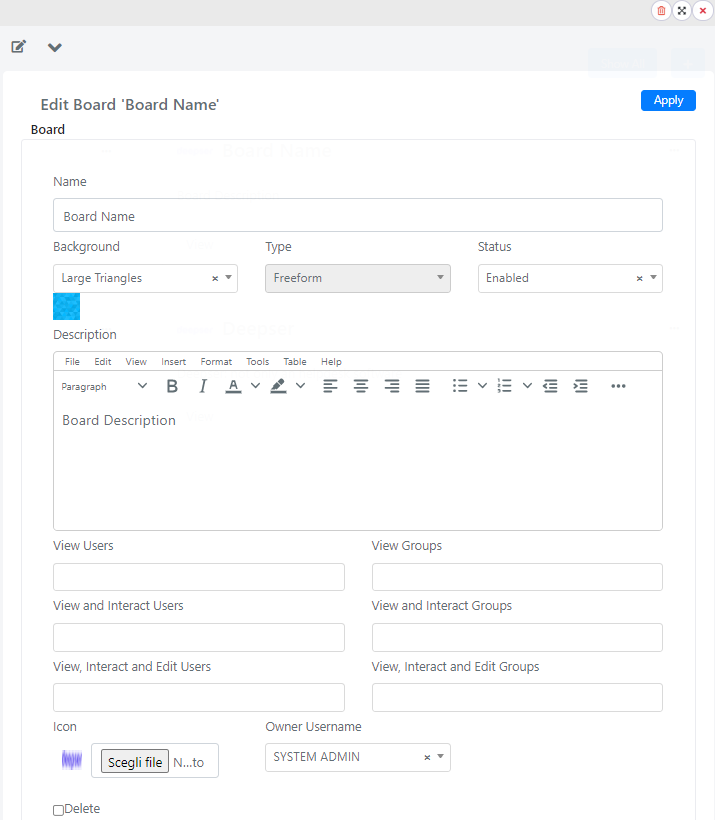
The sharing fields are described in the following table.
| Field | Description |
|---|---|
| View Users | Users who can view the board (read-only). |
| View Groups | Groups that can view the board (read-only). |
| View and Interact Users | Users who can view and move board items, but not edit or delete them. |
| View and Interact Groups | Groups that can view and move board items, but not edit or delete them. |
| View, Interact and Edit Users | Users who can edit the board, move entries, and delete them. |
| View, Interact and Edit Groups | Groups that can edit the board, move entries, and delete them. |
To share a board, the target user must be registered in the system. For the user to view and interact with the board, they must have Deepser Backend access and a role that allows viewing boards in the side menu.
Create and Customize a Freeform Lane
A lane in Deepser is the entity within boards that contains and organizes tasks in a logical way.
To create a lane in Deepser, go to the board where you want to add the lane, then click the "+" button at the top right corner.

In the screen that opens, you can set the name by filling in the "Label" field (2) and then clicking the "Save" button (3).
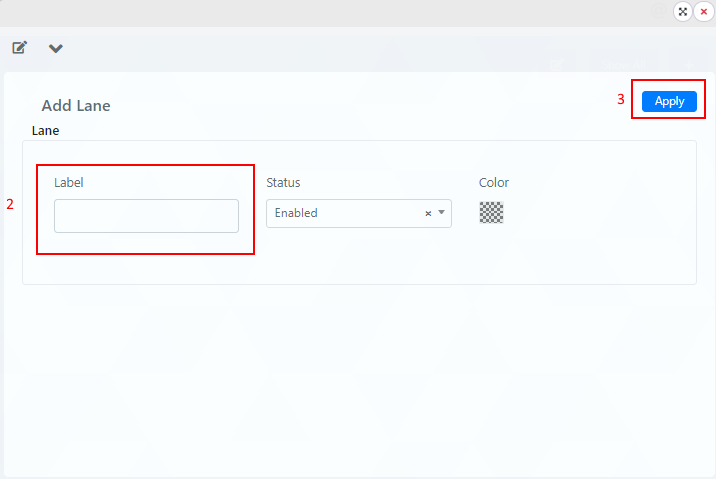
The system will create the new lane with the specified name.
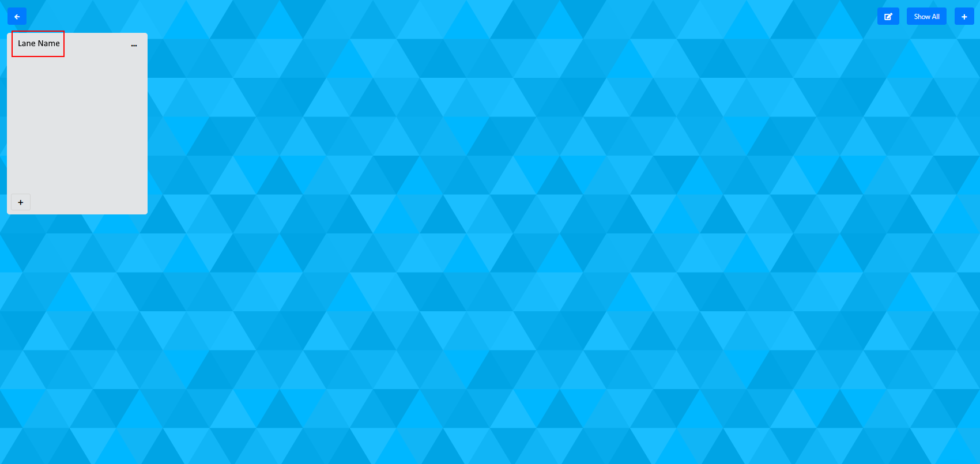
Customizing a Lane
To customize a lane, navigate to the lane you want to customize and click the three-dot menu.

Here you can change the name or color of the lane.
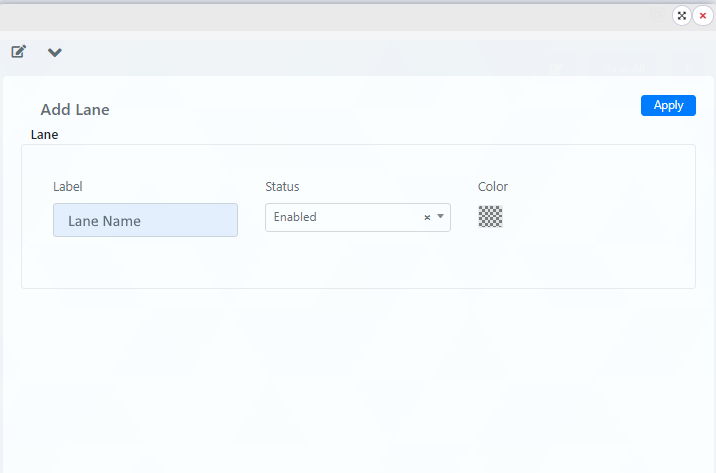
To change the name, simply edit the contents of the label field.
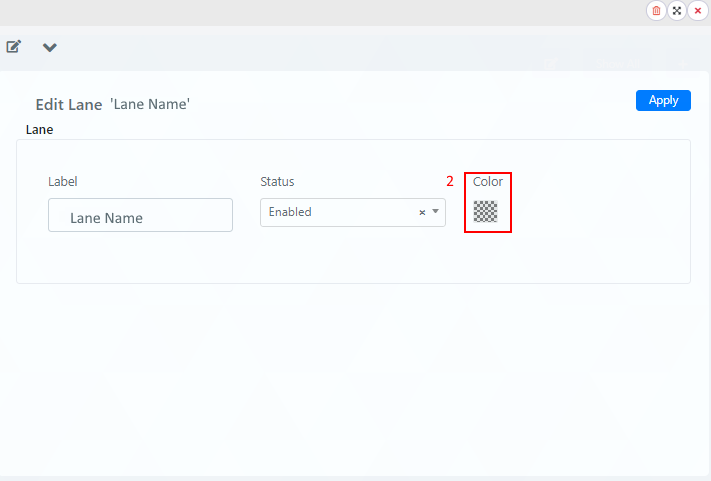
To change the color, click on the color picker (2).
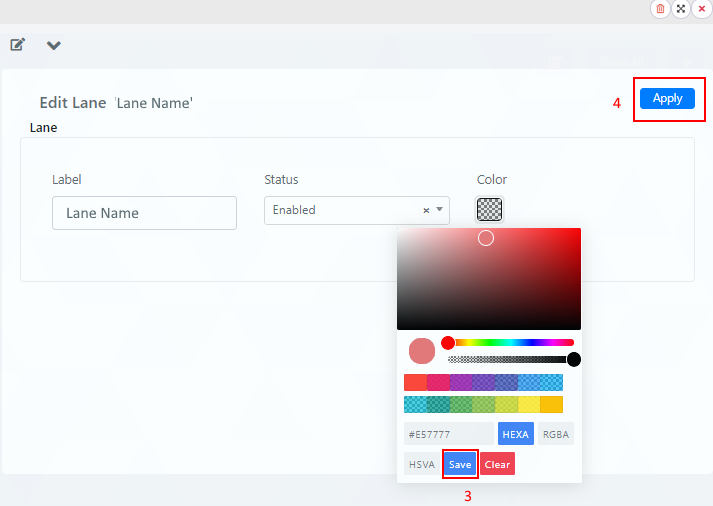
Choose the desired color and click "Save" (3), then click the "Apply" button (4).
The lane will now be colored in the desired color.

Related Articles
- Live Boards -- Create boards connected to Deepser data models
- Entry Creation -- Add and move entries on boards
- Enable Groups to Create Boards -- Control board creation permissions