Create and Configure Live Boards
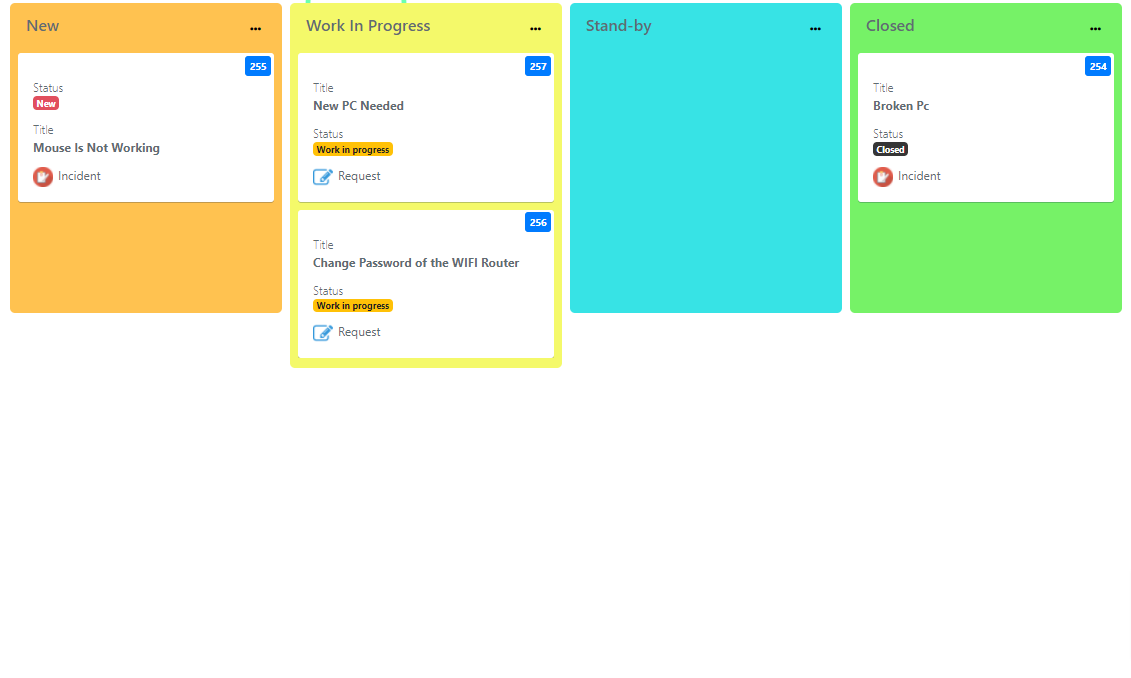
Live boards are a special type of board in Deepser. Instead of standalone entries, they let you organize and visualize the entities already stored in Deepser, such as Service Operations, on a Kanban-style board. Unlike Freeform boards, Live boards are connected to a data model and update automatically based on your configuration.
Create a Live Board
To create a live board, go to the menu: Board -> List
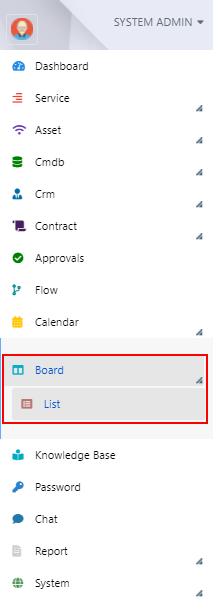
Here, click the "+" button:

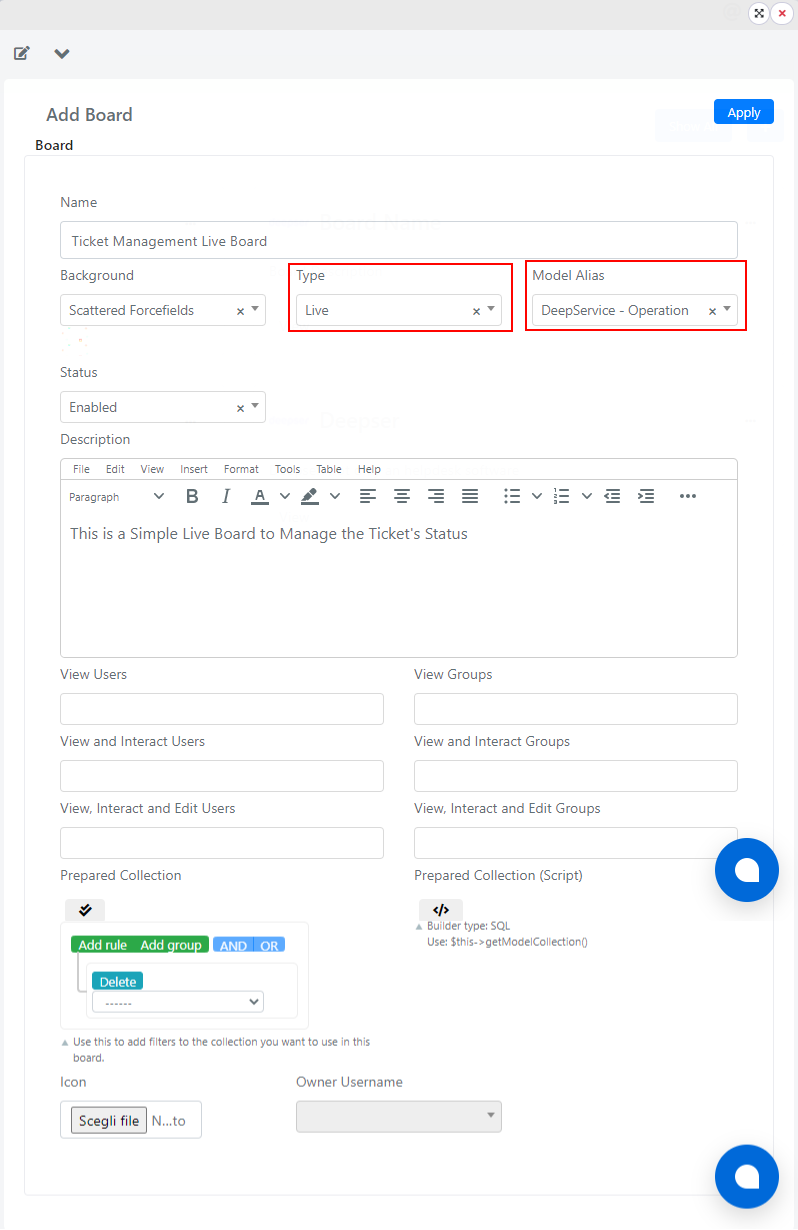
The board creation screen will appear. Select "Live" as the board type and "Deep Service Operation" as the Model Alias.
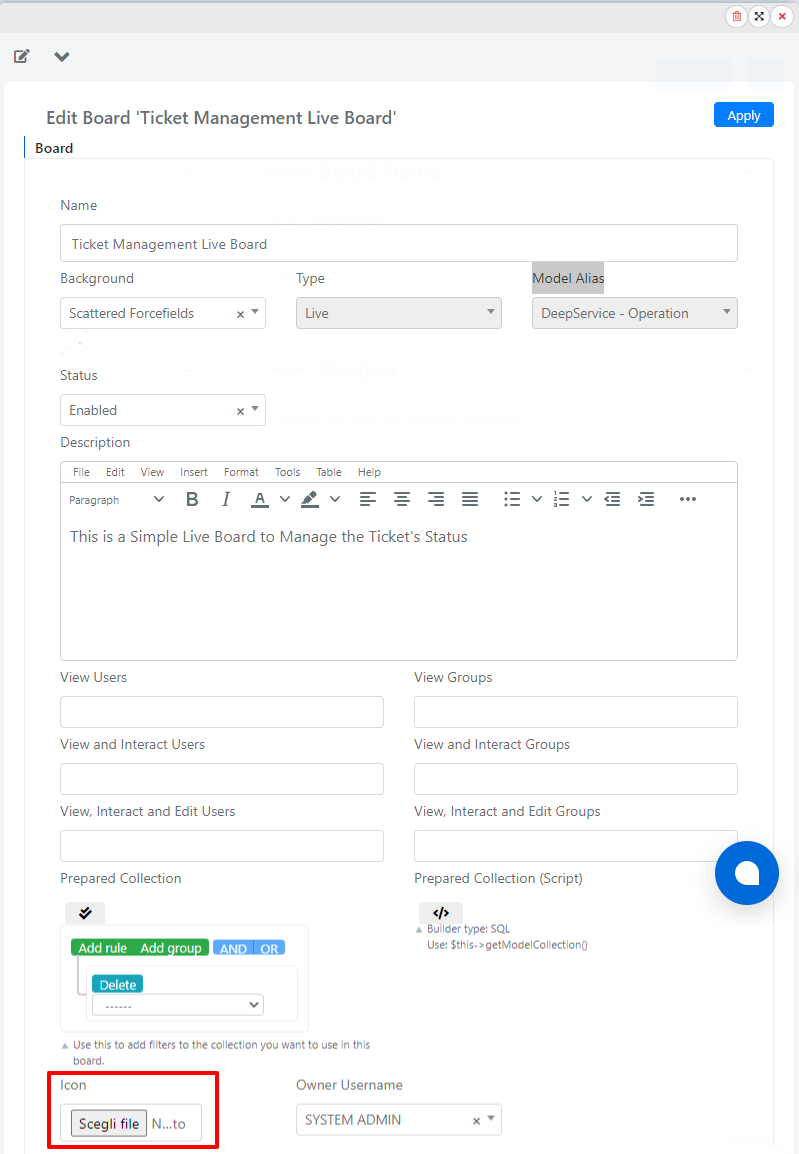
As with freeform boards, you can also add an icon to a live board by clicking the button shown below:
Next, click the Apply button to save the changes.

The live board will now be created by Deepser. The end result is as follows:
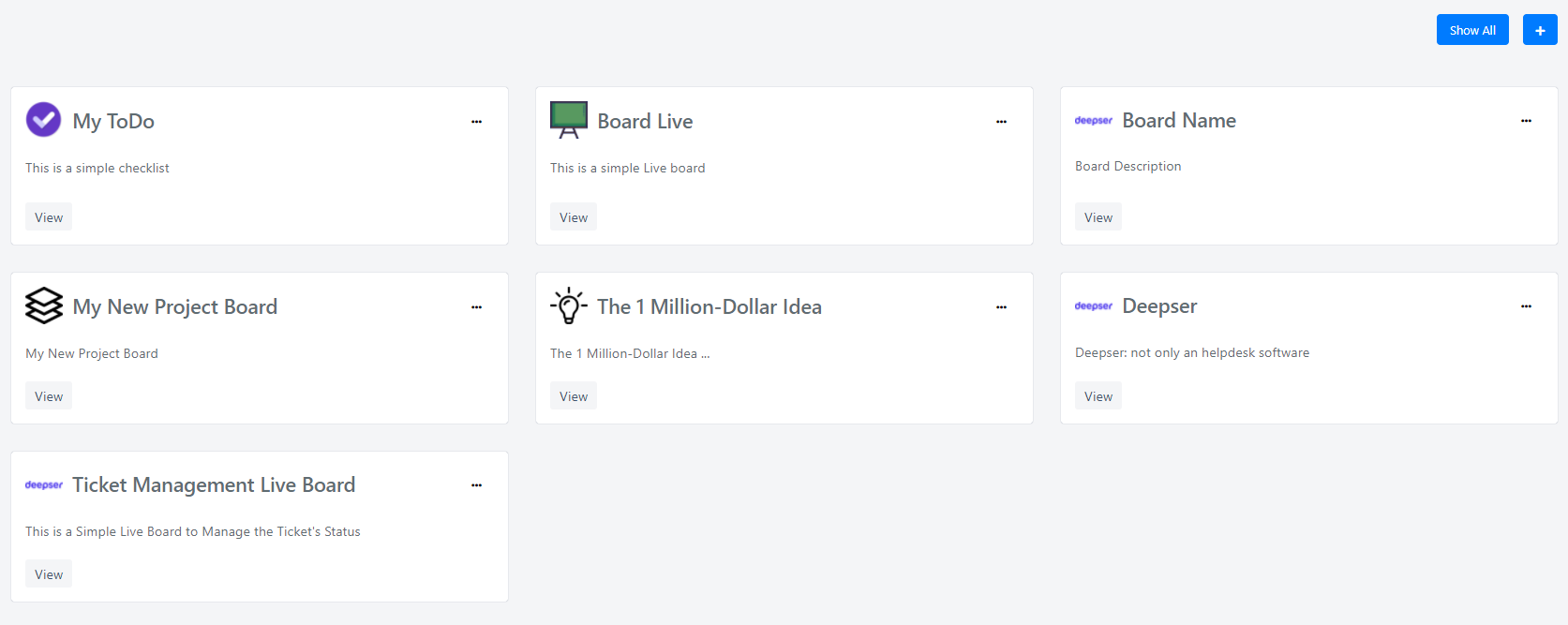
The board is now configured for basic usage. By default, it retrieves a collection of all Service Operations. The next topic covers how to limit the number of Service Operations or other Deepser entities retrieved by applying filters to the data collections.
Configure the Board Collection
To configure the collection of a live board, go to Board -> List.
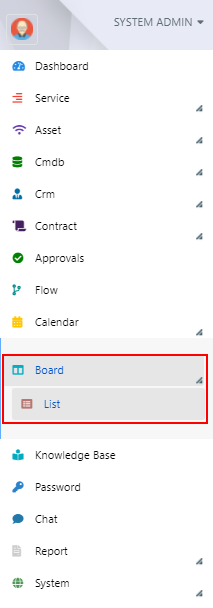
Navigate to the live board you want to edit and click the three-dot menu to access the configuration screen.

Go to the "Prepared Collection" section.
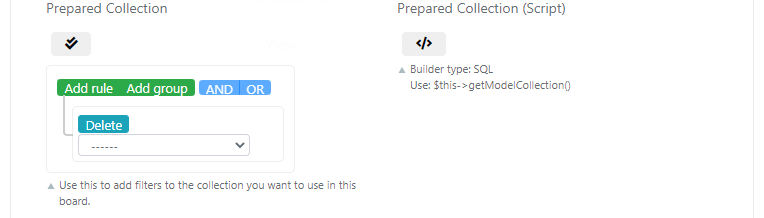
Here you can configure which Service Operations will be viewable within the board.
For example, suppose you want to display only Service Operations in a "New" or "Work in Progress" state. To do this, configure the query builder as shown:
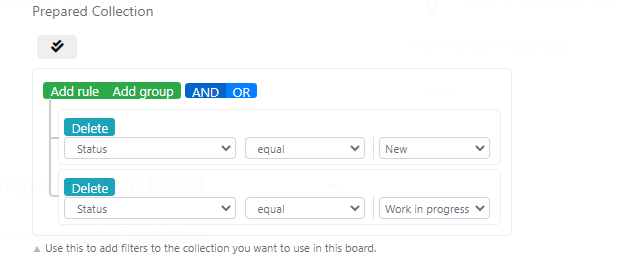
To finalize the changes, click the Apply button.
Create and Customize a Live Lane
A lane in Deepser is the entity within boards that contains and organizes the entities loaded by the board.
To create a lane in Deepser, go to the board where you want to add the lane, then click the "+" button at the top right corner.
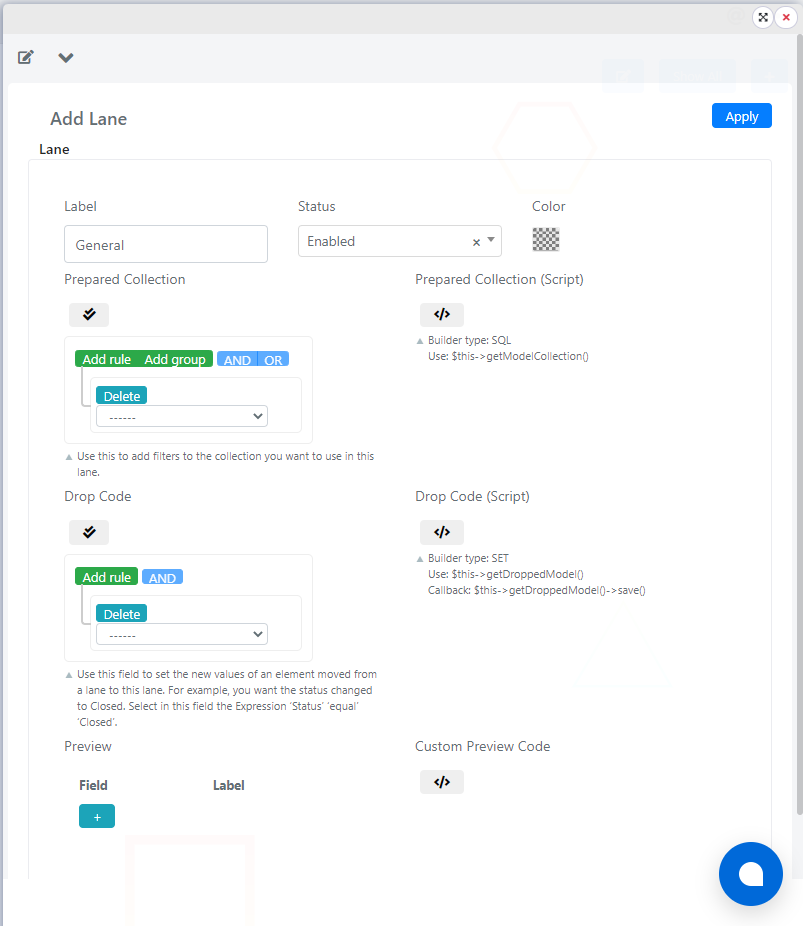
In the screen that opens, you can set the name by filling in the "Label" field.

You can then enter a new field in the Field field to display. In this case, enter the field "entity_id" of the Service Operation by clicking the button.

Select in the Field field the value "entity_id" and in the label field "Yes".

Click the Apply button to proceed.
The system will create the new lane with the specified name.

Customize a Lane
The following properties of a lane can be customized: the name, the color, the data collection, the drop code, or the fields to be displayed for each Service Operation in that lane.
Change the Name of a Lane
To change the name, simply edit the contents of the label field.

Next, click on Apply:
Change the Color of a Lane
To change the color of a lane, navigate to the lane you want to customize and click the three-dot menu.

Here you can select the color to assign to the lane using the color picker:

Choose the desired color and click "Save":
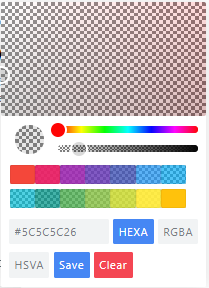
Then click the "Apply" button:
The lane will now be colored in the desired color.
Prepared Collection Customization
The prepared collection section defines which Service Operations are displayed in the lane.
To customize the prepared collection of a lane in a live board, navigate to the lane you want to customize and click the three-dot menu.
You can then set the data collection to display in that lane through the "Prepared Collection" section.
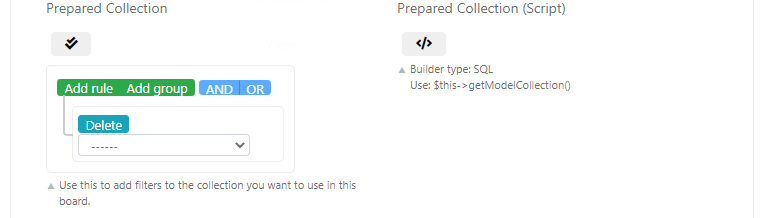
For example, if you want to display only the entities in a "New" state in this lane, you can do so through the query builder:

Click the "Apply" button:
The lane will be updated automatically by the system, loading only the Service Operations that match the filters you set.
Customize the Drop Code
The drop code in live boards is the code that executes when a Service Operation is dragged onto the board.
To customize the drop code of a lane in a live board, navigate to the lane you want to customize and click the three-dot menu.
Here you can set the code to run in the "Drop Code" section via the query builder.
In the current example, suppose you want to set a Service Operation to take on a "New" state when it is dragged into this section:
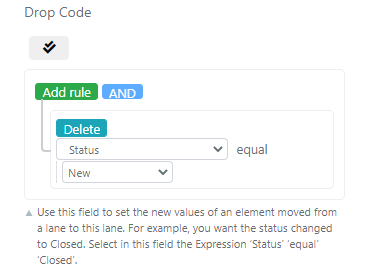
When a Service Operation is dragged onto this board, its status will change to "New".
Related Articles
- Advanced Live Board Configuration -- Use scripting for advanced board filtering
- Lane and Drop Code -- Advanced lane and drop code configuration
- Freeform Boards -- Create standalone Kanban boards
- Entry Creation -- Add and move entries on boards