Use the Calendar
Once calendars have been configured, Operators can access the Calendar section from the main menu in the Deepser Backend. Calendars are displayed according to the visibility settings defined during configuration, allowing each team to see the events relevant to their work.
Access the Calendar
- Open the Deepser Backend.
- Click on the Calendar section in the main menu.

The calendar view displays all enabled calendars that your account has permission to see. If multiple calendars are configured, they appear in the right-side menu ordered by the Position value set during configuration.
Work with Calendar Events
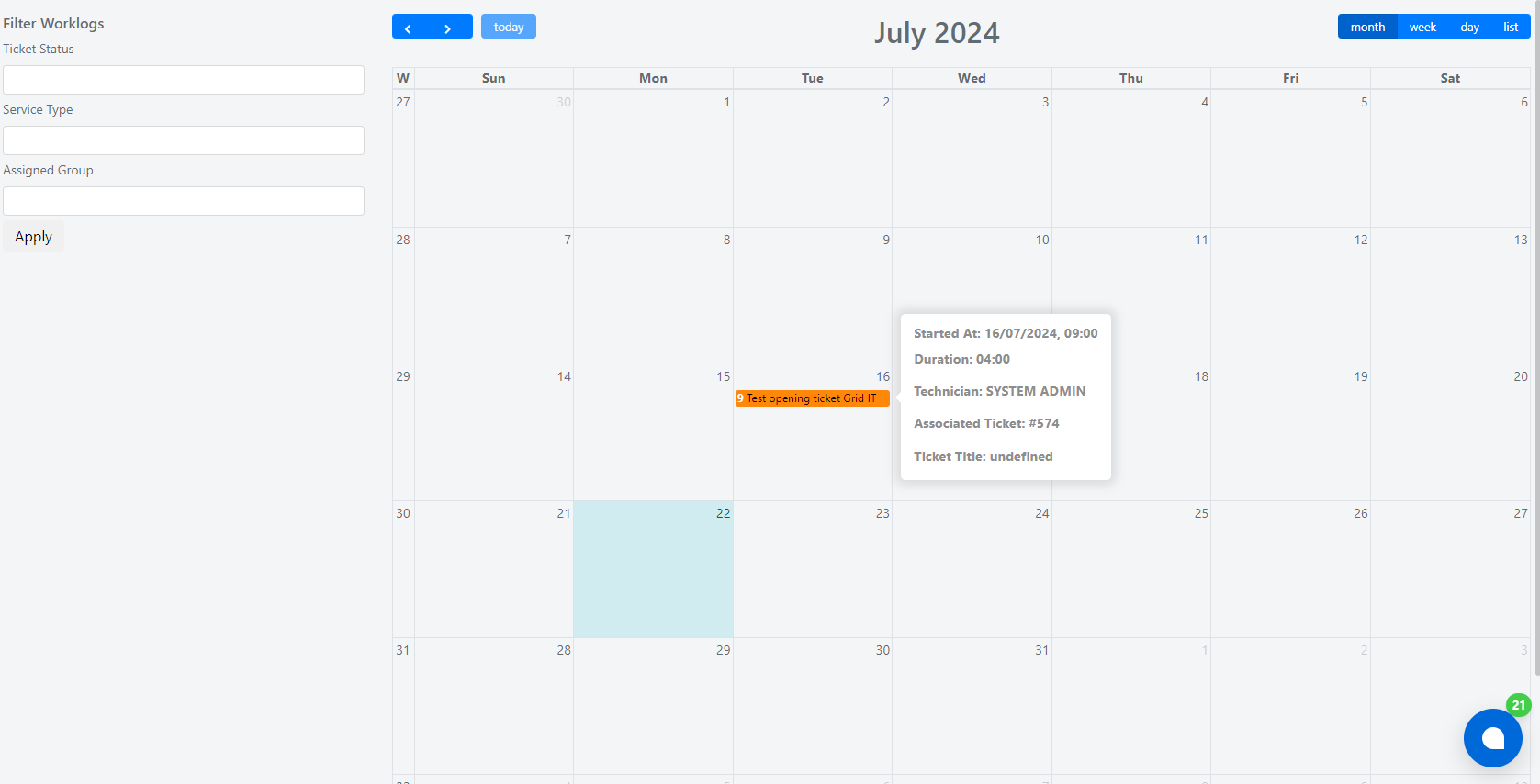
Each configured calendar can have its own characteristics, as the degree of customization is very high. Typically, you will find:
- An area dedicated to applicable filters alongside the calendar, allowing you to narrow events by status, type, group, or other fields.
- Activities displayed inside the calendar view, color-coded based on the calendar's color code configuration.
- Predefined actions available via popup tooltips (if configured), such as opening the related Service Operation.
Below is an example of the default Deepser Task calendar:
Interact with Events
You can interact with calendar events in the following ways:
- Click on an event to view its details or open the related record (depending on tooltip configuration).
- Drag and drop an event to change its date or time, if the calendar's drop code is configured to support this. A confirmation prompt may appear before the change is applied.
- Use filters in the side panel to show only the events you need, such as filtering by Operator, assigned group, or Service Operation type.
Related Articles
- Configure Internal Calendars -- Set up calendars with Deepser data
- Calendar Configuration Example -- Step-by-step Worklog Calendar example
- Configure External Calendars -- Connect to external calendar providers