Configure Categories
Categories in Deepser provide a hierarchical classification system for organizing Service Operations and other records. You can create root categories and subcategories, and control their visibility across models, groups, and the guest portal.
Create a Root Category
- Navigate to System > Categories.
- Click the Add Root Category button.
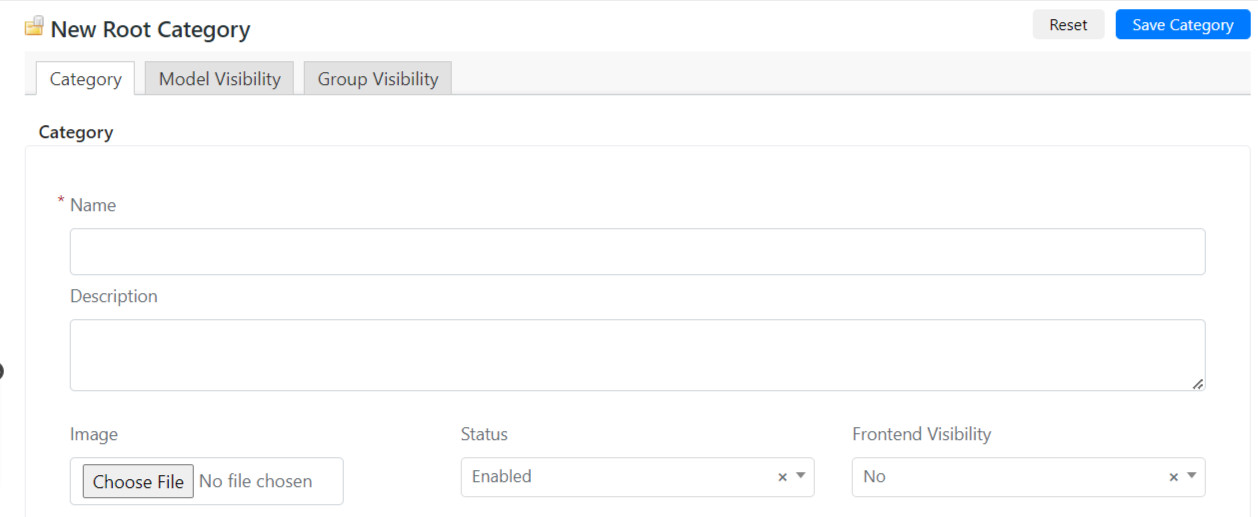
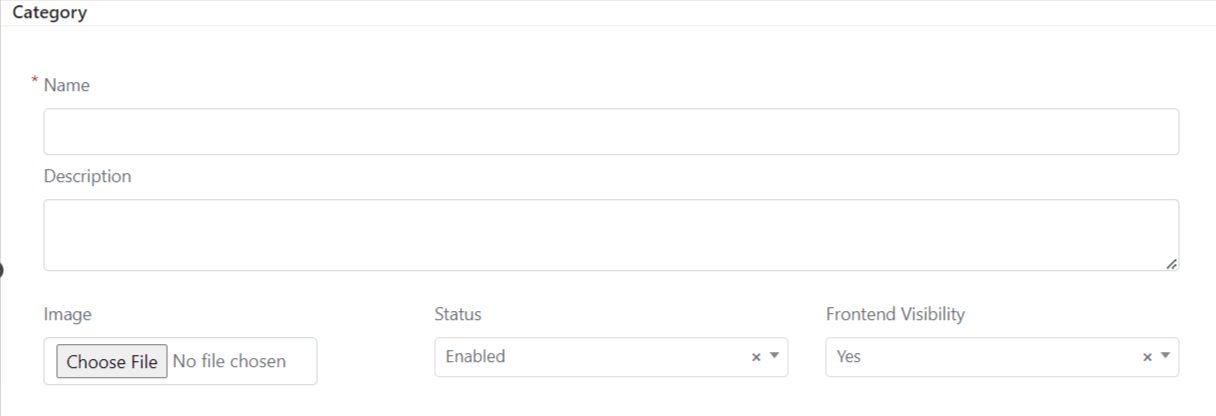
- Fill in the fields described below.
| Field | Description |
|---|---|
| Name | The display name of the new category. |
| Description | A description associated with the category. |
| Image | The icon displayed next to the category name (optional). |
| Status | Set to Enabled to make the category available for selection, or Disabled to hide it. |
| Frontend Visibility | Controls whether this category is visible in the guest portal (only applies when the guest portal is enabled). |
- Click Save Category.
Create a Subcategory
- Navigate to System > Categories.
- Select the parent category and click the Add Child Category button.
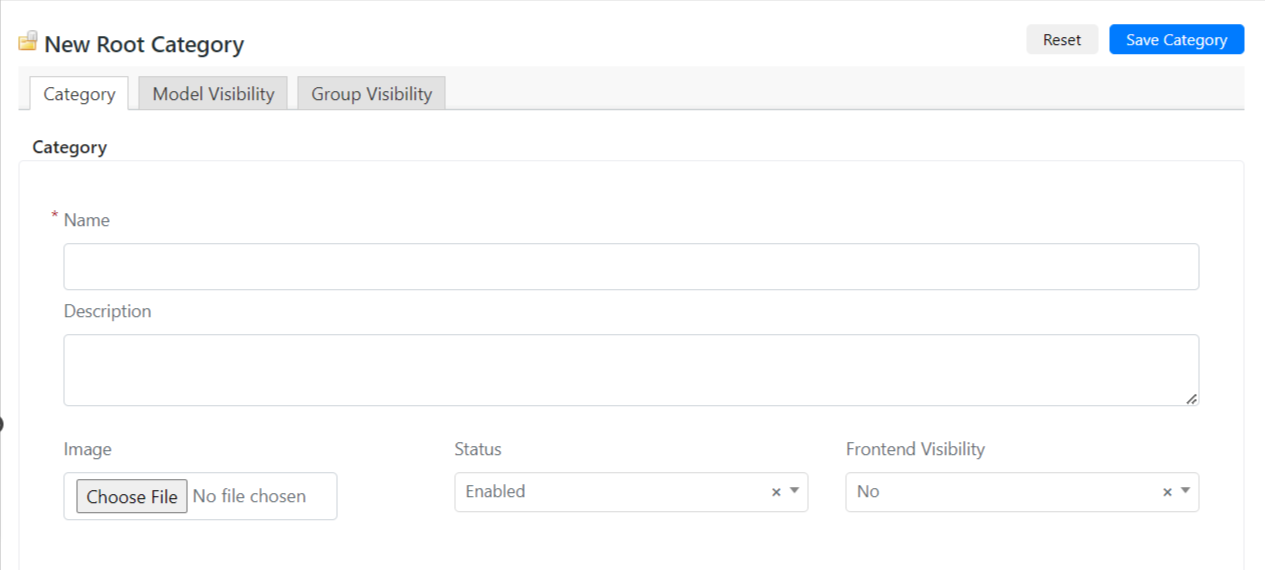
- Fill in the fields described below.
| Field | Description |
|---|---|
| Name | The display name of the subcategory. |
| Description | A description associated with the subcategory. |
| Image | The icon displayed next to the subcategory name (optional). |
| Status | Set to Enabled to make the subcategory available, or Disabled to hide it. |
| Frontend Visibility | Controls whether this subcategory is visible in the guest portal (only applies when the guest portal is enabled). |
- Click Save Category.
Configure Category Visibility
Model Visibility
On the Model Visibility tab, you can restrict a category to specific models. For example, you can make a category visible only on the Service Operation model.
To configure a model visibility rule, click the + button inside the Model Visibility tab.
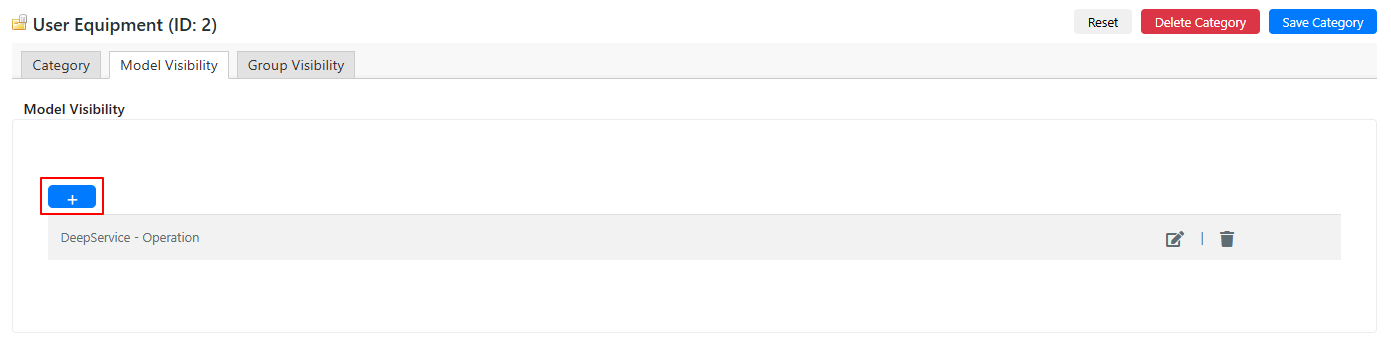
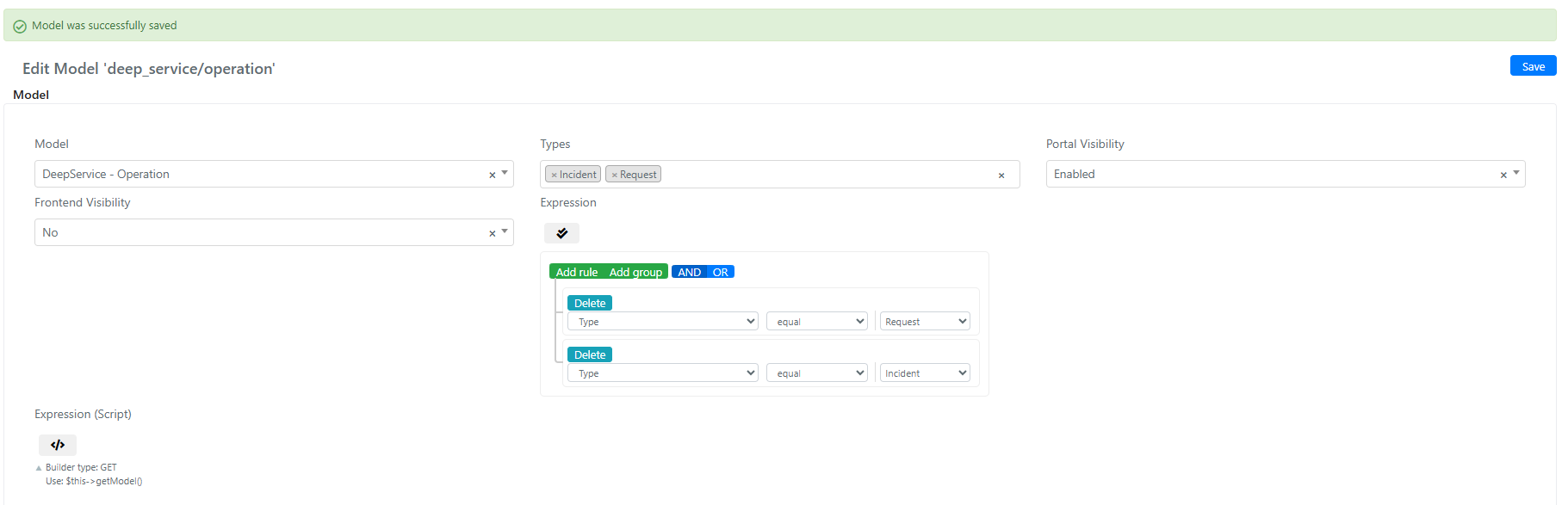
Example: The rule below limits the "User Equipment" category to Service Operations of type "Request" and "Incident." When users open a Service Operation of either type, they can view and select the "User Equipment" category.
| Field | Description |
|---|---|
| Model | The model that will have visibility of this category. |
| Portal Visibility | Controls whether the category is visible on the User Portal. |
| Frontend Visibility | A Yes/No field that sets the category visible on the User Portal. |
| Expression | A Query Builder field that adds conditional visibility based on the model's fields. |
| Expression (Script) | A scripting field with the same functionality as the Query Builder, but allows you to write conditions directly in code. |
Group Visibility
Group visibility restricts category access based on user group membership.
- Open the Group Visibility tab.
- Select the groups in the Enabled Groups field.
In the example below, the "User Equipment" category is visible only for users who belong to the "IT - First Level" or "IT Customers" groups.
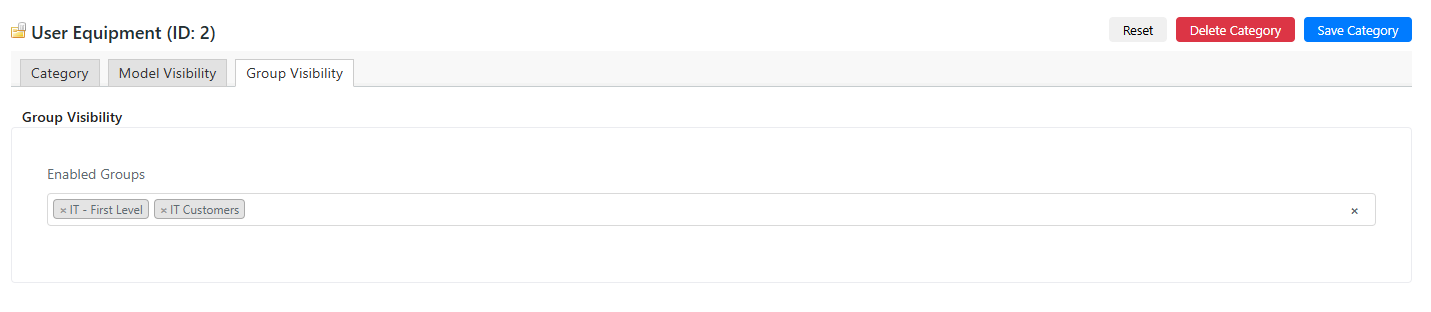
Group visibility restrictions are inherited by subcategories. If a parent category is restricted to certain groups, its child categories follow the same restriction.
Guest Portal Visibility
- Navigate to System > Categories.
- Click on the category you want to change.
- Set the Portal Visibility field to Yes.
- Click Save Category.