Use the Chat
Deepser offers an integrated chat that allows you to collaborate internally with registered users or receive messages from external users. This guide covers the two ways to access the chat and how to start a direct conversation.
Access via Widget
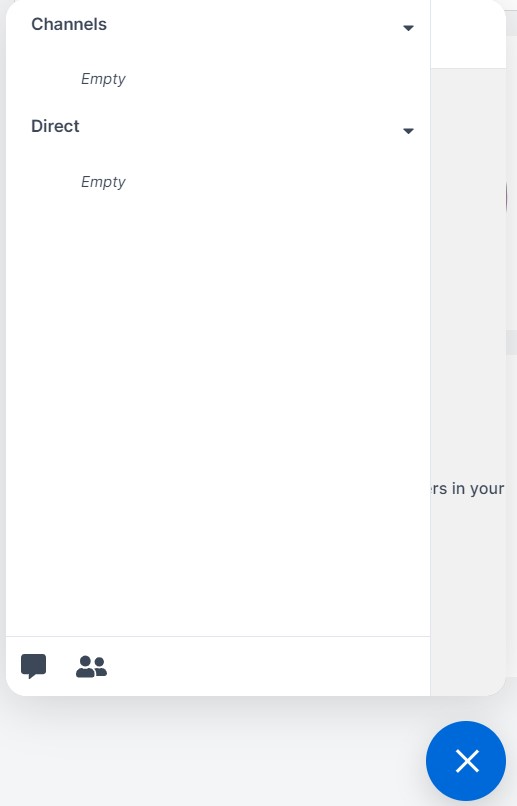
- Click the chat widget, generally located at the bottom right of the screen.

- The chat widget opens as shown below:
Access via Deepser Backend Menu
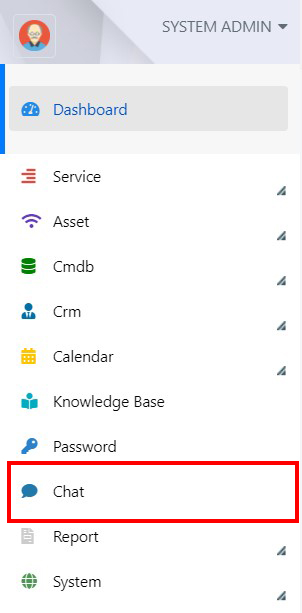
- Click the Chat entry in the Deepser Backend menu.
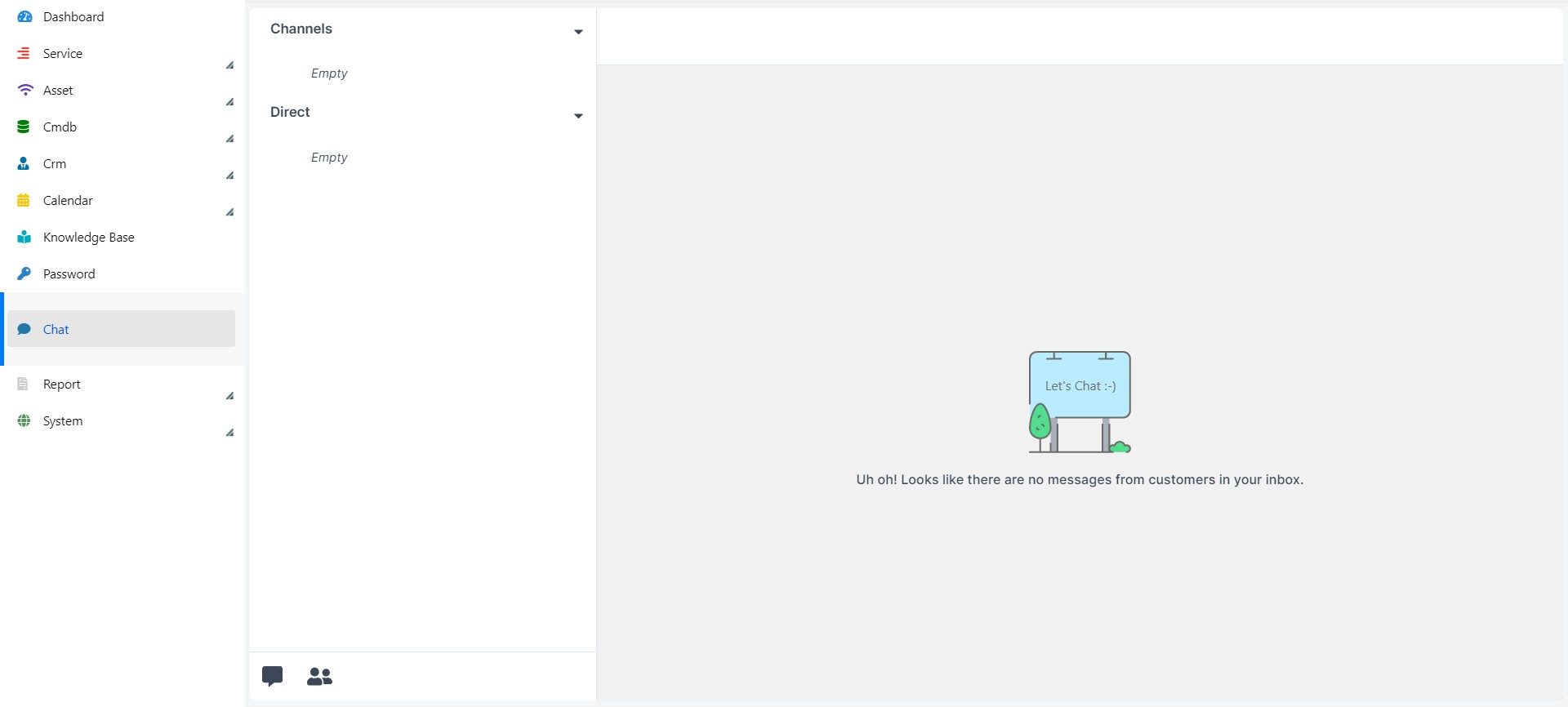
- The Deepser Backend chat module appears as shown below:
| Section | Description |
|---|---|
| Channels | Spaces where multiple users can communicate, optionally organized by topic. |
| Direct | Direct communication between two users. |
Start a Direct Chat
- Click the users icon to start a conversation with a single user.
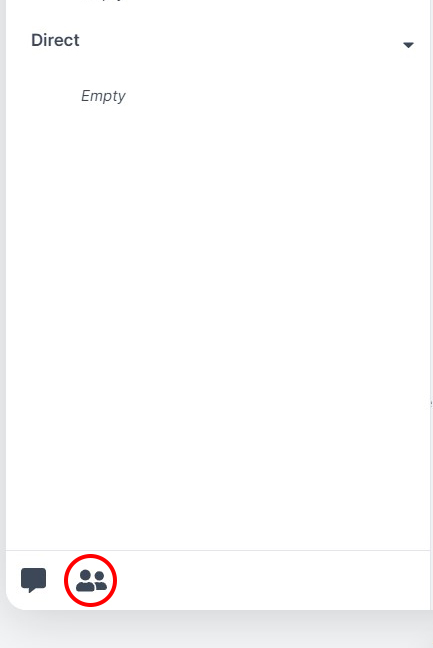
- Select the user you want to chat with, then click Create Direct Chat.
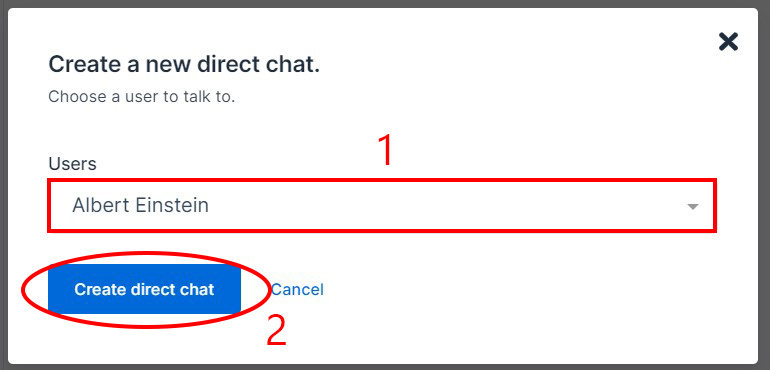
- The direct chat section opens:
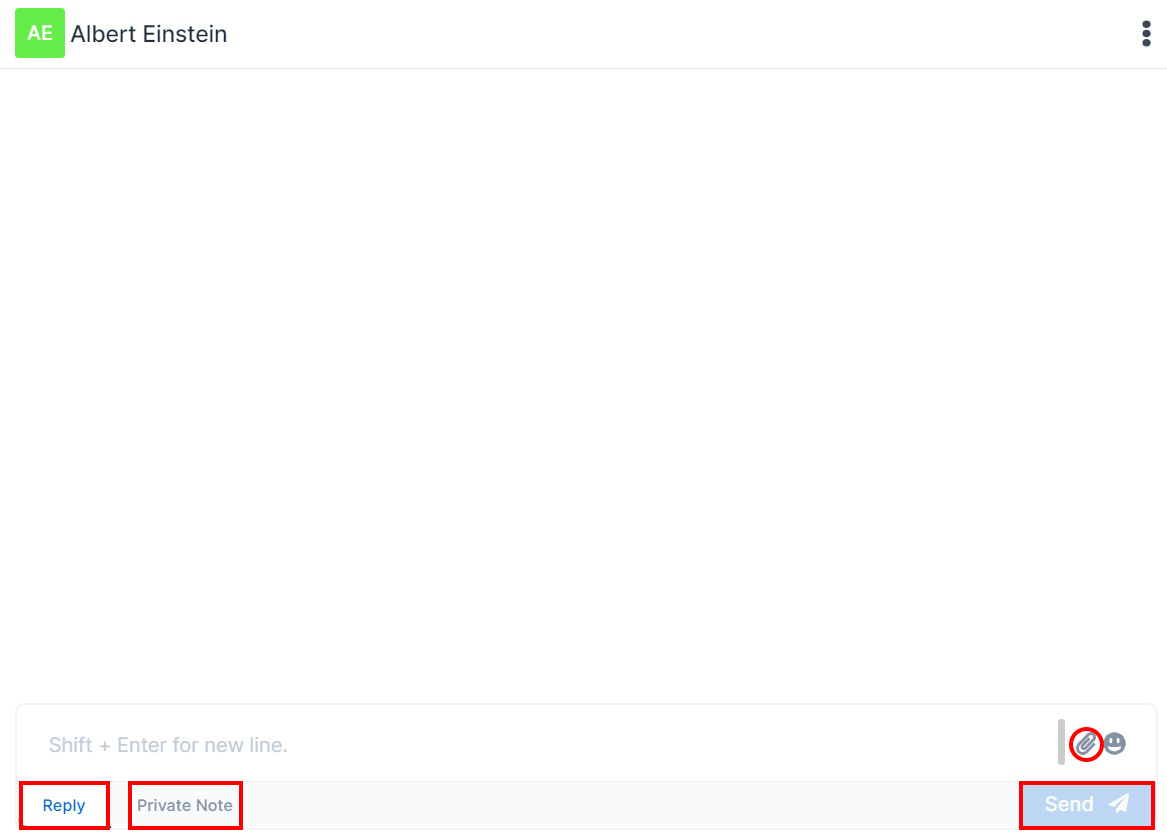
The chat interface includes the following elements:
| Element | Description |
|---|---|
| Reply Button | Send a message visible to other participants of the group or the recipient user. |
| Private Note Button | Create a private note within the chat, not visible to other users. |
| Staple Icon | Send files as attachments in the chat. |
| Emoji Icon | Insert an emoji in the chat. |
| Send Button | Send the message. |