CMDB Overview
The CMDB in Deepser is a centralized database that allows you to create and manage Configuration Items (CIs). Each CI is characterized by a Class, a Type, and a Subtype, giving you a structured hierarchy to organize your IT assets and configuration data.
Classes
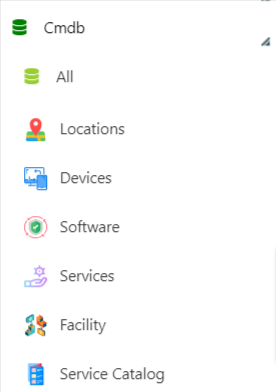
Classes allow you to distinguish CIs into macro categories. The defined macro categories are displayed in the Deepser Backend inside the CMDB menu, as shown in the figure below.
Types
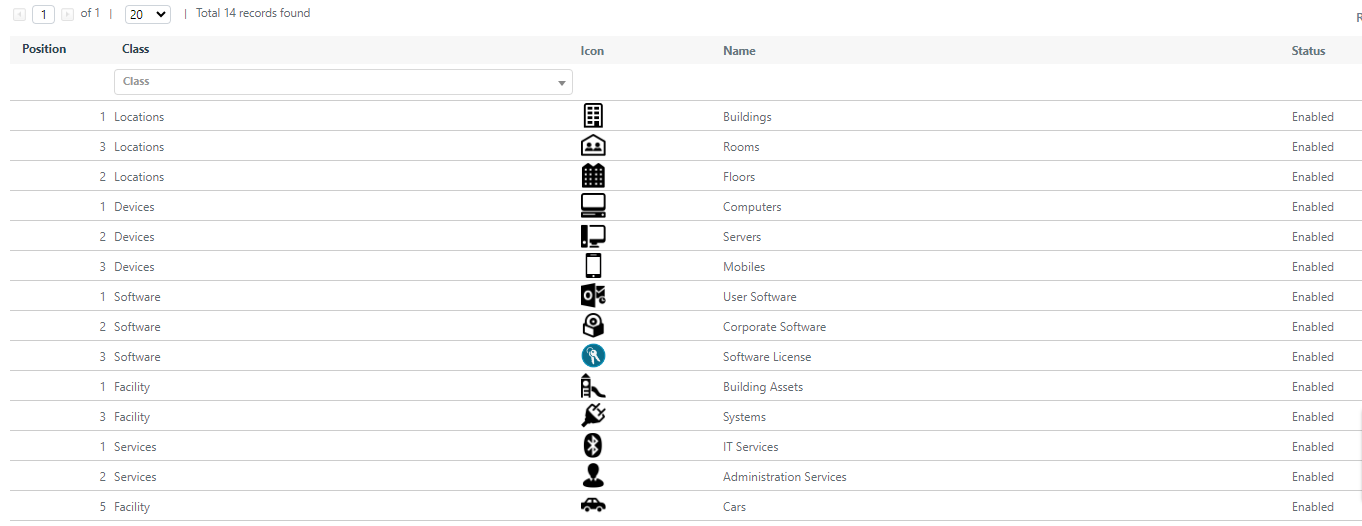
Types add a classification layer to the elements defined in Classes. This enables more granular management of visibility permissions and makes it easier to identify what a particular CI refers to at a glance.
Subtypes
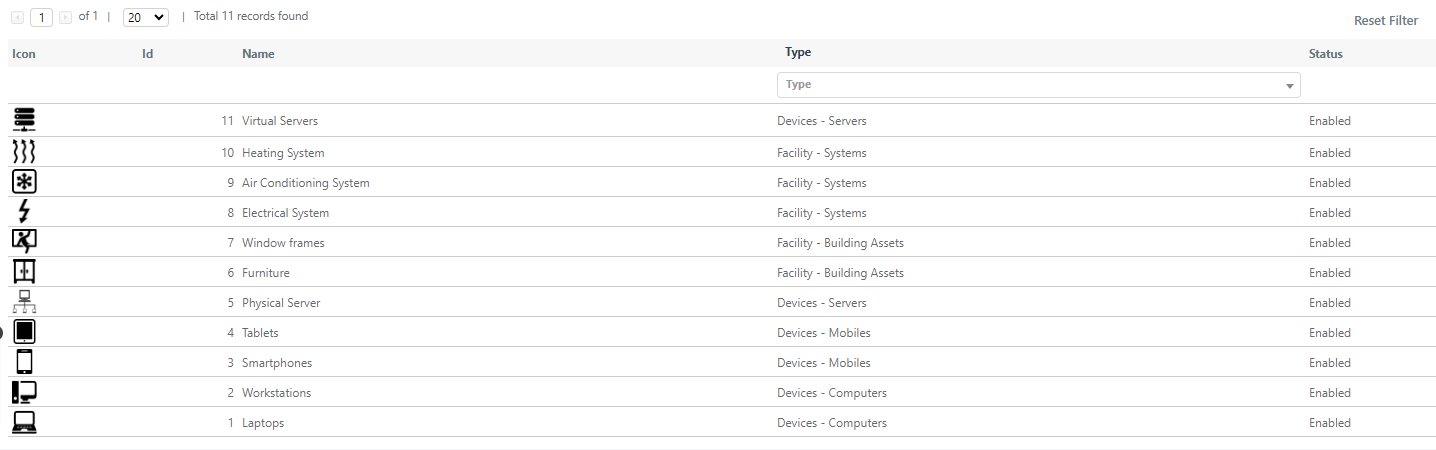
Subtypes add a further classification layer to the elements defined in Types. Like Types, Subtypes enable finer visibility permissions and quicker identification of CI purpose.
Configuration Items
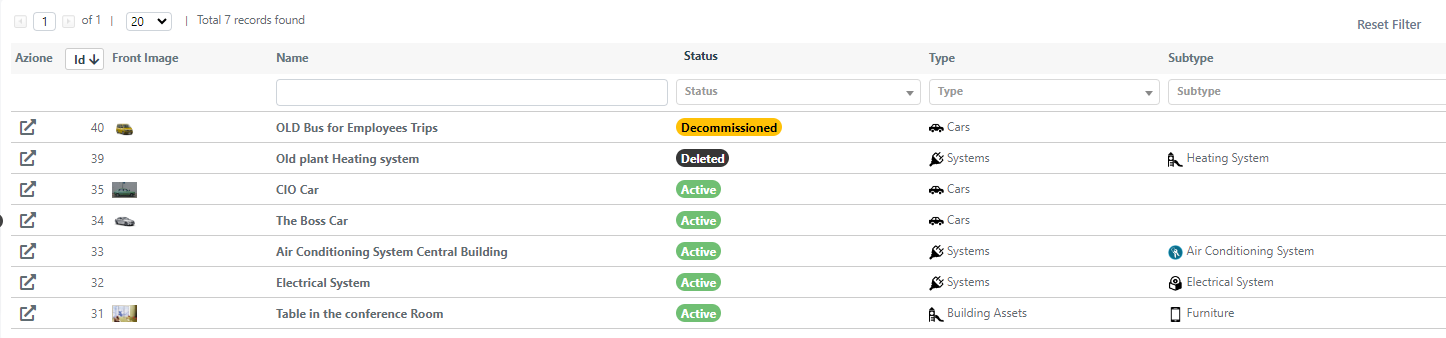
CIs are similar to records in a database, allowing you to create custom entities within Deepser. These entities can be assigned to users who will then be able to view and edit them.
For example, you can use CIs to manage devices assigned to users. Once a CI is assigned, the user can view information such as the serial number, associated PINs or codes, and any other details that are useful for the assignee.
CIs combine Classes, Types, and Subtypes to provide a flexible hierarchy. Use this structure to keep your configuration data well-organized and easy to navigate.
Configure Classes, Types, and Subtypes
In Deepser, CI Classes, Types, and Subtypes are organized hierarchically. At the highest level you have Classes; each Class can be associated with one or more Types, and each Type can be associated with one or more Subtypes. The following sections explain how to configure each level.
Configure a Class
To configure a new Class:
- Go to System > CMDB Configuration > Class.
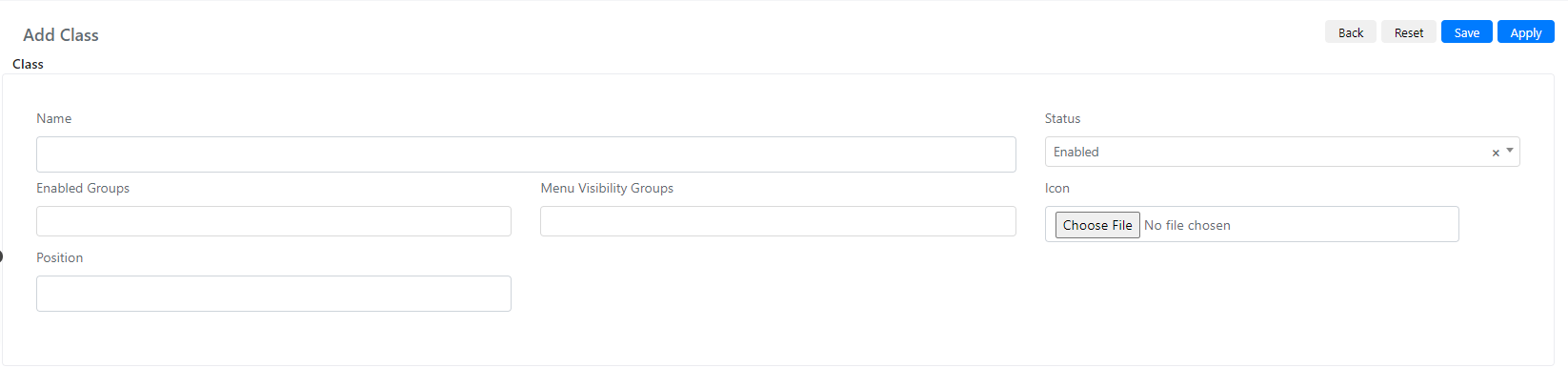
- Click the Add Class button. The following screen will open:
| Field | Description |
|---|---|
| Name | The name of the Class. |
| Status | The status of the Class. If set to "Enabled", the Class is displayed; otherwise it is hidden along with all CIs belonging to it. |
| Enabled Groups | Groups that can see and interact with the Class. |
| Icon | The Class icon, used for quick visual recognition. |
| Position | Defines the display order of the Class in the sidebar. |
Once you have filled in the fields, click Save or Apply to store the Class.
Configure a Type
To configure a new Type:
- Go to System > CMDB Configuration > Type.
- Click the Add Type button. The following screen will open:

| Field | Description |
|---|---|
| Class | The Class to which the Type belongs. |
| Name | The name of the Type. |
| Status | The status of the Type. If set to "Enabled", the Type is displayed; otherwise it will not be viewable or settable. |
| Icon | The Type icon, used for quick visual recognition. |
| Position | Defines the display order of the Type. |
Once you have filled in the fields, click Save or Apply to store the Type.
Configure a Subtype
To configure a new Subtype:
- Go to System > CMDB Configuration > SubType.
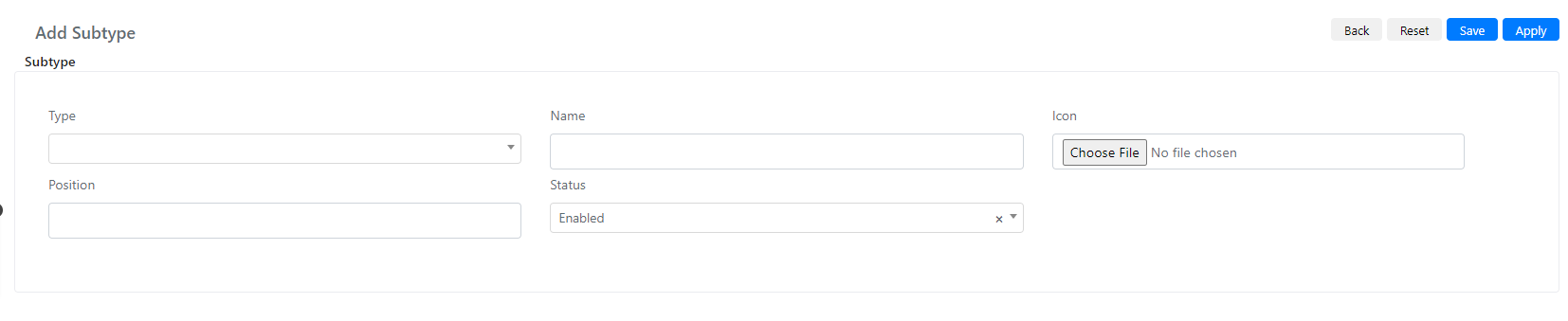
- Click the Add SubType button. The following screen will open:
| Field | Description |
|---|---|
| Type | The Type to which this Subtype belongs. |
| Name | The name of the Subtype. |
| Status | The status of the Subtype. If set to "Enabled", the Subtype is displayed; otherwise it will not be viewable or settable. |
| Icon | The Subtype icon, used for quick visual recognition. |
| Position | Defines the display order of the Subtype in the sidebar. |
Once you have filled in the fields, click Save or Apply to store the Subtype.