Configure a CI
This guide walks you through creating and configuring a new Configuration Item (CI) in Deepser. CIs allow you to track assets, devices, and other entities within your CMDB.
Create a New CI
- Go to CMDB > All and click the Add CI button.
- In the window that opens, choose the type of CI to create and click the New button. The following screen will open:
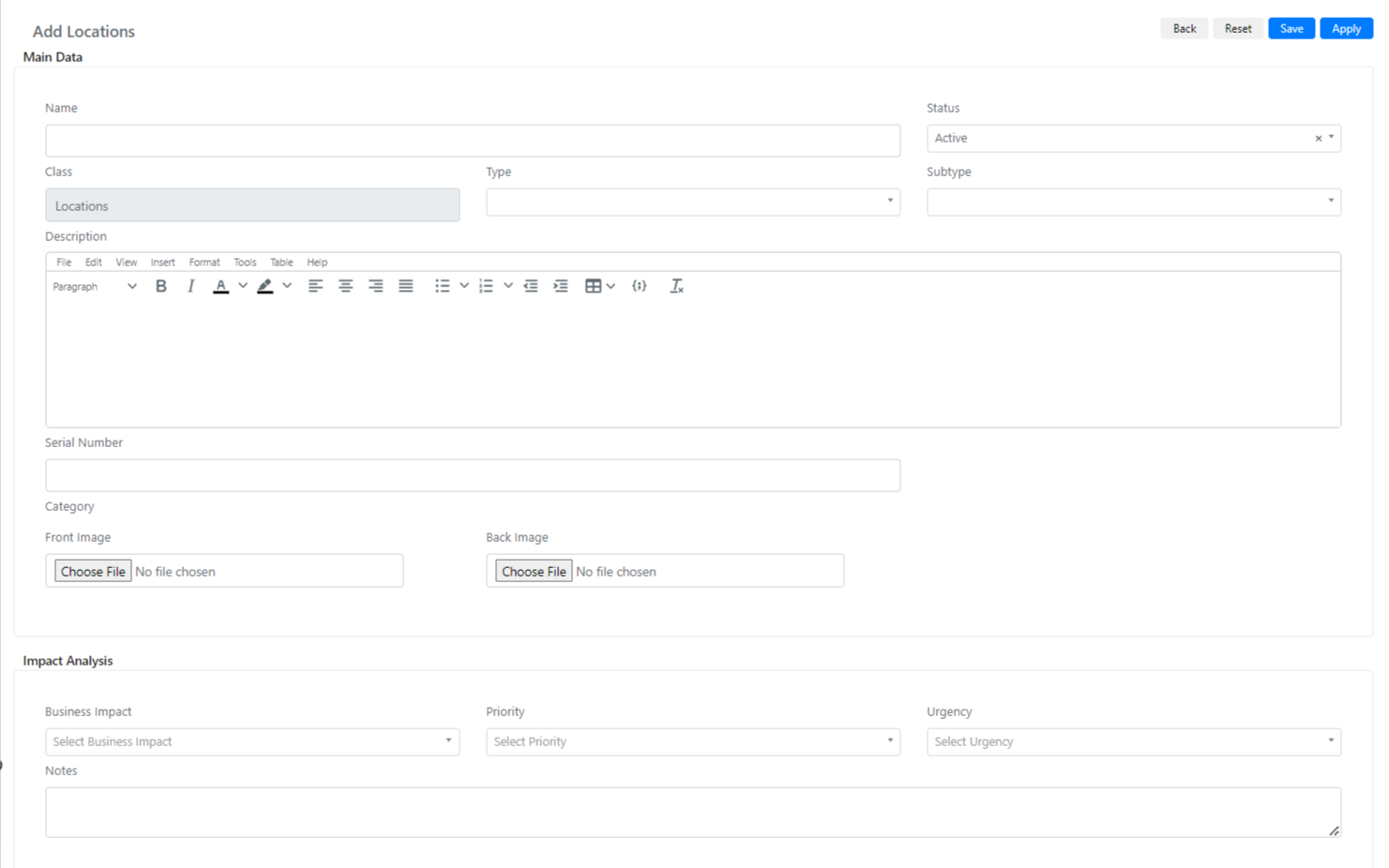
Below are the field names and their descriptions:
| Field | Description |
|---|---|
| Name | The name that will be associated with the new CI. |
| Category | The category associated with the CI you are creating. |
| Class | The Class of the CI. |
| Type | The Type of the CI. |
| Subtype | The Subtype of the CI. |
| Description | A description of the CI. |
| Serial Number | The serial number of the CI. |
| Front Image | A front image of the CI. |
| Business Impact | Indicates how important this CI is to the company's business. |
| Priority | The priority of the CI. |
| Urgency | The urgency of the CI. |
| Notes | Notes associated with this CI. |
User Details Tab
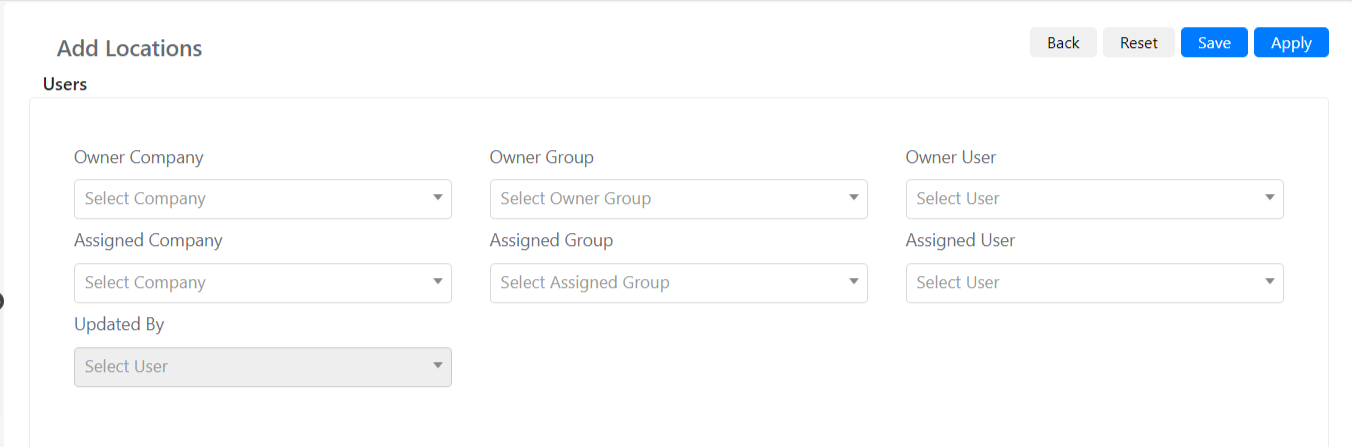
The User Details tab contains ownership and assignment information for the CI.
| Field | Description |
|---|---|
| Owner Company | The company that owns the CI. |
| Owner Group | The group that owns the CI. |
| Owner User | The user who owns the CI. |
| Assigned Company | The company assigned to the CI. |
| Assigned Group | The group assigned to the CI. |
| Assigned User | The user assigned to the CI. |
| Updated By | The last user who updated the CI. Initially, this is the user who created it. |
Activity/Attachments Tab
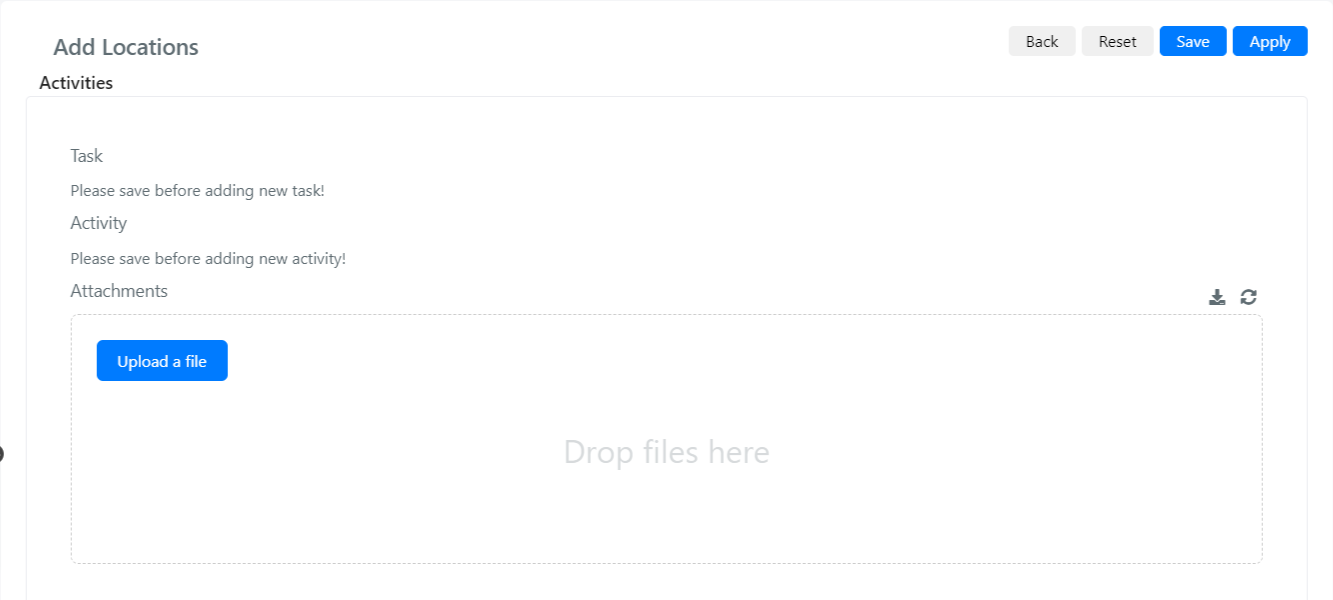
The Activity/Attachments tab lets you associate tasks, activities, and files with the CI.
| Field | Description |
|---|---|
| Task | Tasks associated with the CI. You must save the CI at least once before you can add tasks. |
| Activities | Activities associated with the CI, such as comments or worklogs related to maintenance. |
| Attachments | Files attached to the CI. You can use this field to upload relevant documents. |
Relations Tab
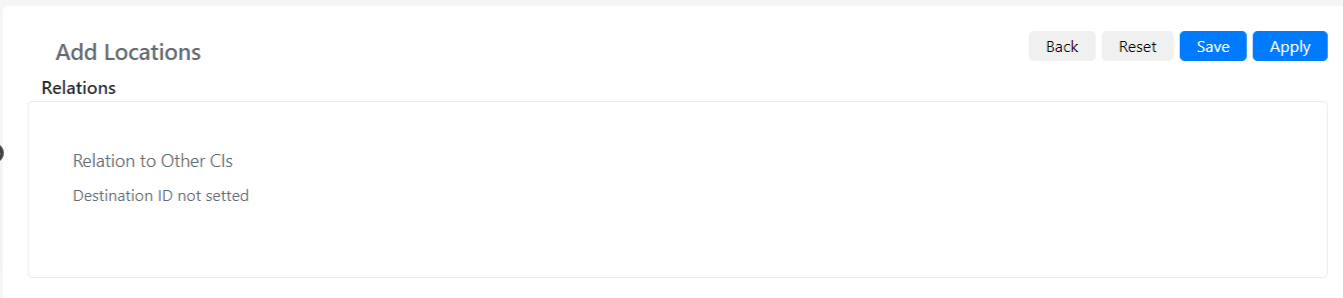
The Relations tab displays relationships between the current CI and other CIs.
| Field | Description |
|---|---|
| Relation to Other CIs | Displays relationships with other CIs, when present. |
History Tab
The History tab provides an audit trail of all changes made to the CI.
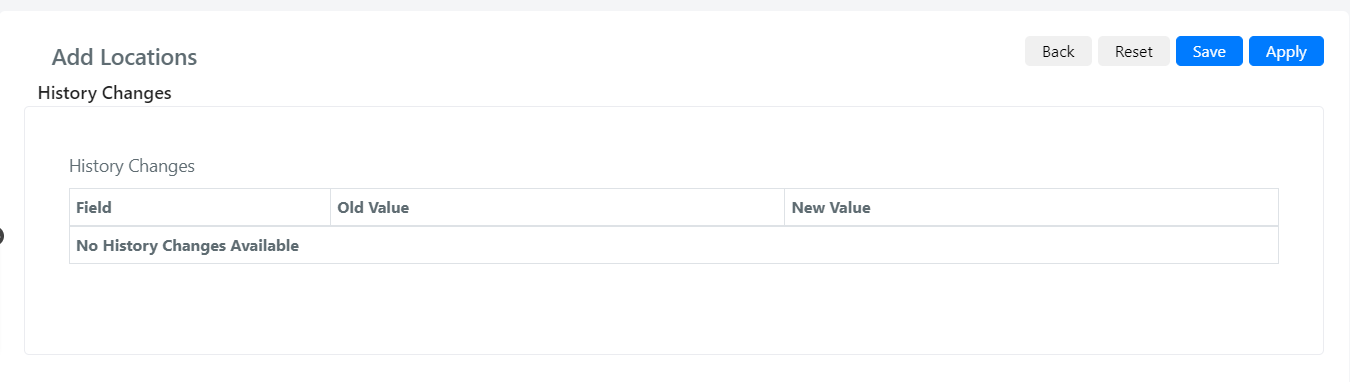
| Field | Description |
|---|---|
| History Changes | Contains the list of changes made to this CI, so you can track who modified it and when. |
note
Once you have filled in the required fields, click Save to store the new CI.