Enable CMDB in the User Portal
By default, the CMDB is not visible in the User Portal. Follow these steps to enable it so that end users can view and interact with their Configuration Items.
Enable the CMDB
- Go to System > Configuration and select the Portal item. The following screen will open:
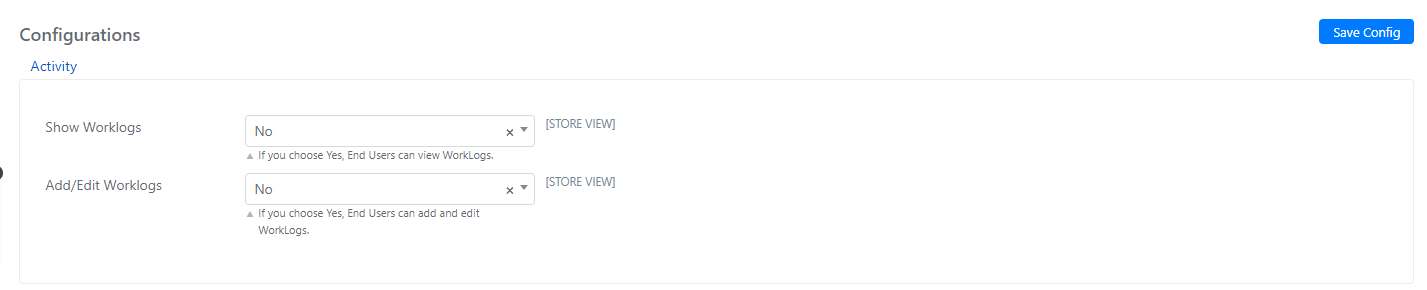
- Set the Enable field to Yes to activate the CMDB for the User Portal.
- Configure the Enabled Priority field (set to "Global" by default) to specify whether the CMDB is enabled for all users or only for specific users. If you set it to User, the CMDB will only be visible to users whose Portal CMDB Visibility field is set to "Yes".
- Click Save to apply the configuration.
tip
Use the "User" priority setting when you want fine-grained control over which end users can access the CMDB in the User Portal.