Contract Lines
Contract lines represent individual items or services within a contract. The deep_contract_lines module includes system automations for expiration, renewal, group-based visibility, and billing. This page covers each of these capabilities.
Expiration and Renewal
Deepser automatically tracks line expiration dates and can renew lines based on the configured recurrence settings.
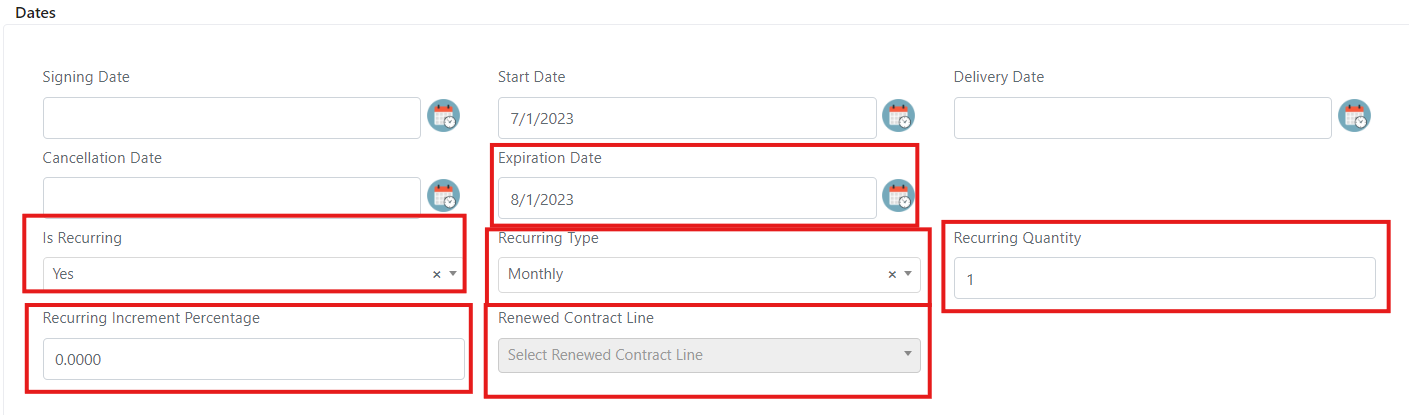
| Field Name | Description | Note |
|---|---|---|
| Expiration Date | Line expiration date. | |
| Is Recurring | Flag indicating if the line is renewable. | If set to "No," the line will not be renewed. |
| Recurring Type | Time recurrence unit. | |
| Recurring Quantity | Amount of temporal recurrence. | Related to "Recurring Type." For example, if set to Yearly with a quantity of 2, the line is renewed by 2 years on the expiration date. |
| Recurring Increment Percentage | Increase applied to the "Total Amount" field at renewal. | For example, if 10% is set and "Total Amount" is 40000, the renewed line will have a "Total Amount" of 44000. |
| Renewed Contract Line | Populated with the new renewed line. |
A System Job runs every 2 hours to check for expiration and handle possible renewals. This is the same job used for contract-level expiration.
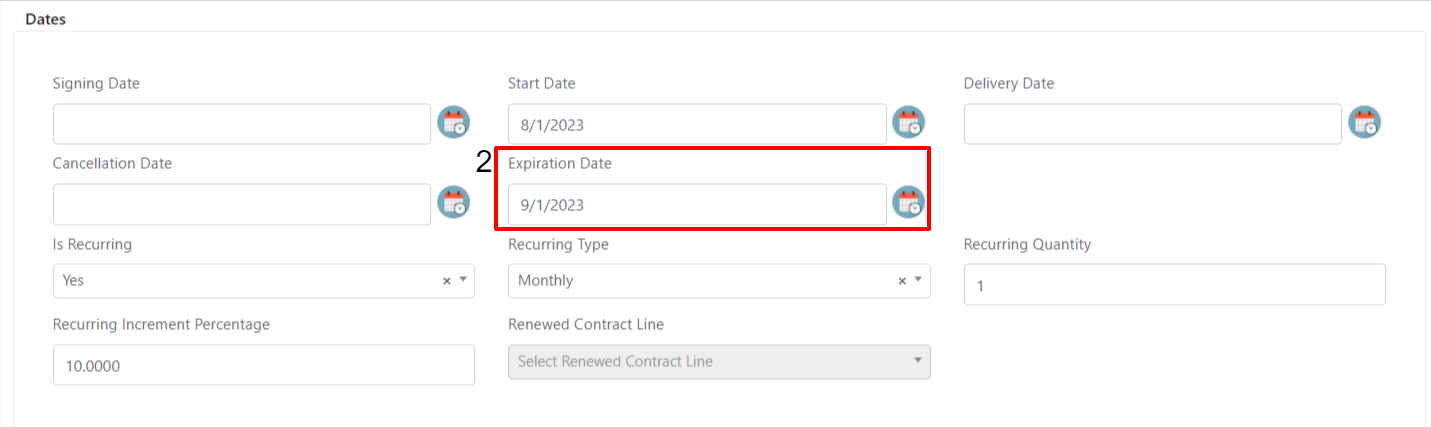
If the job finds a line with an expiration date earlier than the current date (1), it sets the Expired field to "Yes" (2).
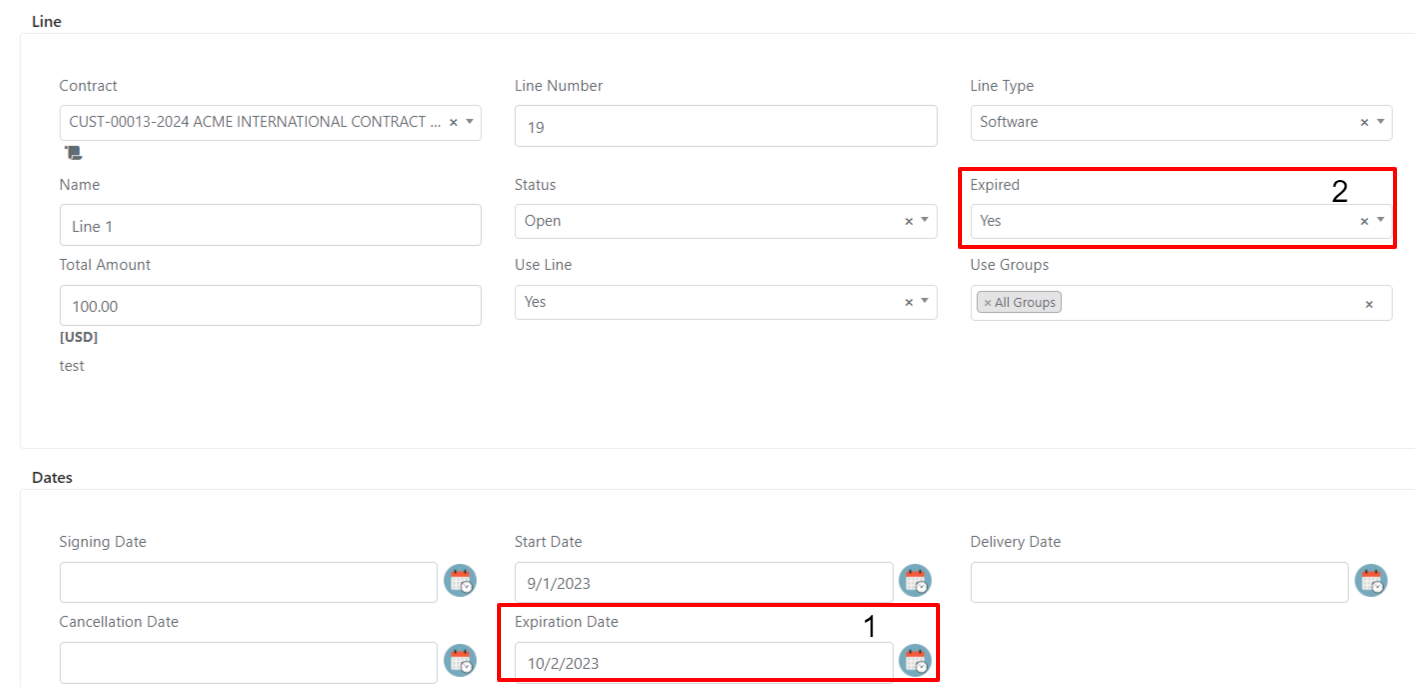
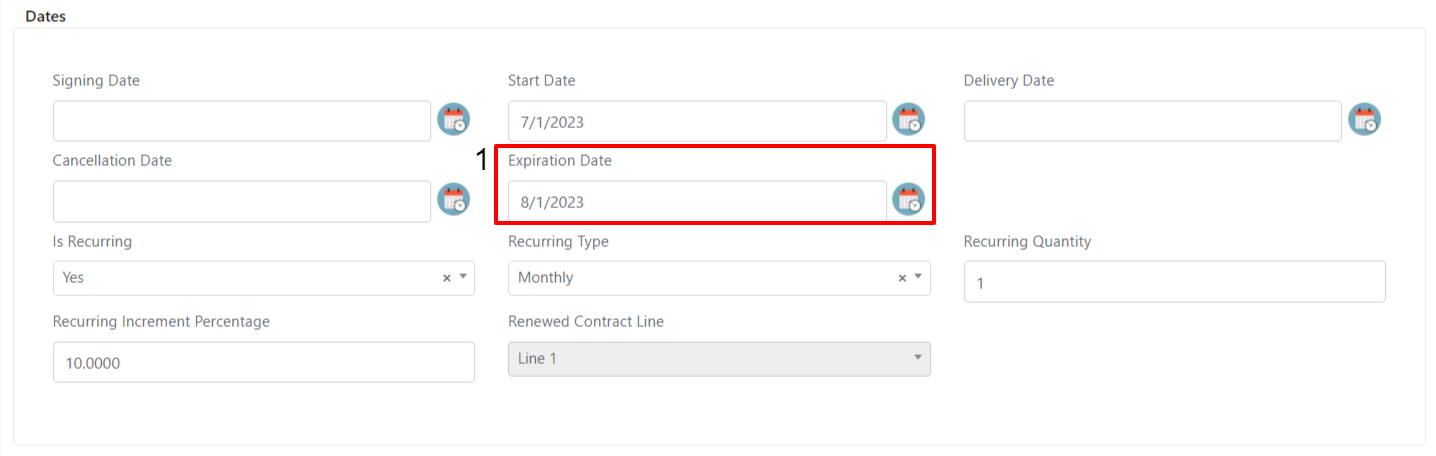
If the Is Recurring field is set to "Yes," the renewal automation is triggered. The new line receives an updated expiration date based on the recurrence settings.
Example: If the expired line (1) has an expiration date of 01/08/2023 and the recurrence is 1 month, the new line (2) will automatically have an expiration date of 01/09/2023.
Use Groups Field
The Use Groups field controls which user groups can select the line in other modules such as activities.
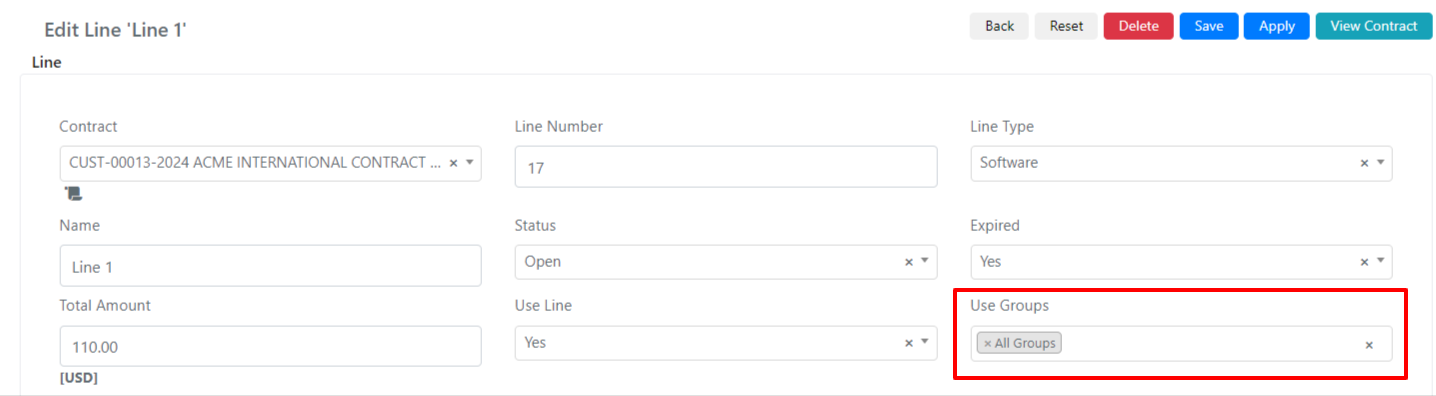
When set to All Groups, any user can select the line in activities and other forms. When set to a specific group (for example, "IT -- First Level"), all users can view the line if their role allows, but only members of that group can select it.
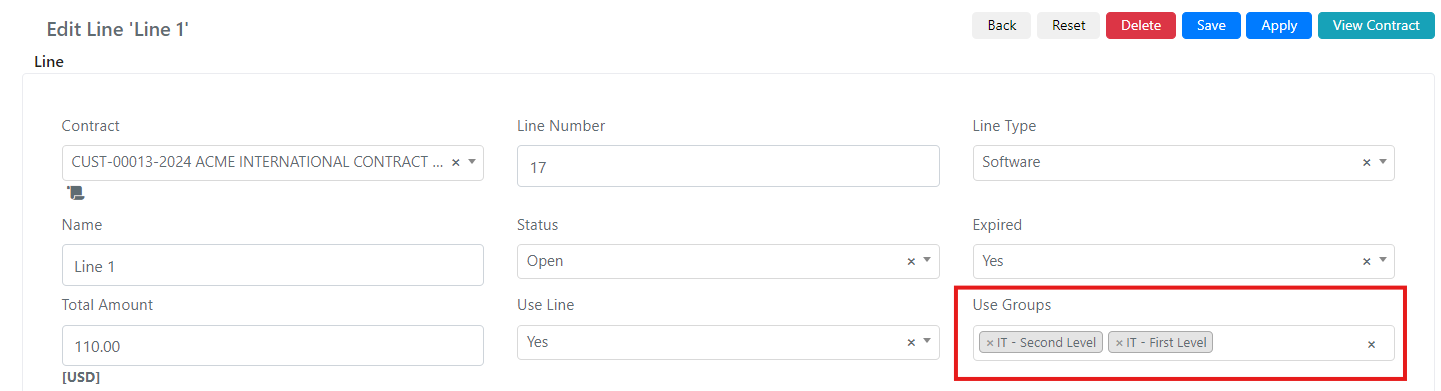
User member of the group
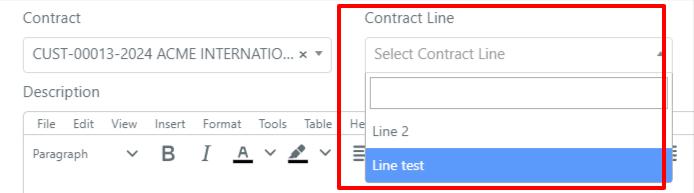
User not a member of the group
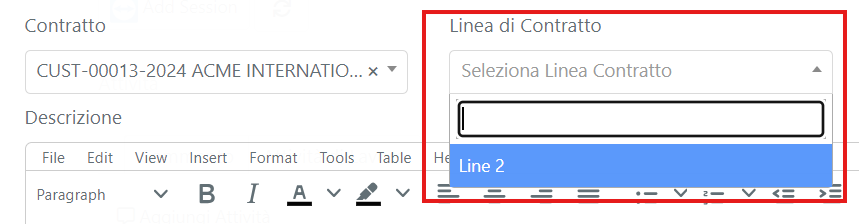
Setting the "Use Line" field to "No" hides the line from all form selects, regardless of the user's group.
Bill Contract Lines
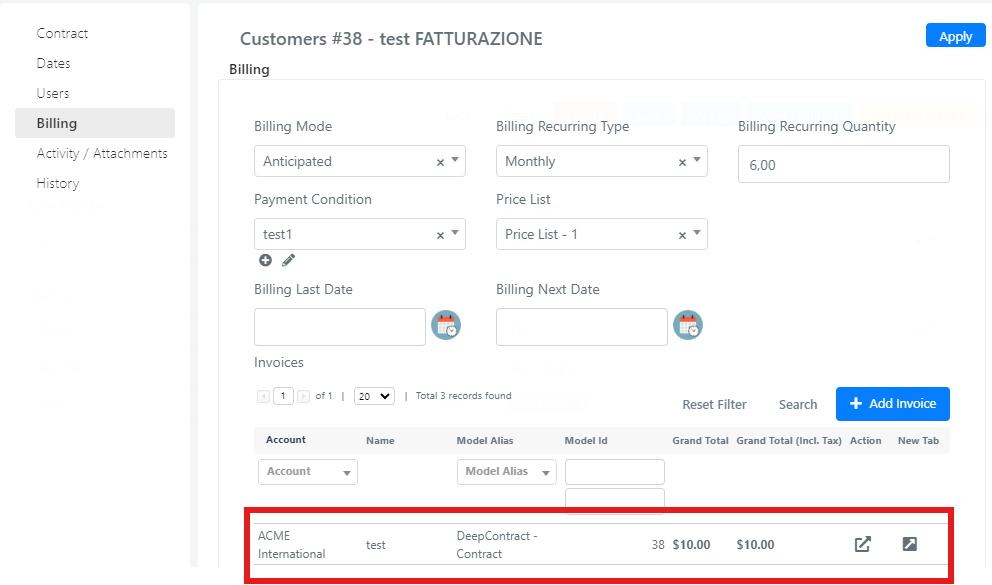
You can bill contract lines in three ways: the Generate Invoice button, the Generate Invoice mass action, or automatic invoicing.
Before billing lines, you must configure the required fields in the "Billing" tab.
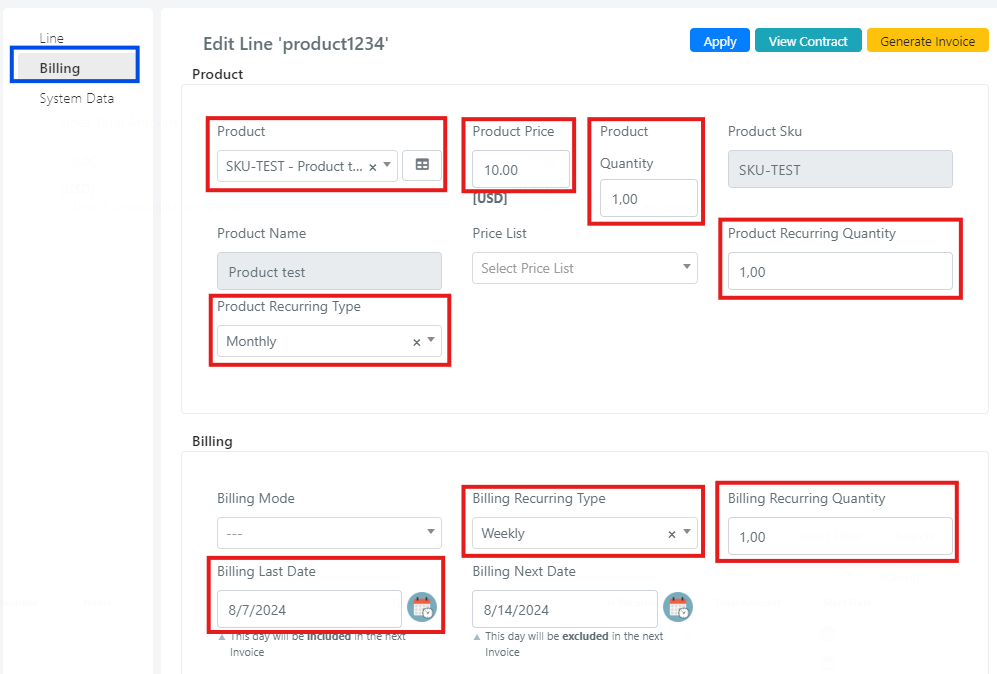
| Field | Description | Note |
|---|---|---|
| Product | Product that is billed. | |
| Product Price | Product price. | Populated automatically on product entry. |
| Product Quantity | Quantity of product for the line. | Populated automatically on product entry. |
| Product Recurring Type | Temporal recurrence of the product. | |
| Product Recurring Quantity | Recurrence of the quantity (temporal) of the product. | Related to the "Product Recurring Type" field. |
| Billing Recurring Type | Type of recurrence. | |
| Billing Recurring Quantity | Quantity of billing recurrence. | |
| Billing Last Date | Last billing date. |
Generate Invoice Button
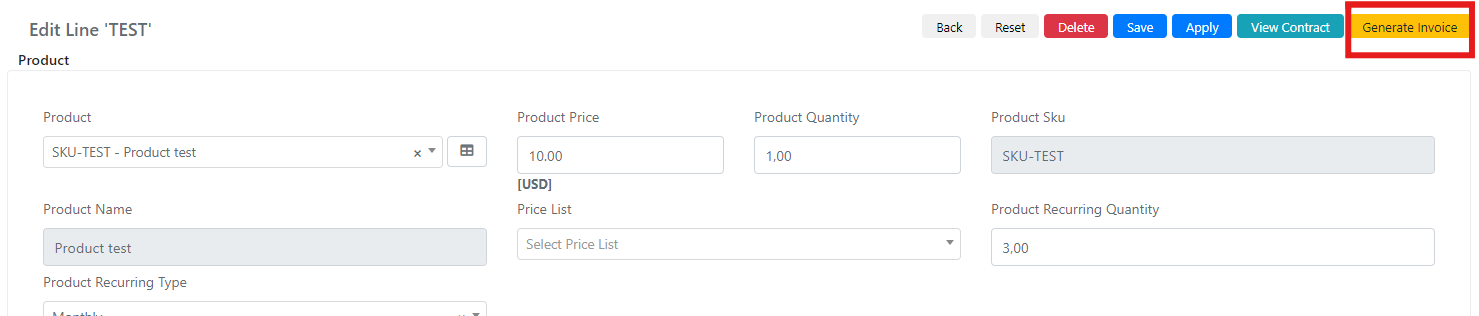
After saving a line with the billing fields correctly populated, the Generate Invoice button appears on the line form.
Mass Action: Generate Invoice
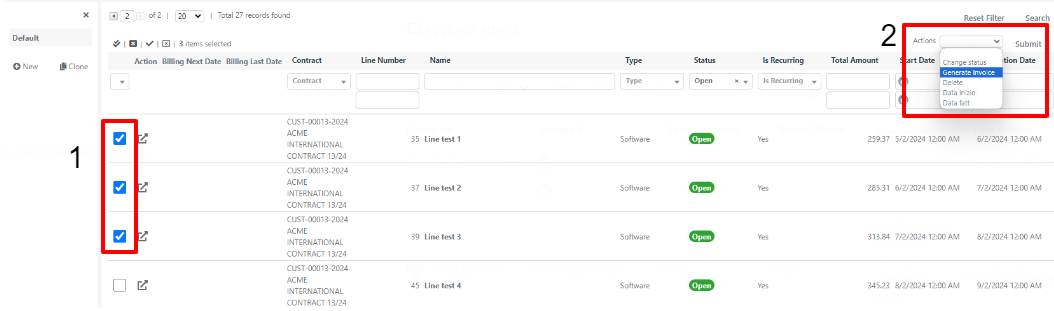
From the lines grid, you can bill multiple lines from different contracts at once using mass actions.
- Select the lines you want to invoice (1).
- Choose Generate Invoice from the mass actions list (2) and click Submit.
Automatic Billing
A system job runs every day at 04:00 to bill eligible lines automatically.
Regardless of the billing method used, you can view the created invoice from the Contract or directly from the sales_invoice module.