Configure Contract Types
Contract types let you classify contracts and control which user groups can access them. Each type appears as a menu entry in the Contracts module. This guide explains how to create and configure a new contract type.
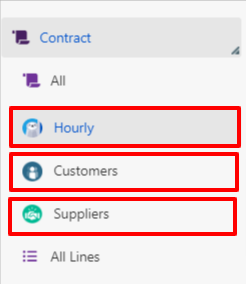
Create a Contract Type
-
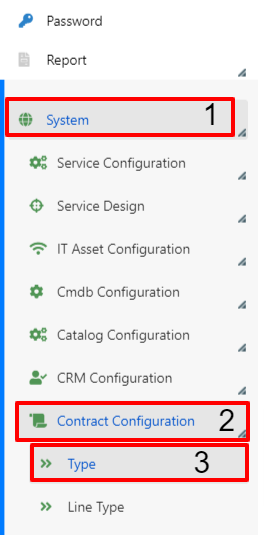
In the Deepser Backend, go to System (1) > Contract Configuration (2) > Type (3).
-
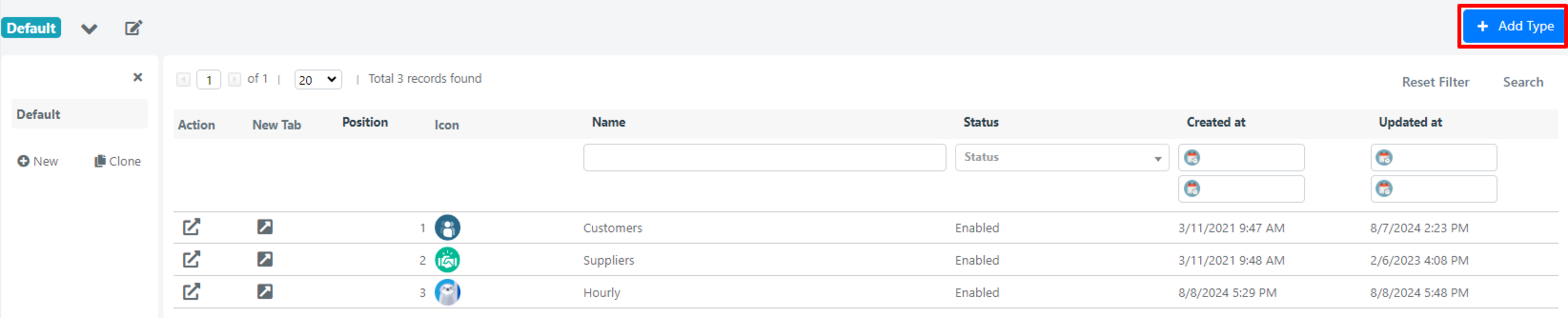
Click the Add Type button.
-
Fill in the fields described below and save.
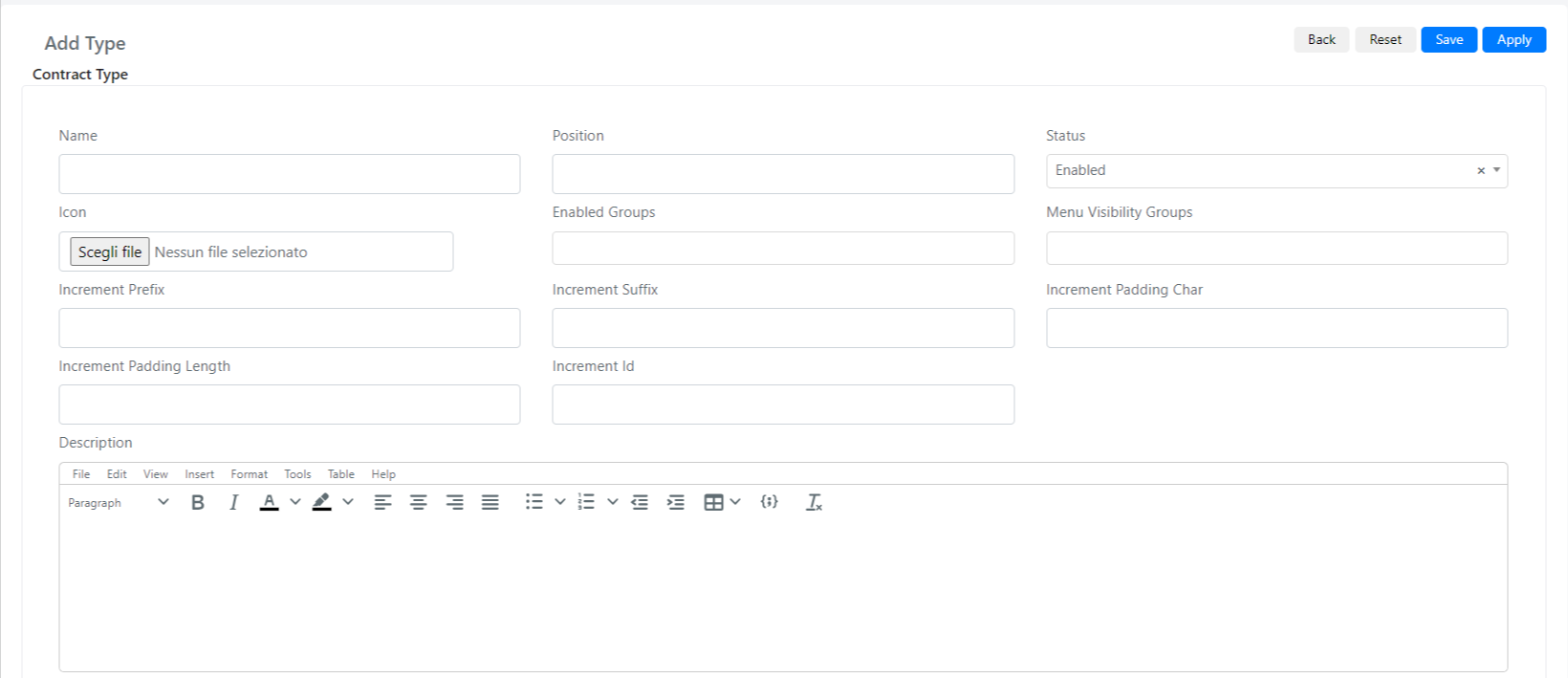
Contract Type Fields Reference
| Field | Description | Note |
|---|---|---|
| Name | Type name. | |
| Position | Position in the menu. | |
| Status | Whether the type is enabled or disabled. | If disabled, the type will not be visible in the menu. |
| Icon | Icon displayed next to the type name. | |
| Enabled Groups | Groups that can use this type. | |
| Menu Visibility Groups | Groups that can see this type in the menu. | |
| Increment Prefix | Automatic prefix for the contract number. | For example, setting "Hourly -" as the prefix and "- 2024" as the suffix produces a contract number like "Hourly - 1 - 2024." The number auto-increments via the "Increment Id" field. |
| Increment Suffix | Automatic suffix for the contract number. | |
| Increment Id | Auto-incremented counter for the contract number. | |
| Description | Free-text description of the type. |