Manage Account Addresses
In Deepser, addresses represent actual places, companies, or accounts. You can use addresses to manage a company's multiple locations, branches, and other related sites.
Access Account Addresses
- Navigate to CRM > Account.
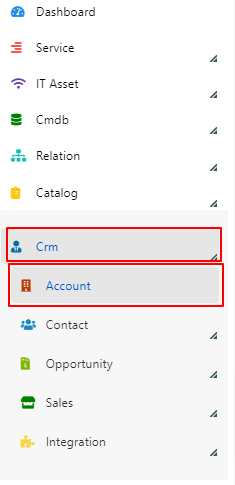
- Select the account to add its addresses.

- Select the Address option in the grid on the left.

- The following screen will appear, showing the address data related to the main account.
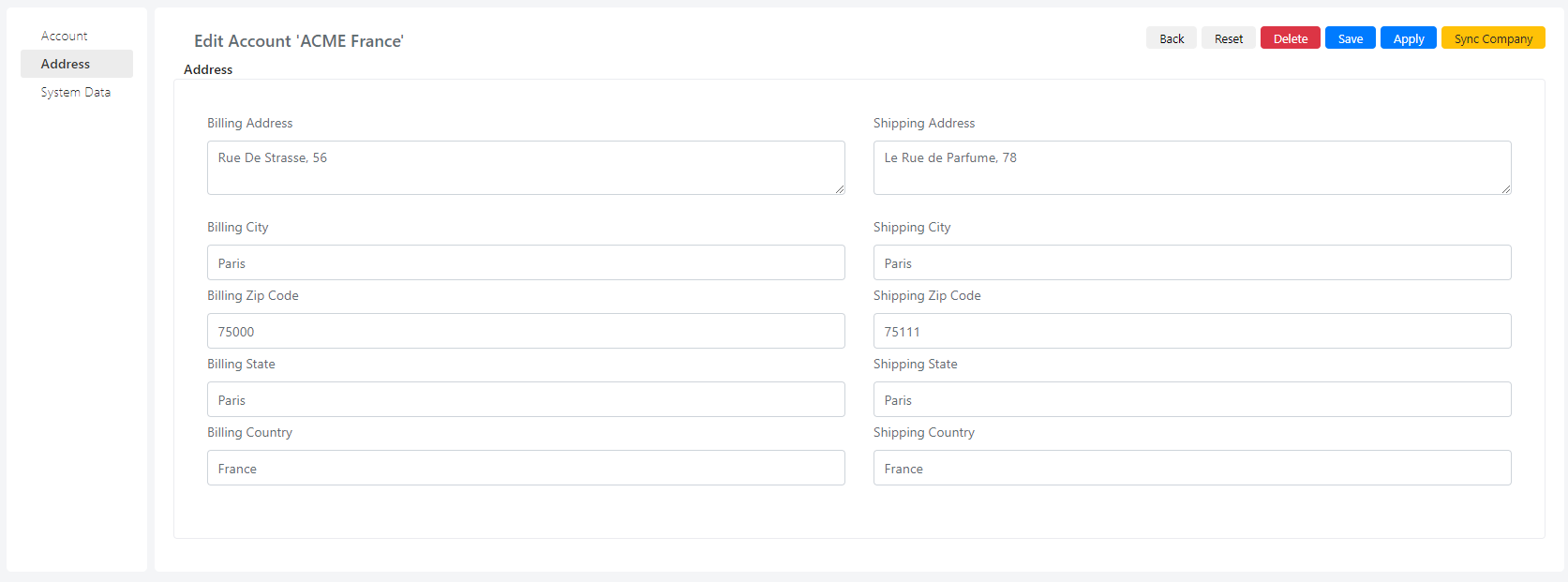
Address Fields
| Field | Description |
|---|---|
| Billing Address | Billing street address. |
| Billing City | City for billing. |
| Billing Zip Code | Postal code of the billing city. |
| Billing State | State or region for billing. |
| Billing Country | Country for billing. |
| Shipping Address | Shipping street address. |
| Shipping City | City for shipping. |
| Shipping Zip Code | Postal code of the shipping city. |
| Shipping State | State or region for shipping. |
| Shipping Country | Country for shipping. |
Save the Address
- To save your changes, click Apply or Save.
The toolbar buttons perform the following actions:


| Button | Action |
|---|---|
| 1 | Return to the previous page without saving. |
| 2 | Reset the information to the last save. |
| 3 | Delete the entered record. |
| 4 | Save and return to the main grid. |
| 5 | Save and stay on the current page. |
| 6 | Synchronize Account to Company (present only if the Sync function is enabled). |
Manage Multiple Addresses
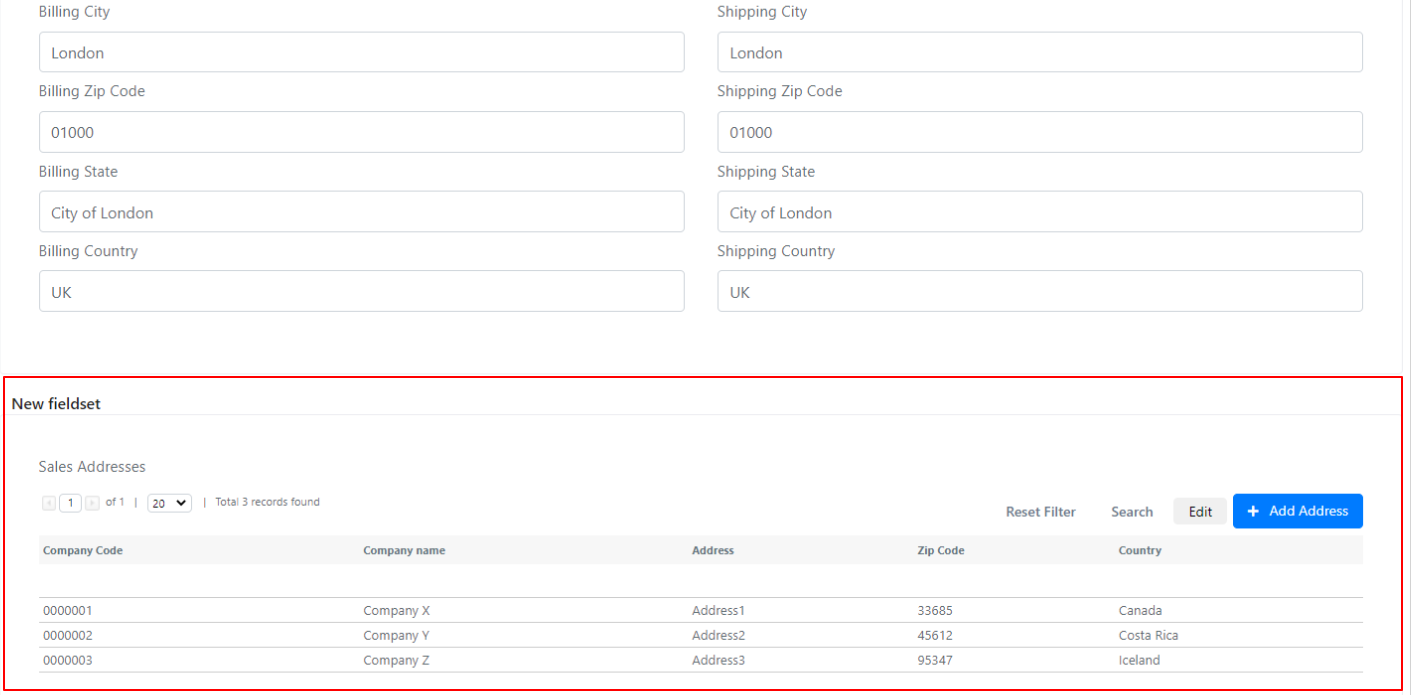
At the bottom of the form there is an Address Grid Field (custom fields), in this case Sales Addresses, where you can enter different addresses of companies connected to the main one. A common use case is managing multi-location companies, branches, and detachments.
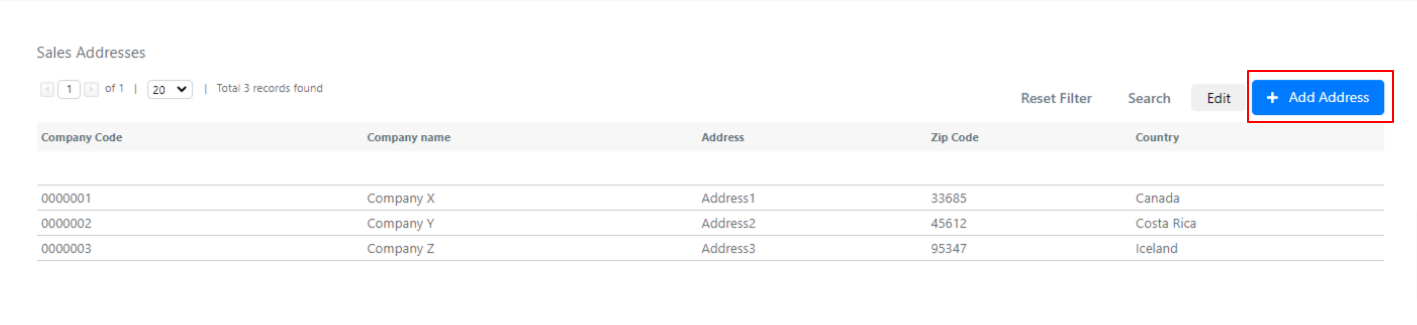
- Click the blue Add Address button in the top right corner.
- Fill in the address form:
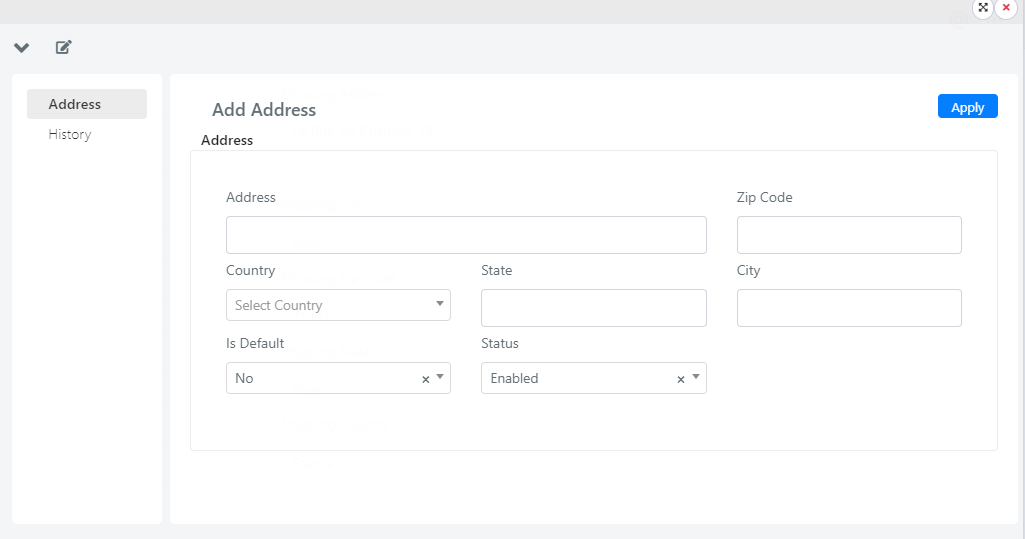
| Field | Description |
|---|---|
| Company Name | Name of the venue. |
| Company Code | Company Code. |
| Address | Street address. |
| Zip Code | Postal code. |
| Country | Country. |
| Is Default | If there are multiple addresses associated with the company, only one can be designated as the default. It will be suggested as the default address for address fields in CRM Sales modules. |
| Status | Set to Enabled to enable it. |
- Click Apply in the top right corner to save.
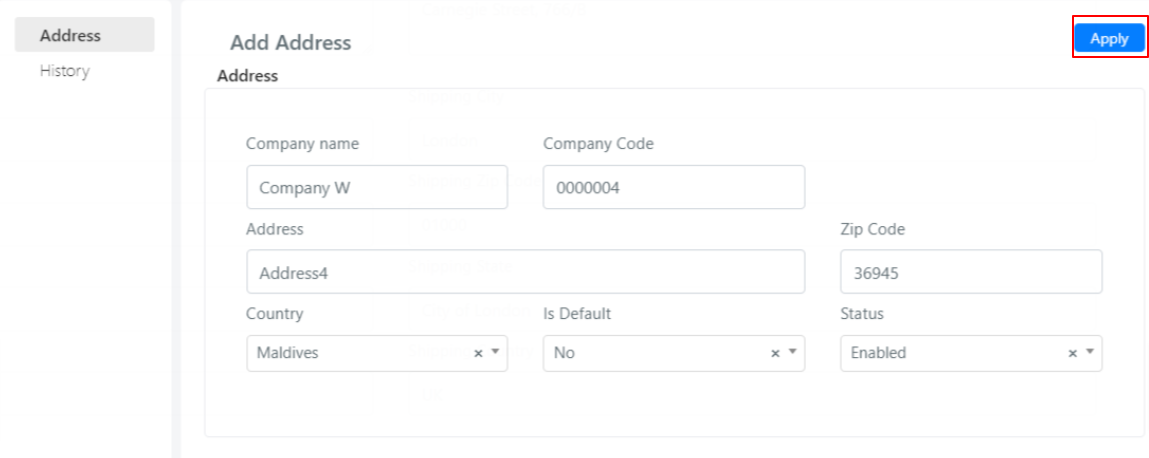
The new address will be added to the grid below.
