Create a CRM Account
This guide walks you through creating an Account in the CRM module and explains each field in the standard input form.
Open the Account Form
- Navigate to CRM > Account.
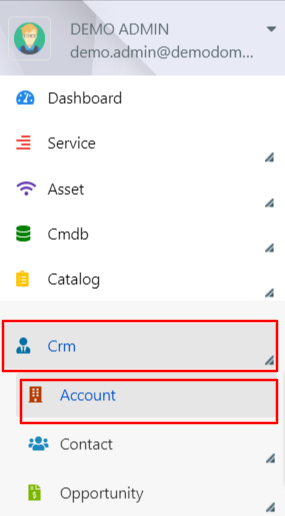
- Click Add Account to open the insert form. The following fields will be displayed:
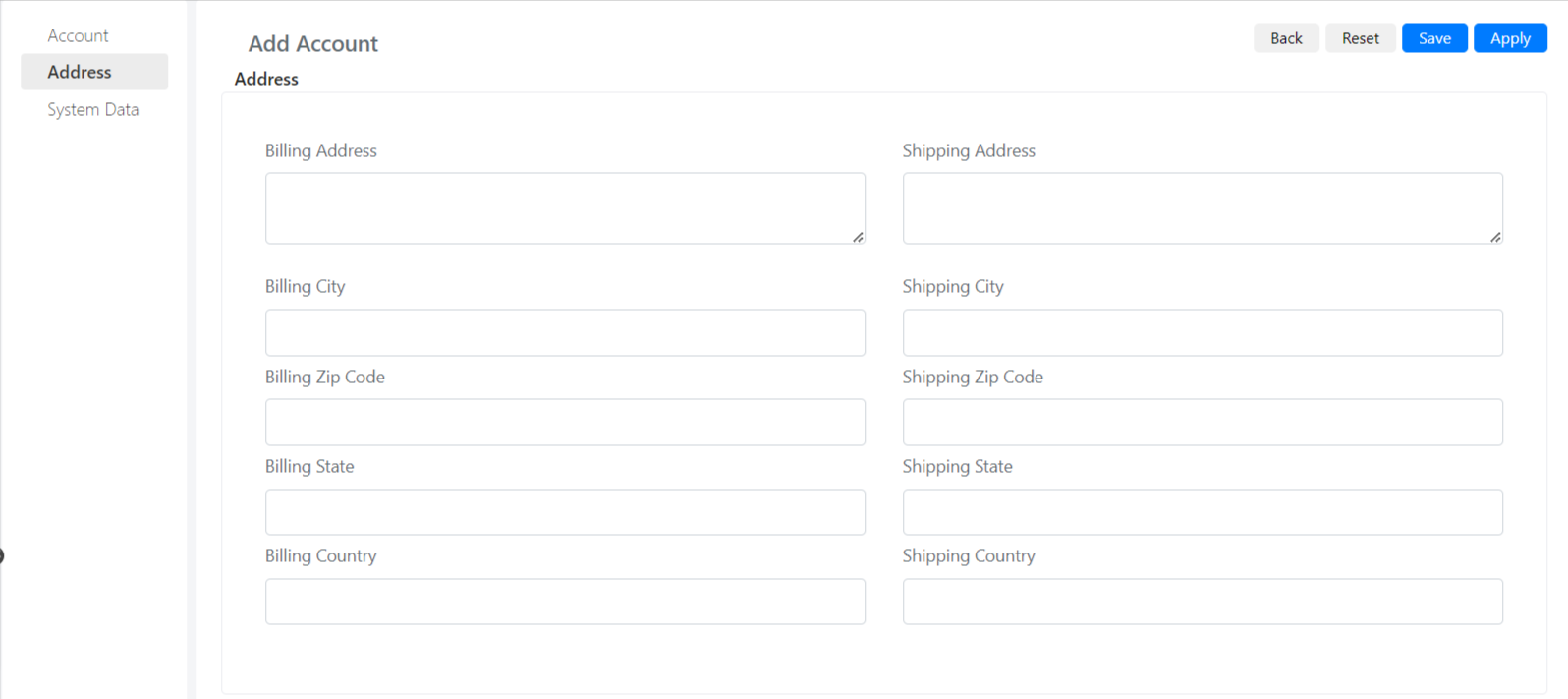
Account Entry Form Fields
| Field | Description |
|---|---|
| Name | The company account name. |
| Type | Indicates the type of Account. |
| Parent Account | Allows you to establish a hierarchy between different accounts, managing divisions and corporate headquarters. For example, an ACME Account may be the parent of ACME Italy and ACME France. |
| State | Enable or disable the Account. |
| Linked Company | A field that maintains a reference to a Company present in Deepser Companies (see the Buttons section). |
| Owner User | Allows you to specify the Account administrator. |
| Website | The Account website. |
| Phone | The Account phone number. |
| Fax | Fax number of the Account. |
| Industry | Area of Account reference. |
| Employees | Number of employees. |
| Satisfaction Rating | Customer account satisfaction level. |
| Logo | Account logo image. |
| Notes | Additional notes. |
| Task | Task related to the Account. |
- Fill in the required fields and click Save to store the new Account.