Synchronize CRM with Companies
In Deepser, you can manually synchronize CRM modules (Accounts and Contacts) with Companies and Users, allowing for the creation and automatic alignment of the related entities within the system.
Synchronize CRM Accounts with Companies
A Company can be created starting from a CRM Account. This operation also enables the automatic transformation of the data entered in the account into the company model.
To synchronize a CRM Account with a Company:
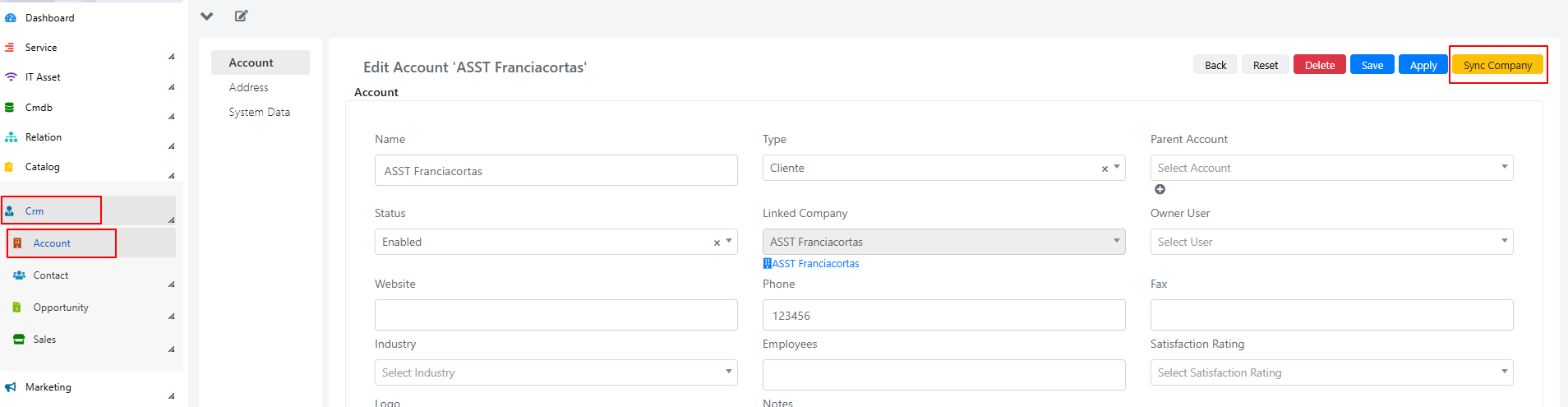
- Go to CRM > Account.
- Select the account you want to convert into a Company.

- On the screen that appears, click the Sync Company button located in the top right.
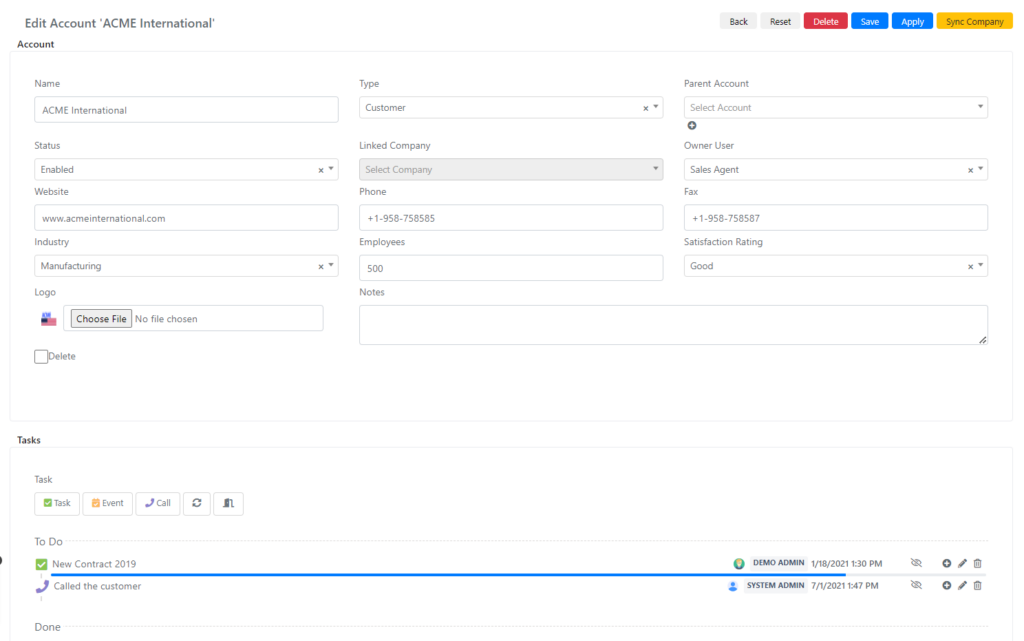
- A confirmation pop-up will appear. Click Yes to proceed with the creation of the corresponding Company, or Cancel to abort.
Once confirmed, the Company will be created. Note that if a Company with the same name already exists, Deepser will create a new Company rather than linking to the existing one.
Synchronize CRM Contacts with Users
As with CRM Accounts, you can create Users starting from a CRM Contact. This synchronization creates a User based on the data contained in the CRM Contact.
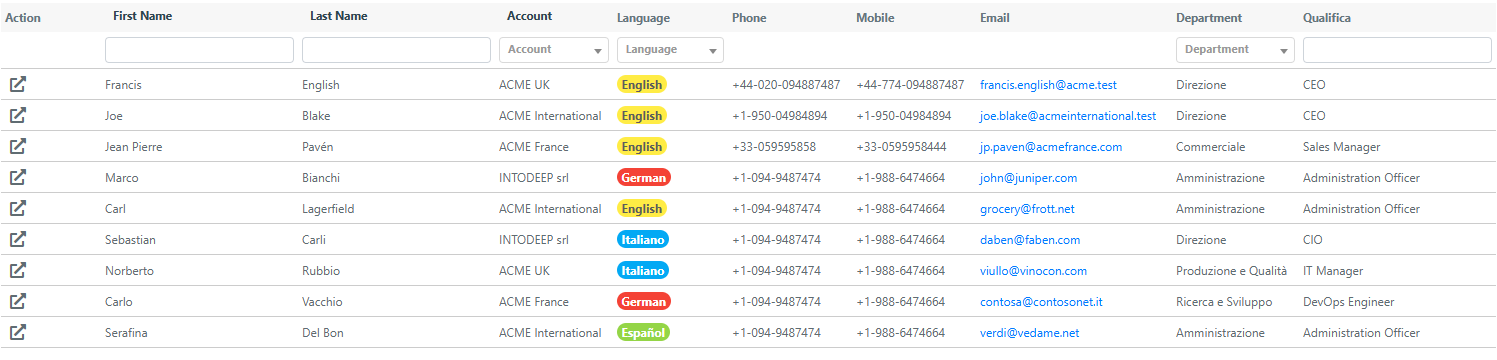
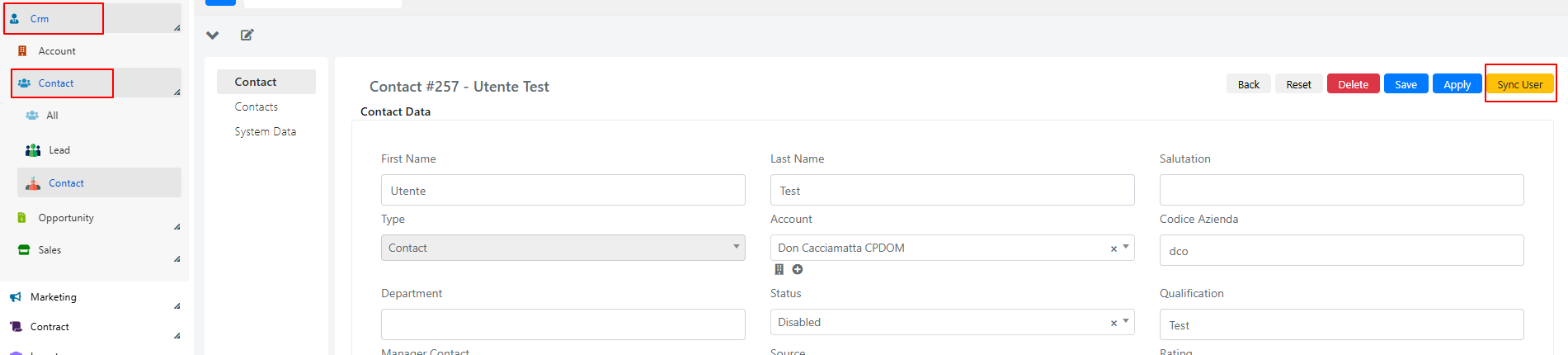
- Go to CRM > Contact > Contact.
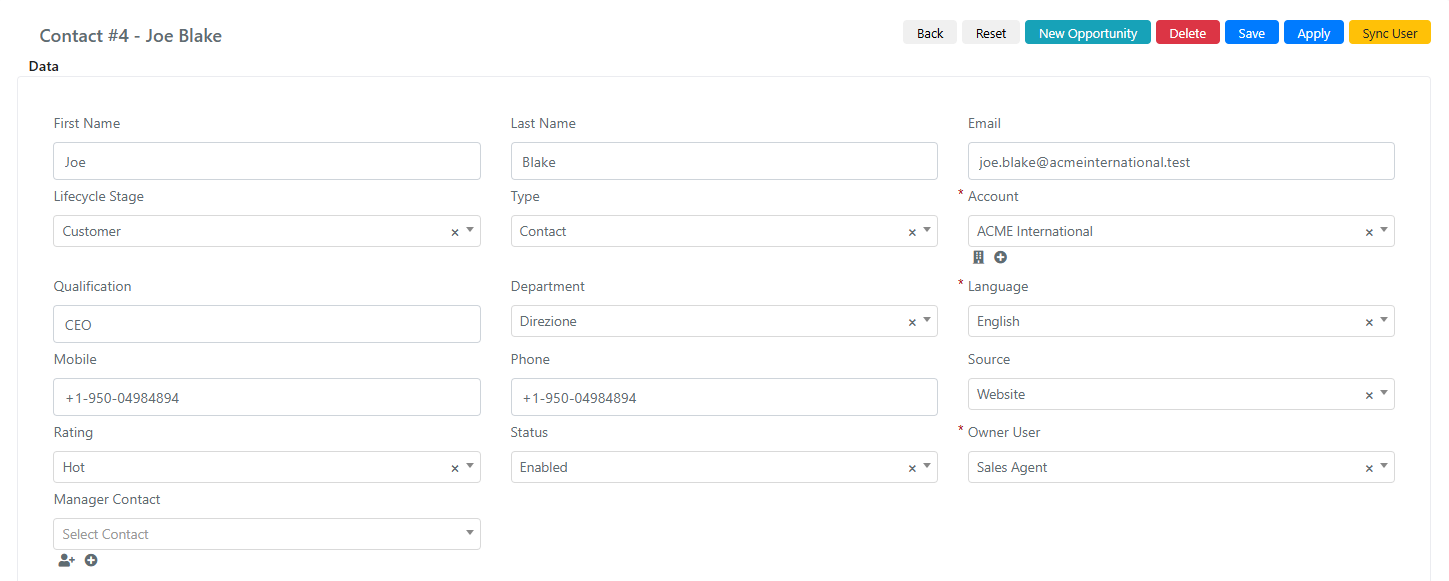
- Select the contact you want to convert into a User.
- On the screen that appears, click the Sync User button.
- A confirmation pop-up will appear. Click Yes to proceed, or Cancel to abort.
Once confirmed, the User will be created. As with Account sync, if a User with the same name already exists, Deepser will create a new User rather than linking to the existing one.
Convert a Lead to a Contact
Deepser also allows the conversion of a Lead into a Contact.
- Go to CRM > Contact > Lead.
- Select the Lead you want to convert.

- On the screen that appears, click the Convert to Contact button.
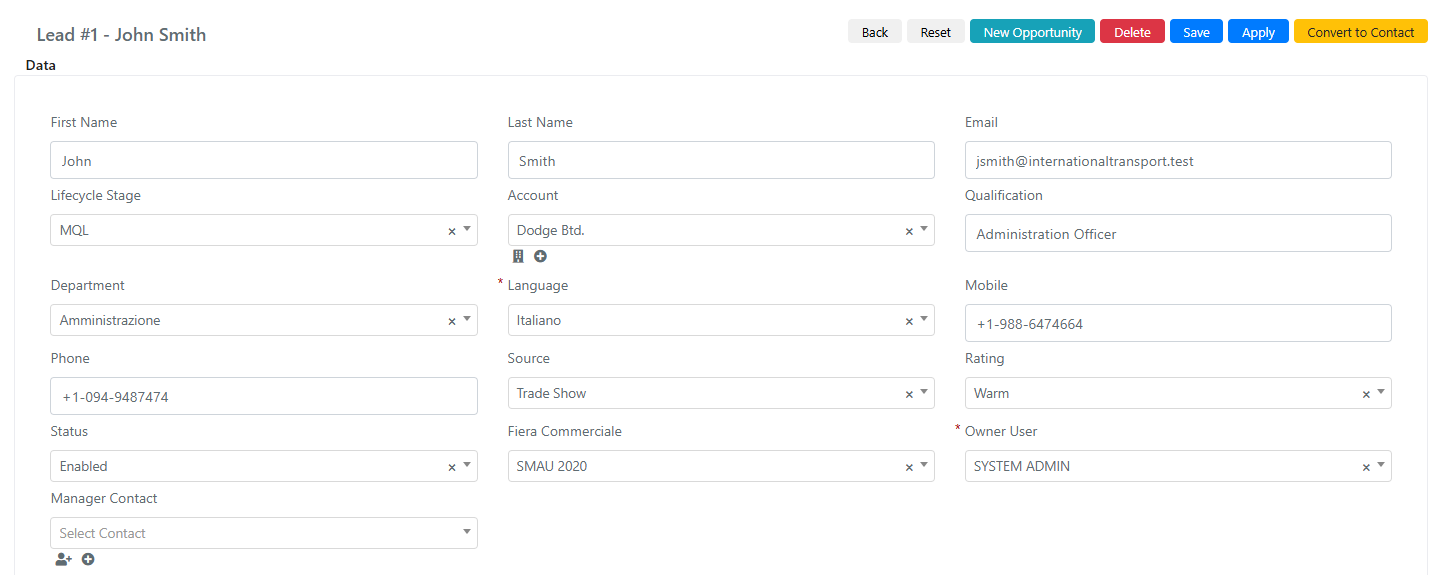
- A pop-up will appear where you can select the Account to associate.
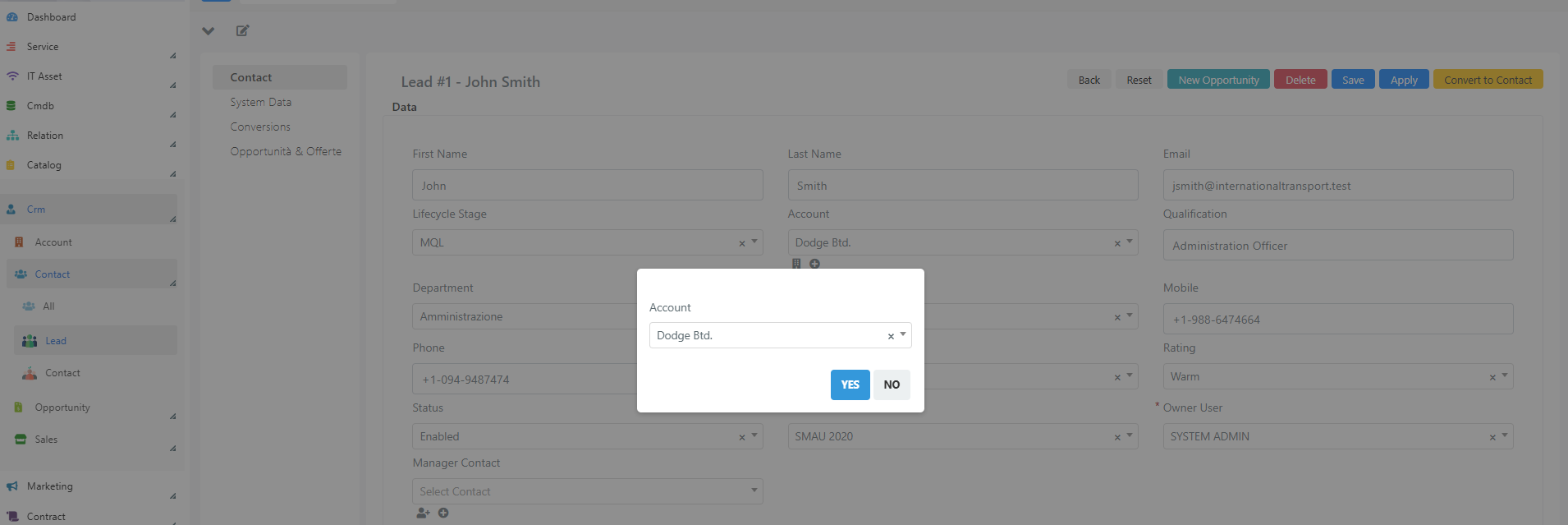
- Confirm with the Yes button. The Lead will be converted into a Contact, and the selected Company will be set in the Account field.
After the conversion, the Lead will no longer appear in CRM > Contact > Lead, but will be available in CRM > Contact > Contact.
Advanced Sync
In Deepser, you can configure an advanced synchronization procedure that allows you to set fields in the created company that the standard synchronization process would not import (e.g., custom fields).
This section explains how to implement this procedure through custom events. You will create a unilateral synchronization procedure where updates are taken from the CRM accounts and applied to the companies.
Advanced synchronization is an extension of the conventional synchronization process, not a substitute for it. You must carry out the conventional synchronization first before these changes take effect. Additionally, not all fields are synchronized automatically -- custom fields are not mapped natively, which is why advanced sync exists.
Create a Custom Field
Before creating the synchronization event, you must create a custom field to receive user input.
- Go to System > Custom Fields.
- Click on the desired model, in this example "DeepCrm -- Account".
- On the next screen, click the Add Field button.
- Fill in the fields as shown below:
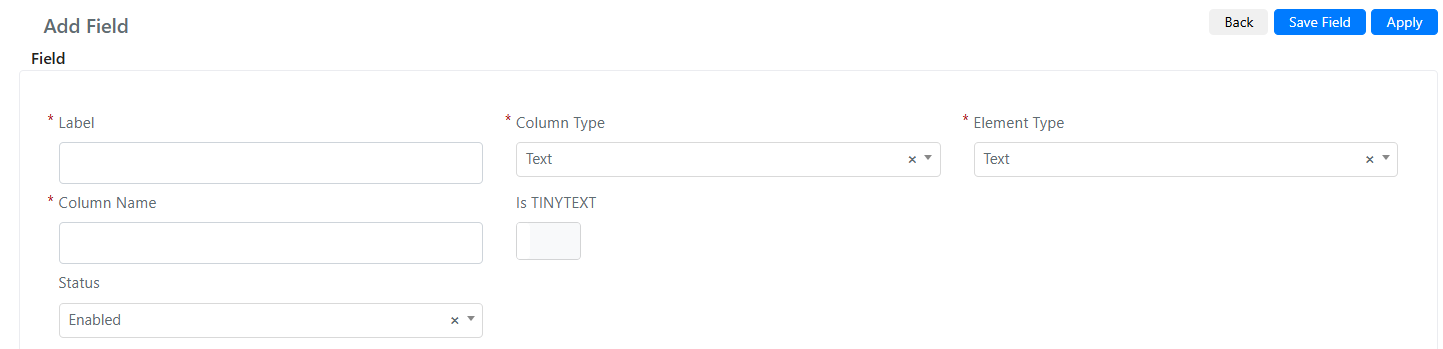
Make sure to set the Column Type to "text" and the Element Type to "text".
- Click the Save button to store your changes.
Create the Synchronization Event
In the following example, both the "DeepCrm -- Account" model and the "DeepCompany -- Company" model have a custom field of type text containing the VAT number. The field on both models is named cust_vat_number.
- Go to System > Custom Fields.
- Click on the "DeepCrm Account" template.
- Click on the Events item.
- Click the Add Event button. The following screen will appear:
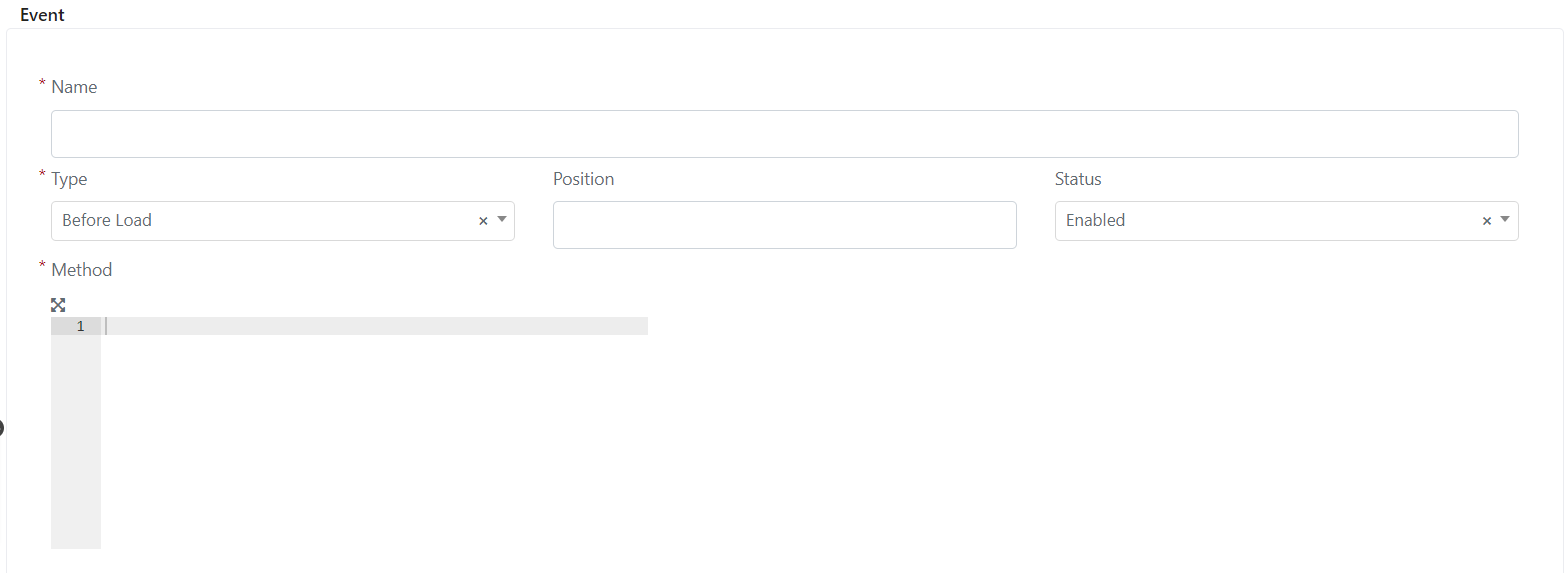
- Fill in the Name field with the name you want to assign to the event.
- Set the Type field to "After Save".
- Enter the following code in the Method field:
					/** Verify if the account is synched**/
if($this->getSynced() && $this->getCompanyId()){
    /**Load the company from given the company id**/
    $linkedCompany = Deep::getModel('deep_company/company')->load($this->getCompanyId());
    /**If the company exist and the company have an id set, set the sync data, otherwise, do nothing**/
    if($linkedCompany && $linkedCompany->getId()){
        /**Load the custom field from the Account and insert it in to the company**/
        $linkedCompany->setData("cust_vat_number",$this->getData('cust_vat_number'));
        /**After the valorization of all the fields call the method Save on the company object to update the ditas on the Database**/
        $linkedCompany->save();
    }
}
- Click the Save Event button or the Save And Continue Edit button.
Now when you sync a company, the custom fields you specified will be synchronized.
Sync Configuration
The Advanced Sync Configuration feature enables automatic and continuous synchronization of data between the CRM modules Account CRM and Contact CRM, and their corresponding entities Companies and Users.
For example, when you change the Firstname field in the Contact CRM module, it will be automatically reflected in the corresponding field within the Users module. The same principle applies to synchronization between Account CRM and Companies.
This is triggered when a CRM item (Account CRM or Contact CRM) is manually linked. Upon the first click on the sync buttons, the respective User or Company entity will be created and subsequently kept in sync.
The sync buttons are:
- Sync User (to link a Contact CRM to a User)
- Sync Company (to link an Account CRM to a Company)
Enable Sync Configuration
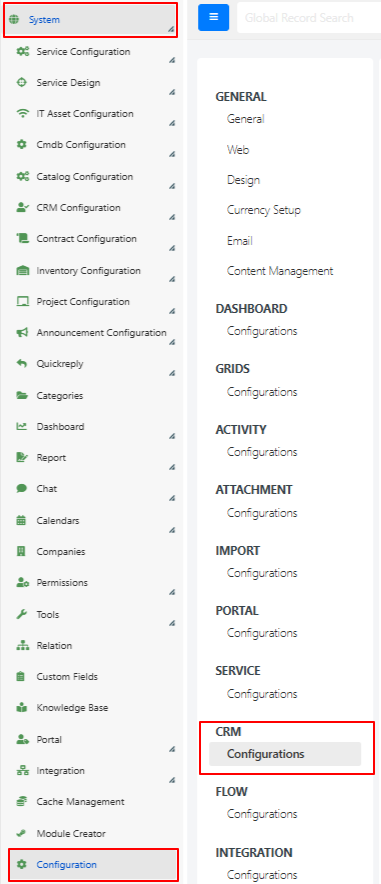
- Navigate to System > Configuration > CRM > Configuration.
-
Select the desired synchronization type:
- Contacts CRM to Users
- Accounts CRM to Companies
-
Set the Enabled Sync field to Yes.
-
(Optional) To enable inverse synchronization, set Enabled Inverse Sync to Yes. This allows synchronization in the reverse direction: Users to Contact CRM, or Companies to Account CRM.

Configure Field Mapping
Once synchronization is enabled, configure which fields should be synchronized using the Field Mapping section.
- User Field refers to fields from the Users module.
- Contact Field refers to fields from the Contact CRM module.
- The Use Fixed Value option allows you to assign a constant value to the field.
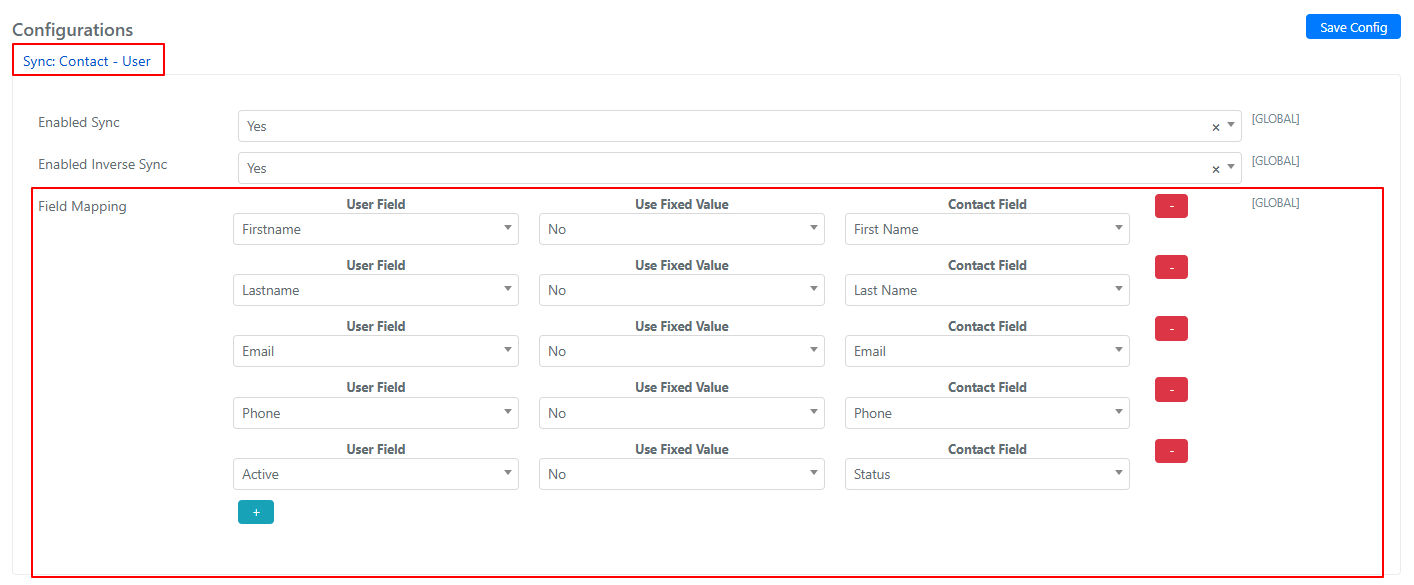
For synchronization between Account CRM and Companies:
- Company Field refers to fields in the Companies module.
- Account Field refers to fields in the Account CRM module.
- The Use Fixed Value option is used to assign a constant value.
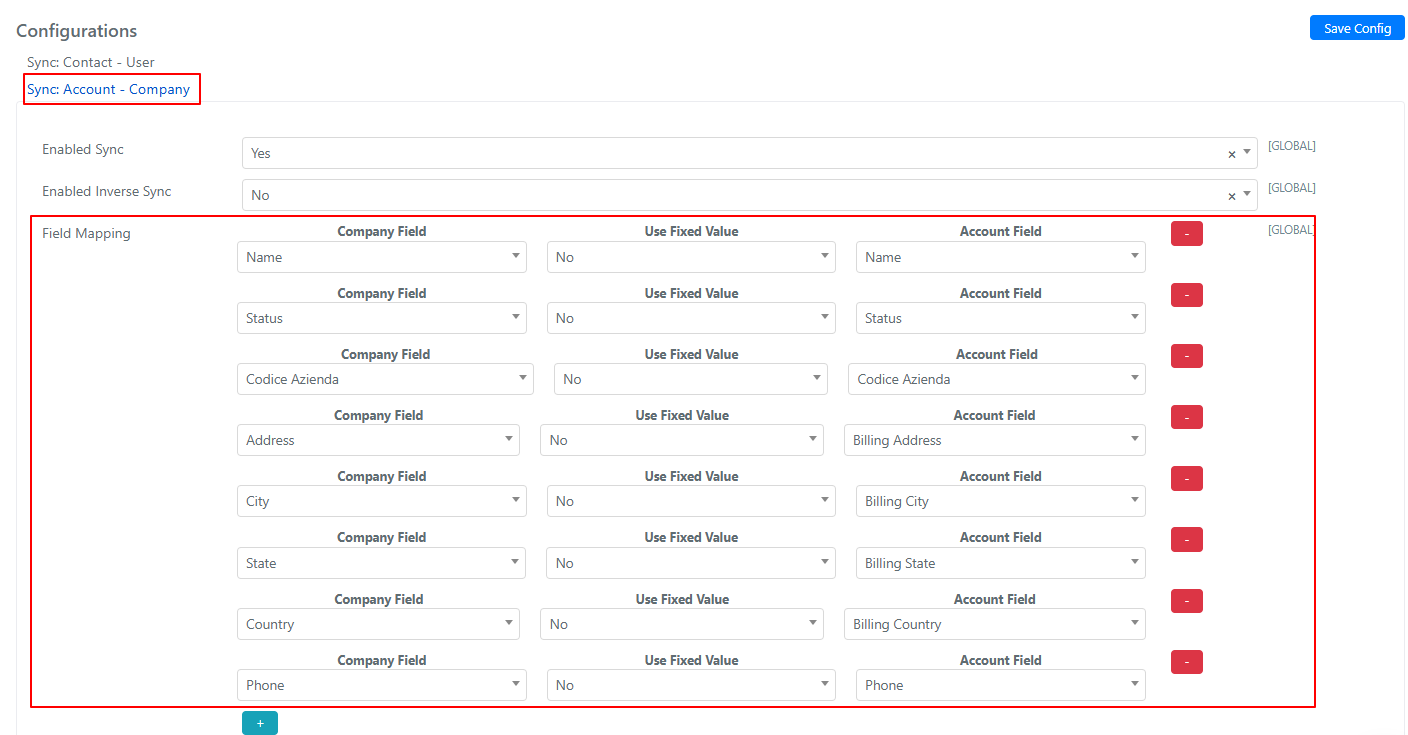
You can add new field mappings by clicking the "+" button, or remove them using the "--" button.