Advanced Element Types
Advanced element types provide complex functionality for custom fields in Deepser, including grids, email integration, inventory management, and relational data. This reference covers each advanced element type with its view, configuration details, and extra options.
Activity
View
Activity element is a complex field used to create comments and worklog entries.

Field Configuration
Column Type: Don't create DB column
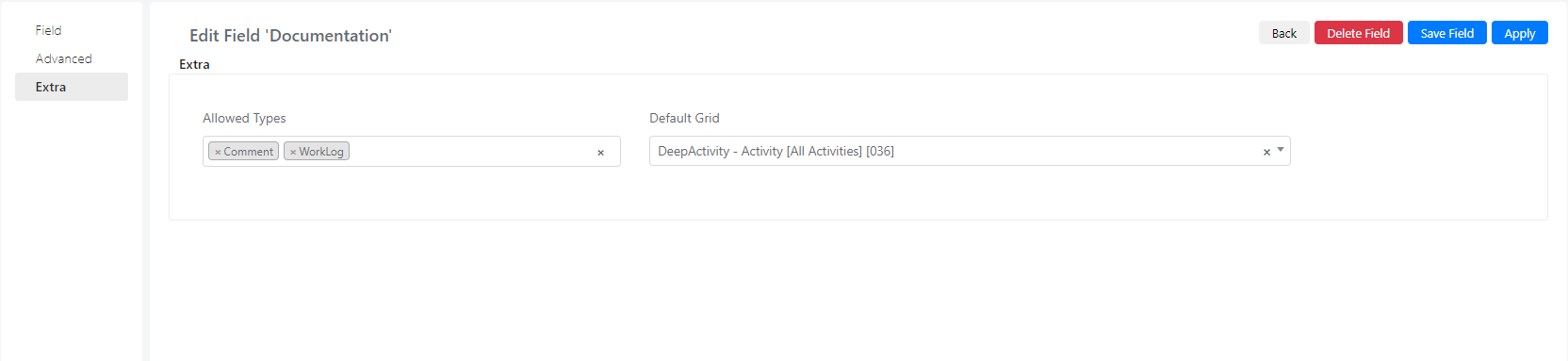
If you go to the "Extra" tab after selecting the element type, you will find the following fields:
| Field | Description | Note |
|---|---|---|
| Default Grid | Select the default grid to display as the worklog grid. | If left blank, this field will show only worklogs related to this model instance by default |
| Allowed Types | Models that are allowed to be displayed |
Address Type
View
Address type is a complex field used to store physical addresses of entities in sales and inventory modules.
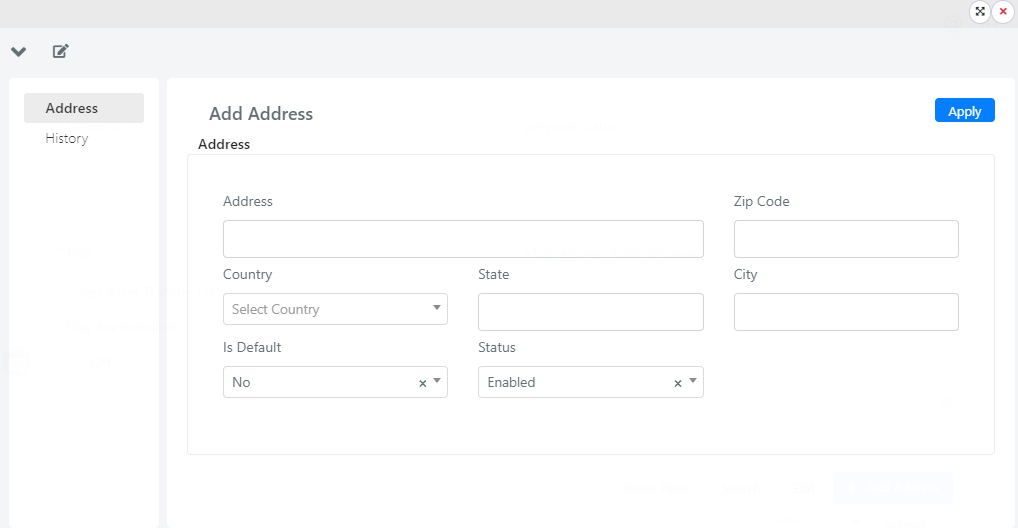
The rendering in the form will look like the following image, where you can see the addresses related to the current model instance and add a new one. You can create a new address by clicking Add Address.

When you click Add Address, the following window will appear where you can fill in the required fields to set a new address related to this entity.
Field Configuration
Column Type: Don't create DB column
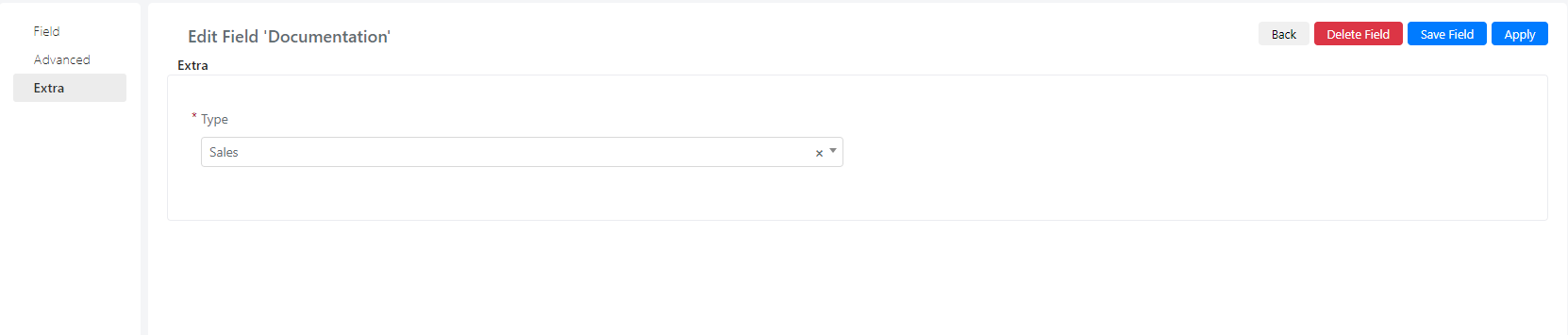
You can choose the type of entity related to this address field: Sales or Inventory.
Approvalgrid
View
Approvalgrid is a complex field displayed as a grid inside the form of the current model. This type is used to display the approvals related to this entity.

Field Configuration
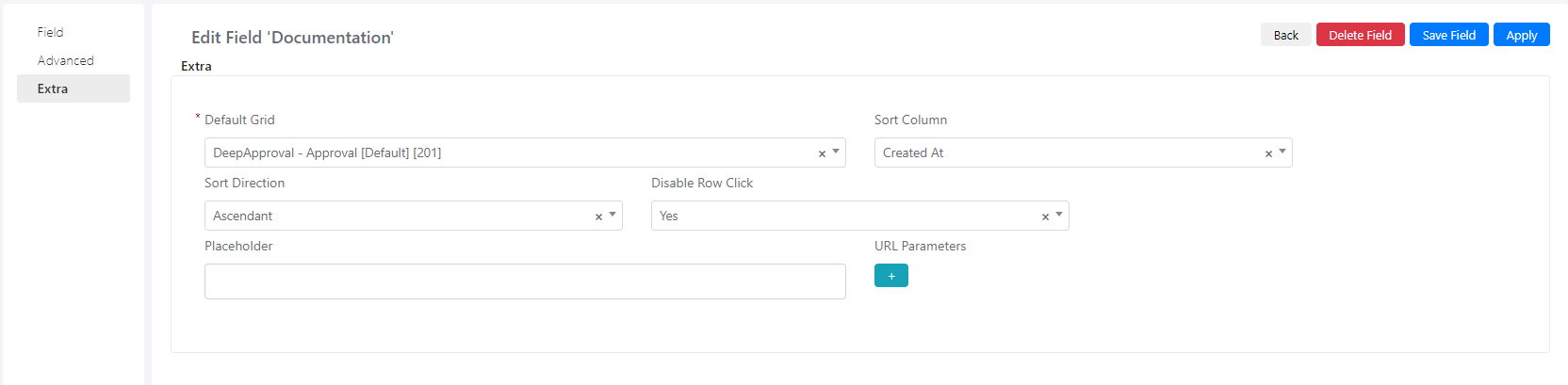
When you choose this element type, the "Extra" tab will change to the following fields:
| Field | Description | Note |
|---|---|---|
| Default Grid | Grid that will be displayed | You need to choose only grids that are of the DeepApproval model |
| Sort Column | The column on which the sort will be based | |
| Sort Direction | Whether the sorting will be ascending or descending | |
| Disable Row Click | Prevents redirect to the selected entity on element click | |
| Placeholder | ||
| Url Parameters | Used to pass other parameters | The format is: name of the field in the first input and the value you want in the second input |
Cronexpression
View
Cronexpression is used to generate chronological expressions.
The rendering for this type is:

Below the field, you have a select field where you can choose values such as never, 5 minutes, 2 hours, minute, hour, day, week, month, or year.
Field Configuration
Column Type: Text
Note: These types of elements are found inside models that have automatisms, because they can be used to trigger the automatism on a chronological basis.
Deeppassword
View
Deeppassword is a complex field related to the DeepPassword module. Here you can create and store passwords. The rendering of this element is:

If you click the "+" button, a window will appear where you can create a new password. To create a password, you first need to set the passphrase in System > Configuration > Password > System Passphrase.
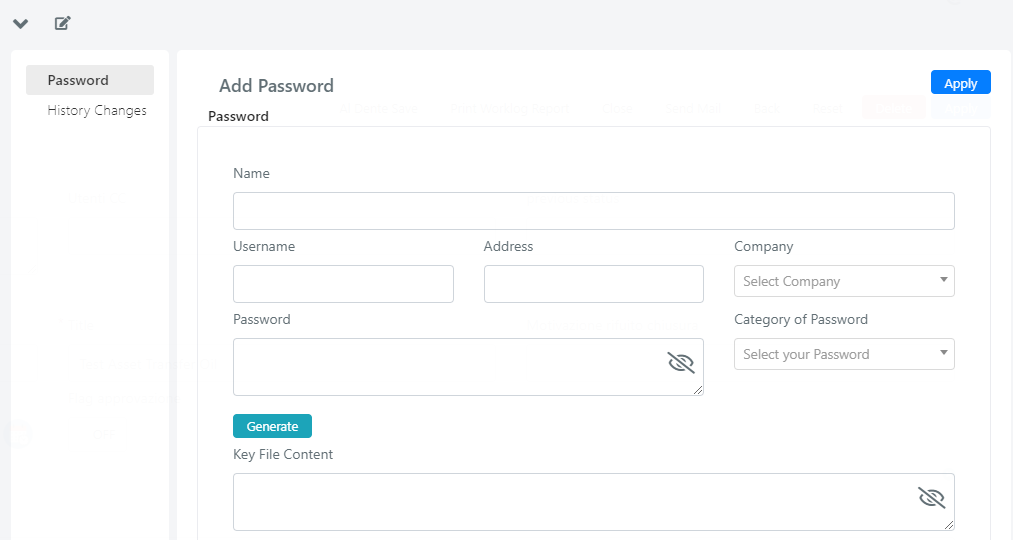
If you click inside the input field, you will see a list of currently existing passwords.

Field Configuration
Column Type: Don't create DB column
Emailaddress
View
Emailaddress is used to store email addresses.
This is rendered on the form as an input field. When you insert an email and press spacebar or enter, it will create a label for that email.

Field Configuration
Column Type: Text or Text Area
When you select this type, a new switch becomes available inside the "Extra" tab.

| Field | Description | Note |
|---|---|---|
| Enable Ajax | When enabled, clicking the field inside the form displays a dropdown with all users who have an email address. | If you start typing, the list will be filtered by the text you enter |
Emailgrid
View
Emailgrid is used to display all emails related to this entity. This field is displayed as a grid with all the available emails.
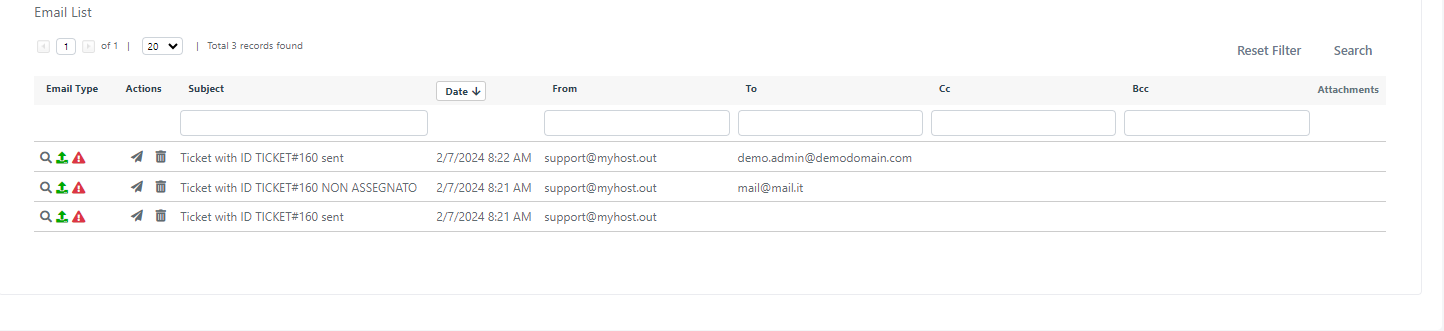
Field Configuration
Column Type: Don't create DB column
Emailwriter
View
Emailwriter is an element rendered as a button:

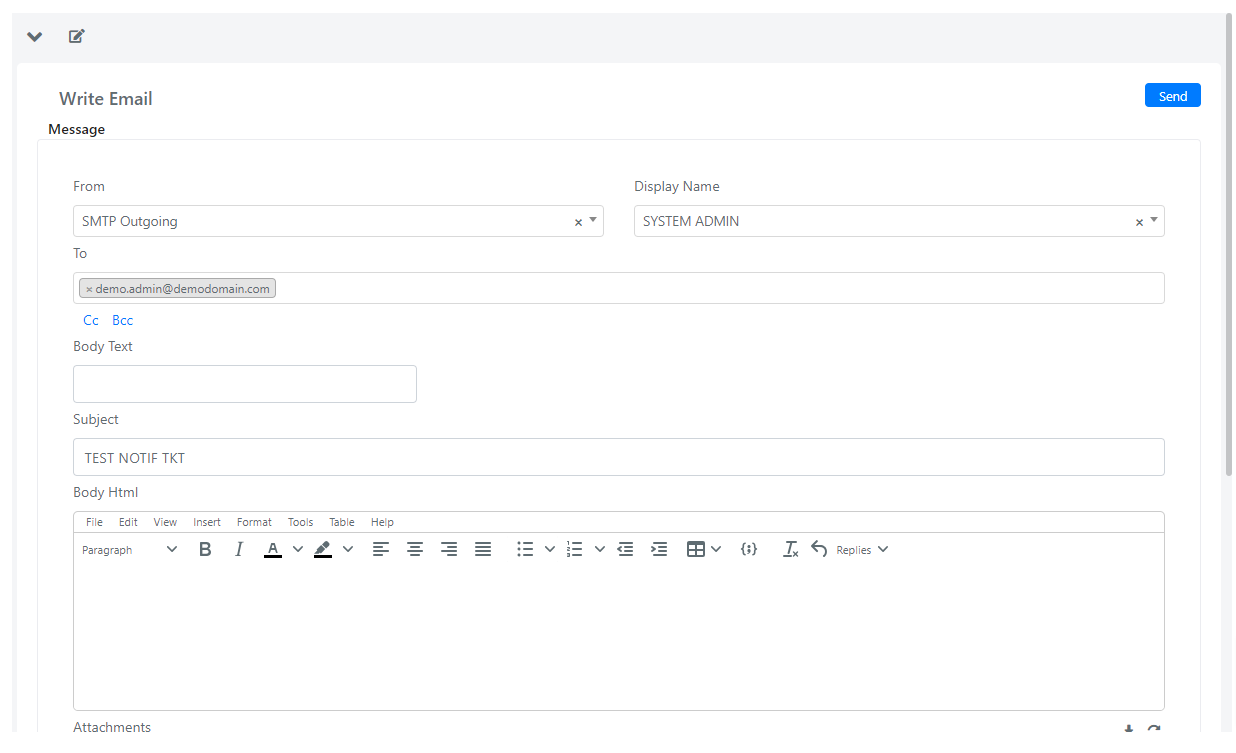
When you click the button, a popup will open where you can write a new email related to this entity. The email will then be available inside the Emailgrid described above.
This is the popup that will be shown when you click the button. You can edit this form to suit your needs.
Field Configuration
Column Type: Don't create DB column
Grid
View
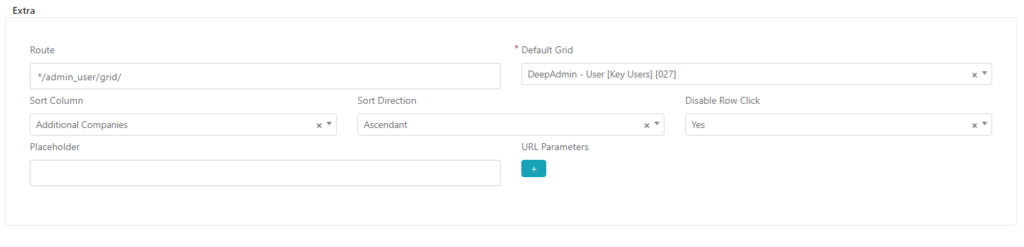
Grid element type is used to render a grid inside the form.

Field Configuration
Column Type: Don't create DB column
The fields available inside the Extra tab are:
| Field | Description | Note |
|---|---|---|
| Route | Determines the route of the grid | In the example, "*/admin_user/grid/" where * stands for hostname + /admin. After that is the module name_entity name /grid/ |
| Default Grid | Select a grid that will be displayed | You need to choose a grid that is the same entity and module as the one defined in the route field |
| Sort Column | The column used for sorting | |
| Sort Direction | Ascending or descending | |
| Disable Row Click | Prevents redirection when clicking a row | If set to no, clicking a row inside the grid will redirect you to the element you clicked |
| Placeholder | ||
| Url Parameters | Used to further filter the displayed elements | In the first input, write the column name to filter on; the next field holds the filter value |
Inventoryitemgrid
View
Inventoryitemgrid is used to display grids related to the inventory item module. The rendering is the same as what you see inside the inventory item.
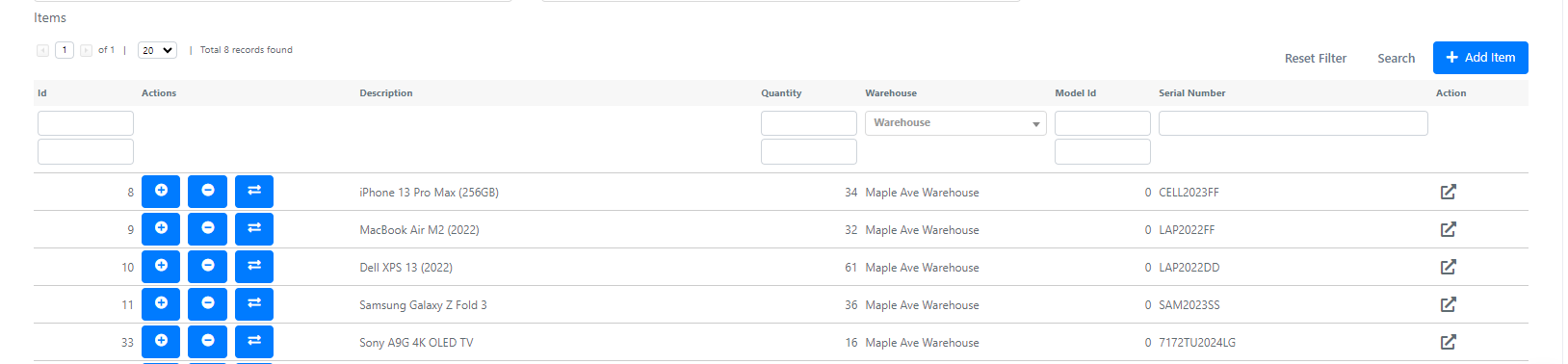
You can add a new item to this grid by clicking Add Item.
Field Configuration
Column Type: Don't create DB column
In the "Extra" tab, this grid has the same fields as the default one.
The only difference is that the field "Default Grid" should be populated with a grid of type DeepInventory - Item. If not, the default grid inside this inventory item will be displayed.
Note: The route field is missing because it is predefined to be only for the inventory item.
Inventorymovementgrid
View
Inventorymovementgrid is used to display grids related to the inventory movement module. The rendering is the same as what you see inside the inventory movement.
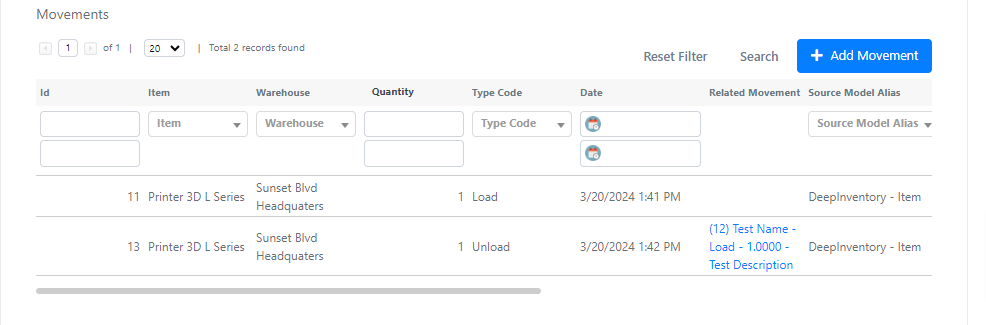
You can add a new movement to this grid by clicking Add Movement.
Field Configuration
Column Type: Don't create DB column
In the "Extra" tab, this grid has the same fields as the default one.
The only difference is that the field "Default Grid" should be populated with a grid of type DeepInventory - Movement. If not, the default grid inside this inventory movement will be displayed.
Note: The "Route" field is missing because it is predefined to be only for the inventory movement.
Invoicegrid
View
Invoicegrid is used to display invoices related to this entity. You can add new invoices by clicking the Add Invoice button.

Field Configuration
Column Type: Don't create DB column
The "Extra" tab has the same fields as the default grid type.
Note: The "Route" field is missing because it is predefined for invoices only. You need to set the "Default Grid" field to a DeepSales - Invoice grid.
Invoicerelatedmodelgrid
View
Invoicerelatedmodelgrid is used to display entities related to other entities that are different from the current model. This element type has a "Don't create a DB column" column type.
For example, this field is used in DeepSalesInvoice to display activities related to the Service Operation that you want to invoice.

If you click the Add Activity button, you can insert activities that you want to invoice.

Field Configuration
Column Type: Don't create DB column
The "Extra" tab on the configure field has the same fields as the default grid type. The only difference is the field "Related Model Alias".
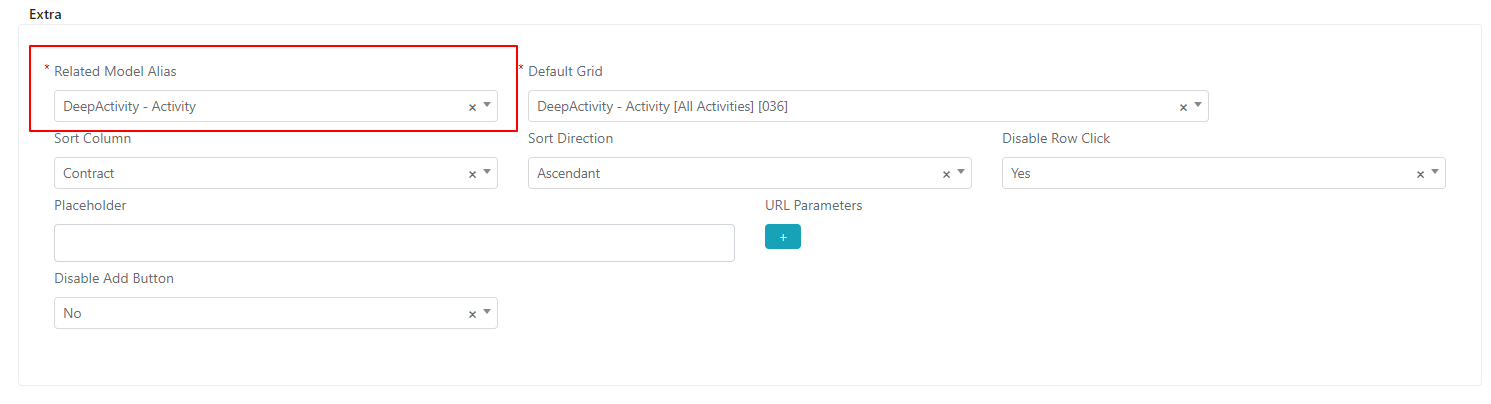
| Field | Description | Note |
|---|---|---|
| Related Model Alias | The model related to another model different from the current one |
Multiselect
View
Multiselect is a field where you can select multiple elements from a predefined array.

Field Configuration
Column Type: Text or Integer
The elements are written inside the advanced tab in "Values", where you should return an array with key => value as shown below.
This type of element requires the configuration of a custom event to work.

Progressbar
View
This element is shown inside the form as a progress bar.

Field Configuration
Column Type: Decimal
You can alter the element by percentage inside the Extra tab. The level field uses the first input as the key (holding the level from 0 to 100) and the second input holds the CSS class assigned to the element if the current value is less than or equal to the corresponding percentage.
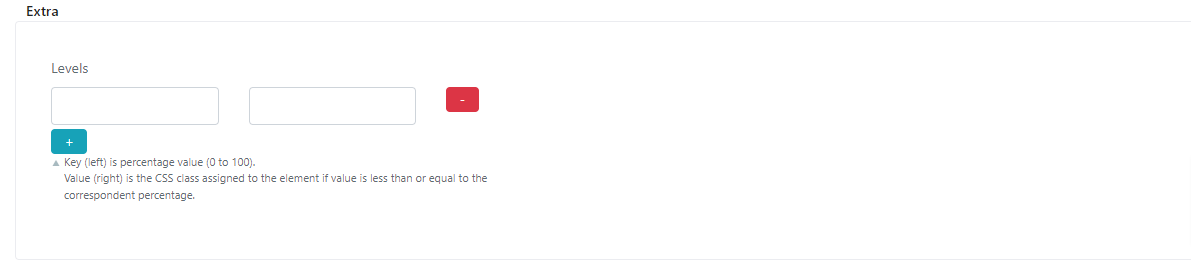
This type of element requires the configuration of a custom event or a flow to work.
Qrcode
View
Qrcode element is used to display a QR code that corresponds to the assigned value.
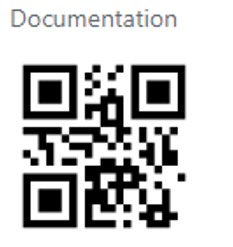
This element displays data as a QR code and is not stored in the database as an image.
Field Configuration
Column Type: Text or Text Area (depending on the size of data that will be stored).
Inside the Extra tab, you will find the following fields used to style this element:

| Field | Description | Note |
|---|---|---|
| Style Width | Width of the rendered image | |
| Style Height | Height of the rendered image | |
| Style Top | Number of pixels from the top | |
| Style Left | Number of pixels from the left | |
| Style Position | Position of the image | CSS position types applied |
Relationgrid
View
Relationgrid displays the relation between two entities as a grid.

When you select this element type, another field called "Relation" will become visible, containing the relation to which you are referring.
You can add new entities to this relation by clicking the Add button, or you can change the display columns by clicking the Edit button.
Field Configuration
Column Type: Don't create a DB column
Inside the "Extra" tab, you will find a new field:

| Field | Description | Note |
|---|---|---|
| Opposite | If set to "yes", the relation is the opposite version |
Select
View
Select type is a selection field.

Field Configuration
Column Type: Integer or Text
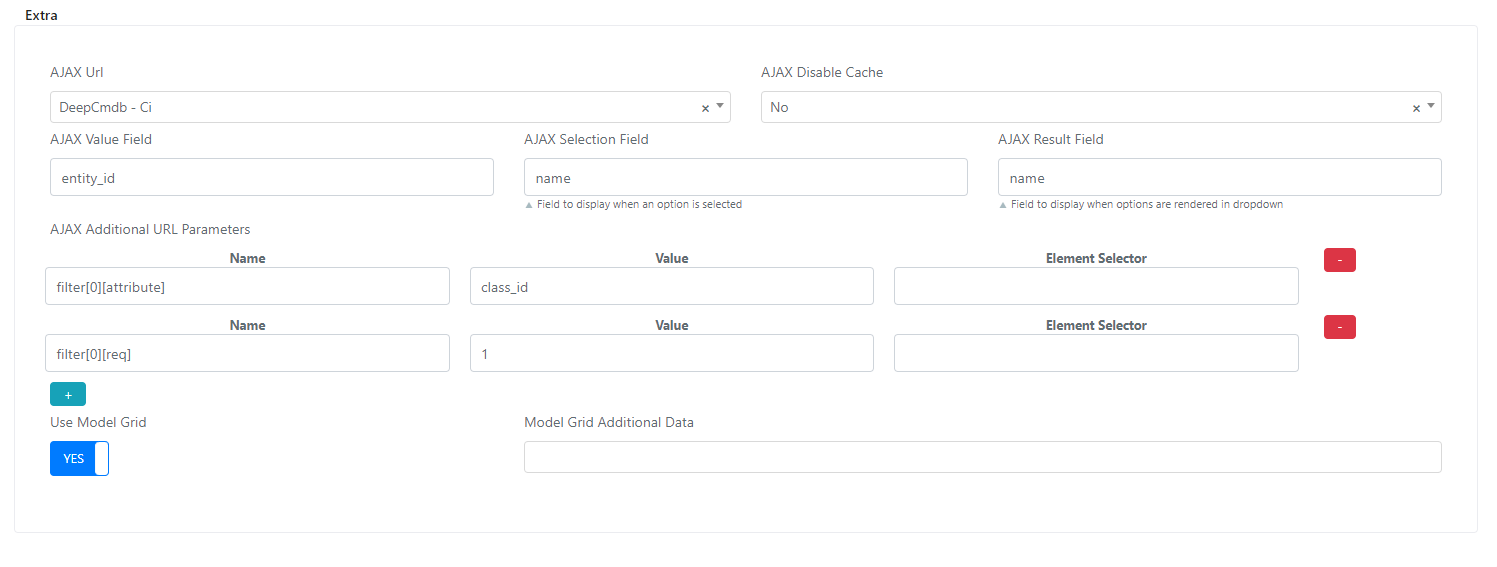
When you select this type, the Extra tab is filled with the following elements:
| Field | Description | Note |
|---|---|---|
| AJAX Url | The model of the entities that will be shown inside the options. | |
| AJAX Disable Cache | Disables the cache so that every time you click on the select field, a request is made. | |
| Ajax Value Field | The value attribute of each option | |
| AJAX Selection Field | The data to display inside the option during the selection process. | |
| AJAX Result Field | The data to display inside the option after selection, and how it will appear. | |
| Use Model Grid | If set to yes, a button will appear on the right side of the select field that opens a modal with all filtered elements displayed as a grid. | |
| AJAX Additional URL Parameters | Used to add filters to the displayed options | The format of the filters is as follows: filter[id_of_filter][attribute] -- the column name on which this filter is based. filter[id_of_filter][operator] -- the operator for the filter. Since you can add more than one filter, you identify the pairs by the id_of_filter value starting from 0. Most used operators are eq, neq, in. |
Task
View
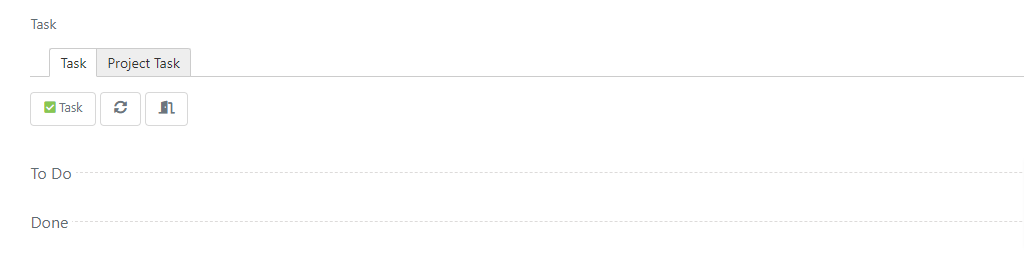
Task is a field used to keep track of tasks assigned for this entity.
Field Configuration
Column Type: Don't create a DB column
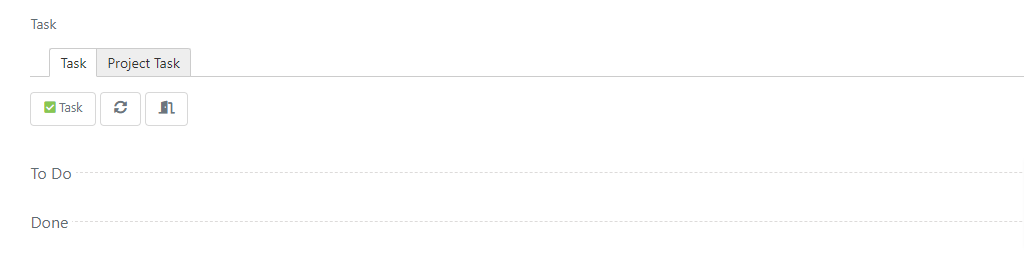
When you select this element, new fields will be displayed inside the "Extra" tab.
| Field | Description | Note |
|---|---|---|
| View | The display mode for this field | Categorized into TO DO and DONE, or list all elements |
| Order By | Whether to order these elements | |
| Order Direction | The direction of the ordering | |
| Use Form Template | Whether to use the default form or a custom form template | |
| Allowed Types | Which types will be displayed inside this field | |
| Default Grid | The default grid that will be displayed |
Userassociation
View
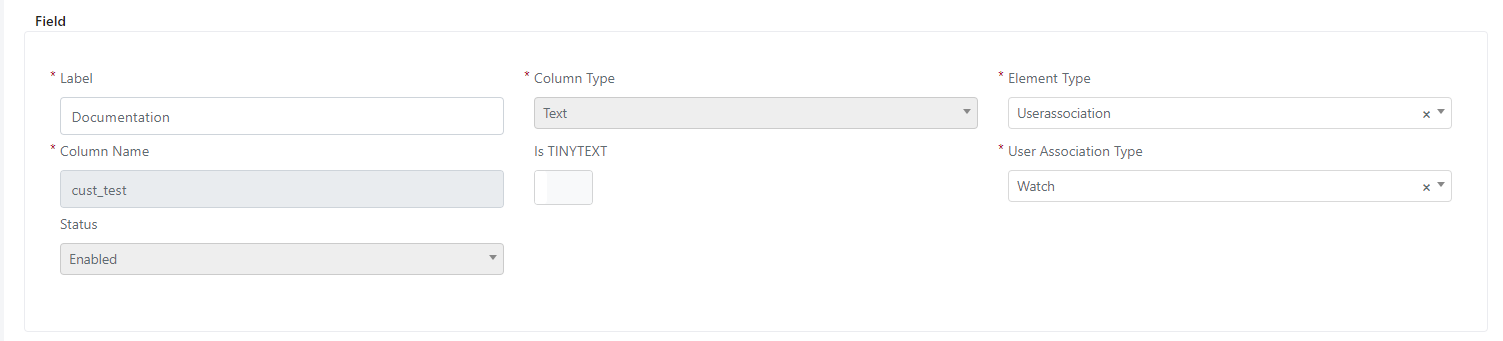
By selecting the Userassociation type, the element, once added to the form, will allow multiple selection of users.

Field Configuration
Column Type: Don't create a DB column
You need to complete the "User Association Type" field with the value "Watch" (see image below).
Frame
View
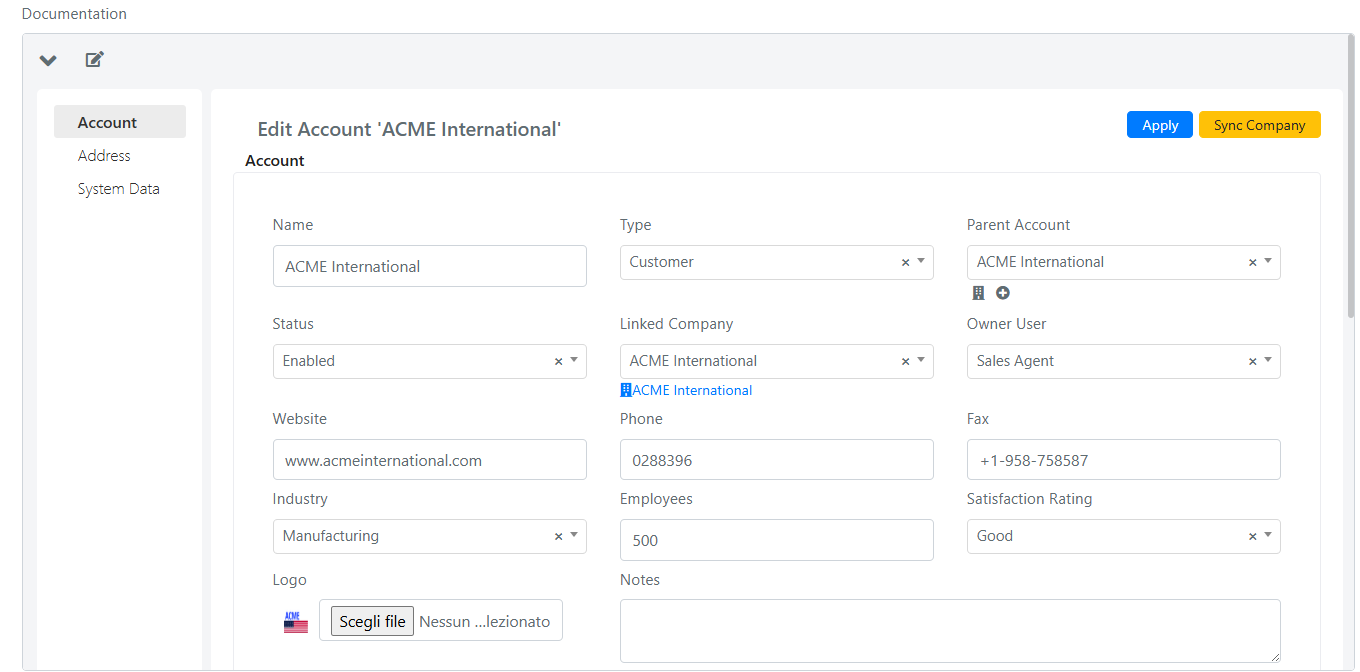
By selecting "Frame" as the type, the element, once added to the form, will represent the frame of another associated Deepser entity.
Note: In this example, the field is used in the contacts module, with the frame retrieving the linked account.
Field Configuration
Column Type: Don't create DB column
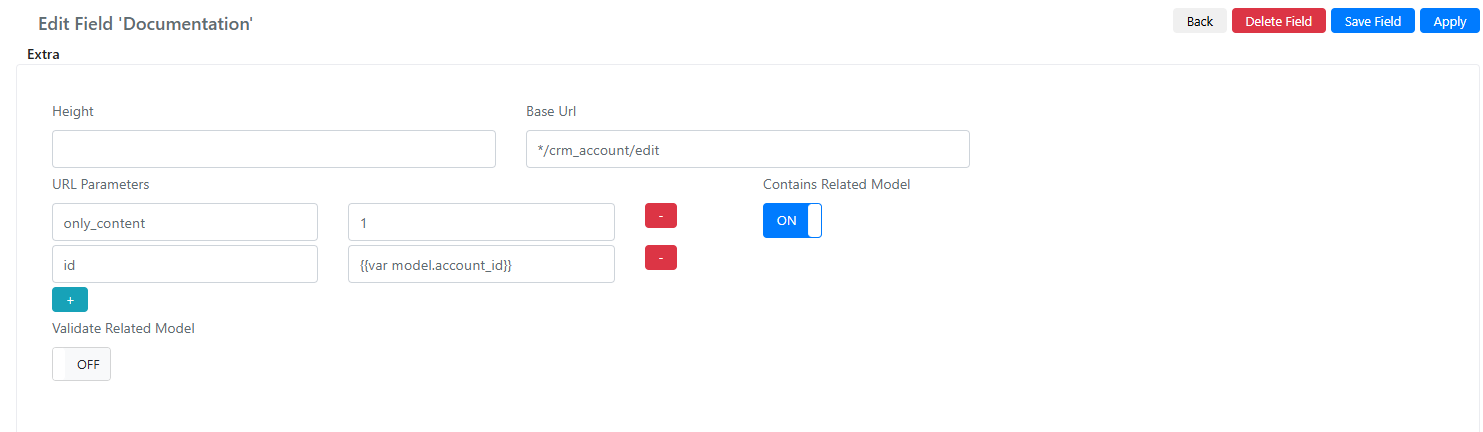
| Field | Description | Note |
|---|---|---|
| Height | ||
| Base Url | URL of the form to display | |
| Url Parameters | Filters for the displayed frame | only_content => display only the entity; id => filter the entity to be retrieved |
| Contains Related Model | Identifies whether the field contains the model | For example, to enable saving when the entity changes |