Manage Email Events
Email events control the outgoing notification workflow in Deepser. They define when a notification is sent, which template is used, and who receives the email. Deepser includes multiple preconfigured email events for standard situations.
Enable or Disable an Email Event
-
In the Deepser Backend, go to System > Tools > Email > Events.
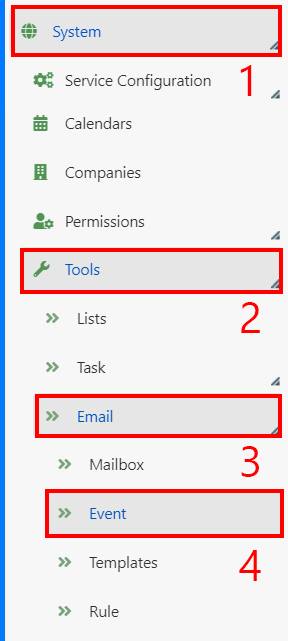
-
The grid displays all email events. Each event has a descriptive title in the format: "Recipients -- triggering event".
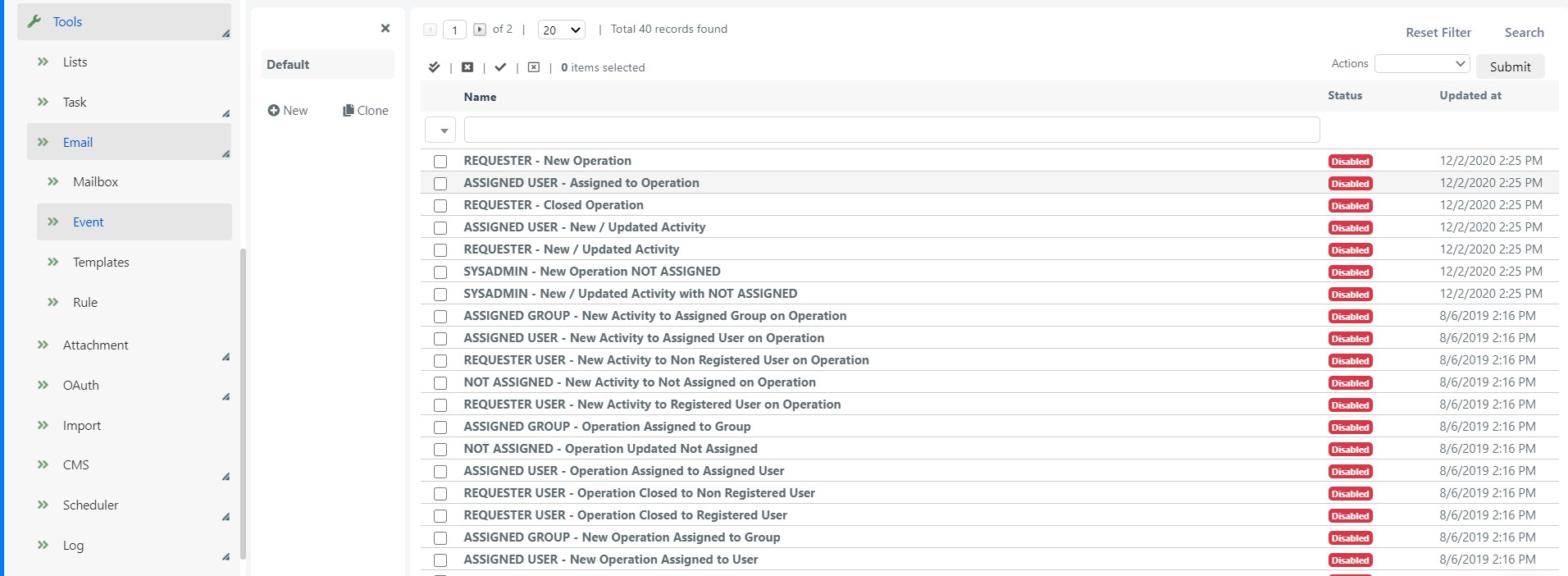
-
Select an event, for example Requester - New Operation.
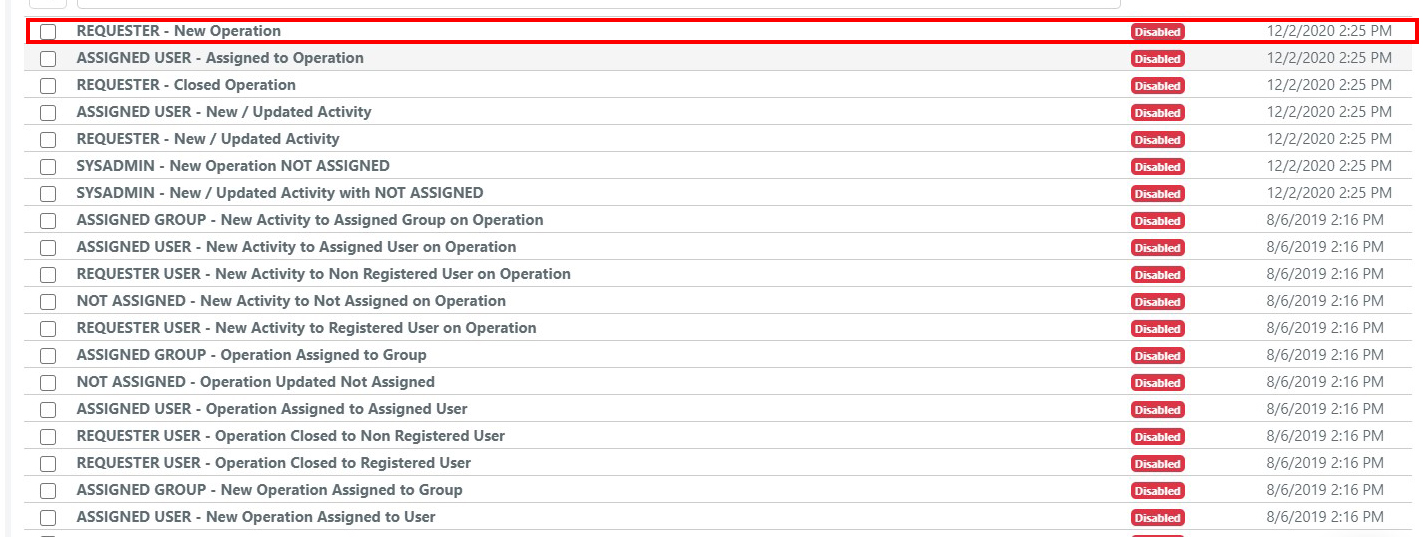
-
Set the Status field to Enabled or Disabled, then click Save or Apply.
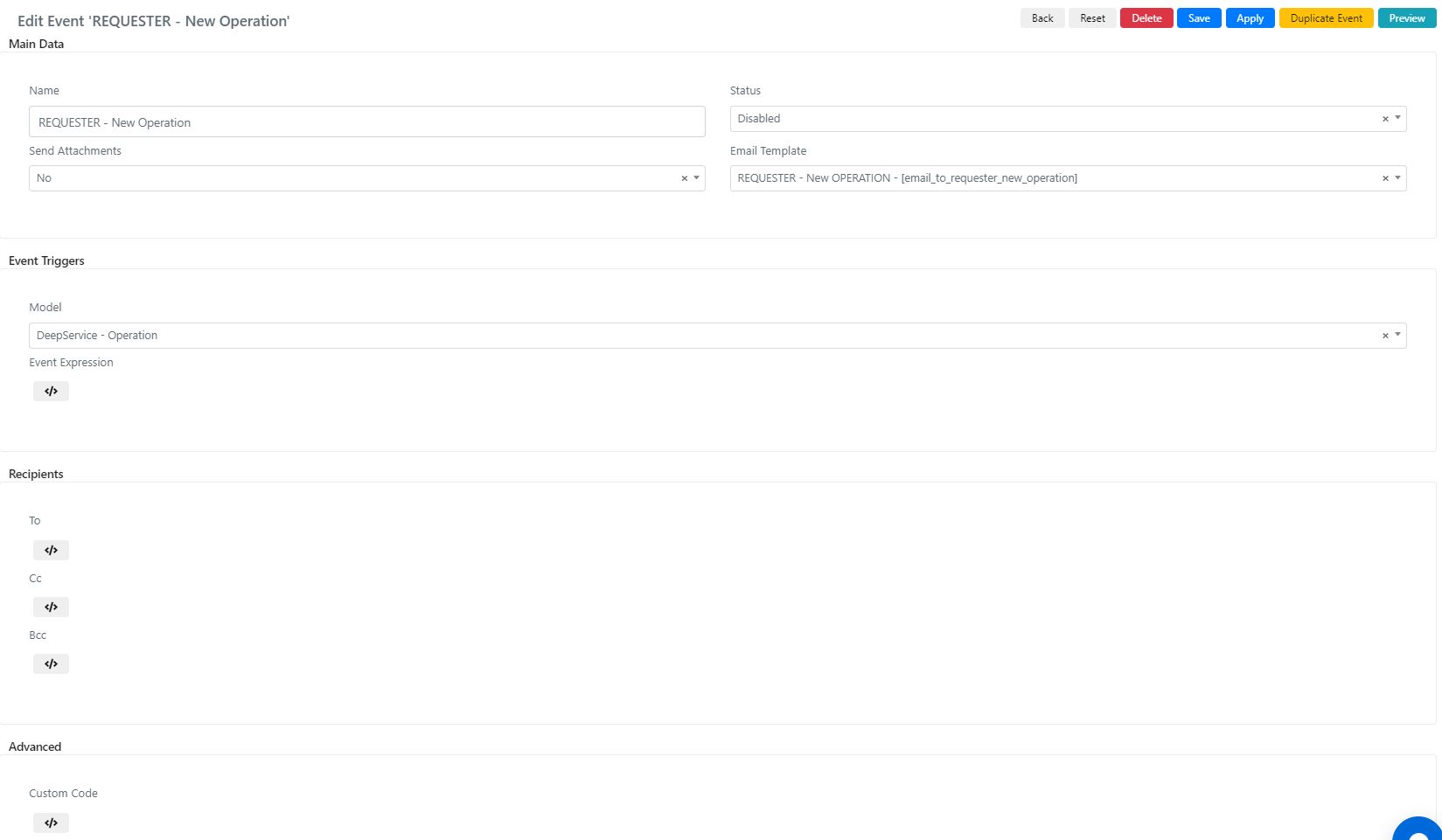
Email Event Fields
| Field | Description |
|---|---|
| Name | Descriptive name for the event. |
| Code | Event code, typically a normalized version of the name (e.g., "requester_user_new_operation"). |
| Status | Enabled or Disabled. |
| Send Attachments | If Yes, the record's attachments are sent with the email, filtered by the most limited visibility among recipients. |
| Email Template | The template used to generate the notification email. |
| Model | The entity (e.g., "DeepService - Operation") whose save action triggers the event. |
| Event Expression | PHP code defining the condition under which the notification is sent. |
| To | PHP scripting area for adding email addresses in the To field. |
| Cc | PHP scripting area for adding email addresses in the Cc field. |
| Bcc | PHP scripting area for adding email addresses in the Bcc field. |
| Custom Code | PHP code executed after the email is sent. |
note
To learn more about configuring attachment visibility, see the Attachments Configuration section.