Convert Email Attachments
Deepser provides two ways to convert attachments sent via email: manually or automatically. Manual mode lets you choose which attachments to convert, while automatic mode converts any file recognized as an attachment, including screenshots and logos embedded in the email.
Manual Conversion
To manually convert files attached to emails, view the "Email List" field, which contains all incoming and outgoing emails associated with the Service Operation.

The "Attachments" column shows the available actions:
| Icon | Action |
|---|---|
| 1 | Download the attachment to your device |
| 2 | View the attachment without downloading or converting |
| 3 | Convert the attachment |
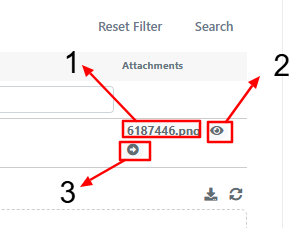
After conversion, reload the page when the alert appears.

The attachment will then appear in the "Attachments" system field for Service Operations.

Automatic Conversion
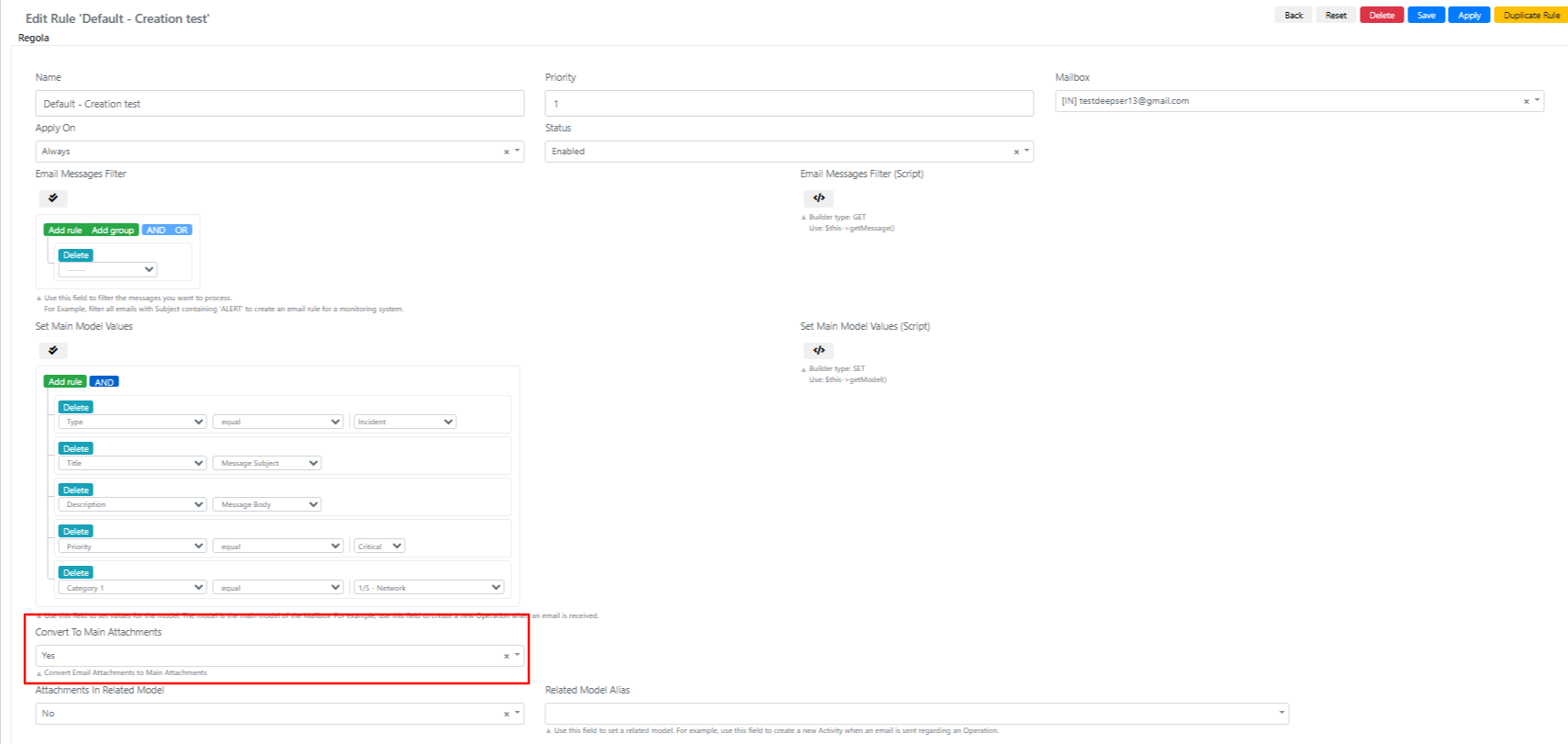
To set up automatic conversion, modify the email rule for Service Operation creation. Navigate to System > Tools > Email > Rule.
Convert Attachments for Service Operations
- Select the rule for creating Service Operations.
- Set the Convert To Main Attachments field to Yes.
Convert Attachments for Comments
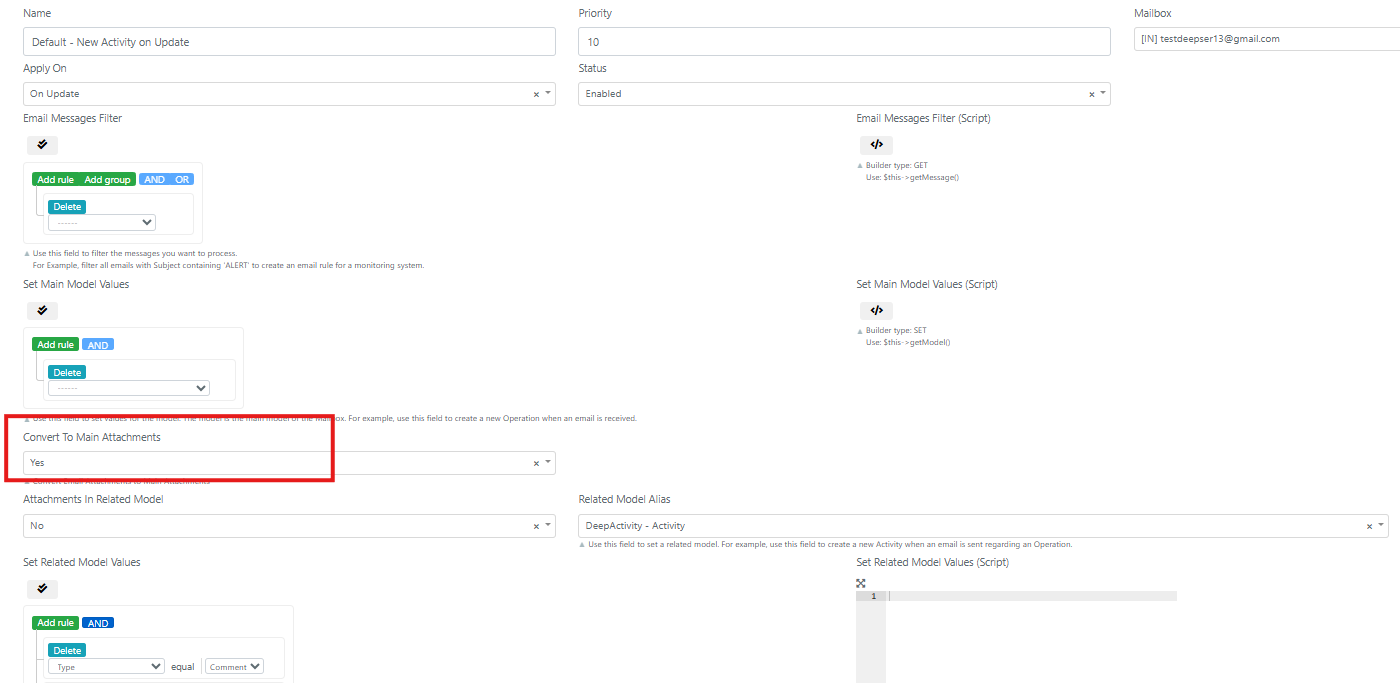
Select the rule for updating Service Operations (comment creation). You can attach files to either the Service Operation or the comment itself.
Attach to the Service Operation
Set the Convert To Main Attachments field to Yes in the update rule.
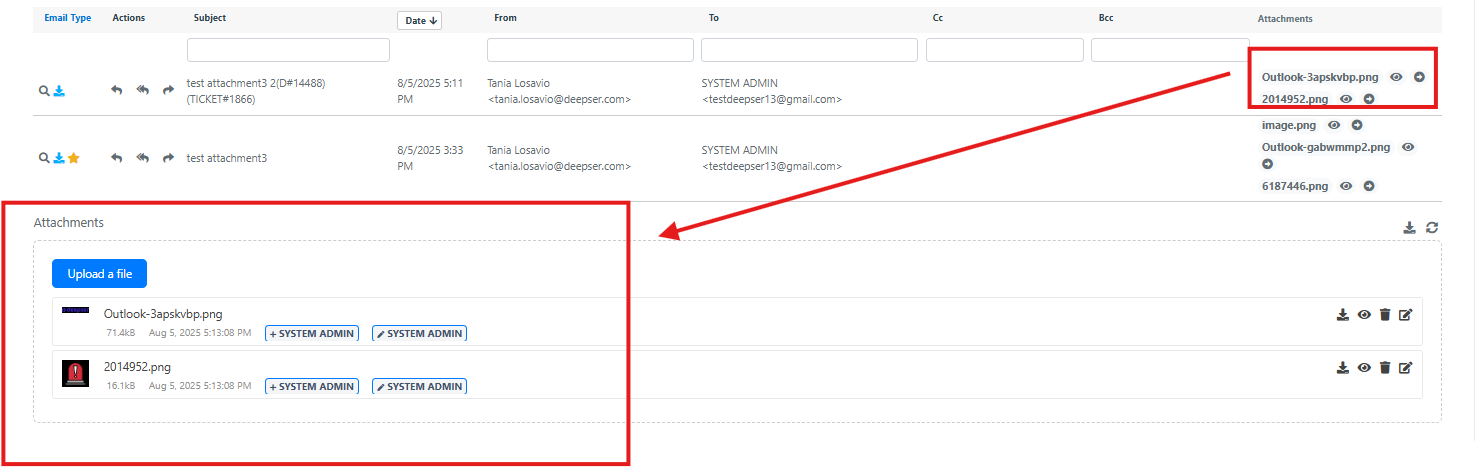
Attachments will be inserted into the "Attachments" field of the Service Operation when a comment is created.
Attach to the Comment
To add attachments directly to comments:

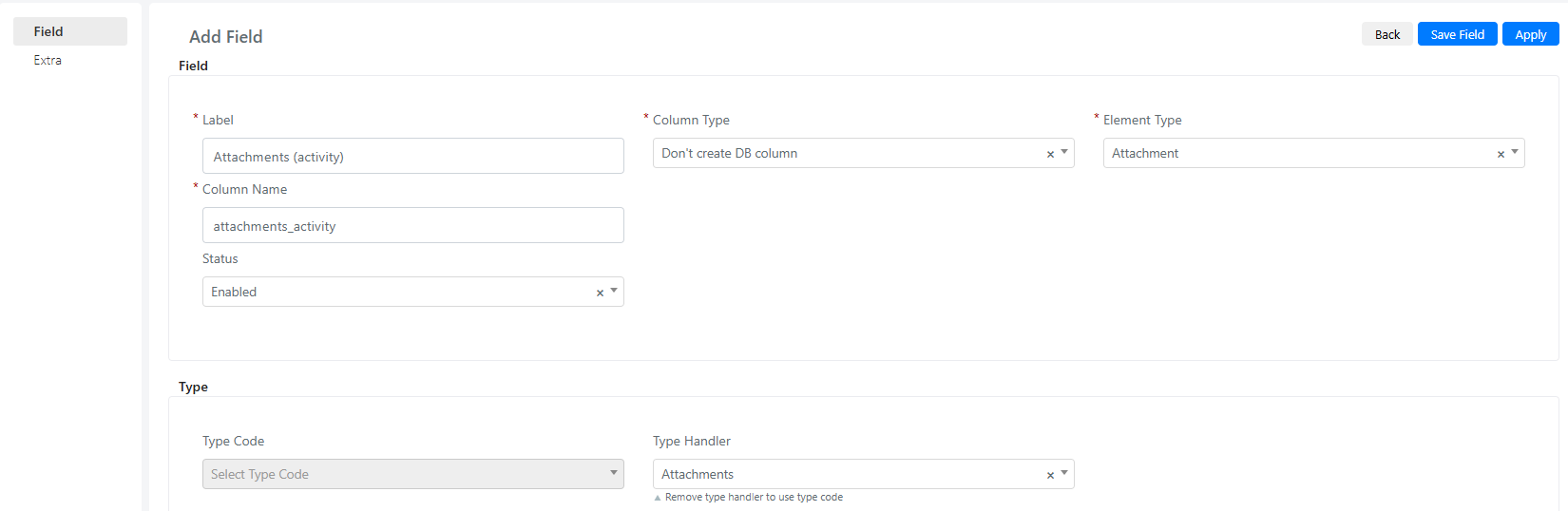
You must first create an "Attachments" field within the DeepActivity - Activity module:
-
Go to System > Custom Fields and click on the record for Activities (name = DeepActivity - Activity).

-
Go to the "Fields" tab and click Add Field.

-
Fill in the "Column Type" and "Element Type" fields and click Apply.
-
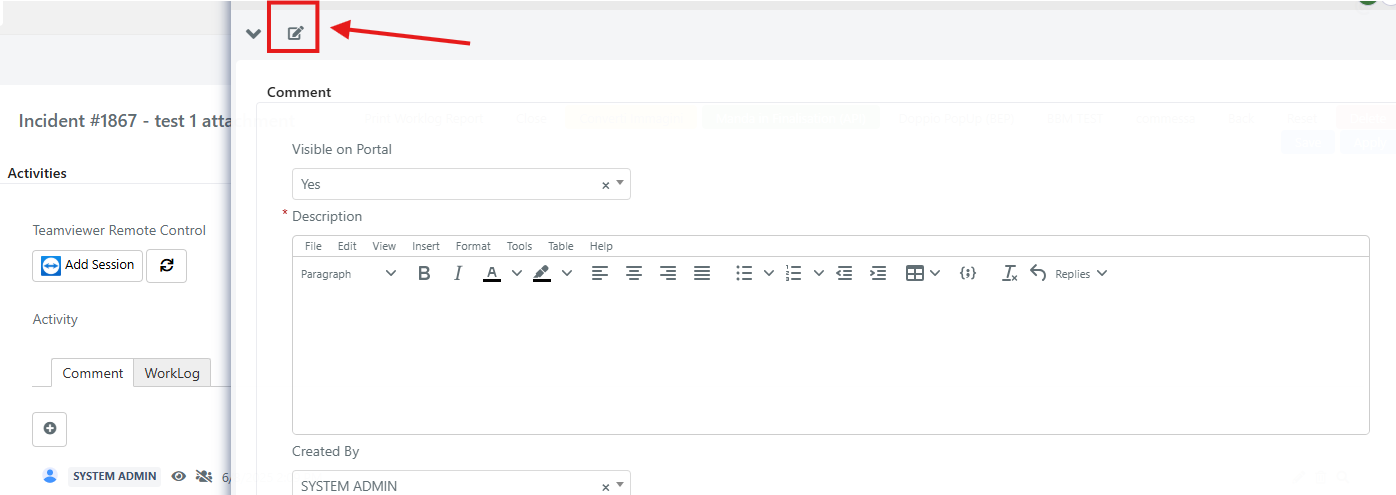
Add the new field to the comment form template.
-
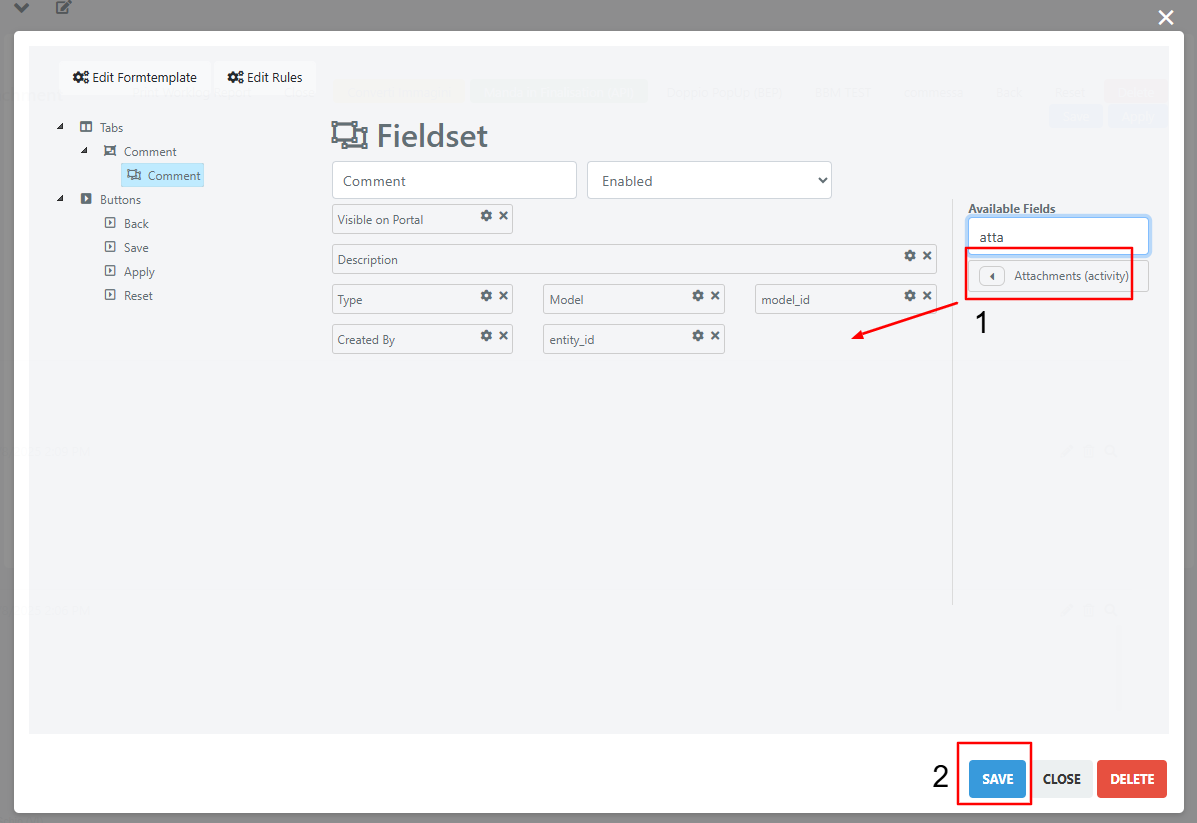
Drag the "Attachments" field into the form and press Save.
-
In the email rules form, set both Convert To Main Attachments and Attachments In Related Model to Yes.
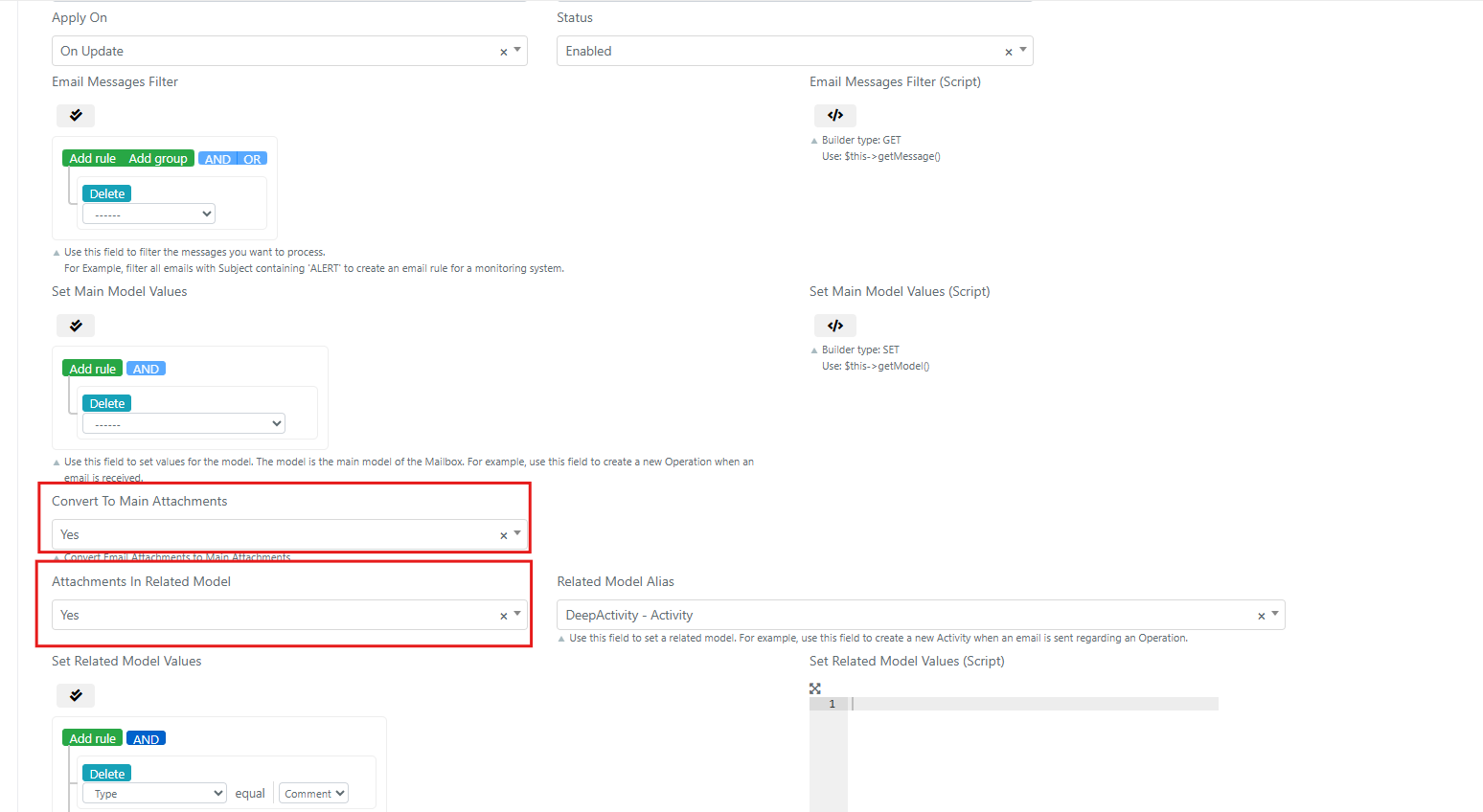
With this configuration, attachments will be added to comments.