Configure the Email Loop Management Tool
Deepser includes a tool that mitigates and blocks email loops by blocking the receipt of emails from addresses that send a configurable number of messages within a defined time interval.
Enable the Tool
To enable email loop management, go to System > Tools > Email > Mailbox in the Deepser Backend and open the configuration of your incoming mailbox. Repeat this procedure for each mailbox.
-
Click the edit button of the form template in the upper left corner.

-
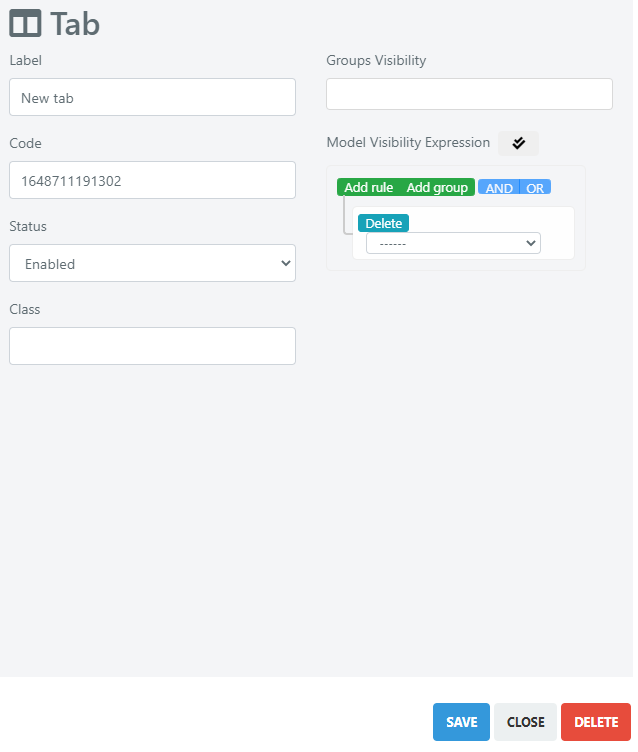
Create a new tab by right-clicking on the tab item and clicking "New Tab." Name it Email Loop Configuration (or any name you prefer).

-
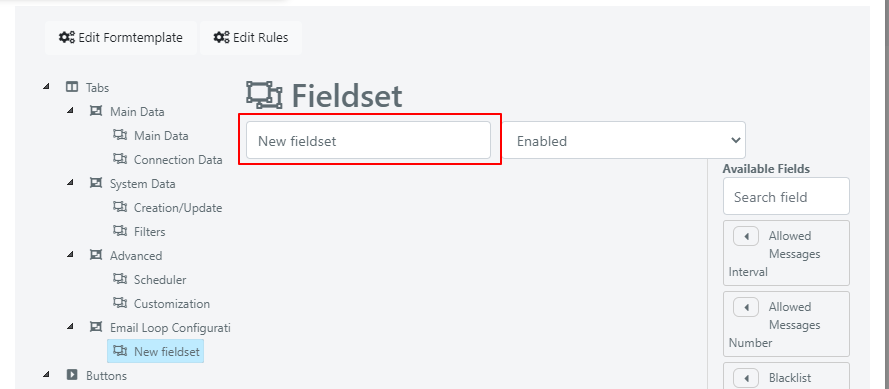
Click SAVE. Then create a new Fieldset by right-clicking the tab item and clicking "New Fieldset." Name it Email Loop Settings.
-
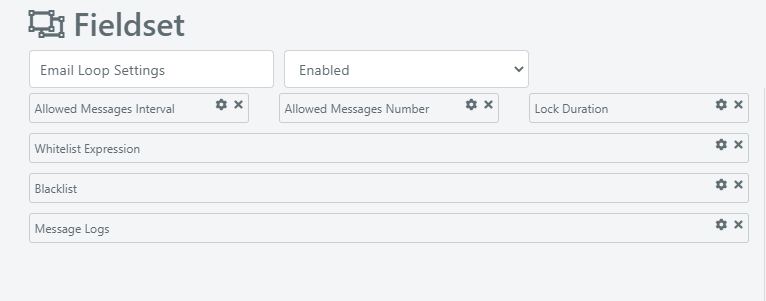
Add the following fields to this fieldset:
- Allowed Messages Interval
- Allowed Messages Number
- Lock Duration
- Whitelist Expression
- Blacklist
- Message Logs
-
Click SAVE to save the form template changes.
Field Reference
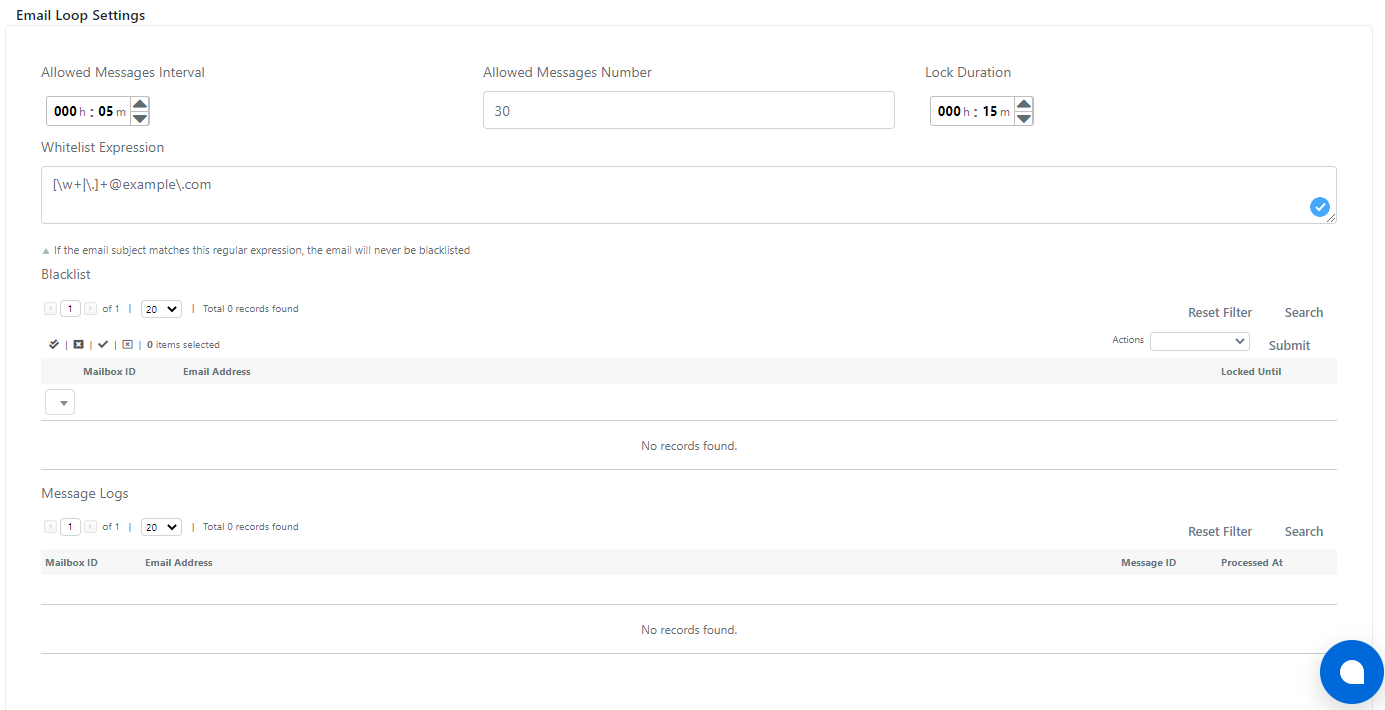
After configuration, the "Email Loop Configuration" tab will contain the following fields:
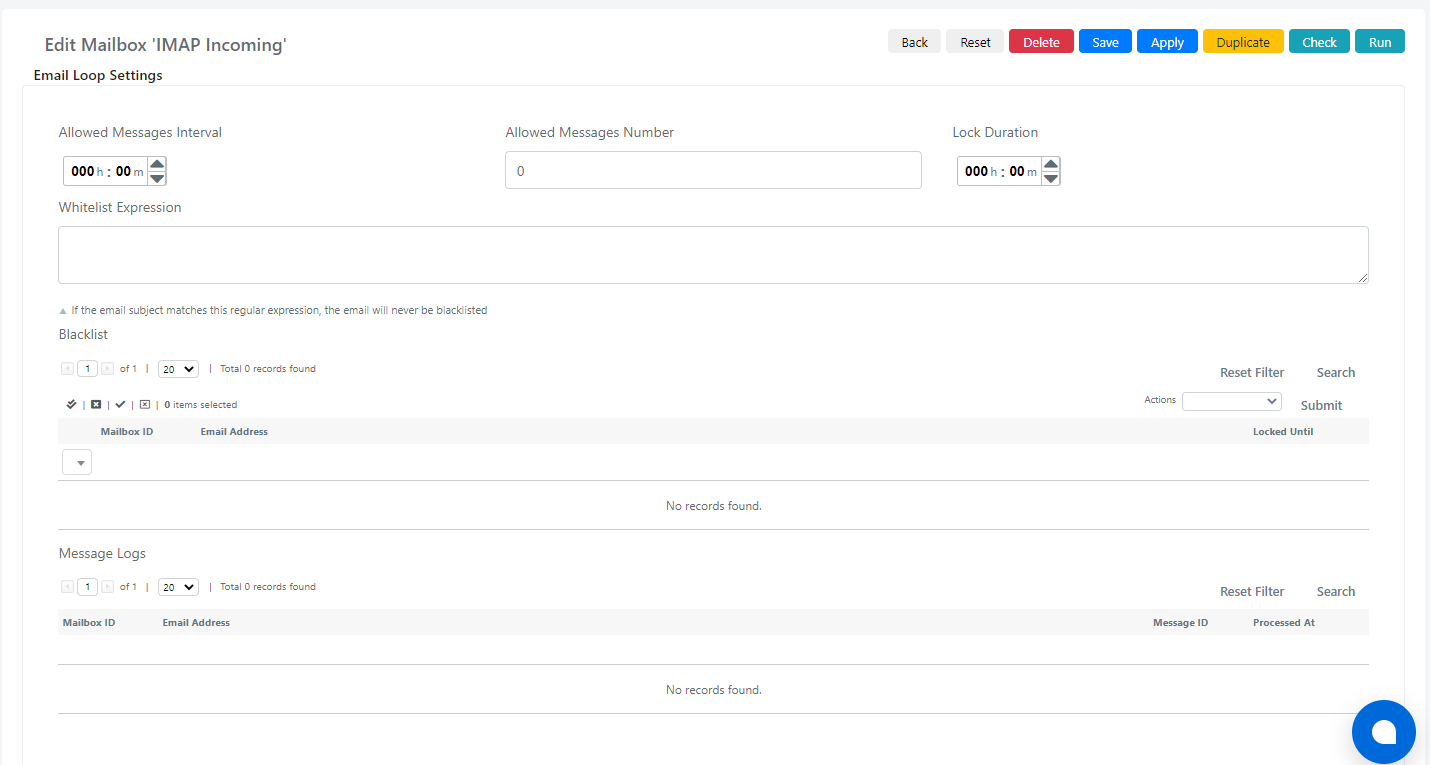
| Field | Description |
|---|---|
| Allowed Messages Interval | Time interval in which the number of messages from an email address is evaluated. |
| Allowed Messages Number | Maximum number of messages allowed per address in the defined interval. |
| Lock Duration | Duration of the block on receiving messages when a loop is detected. |
| Whitelist Expression | A regex that excludes matching email addresses from the loop check. |
| Blacklist | List of blocked email addresses and their block duration. |
| Message Logs | List of blocked email messages. |
Example Configuration
To block addresses that send more than 30 messages in 5 minutes, for 15 minutes, while excluding addresses from the domain example.com:
- Allowed Messages Interval: 5 minutes
- Allowed Messages Number: 30
- Lock Duration: 15 minutes
- Whitelist Expression:
[\w+|\.] +@example\.com
Click Save or Apply to save the configuration.