Configure Email Templates
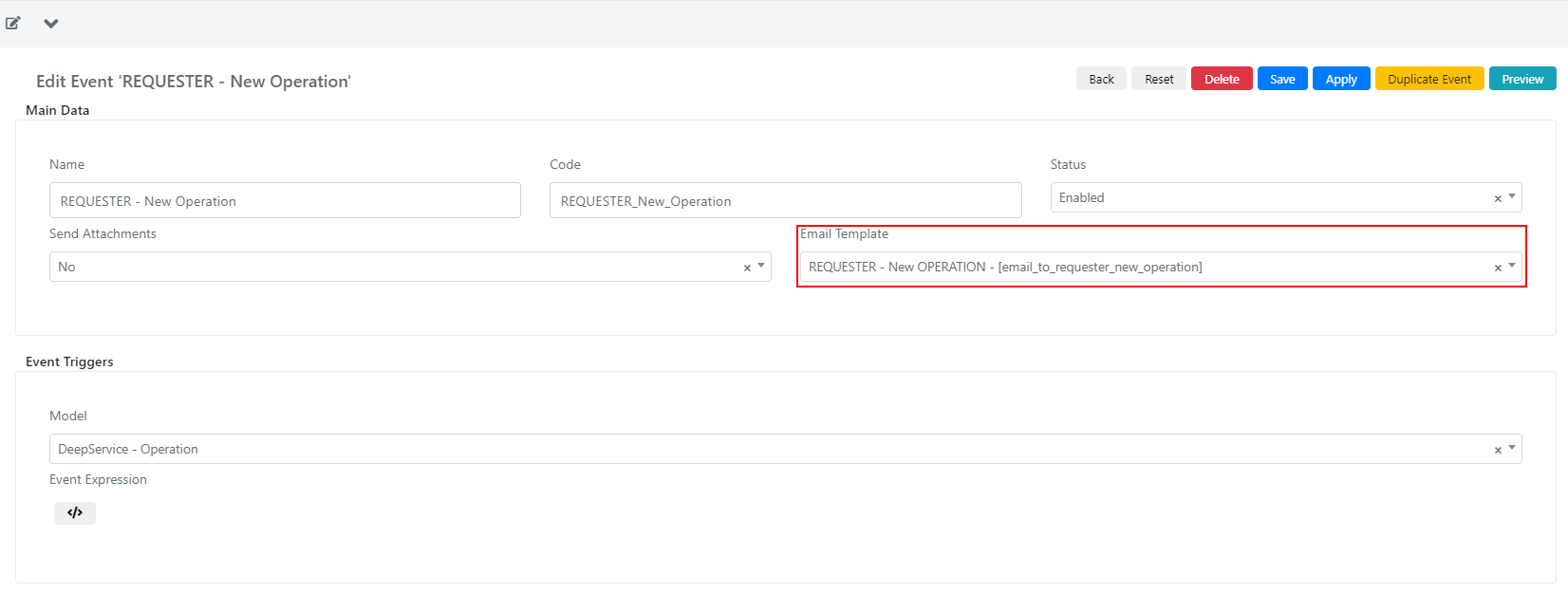
An email template defines the layout and content of notification emails sent by Deepser. Each email event is associated with a template that determines the appearance of the notification.
Preview a Template
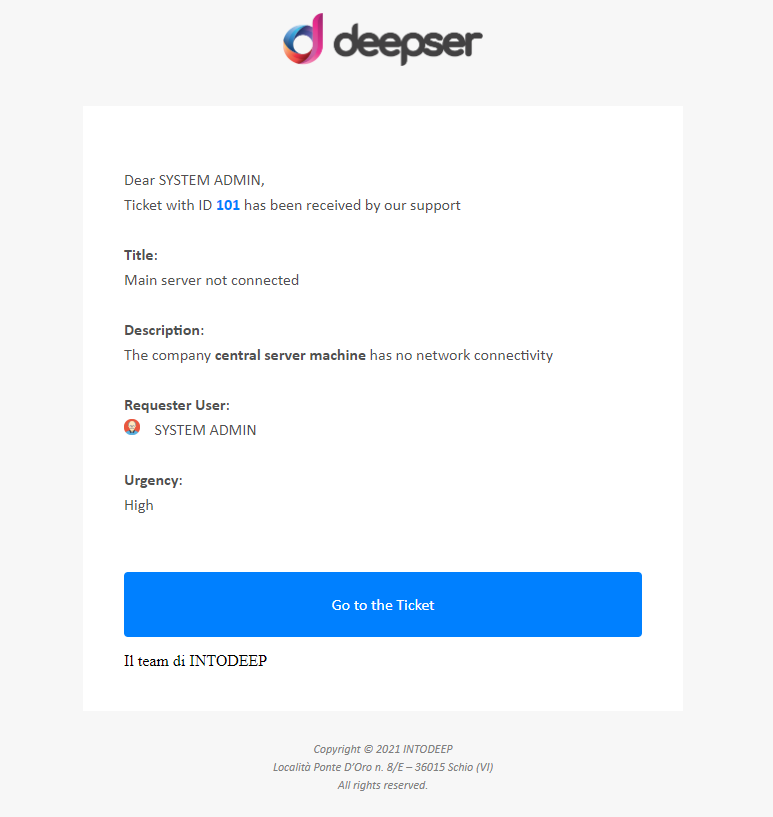
From the email events form, click the Preview button (top right) to see how the notification will appear.
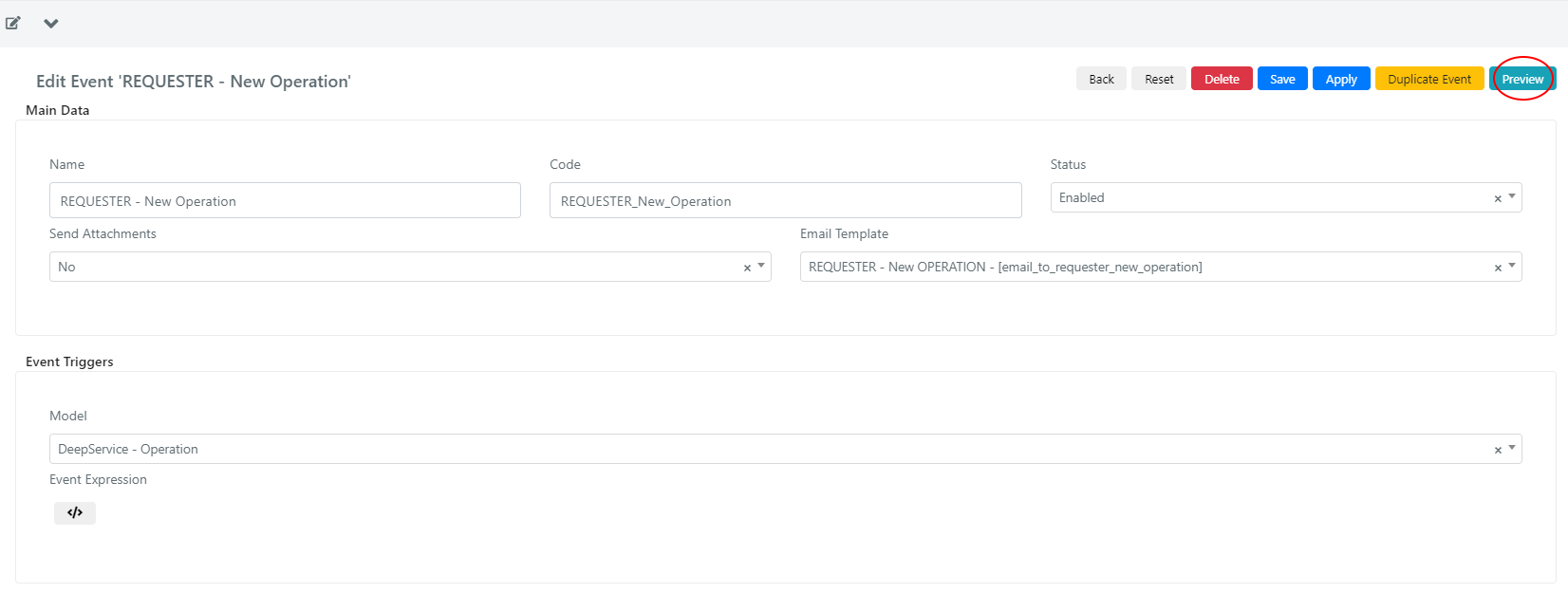
You will be asked for the ID of the model to compile the template with.

Create a New Template
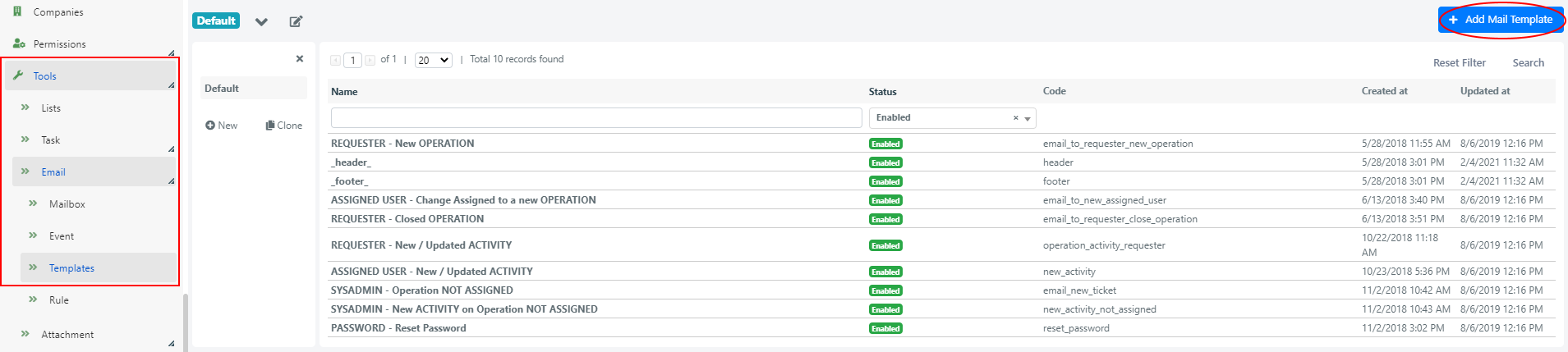
To define a new template, go to System > Tools > Email > Templates and click the Add Mail Template button.
Template Fields
| Field | Description |
|---|---|
| Code | Unique code for the template, useful for including the template in other templates. |
| Name | The name displayed in select-boxes. |
| Status | If Disabled, the template cannot be used. |
| Subject | PHTML code for the email subject line. Include the mailbox Prefix and the model ID (e.g., "TICKET#101") so that replies update the correct record. |
| Body | PHTML code for the email body. |
| Styles | CSS styles added to the email body. |
You can define reusable templates (such as headers and footers) and include them in other templates. For example, define the company logo header once and include it in all notification templates.
When setting up links in templates, choose the correct URL for the target area. A Service Operation can be viewed in the Deepser Backend (for Operators), the User Portal (for registered requesters), or the Guest Portal (for anyone with the link). Each area has a different URL.