Configure an Incoming Mailbox
To create entities from incoming emails, you need to define an incoming mailbox and associate it with email rules. This guide explains how to configure an IN mailbox in Deepser.
Based on your email server settings, all incoming messages could be deleted after Deepser processes them. This is the default behavior with Exchange, standard SMTP servers, etc. Always perform a test and create a backup first. Deepser processes all emails in the inbox, so if the mailbox contains many messages (e.g., on the first run), many records could be created. Always test on mailboxes with only a few messages.
Configuration Steps
-
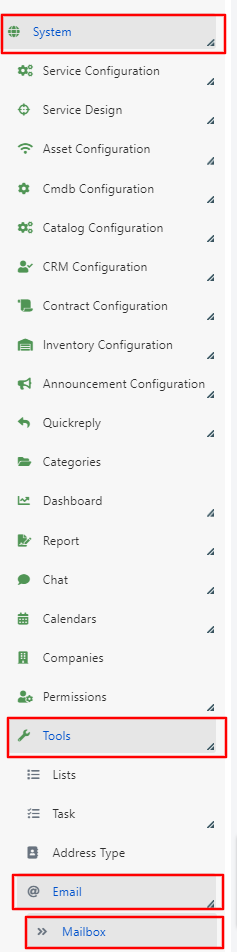
In the Deepser Backend, navigate to System > Tools > Email > Mailbox.
-
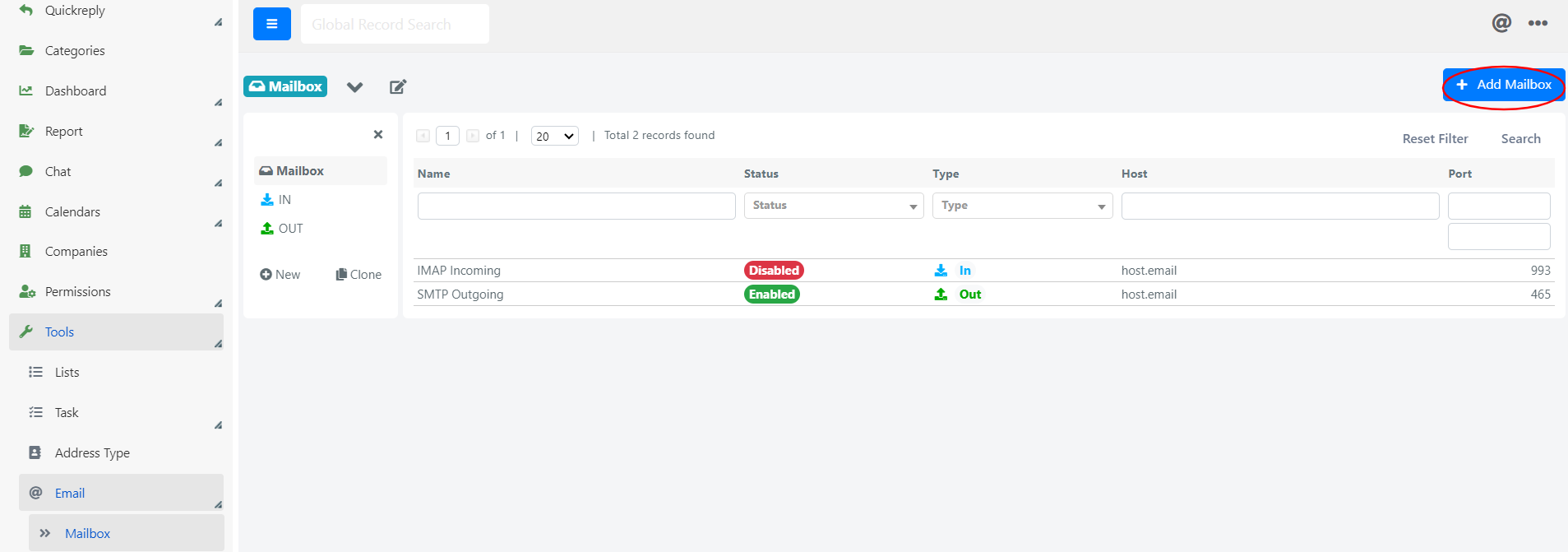
The grid shows already configured mailboxes. Click the + Add Mailbox button in the top right corner.
-
Set the mailbox type to IN. All relevant fields will load dynamically.
Incoming Mailbox Fields
| Tab | Field | Description |
|---|---|---|
| General Data | Name | Descriptive name used in select-boxes. |
| Type | IN (to receive emails) or OUT (to send). | |
| Status | If "Disabled", the integration is not processed. | |
| Host | Address of the mail server. | |
| Port | Port for the connection to the mail server. | |
| Encryption | Encryption type for the connection. | |
| Username | Username to read the mailbox (usually the email address or Exchange user). | |
| Password | Password to log in to the mailbox. | |
| Protocol | Protocol to retrieve emails (POP3, IMAP, or OWA). | |
| OAuth Client | OAuth2 client used for authentication, if required. | |
| System Data | Model | The Deepser entity to create or update from received emails. For example, set to "DeepService - Operation" to create Service Operations. |
| Model Field | The entity field used to check if a record already exists (e.g., entity_id). | |
| Prefix | Prefix prepended to the Model Field to identify existing records. For example, with Prefix "TICKET#" and Model Field "entity_id", an email with subject "TICKET#70" updates Service Operation 70. An email without a matching prefix creates a new record. | |
| Outgoing Email Box | Specifies which outgoing mailbox to use for notifications on records created by this mailbox. | |
| Apply Email Rules | If yes, related email rules are executed. | |
| Allowed Emails | Whether emails can be received from all addresses or only registered users. Ignored emails are deleted. | |
| Spam Expression | A regular expression to identify spam subjects. Matching emails are deleted from the inbox. | |
| Advanced | Cron Expression | Defines the frequency of the mailbox scan. If not set, the mailbox will not be processed. |
| Processed on | Date and time of the last mailbox scan. | |
| Custom Code | PHP code run after an email is received, for triggering custom events or updates. |
Test the Configuration
After saving, click the Check button (top right) to test the connection.
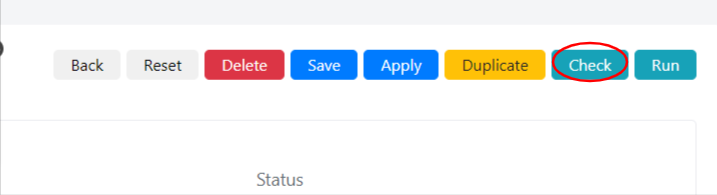
If configured correctly, a success message will appear. Otherwise, an error message will be displayed.