Configure Form Template Buttons
You can manage buttons directly from the form template component tree. This article covers how to configure button properties, remove buttons, and conditionally hide them based on record state.
Manage Buttons in the Component Tree
Buttons appear in the component tree of the form template configuration screen.
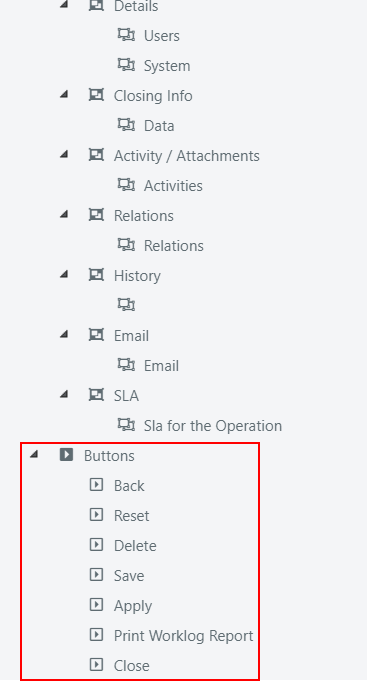
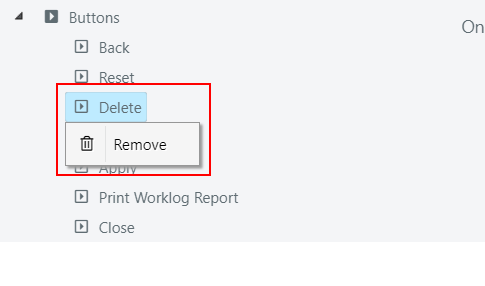
To delete a button, right-click on it in the component tree and select the delete option.
To configure a button, select it in the tree to open its configuration panel.
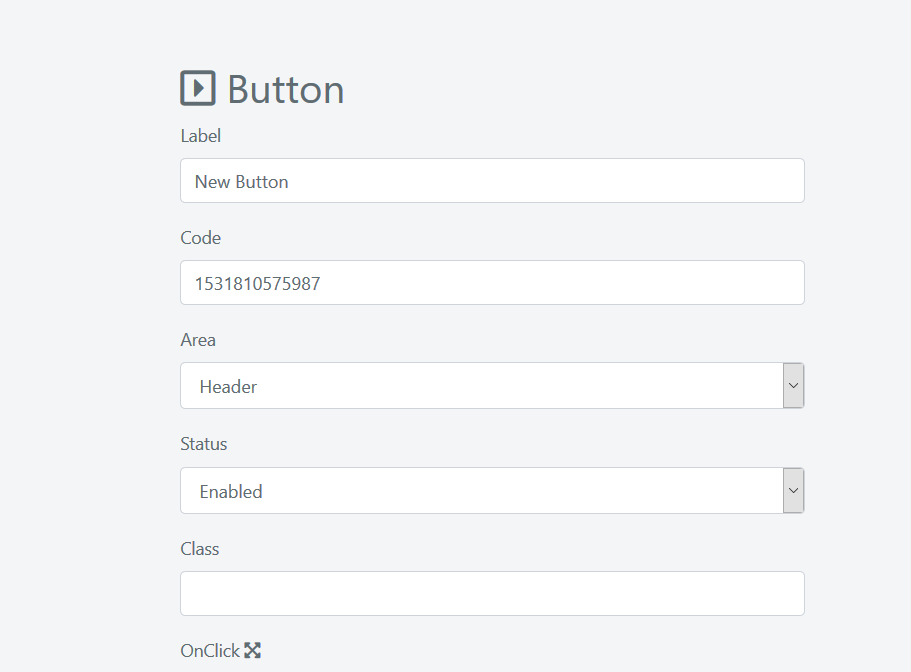
Button Configuration Options
| Option | Description |
|---|---|
| Label | Text displayed on the button. |
| Code | Additional identification code. Used for system buttons only. |
| Area | Form area where the button is displayed: Header or Footer. |
| Status | If set to Disabled, the button is not added to the form. |
| Class | Assigns one or more CSS classes to the button. Useful for styling and for targeting the button with jQuery. |
| OnClick | Scripting area where you define the button's OnClick action using PHP. See Custom Button Configuration for examples. |
Conditionally Hide Buttons
It is common to show a button only when certain conditions are met. You can achieve this by combining a CSS class with PHP/JavaScript scripting.
How It Works
- Assign a custom CSS class to the button (the class name is your choice). This makes it easy to target the button via jQuery.
- Write the hiding logic in the Script area of the form template configuration, which executes when the form loads.
Example: Hide a Button When the Service Operation Is Closed
In this example, the "Close Operation and Send Report" button is hidden when the Service Operation is already in a closed state.
Step 1: Assign a CSS class (e.g., btn-close) to the button from its configuration screen.
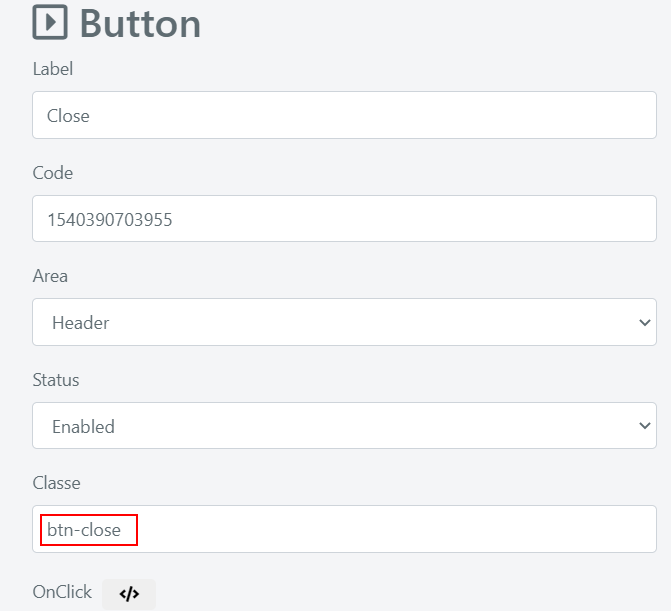
Step 2: Open the form template configuration screen and expand the Script area by clicking the </> icon.
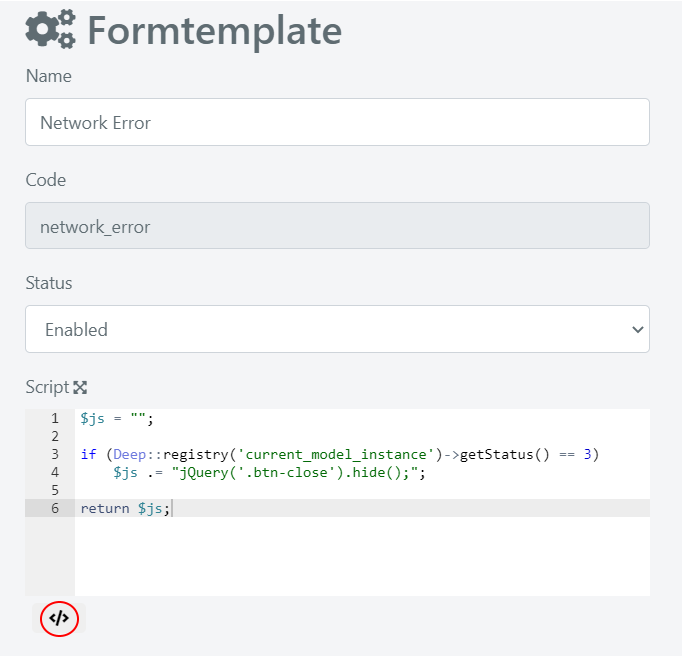
Insert the following code:
// $js is a string that contains JavaScript code
$js = "";
// if status is closed (status ID = 3)
if (Deep::registry('current_model_instance')->getStatus() == 3)
    //add jQuery code to hide the button using the CSS class from Step 1
    $js .= "jQuery('.btn-close').hide();";
//return JavaScript code
return $js;
When the form loads for a closed Service Operation, the button is automatically hidden.