Configure a Form Template
In Deepser, you can modify the structure of a form template through an intuitive graphical interface. This article explains how to access the configuration screen, edit the template, and define loading rules that control when a template is used.
Access the Configuration Interface
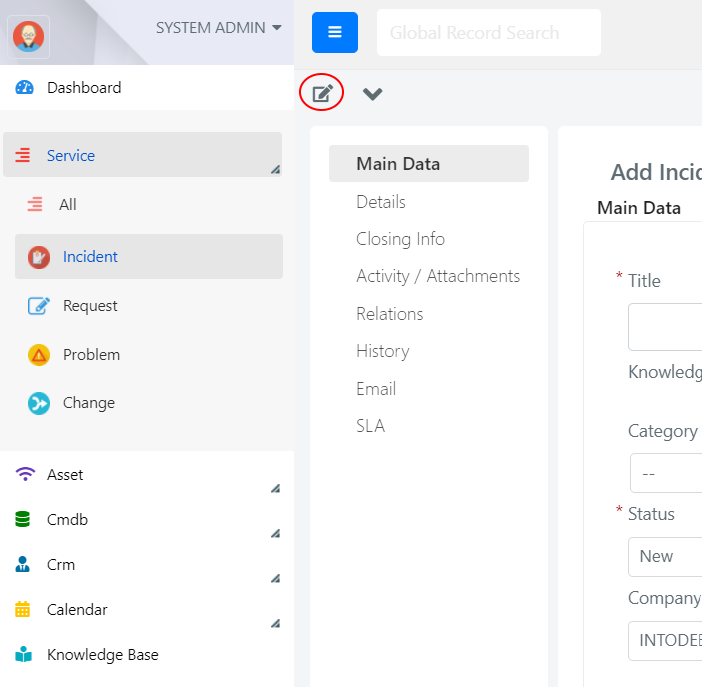
To open the configuration interface of a form template, click the pencil icon in the upper-left area of any form template. This icon is visible only to users with the Administrator or Operator role.
Edit the Form Template
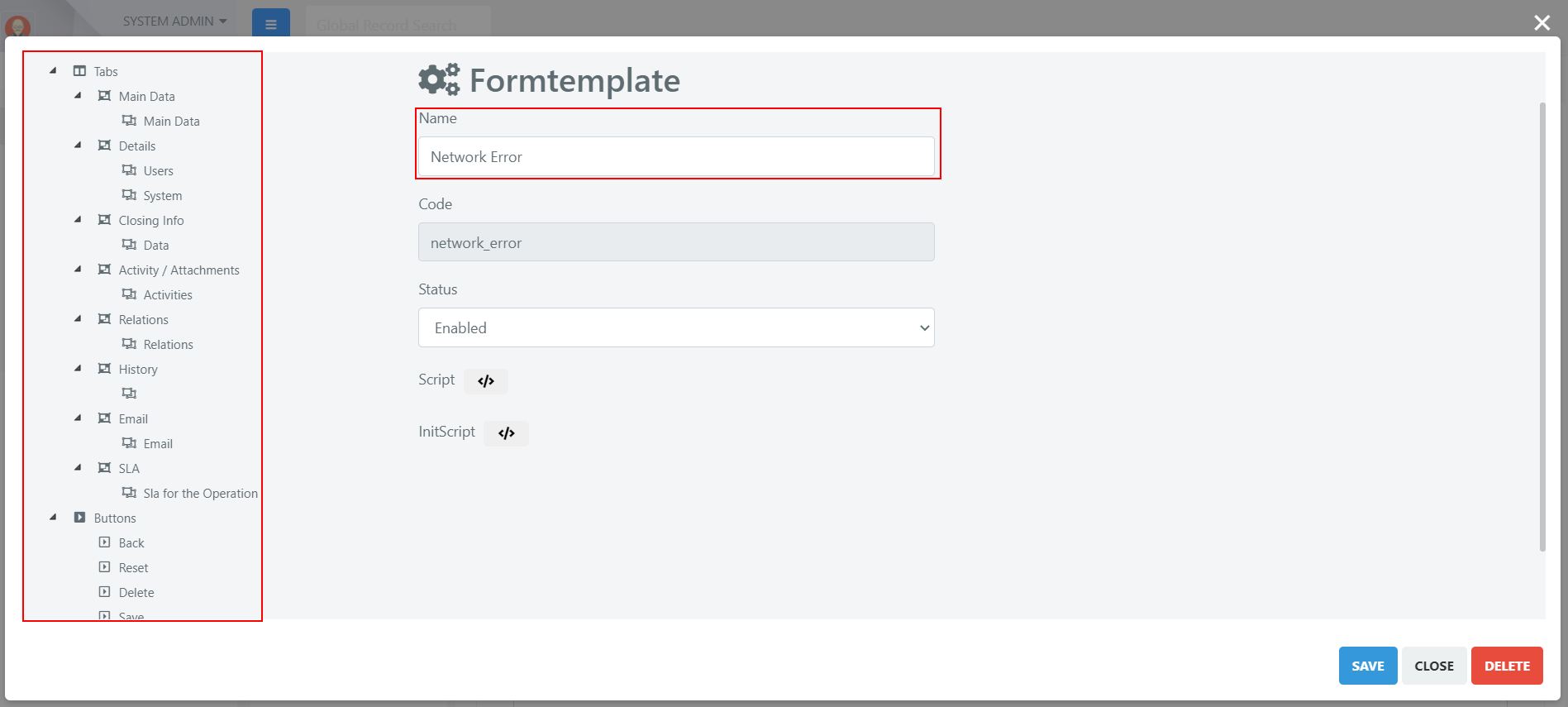
The configuration interface displays the template's settings and its structural components in a tree view. From here you can rename the template and modify its structure (tabs, fieldsets, and fields).
Define Loading Rules
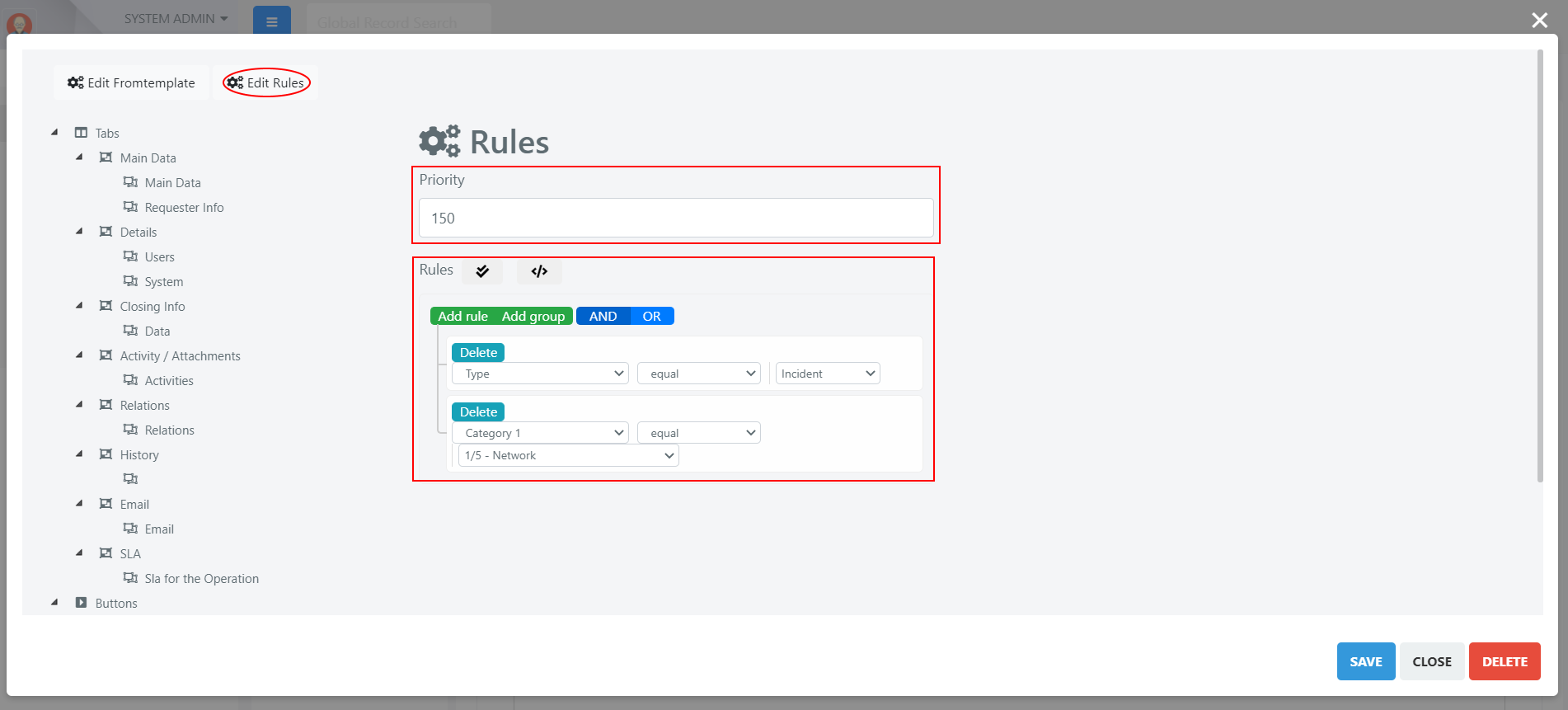
Click the Edit Rules tab to assign a priority to the template and define loading rules.
Priorities and rules determine which template is loaded dynamically when a new record is created. Deepser evaluates templates in priority order (lowest number first) until it finds one whose conditions are satisfied.
Example: The following configuration assigns a priority of 150 and sets the rule that this template should only load when the Category1 field is Network.
For complex conditions that cannot be expressed with the query builder, see Advanced Form Template Rules.