Create a Form Template
In Deepser, each entity can have multiple form templates that define how records are displayed and edited. This article explains how to select an existing template, create a new one, and configure its structural hierarchy.
Select a Template
To manually switch to a different template (as an Administrator or Operator):
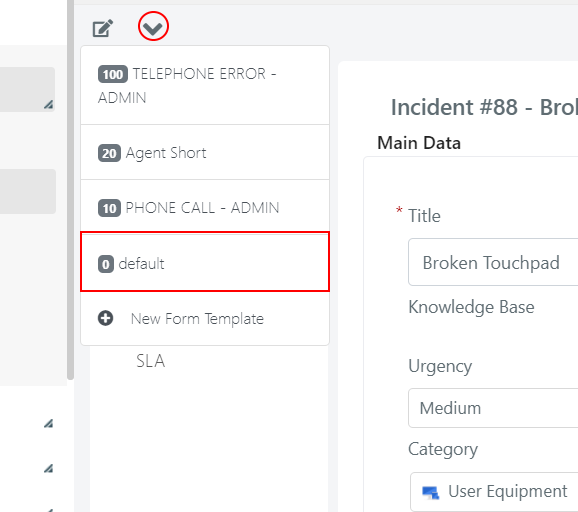
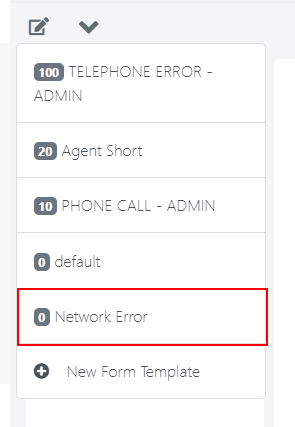
- Open the Template menu on any record.
- Select the desired template from the list.
Create a New Template
To create a new form template:
-
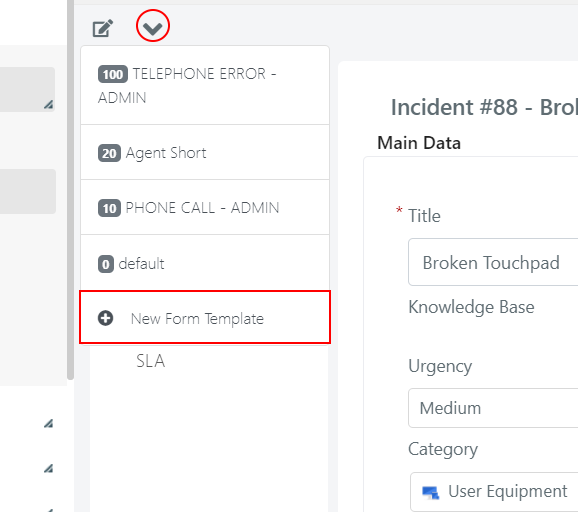
Open the Form Template menu inside a record (requires Administrator or Operator role).
-
Select the New Form Template item.
-
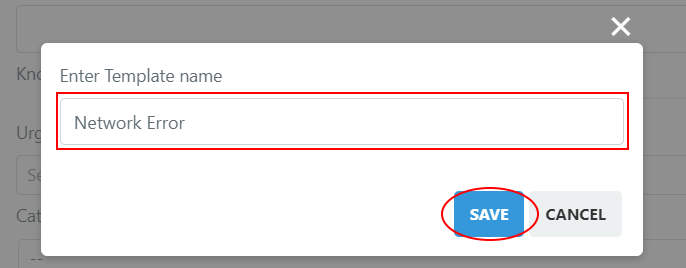
Enter a name for the new template and click Save.
-
The new template is created as a clone of the template that was loaded at the time of creation. It is now available in the form template menu.
Understand the Template Structure
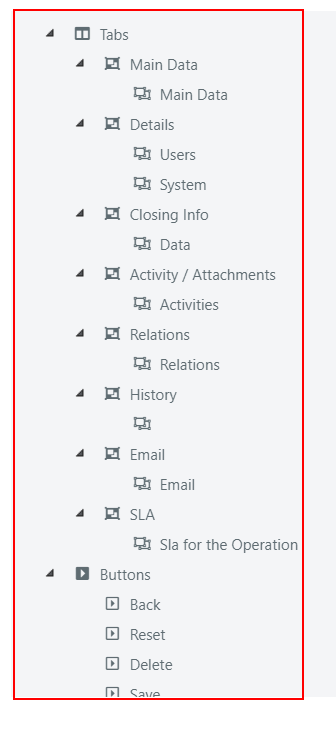
Form templates in Deepser follow a hierarchical structure:
- Form -- The top-level container.
- Tabs -- Organize content into tabbed sections.
- Fieldsets -- Group related fields within a tab.
- Fields -- Individual data entry elements.
- Fieldsets -- Group related fields within a tab.
- Tabs -- Organize content into tabbed sections.
Add Structural Elements
To add new items within the form template configuration screen, right-click on a parent element and select the type of sub-element to add.
Add Tabs and Fieldsets
When adding new tabs or fieldsets, you can reorder them using drag and drop.

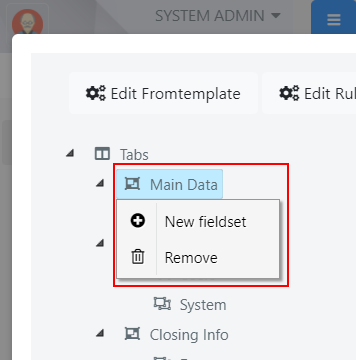
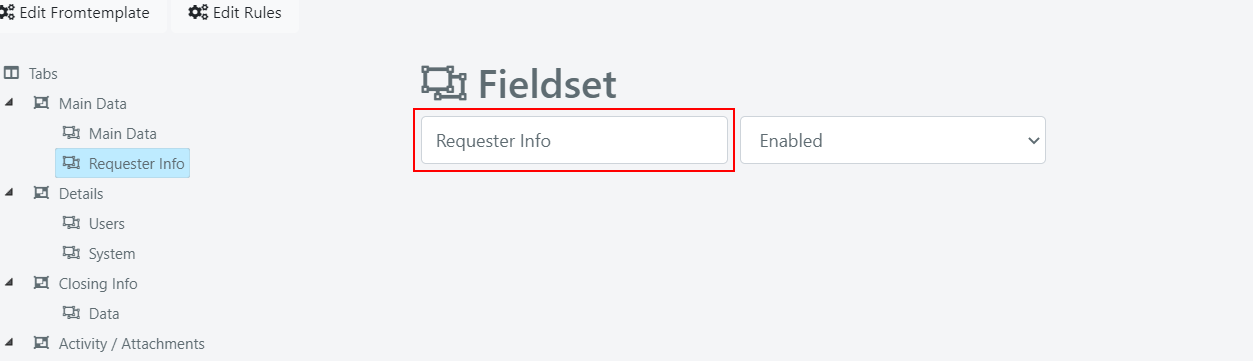
Once created, you can rename a tab or fieldset from its configuration screen.