Configure Form Template Fields
Each field in a form template can be individually configured to control its appearance, behavior, and access permissions. This article explains how to access the field configuration panel and describes each available option.
Access Field Configuration
To configure an individual field, click the gear icon on the field within the form template configuration screen.
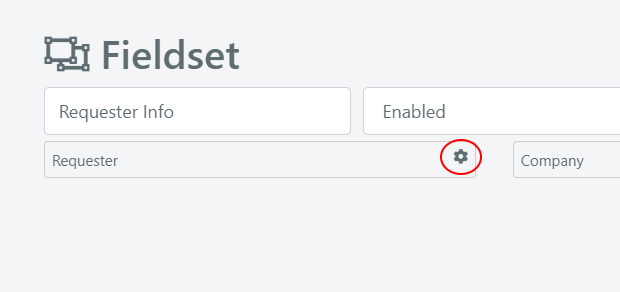
The field management popup appears:
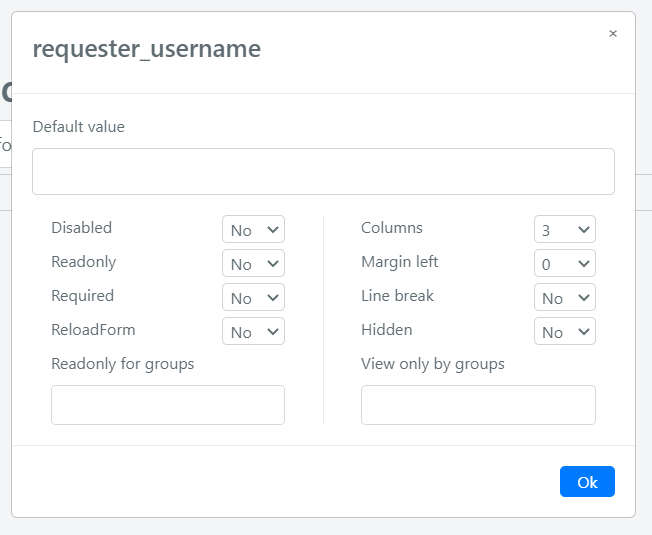
Field Configuration Options
| Option | Description |
|---|---|
| Default Value | The default value for the field, defined at the form template level. For Select-type fields, specify the option key to pre-select it. |
| Disabled | When enabled, the field is inactive and is not included in the form data submitted for saving. |
| Readonly | Makes the field read-only. Users can see the value but cannot change it. |
| Required | Makes the field mandatory. The form cannot be saved until this field has a value. |
| Reload Form | When set to Yes, editing this field triggers a form reload and applies any Form Template Rules. This is important for dynamic template switching based on field values. |
| Columns | Controls the width of the field on a scale of 1 to 6. A value of 6 spans the entire form width. |
| Margin Left | Sets the left margin of the field. The sum of Columns and Margin Left must be less than or equal to 6. |
| Line Break | When enabled, prevents other fields from appearing on the same line after this field. |
| Hidden | Hides the field from the form display while still including it in the form data. |
| Readonly for Groups | Makes the field read-only for members of the specified groups. |
| View Only by Groups | Restricts field visibility to members of the specified groups only. |
tip
Use Reload Form on category or type fields to dynamically switch form templates based on the selected value. Combine this with loading rules for a seamless user experience.