Configure Form Template Fieldsets
Fieldsets group related fields within a form template. This article explains how to configure fieldset properties and manage the fields they contain using drag and drop.
Access Fieldset Configuration
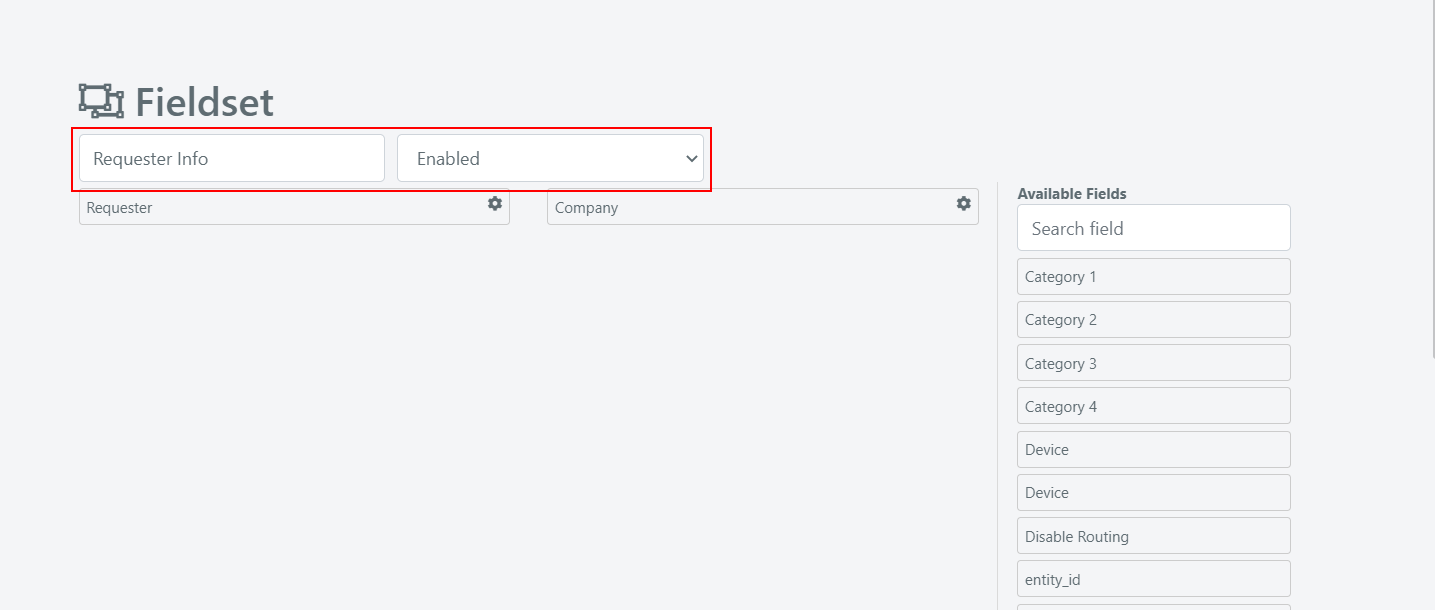
To configure a fieldset, select it in the tree structure on the form template configuration screen. The fieldset configuration panel appears, where you can set the following properties:
- Name -- The display name of the fieldset.
- Status -- Enables or disables the fieldset.
Manage Fields in a Fieldset
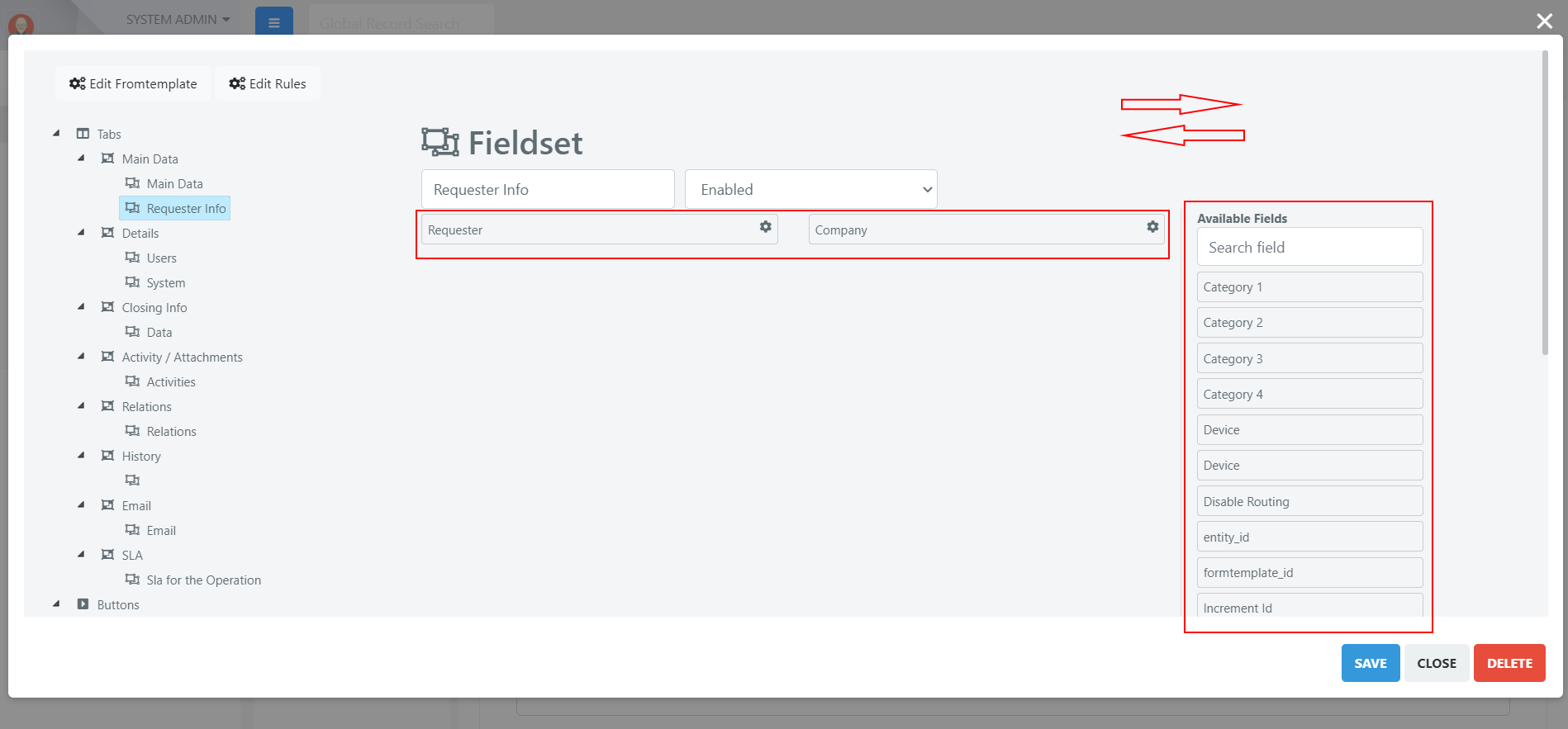
The fieldset configuration screen shows two areas:
- Center -- Fields currently visible inside the selected fieldset.
- Right side -- All available fields that can be added.
To add a field to a fieldset, drag and drop it from the Available Fields area (right) into the fieldset (center).
To remove a field from a fieldset, drag it from the fieldset back to the Available Fields area. The field then becomes available for use in other fieldsets.
A field can only belong to one fieldset at a time. If a field is placed in a specific fieldset, it cannot also appear in another fieldset (for example, on a different tab).