Deepser Backend Overview
This page provides an overview of the Deepser Backend interface layout, including the home page, user menu, and navigation menu. It is intended for Administrators, Operators, and Key Users who work in the Deepser Backend on a daily basis.
The Deepser Backend screen is organized into distinct areas that give you access to all administrative functions.
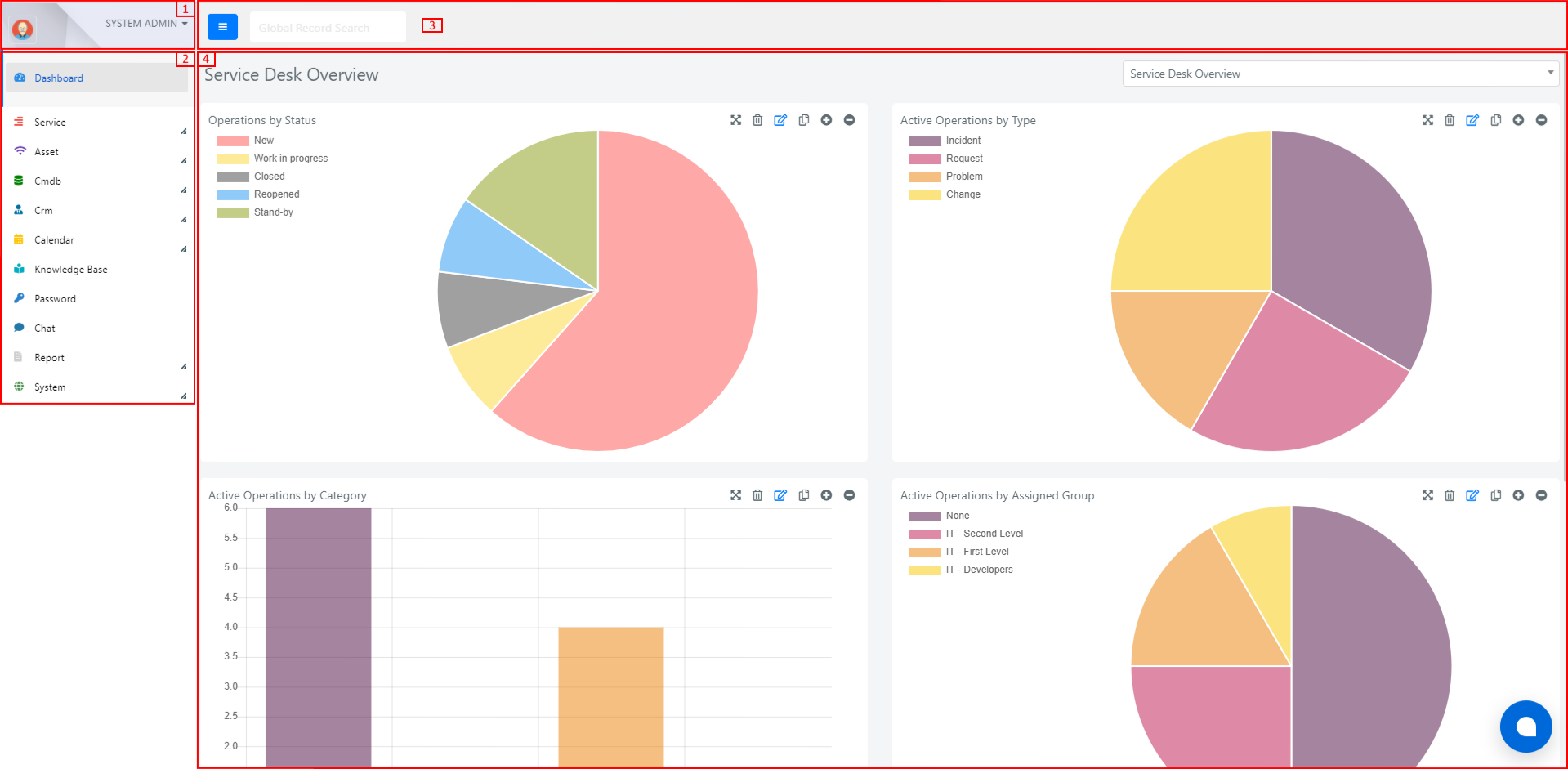
- In the upper left area (1) there is the User Menu.
- In the left area (2) there is the Navigation Menu, where you can find all the modules accessible from the Deepser Backend.
- In the upper area (3) there is the Global Search bar. The textbox in that bar allows a full-text search on all elements of the system. The search targets the most important fields of every record: user name, title of an activity, company name, and so on.
- In the central area (4) there is the Main Screen.
The Deepser Backend is accessible only by Administrators, Operators, and Key Users. End Users can only log in to the User Portal.
Deepser Home Page
The home page of Deepser displays information related to the module selected in the Navigation Menu. This section explains the default dashboard view and how to navigate to module-specific screens.
By default, the first screen shown to a Deepser Backend user after login is the Dashboard, where you can see real-time graphs to measure the quality of your service.
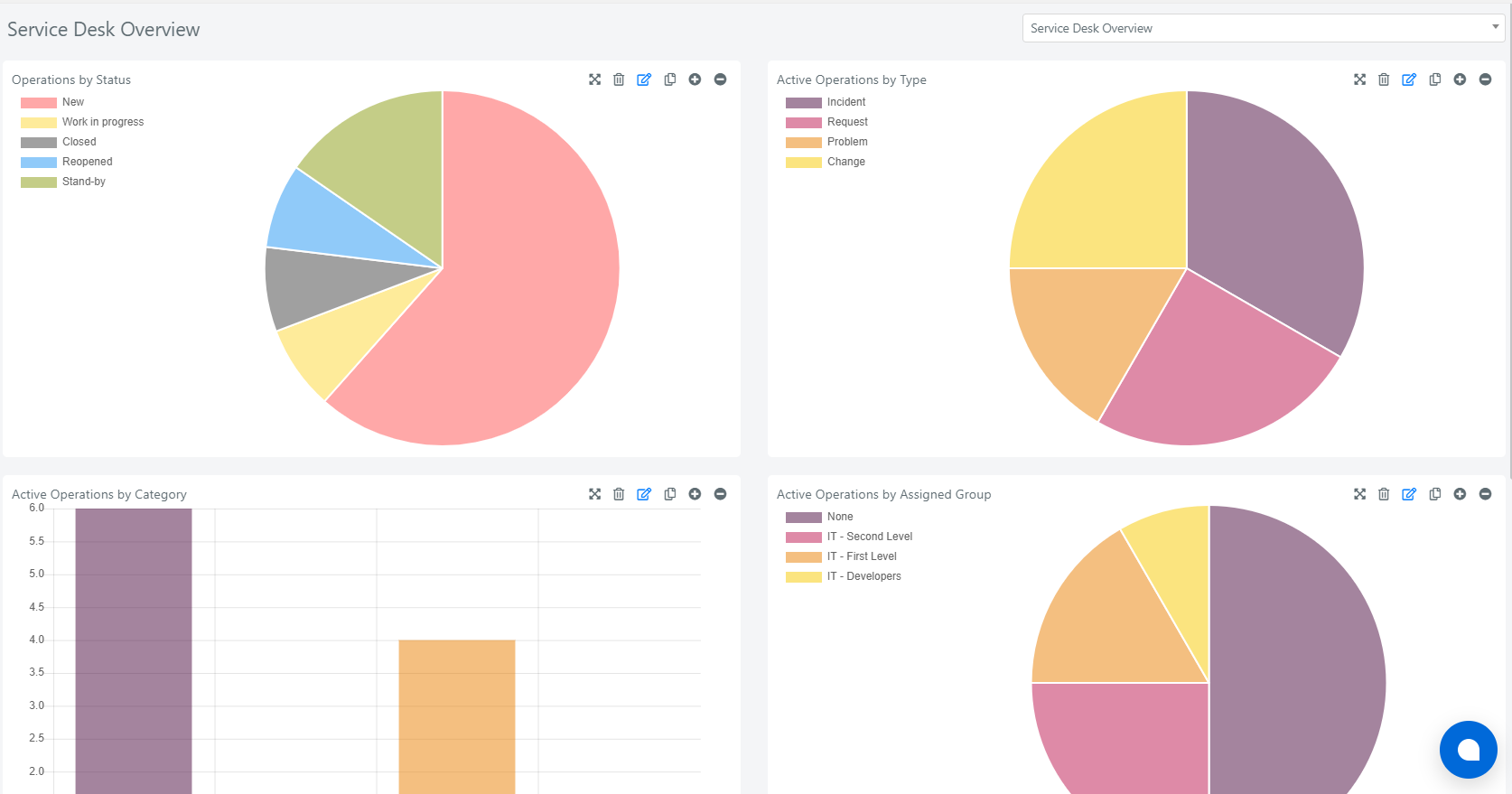
The initial page of a Deepser Backend user can be changed by system administrators.
To understand the details, functions, and structure of the home page, take a look at the Service module.
Click on the "Service" item in the Navigation Menu on the left to see the sub-menus with all the Service Types in the system.
The "All" item is always present and is used to access all Service Operations without filtering by Service Type.
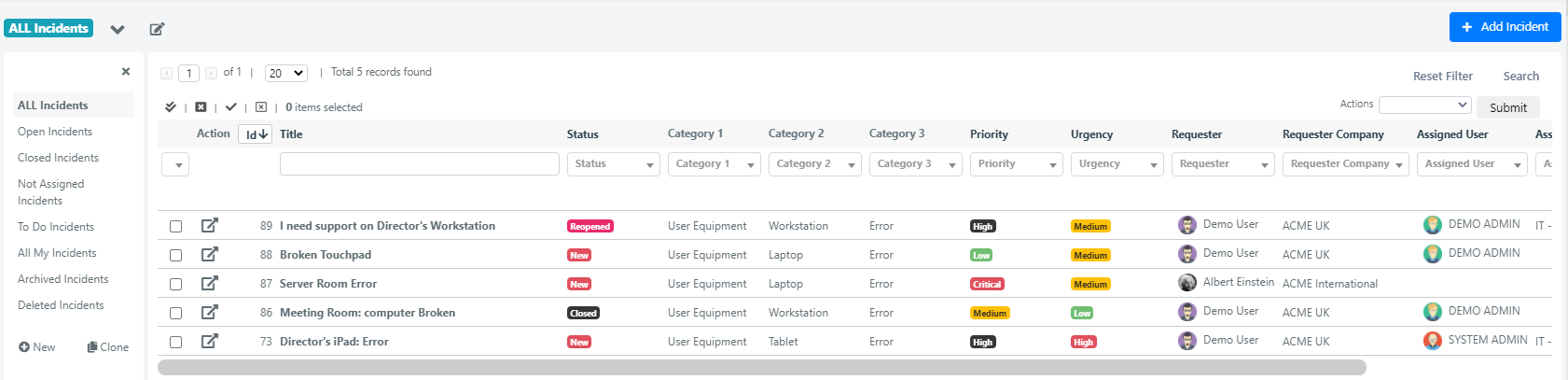
Selecting a menu item causes the main screen of Deepser to display a grid with the Service Operations in the system, visible based on the current user's permissions.
Deepser User Menu
The User Menu in Deepser provides quick access to your profile settings and other key functions. You can find it in the upper left area of the Deepser Backend.
Below the icon with your avatar and name, click the arrow to expand the menu:

The items in the menu are:
- My Account: Link to the page with all information about the currently logged-in user, where you can modify personal information such as avatar, language, timezone, and more.
- Portal: Link to the User Portal. A user who accesses the Deepser Backend can browse the User Portal by clicking this link.
- Log Out: Disconnects you from the system.
- Help: Link to the online help.
Deepser Navigation Menu
The Navigation Menu is your primary way to access all Deepser Backend modules and configuration screens. This section describes its structure and how to use it.
Structure
The Navigation Menu contains the main links to the modules that compose the software. Using this menu, you can access all the screens of the main functions of the Deepser Backend.
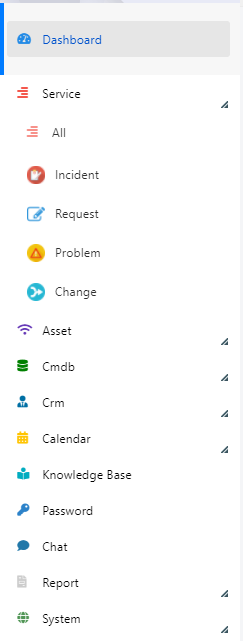
The Navigation Menu has two main sections:
- Menu items visible to all users: These are the modules where a user can manage activities, Service Operations, CMDB, view the Dashboard, and more.
- System item: Only a user with the Administrator role can access this item.
The Navigation Menu varies from user to user, based on user permissions:
- Role: A user with the Administrator role can access all modules, including configuration modules. An Operator or Key User cannot access the configuration module items (the System menu). An End User cannot access the Deepser Backend.
- Module Visibility: An Operator or Key User can see only certain modules. This is made possible by the ACL (Access Control Lists) configuration in Deepser.
The items in the Navigation Menu can contain sub-menus. Deepser adds an icon on the lower corner of the menu item to indicate this:

By clicking on the item with that icon, you can expand the sub-menu with additional items, which may themselves be expandable:

If you select an item with no sub-menu, the main screen of Deepser will navigate to that module's main screen.
Hide Navigation Menu
To make better use of screen space, you can hide the Navigation Menu and expand the main screen.
To hide the Navigation Menu, click the blue button near the global search textbox.
