Use Global Search
The Global Search bar lets you quickly locate any record in the Deepser Backend, including Service Operations, users, customers, and file attachments. This guide explains how the search works and what results to expect. It is useful for any Operator, Key User, or Administrator who needs to find records fast.
How Global Search Works
The Global Search textbox is located in the upper area of the Deepser Backend. When you type text into the search bar, Deepser compares your input against the unique ID and the name of each entity, then returns a list of all possible matches.
If the record does not have a Name field, another identification field is compared instead. For example, a file name is used for an attachment and a title is used for an appointment.
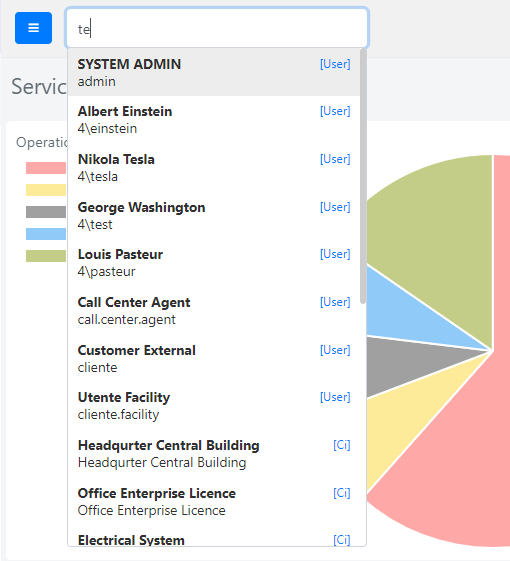
Perform a Search
To find a record using Global Search:
- Click the search textbox in the upper area of the Deepser Backend.
- Type at least part of the record's ID, name, or title.
- Review the dropdown list of matching results that appears below the search bar.
- Click on a result to navigate directly to that record's detail page.
Results are grouped by entity type (for example, Service Operations, users, companies, or attachments), so you can quickly identify the category of each match.
Example: Find a Service Operation by ID
Suppose you need to locate Service Operation #1042. Type 1042 into the Global Search bar. Deepser returns all records whose ID or name contains "1042". Click the matching Service Operation entry to open it directly, without navigating through the Service menu.
You can also search by partial text. For example, typing a customer's last name returns all records associated with that customer across every module.
Toggle the Navigation Menu
Next to the Global Search bar, the blue button lets you hide the Navigation Menu, expanding the Main Screen. Click the button again to restore the Navigation Menu.
