Configure Grids
Grids are the primary way data is displayed in the Deepser Backend. They are highly customizable, supporting configurable columns, sorting, filtering, mass actions, and data export. This article explains how to access the grid configuration menu and set up columns and system-level options.
Access the Grid Configuration Menu
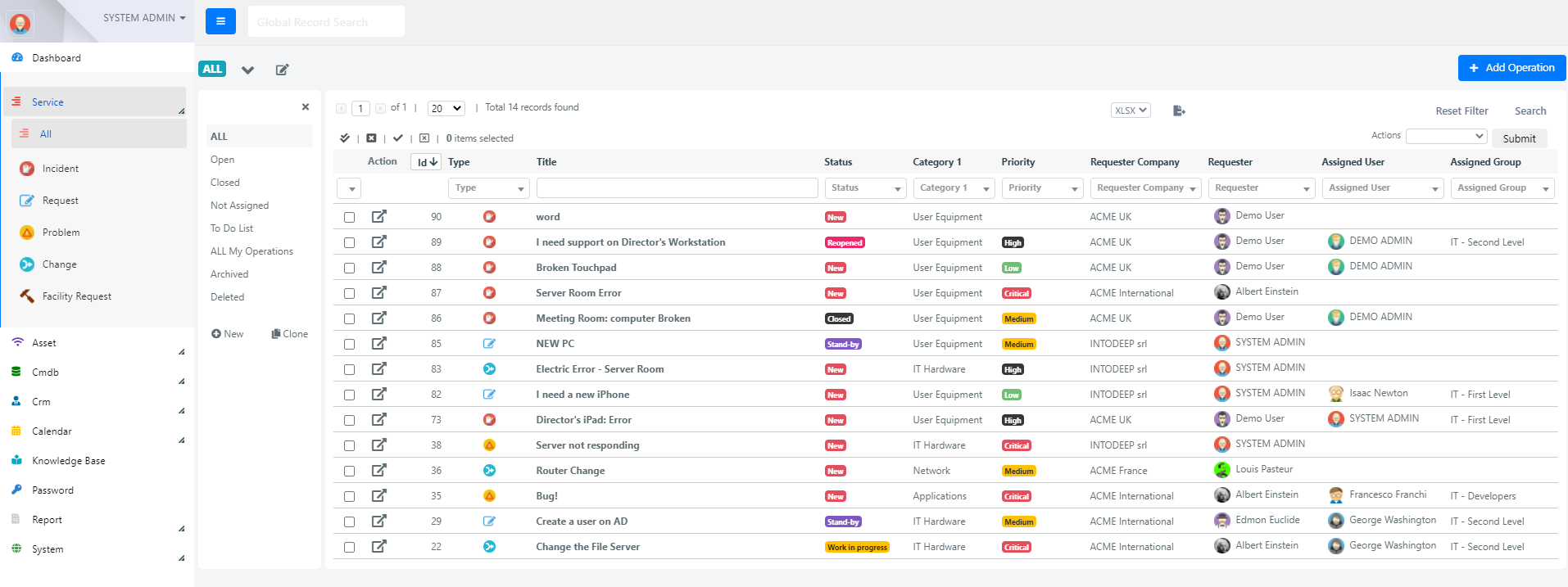
To configure a grid, navigate to the grid you want to modify and click the pencil icon next to the badge displaying the current grid name.

Manage Visible Columns
To make a column visible in a grid:
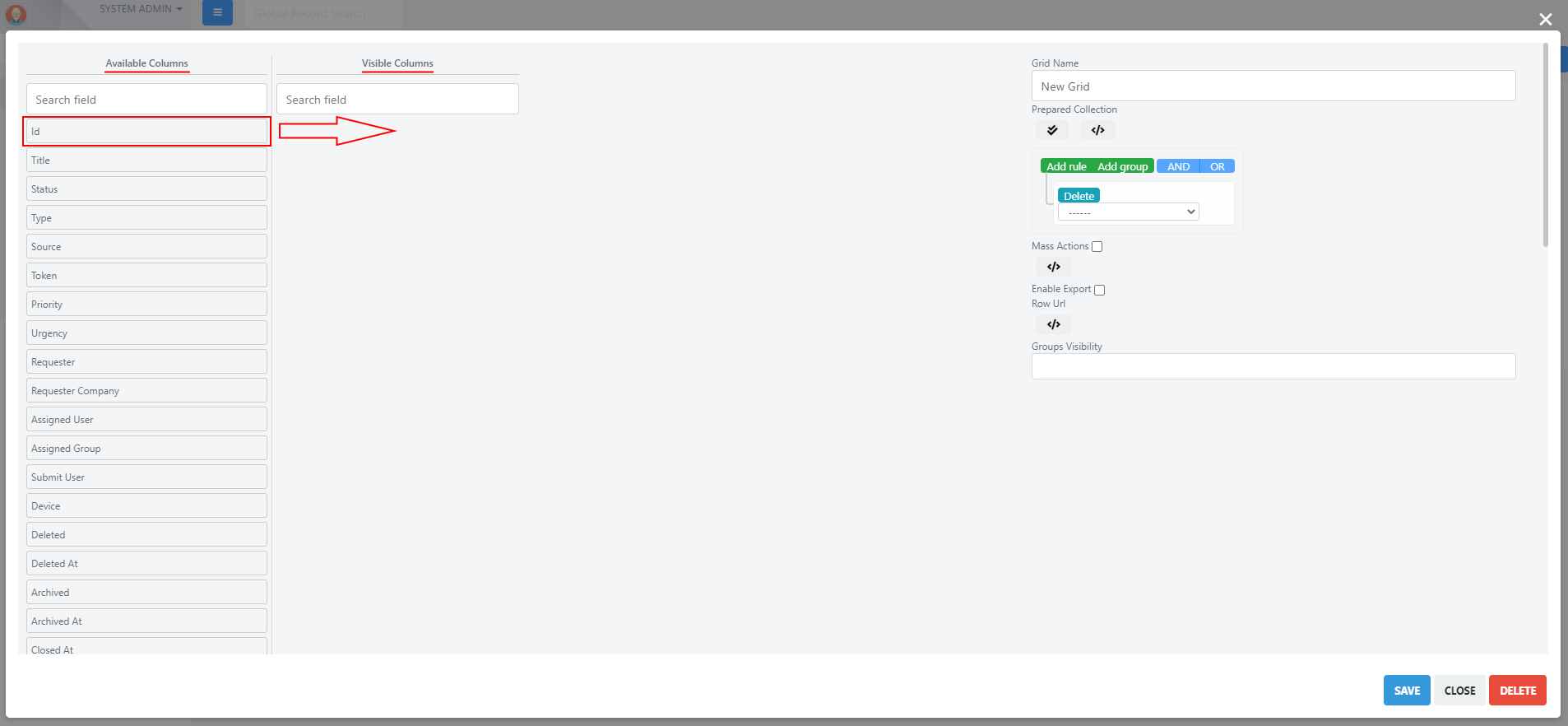
- Open the grid configuration menu.
- Drag and drop the desired column from Available Columns (on the left) to Visible Columns (on the right).
To remove a column, drag it from Visible Columns back to Available Columns.
Configure Individual Columns
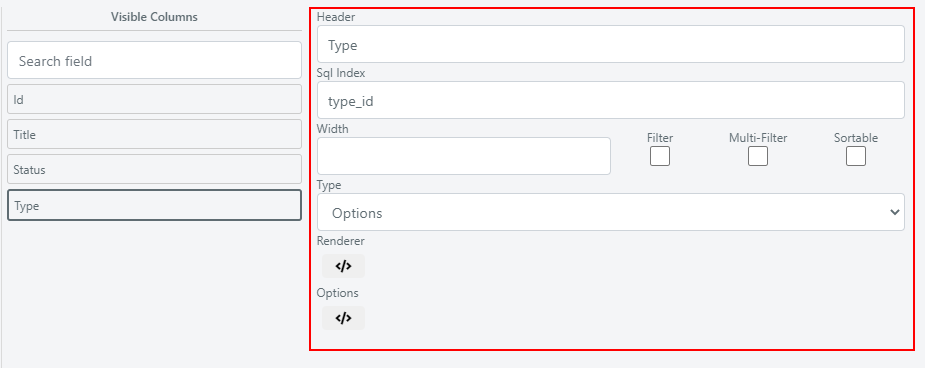
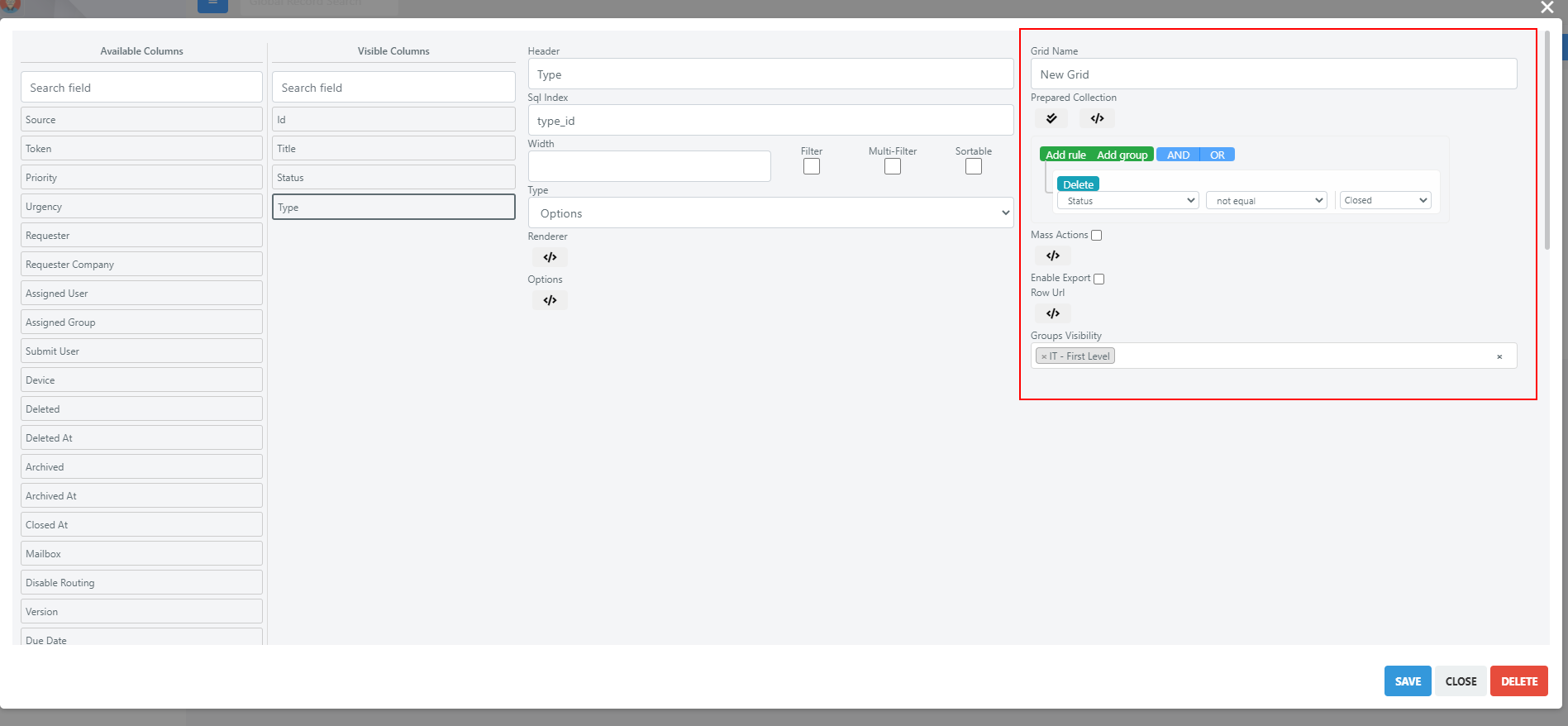
To configure a single column, select it among the visible columns by clicking on it. Its configuration panel will appear with the following options:
| Option | Description |
|---|---|
| Header | Changes the column header text displayed in the grid. |
| Type | Indicates the data type shown in the column, related to the field element type. For more details, see the section on custom fields. |
| Filter | When checked, makes the column filterable. |
| Multi-Filter | Allows multiple values in the column filter. Applies only to Select and Option types. |
| Sortable | When checked, allows sorting the grid by this column's values. |
Configure Additional Grid Settings
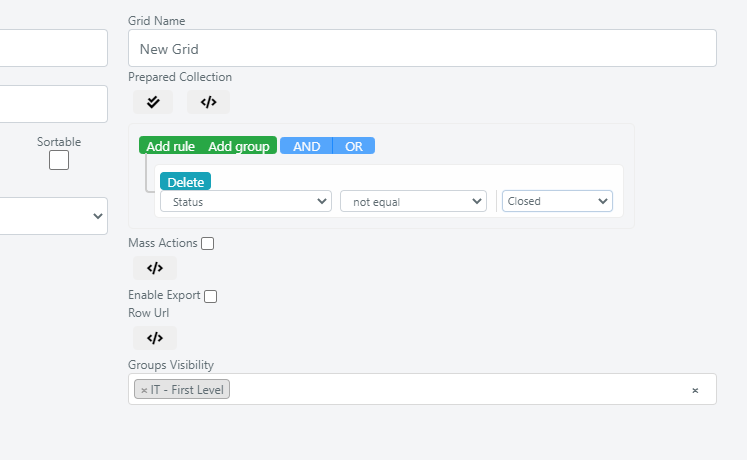
On the right side of the grid configuration menu, you will find additional settings:
| Setting | Description |
|---|---|
| Grid Name | The display name of the grid. |
| Prepared Collection | Uses the Query Builder to define filters applied when data is retrieved from the database. These filters cannot be removed with the Reset Filters button. For example, you can create a grid showing only Service Operations that are not in a Closed state. |
| Mass Action | Enables or disables mass actions on the grid. |
| Enable Export | Enables or disables data export for the grid. |
| Groups Visibility | Specifies which groups can see the grid. |
Super Admin users see all grids regardless of group visibility settings.
Set the Grid Reload Interval
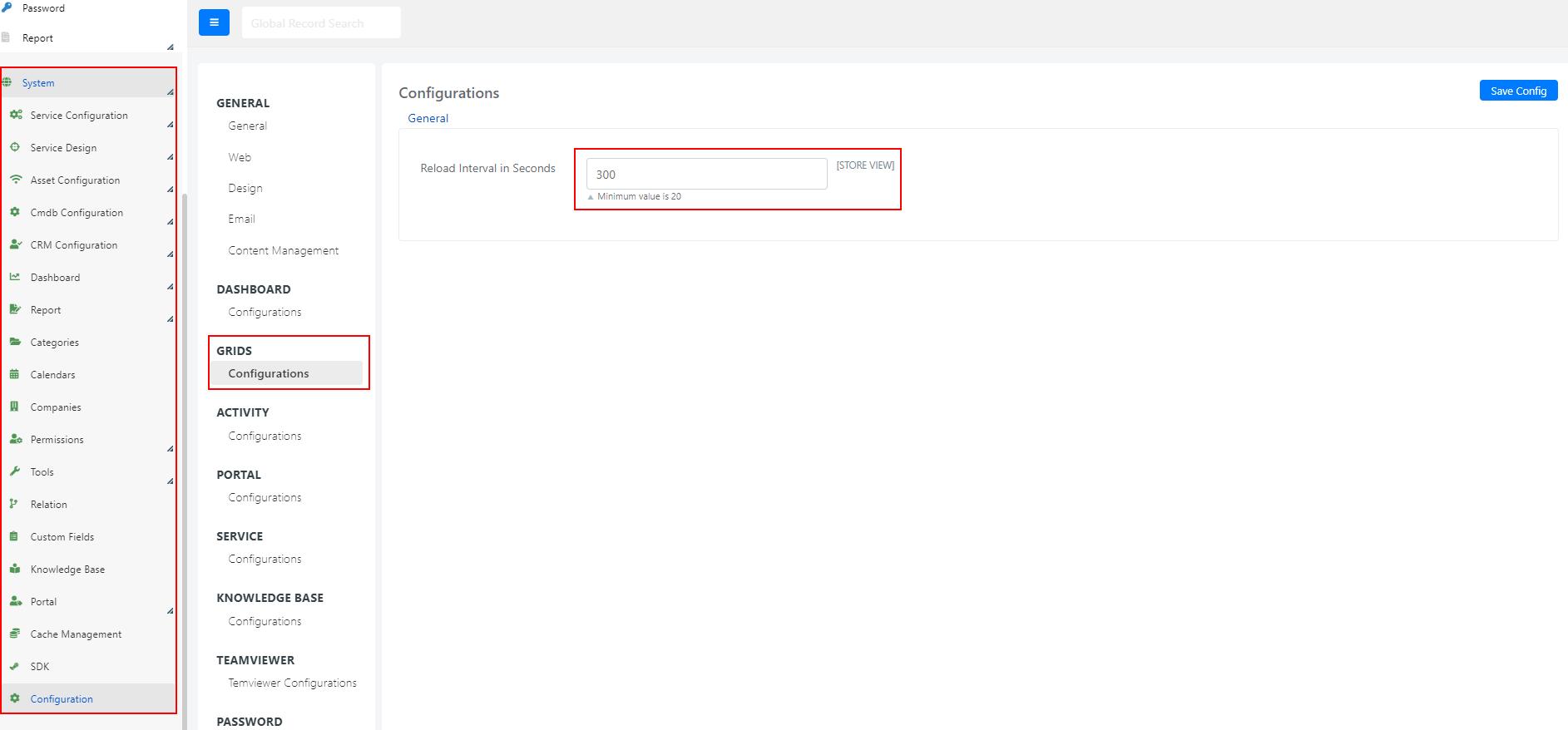
You can define how frequently grids refresh their data by navigating to System > Configuration > Grids > Configurations. The value is expressed in seconds.
The recommended default value is 300 seconds (5 minutes).