Export Grid Data
Deepser allows you to export grid data in XLSX or CSV format so you can analyze or share the data outside the application. Any filters, sorting, and column selections currently applied to the grid are preserved in the exported file, ensuring the output matches what you see on screen.
Supported Export Formats
Deepser supports two export formats:
| Format | Description |
|---|---|
| XLSX | Microsoft Excel format. Best for sharing structured data with colleagues or importing into spreadsheet tools. This is the default format. |
| CSV | Comma-separated values format. Useful for importing data into other systems, databases, or scripts that process plain text. |
Export a Grid
To export grid data:
-
Apply any desired filters and sorting to the grid so it displays exactly the data you want to export. See Filter and Sort Grid Records for guidance on narrowing down results.
-
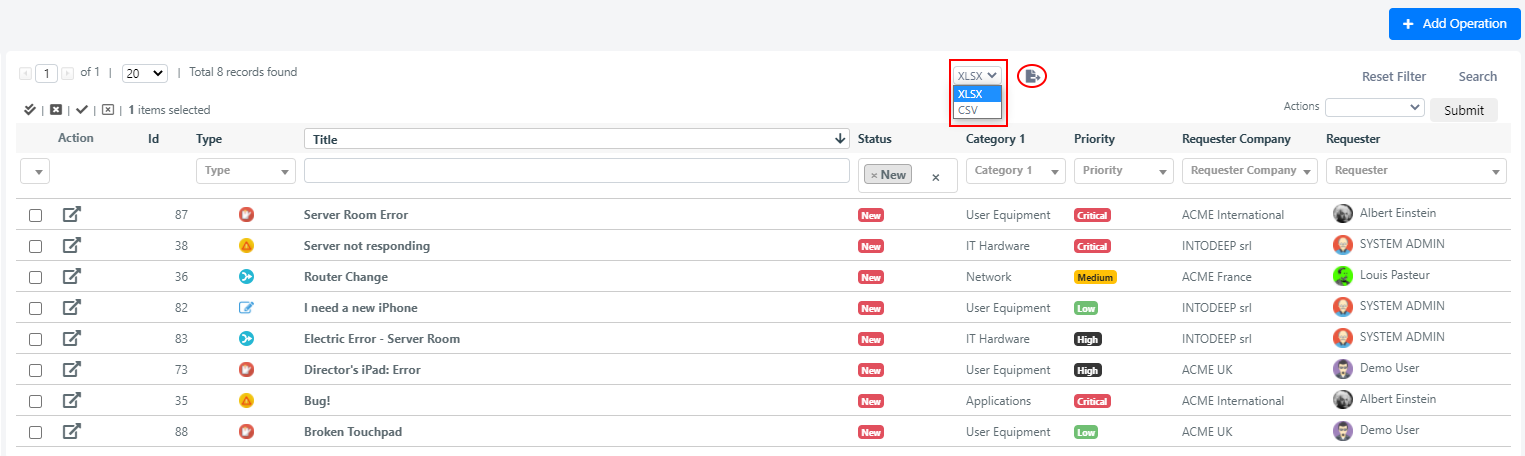
Select the file format (XLSX or CSV) from the dropdown above the grid. XLSX is selected by default.
-
Click the download icon to the right of the format selector.
-
A dialog asks whether you want to export only the visible records on the current page or all records across all pages. Choose the option that fits your needs:
- Visible records exports only the rows currently displayed on the active page.
- All records exports every row that matches the current filters, regardless of pagination.

-
Click the appropriate button to start the download. The file is generated and downloaded to your browser's default download location.
Export Considerations
The exported file includes only the columns that are visible in the grid at the time of export. If you need additional columns in your export, add them to the grid configuration before exporting. Column headers in the exported file match the Header labels configured in the grid settings.
The export feature must be enabled in the grid configuration. See Configure Grids for details on the Enable Export setting.