Merge Records
The Merge feature in Deepser lets you consolidate multiple records and their associated entities into a single Base Record. This is useful when duplicate Service Operations are created for the same issue. This article covers configuration, usage, and the information tracked after a merge.
The Merge functionality is available for the following entity types:
- Service Operation
- CMDB CI (Configuration Item)
- CRM Contact
- CRM Opportunity
Enable the Merge Feature
To enable Merge on a grid (using Service Operations as an example):
-
Navigate to the grid and click the edit icon to open the grid configuration.

-
Check the Enabled Merge option and save the configuration.
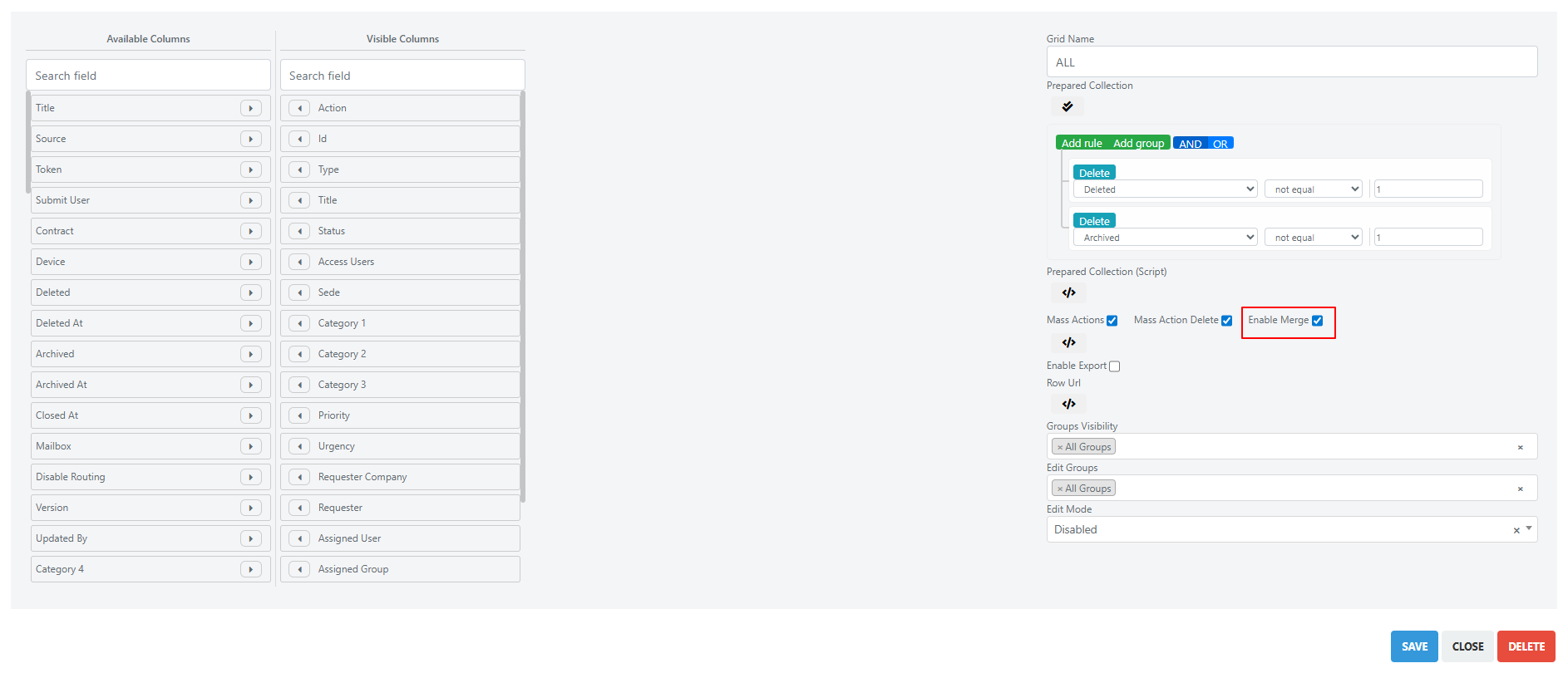
Set a Default Status for Merged Records (Optional)
You can define a default status that is automatically applied to records merged into the Base Record. Navigate to System > Configuration > Utilities > Merge Records and configure the status for each entity type.
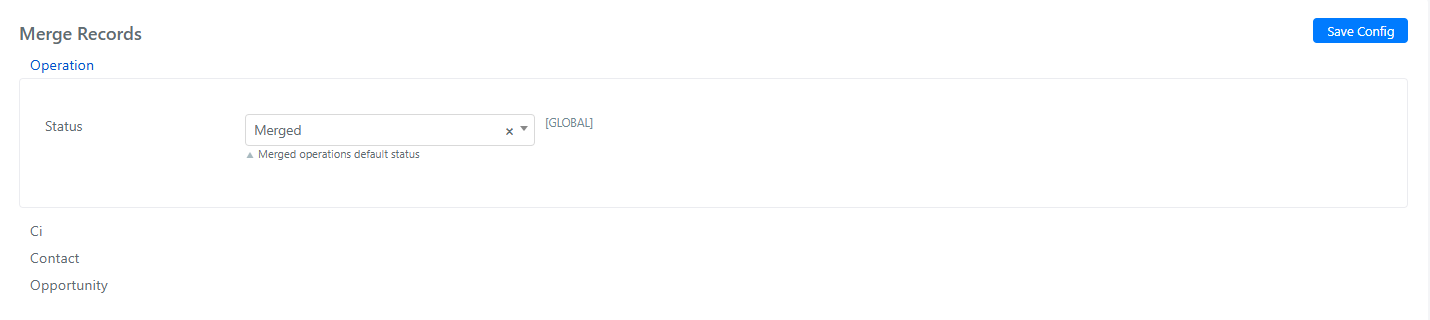
Perform a Merge
Once Merge is enabled on the grid, follow these steps:
-
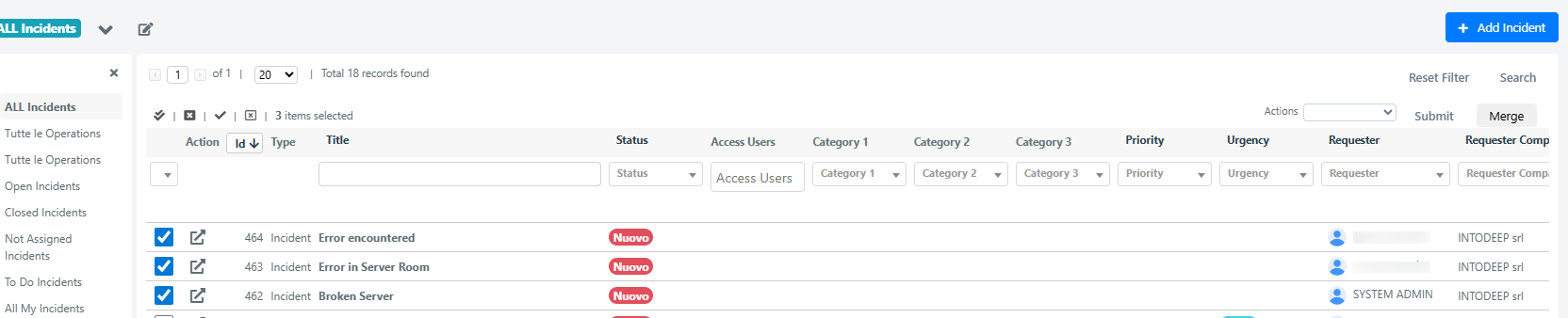
Select records -- Check the checkboxes for the records you want to merge.
-
Start the merge -- Click the Merge button. The process has four phases:
Phase 1: Select the Base Record
Choose which record will serve as the main (Base) record. The other selected records will be merged into it.
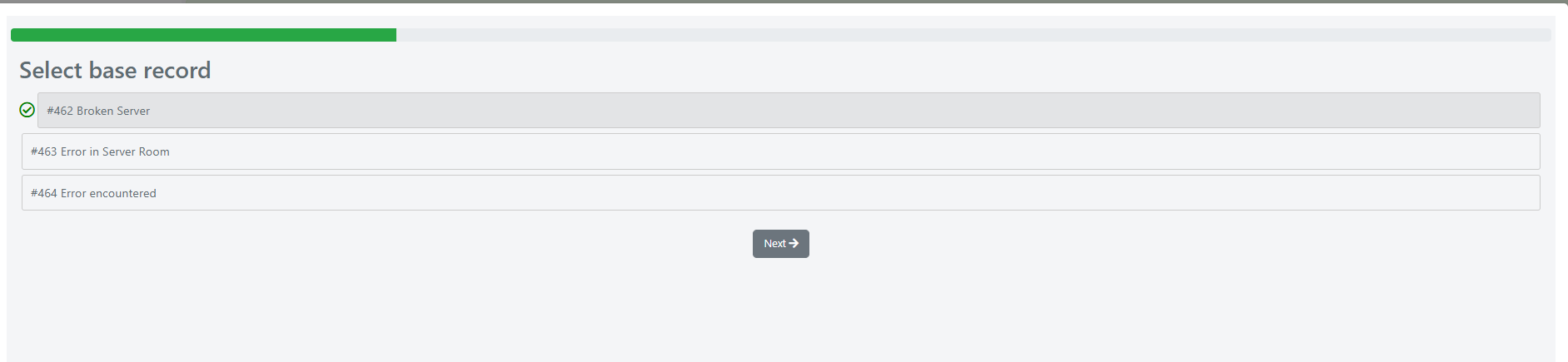
Click Next to proceed.
Phase 2: Add Comments (Optional)
You can add comments to the Base Record and to the merged records. For example, you might note on the Base Record that other Service Operations were merged into it. You control whether these comments are visible in the User Portal.
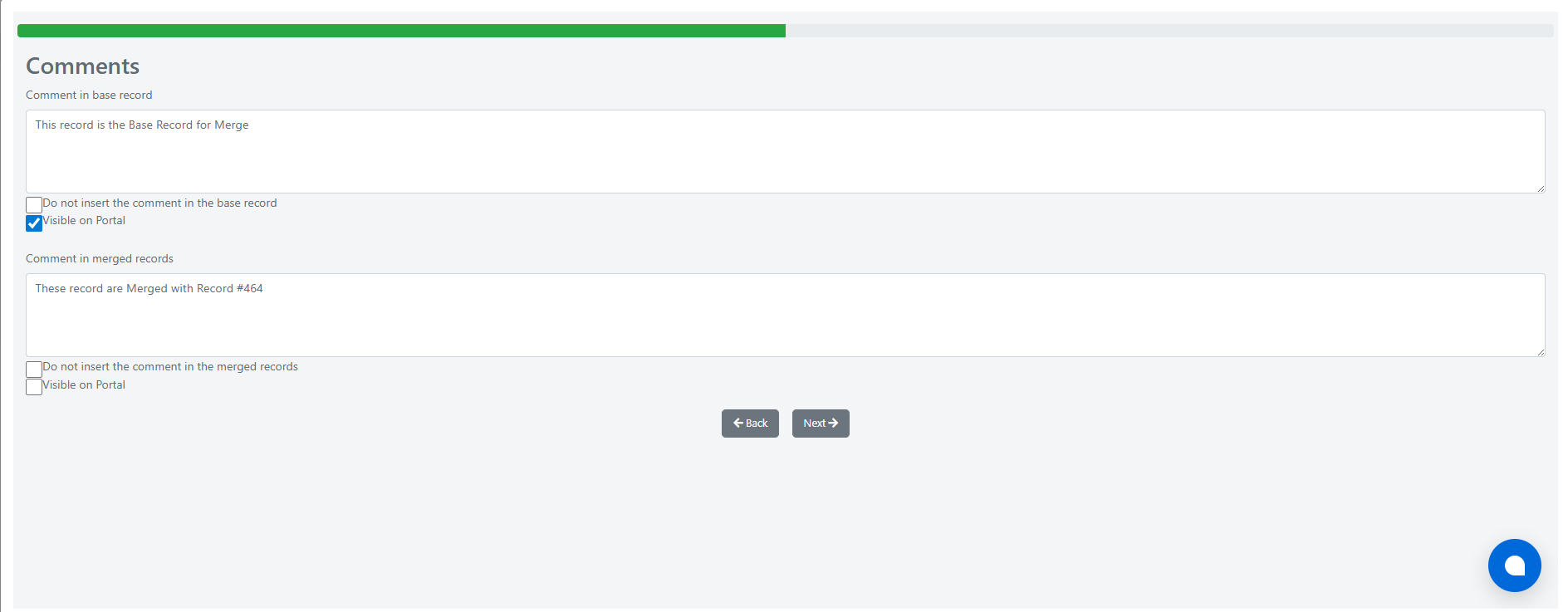
Phase 3: Select Entities to Merge
Choose which entities from the secondary records should be copied into the Base Record:
- Comments
- Worklog (work activities)
- Tasks
- Attachments
- Passwords
- User Associations (users in "Watchers" or "CC Users" fields; the Assignee and Requester are not modified)
- Email Messages
- Email Message Attachments
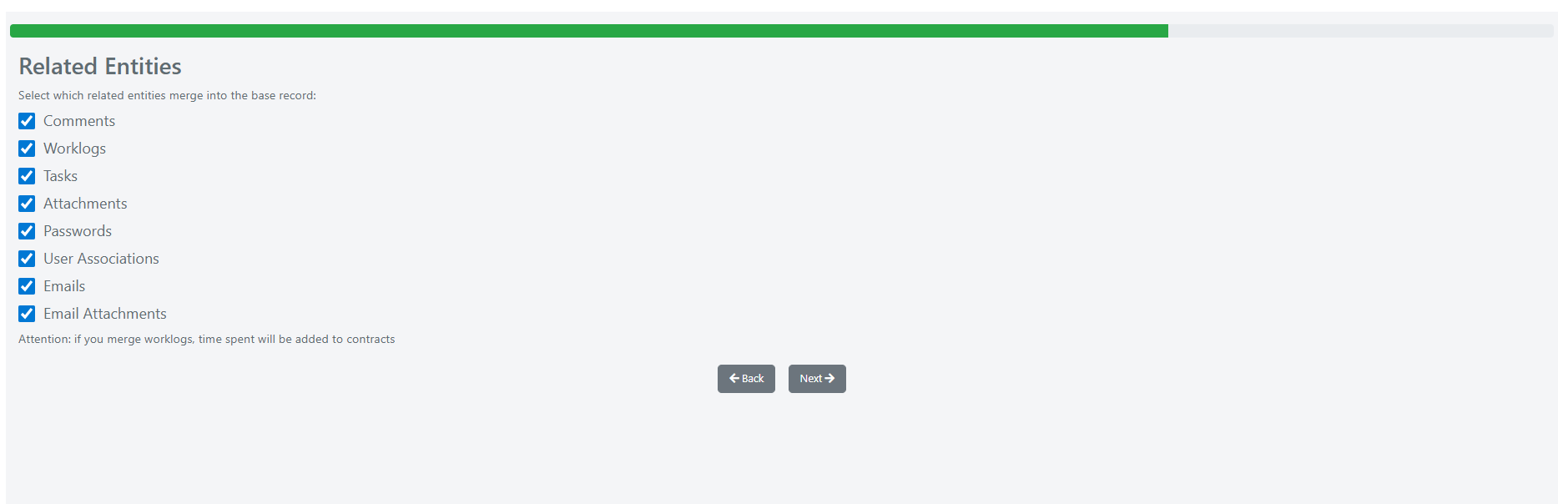
To prevent unwanted notifications and privacy issues, all merged entities (Comments, Worklog, Tasks, Attachments) are set to not visible in the User Portal by default. Email events related to merged entities are not triggered -- only the Merge Comment email event (from Phase 2) fires.
For Attachments, if a specific type is set, it is retained in the copied attachments of the Base Record, but portal visibility is not maintained.
Phase 4: Assign Final Status
Assign a new status to the merged (secondary) Service Operations.
The Base Record retains its original status.
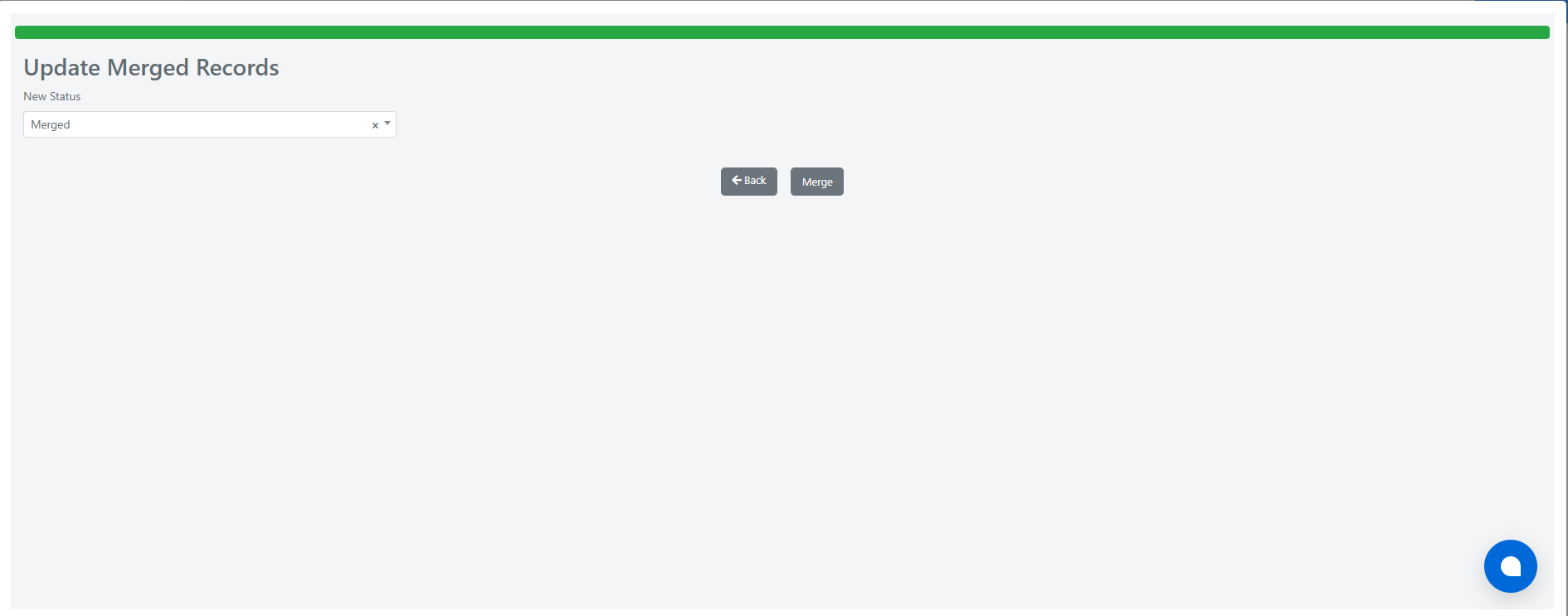
Click Merge to complete the process.
View Merge Information
After a merge, the Merge Info field within each involved record shows details of the process across two tabs:
-
Base -- Displayed when viewing a secondary record that was merged into a Base Record. Shows information about the Base Record.

-
Merged -- Displayed when viewing the Base Record. Shows information about the records that were merged into it.

Informational Icons
The Merge Info section uses icons to indicate which entity types were included in the merge:

| Entity Type | Meaning |
|---|---|
| Comments | Comments were merged in the Merge process. |
| Worklogs | Worklogs were merged in the Merge process. |
| Tasks | Tasks were merged in the Merge process. |
| Attachments | Attachments were merged in the Merge process. |
| Passwords | Passwords were merged in the Merge process. |
| User Associations | User Associations were merged in the Merge process. |
| Emails | Email messages were merged in the Merge process. |
| Email Attachments | Email attachments were merged in the Merge process. |
The merge can be performed multiple times on the same record.