Create an Import
This guide walks you through creating a new import procedure in Deepser. You will choose a name, select the entity model, configure the file format, upload your source file, and proceed to the data binding step.
Steps to Create an Import
- Start by choosing a name for the import procedure and the model of the entity to be created.
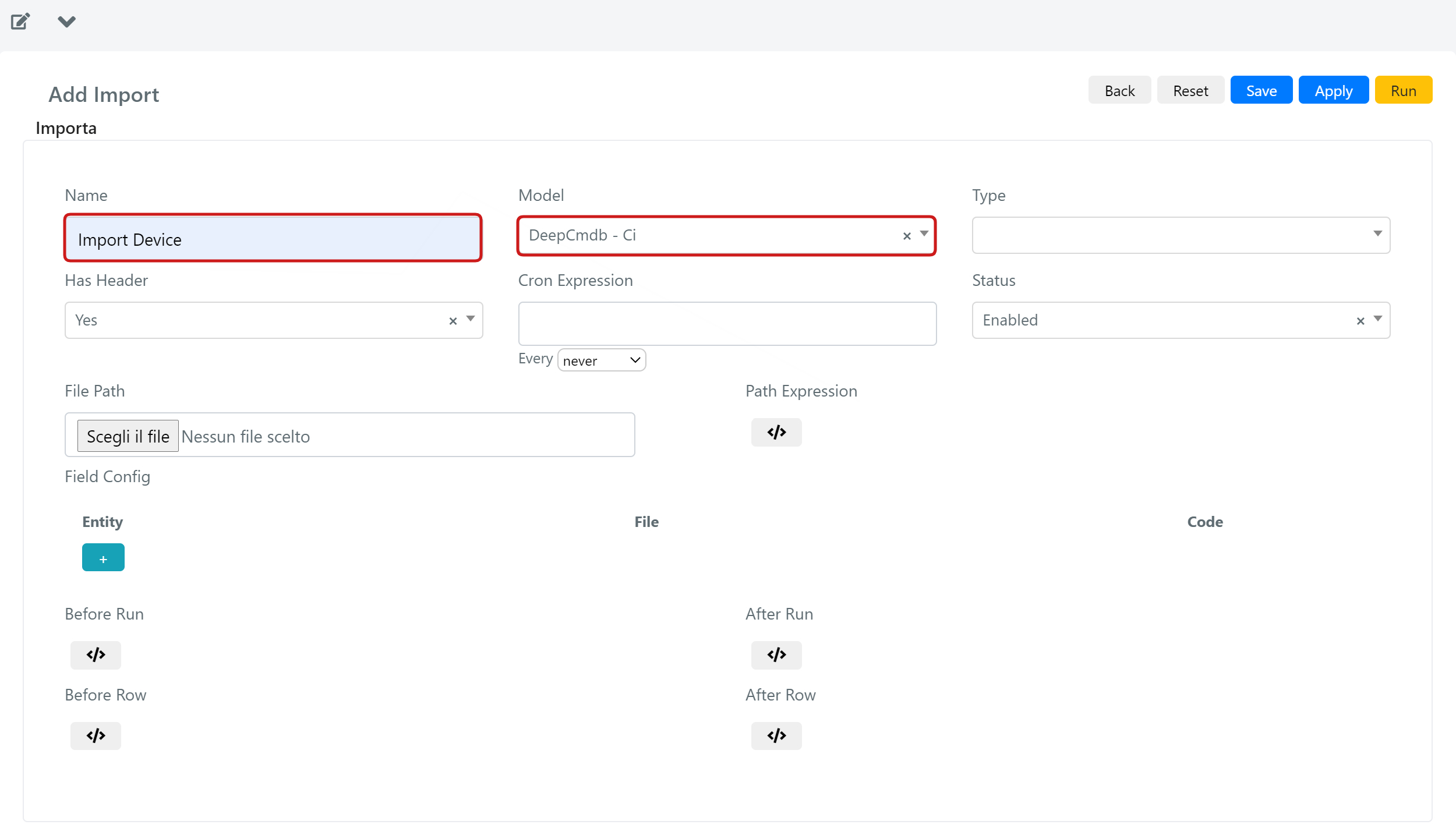
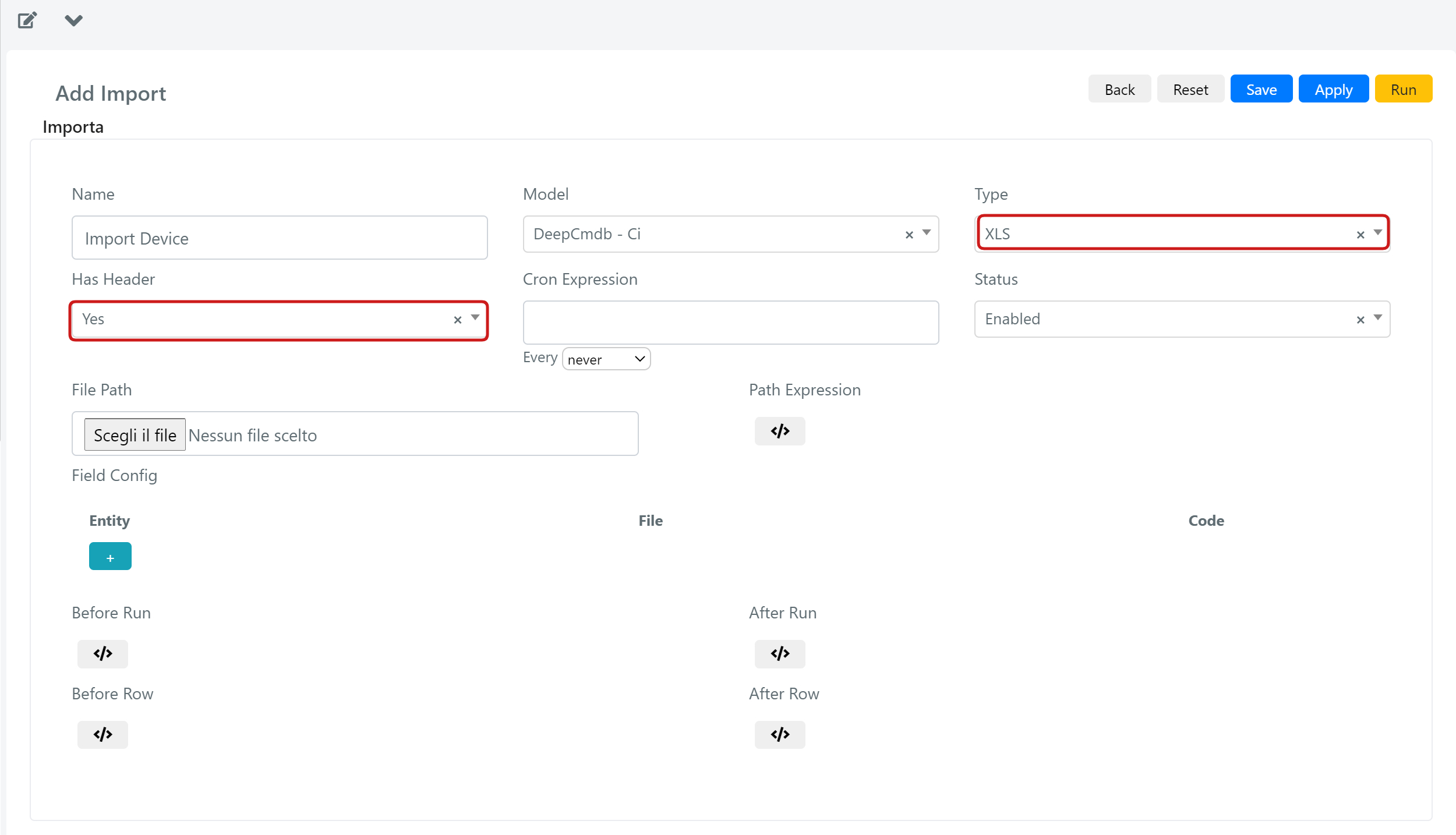
- Select the appropriate file extension. If your file contains a header row, set Header to Yes.
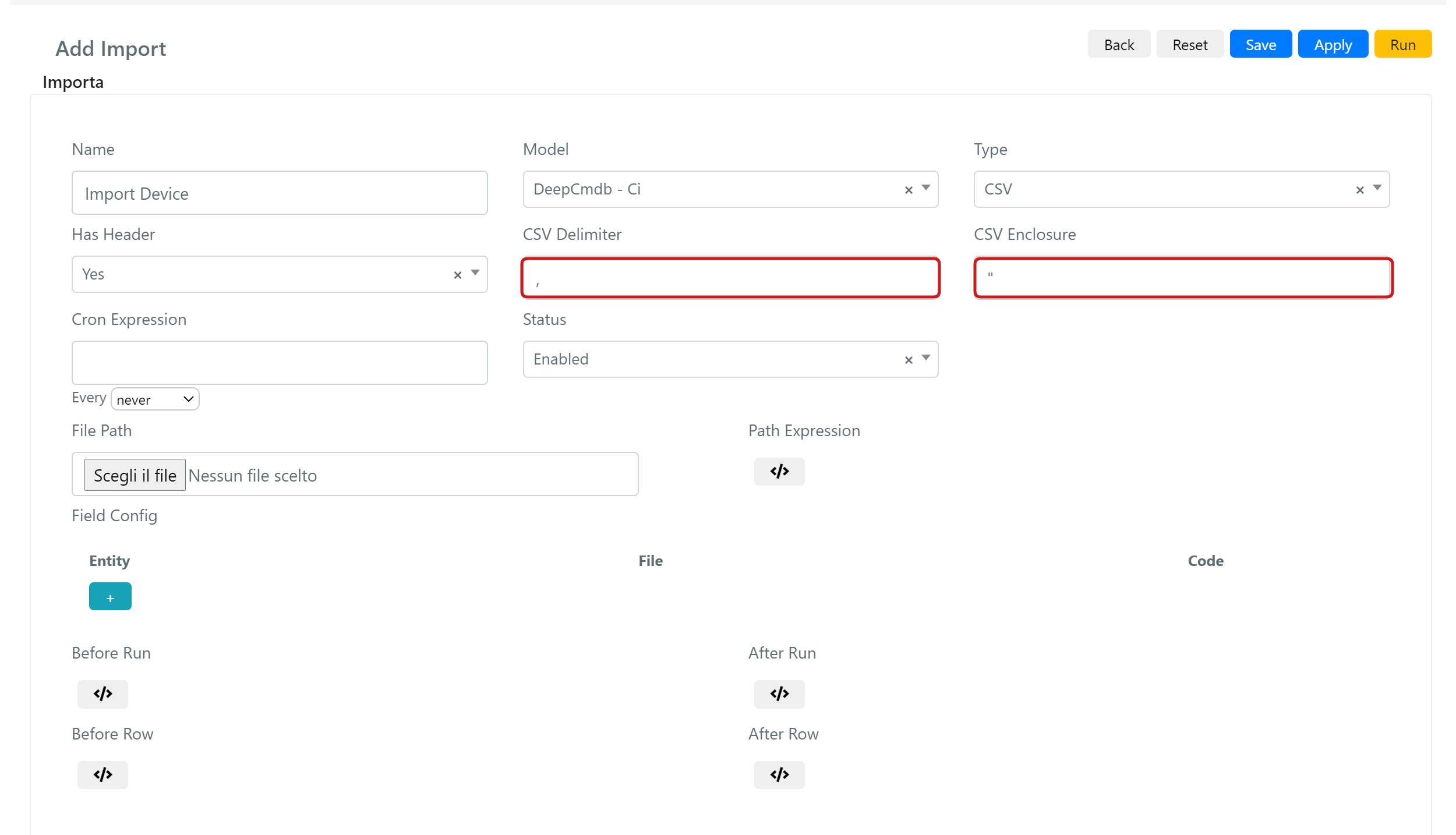
- If the file is a CSV, configure the appropriate delimiters and enclosures (the character used to wrap each field value).
The Type field defines the file format. It can be "CSV" or "XLS". These are the standard formats supported by Deepser.
As you can see in the example file below, each row is treated as a single record to import, and each column as a single model field:
| CODE | NAME | TYPE | SUBTYPE | STATUS | ACTIVATION DATE | S/N | NOTES | OWNER COMPANY | ASSIGNED USER |
|---|---|---|---|---|---|---|---|---|---|
| 106545 | Apple Iphone XI | Mobiles | Smartphones | Active | 15/03/2019 | LFC6370742 | Scratches on the screen | INTODEEP srl | 4\euler |
| 106546 | Datapower 45 | Servers | Physical Server | Active | 20/12/2019 | LEV6267443 | INTODEEP srl | 4\riemann | |
| 106547 | Dell EM5000 | Computers | Workstations | Active | 5/04/2020 | LF96128119 | INTODEEP srl | 4\riemann | |
| 106548 | HP Pavilion 15S | Computers | Laptops | Active | 23/04/2020 | L8M6200959 | Noise coming from cooling fan | INTODEEP srl | 4\riemann |
Table1: example of an Excel file to import devices as CMDB CIs
- Set the Status to "Enabled", then click the Upload button under "Path Label" to upload your source file.
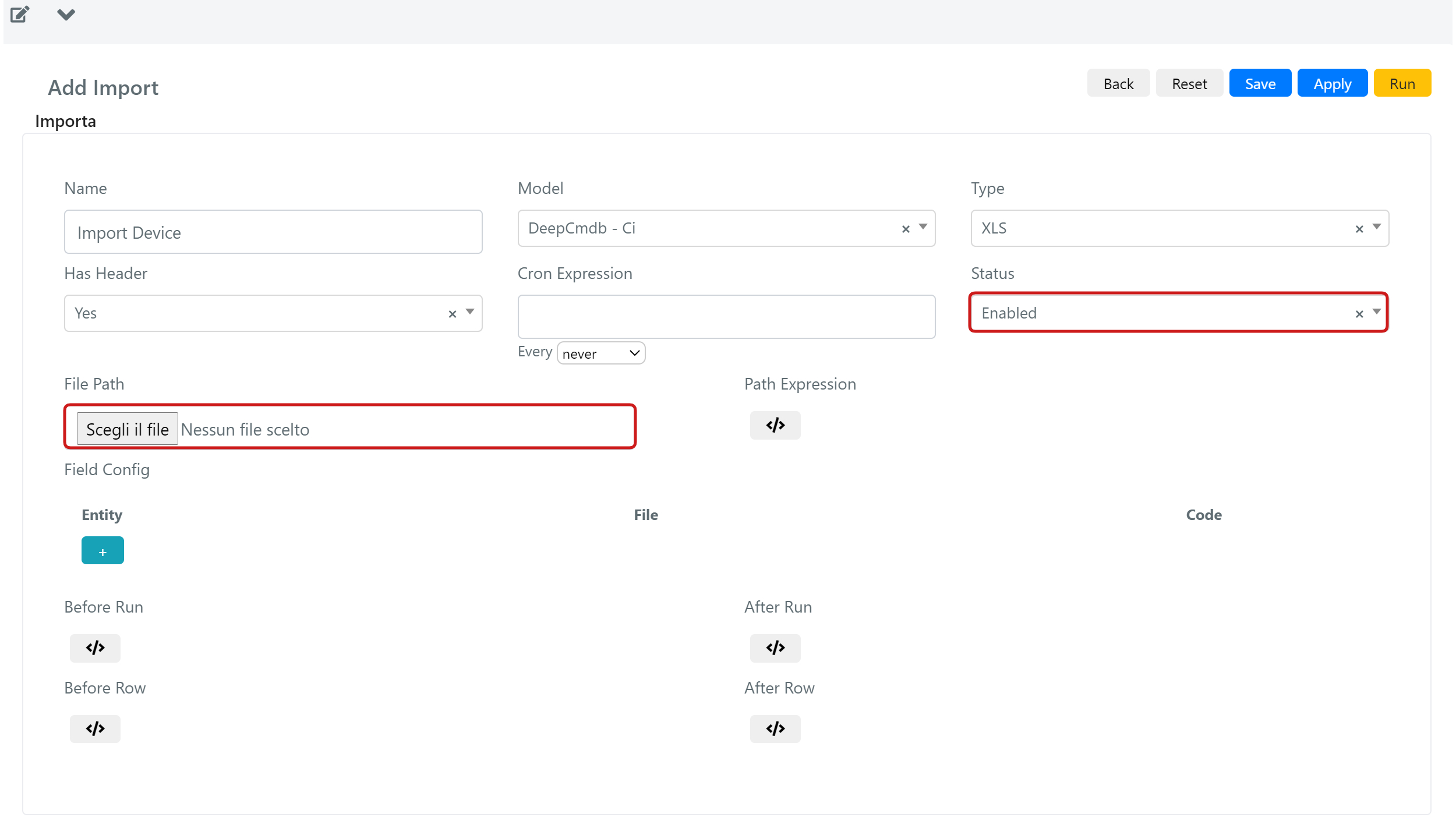
- After the upload completes, Deepser will recognize every field name in the document header (if present). The next step is the binding process.