Configure Global Import
Global imports let you share pre-configured import procedures with non-administrator Operators. While only administrators can create and configure imports, the Global Import feature allows other Deepser Backend users to execute those imports without full admin access.
Global Import Configuration
The configuration of an import as a "Global Import" must always be carried out by an administrator user after the import has been fully configured and tested.
Within an import record you will find the following fields:

These fields are not visible by default on the Import Form. To make them appear, you need to edit the Form Template and add them.
| Field | Definition |
|---|---|
| Enable Global Import | A toggle button that controls whether this import procedure is visible to other users besides administrators. Toggling "Yes" makes the import appear on the Global Imports grid. |
| Global Import Groups | A multiselect field where you can choose the user groups that will have visibility of this Global Import procedure. |
As a first step, ensure that the role assigned to the user(s) who need visibility of the import has the "Global Menu" enabled and specifically the "Import" action available as a resource in their role:

Using Global Import
Once all configuration is complete, users can access the Global Imports section directly from the global menu at the top right of the screen (the "..." icon):

By clicking on the relevant section, you can access the screen with the list of all accessible Global Imports:

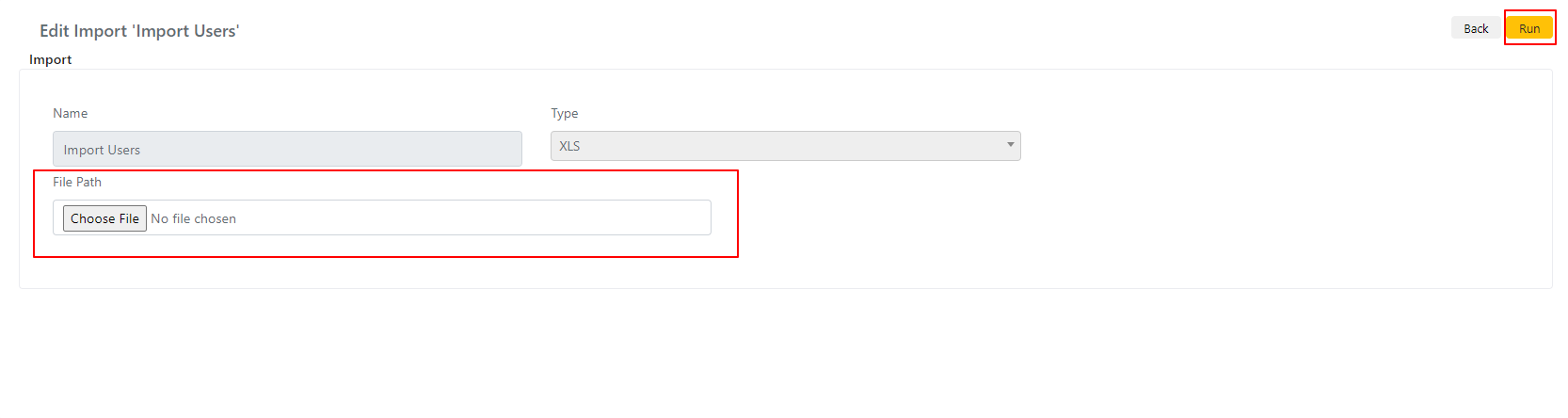
Click on the desired import to access its details, where you can upload a file for the import.
Once the file has been uploaded, you can run the import by clicking the Run button in the top-right corner: