Mailchimp Integration
The Mailchimp integration allows you to synchronize contacts one-way between Deepser and Mailchimp. This enables you to automate marketing processes and improve customer management by intervening on Mailchimp audiences, including the addition, modification, and deletion of contacts.
Mailchimp Account Configuration
To proceed with the configuration, access the Mailchimp module from the main menu:
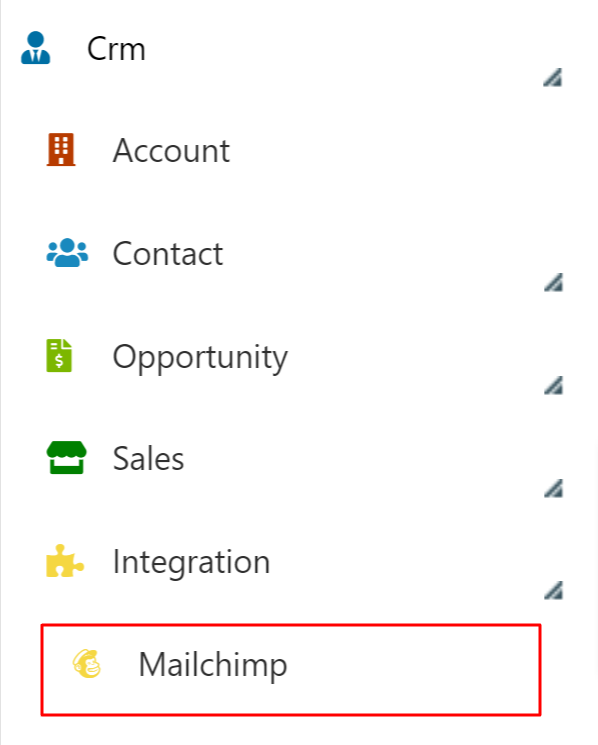
From here, you can set up one or more Mailchimp accounts that you want to interact with.
To do this, click + Add Account at the top right of the page. You will see the following screen:
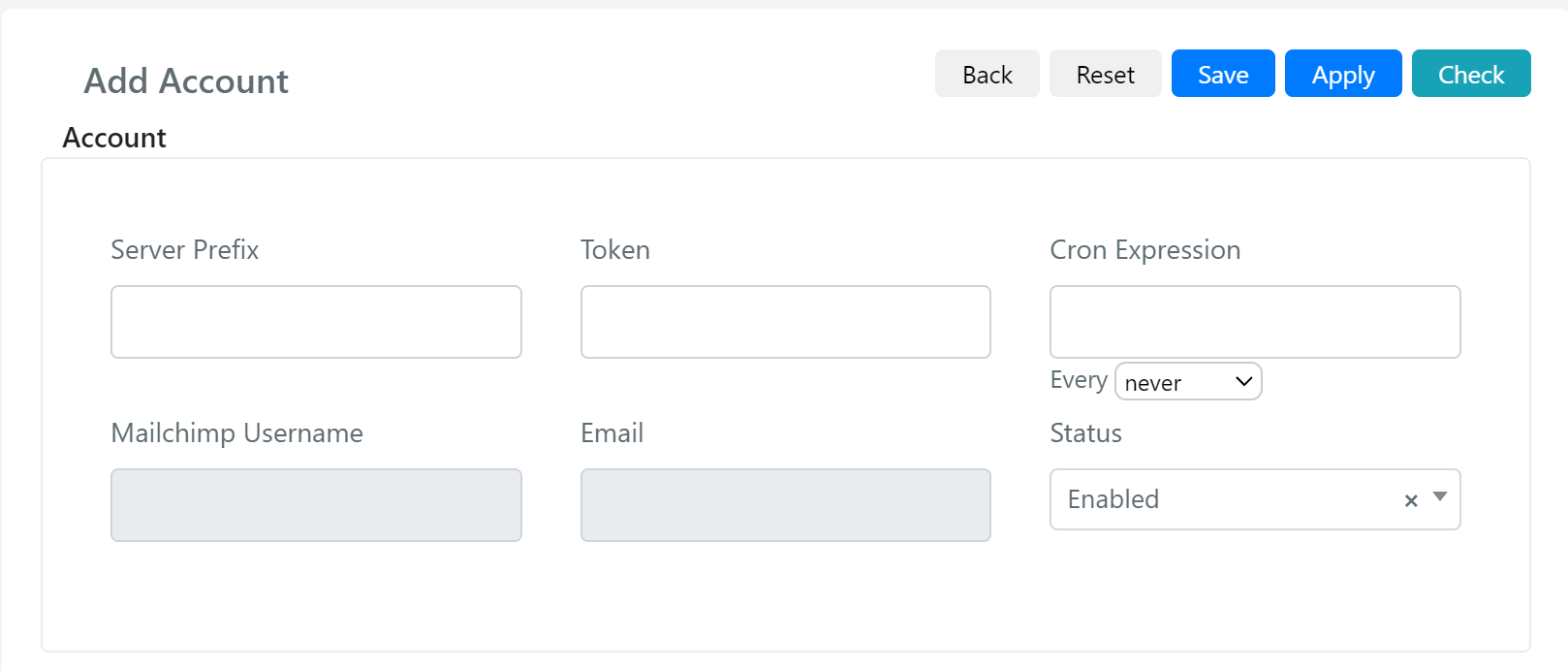
Below are the details of the fields:
| Field | Definition |
|---|---|
| Server Prefix | The server prefix is the starting part of the endpoint URL. For example, to find your server prefix, you must log into your Mailchimp account and look at the URL in your browser. You'll see something like https://us19.admin.mailchimp.com/; the us19 part is the server prefix. So, you need to set that value into "Server Prefix" field in Deepser. |
| Token | API keys grant full access to your Mailchimp account. To generate an API key, follow these steps. 1. Click your profile icon and choose Profile. 2. Click the Extras drop-down then choose API keys. 3. In the Your API Keys section, click Create A Key. 4. Name your key. Be descriptive, so you know what app uses that key. Keep in mind that you'll see only this name and the first 4 key digits on your list of API keys. 5. Click Generate Key. 6. Once we generate your key, click Copy Key to Clipboard. Save your key someplace secure–you won't be able to see or copy it again. If you lose this key, you'll need to generate a new key and update any integration that uses it. 7. Click Done. So, after copying the token, you can paste it into "Token" field in Deepser. |
| Cron Expression | To keep your data between Deepser and Mailchimp up to date, you can schedule syncing at predefined intervals via this field. |
| Mailchimp Username | This field is automatically populated when the record is saved if correctly configured. No manual input is required. |
| This field is automatically populated when the record is saved if correctly configured. No manual input is required. | |
| Status | A field that allows you to enable or disable the Mailchimp account in use on Deepser. |
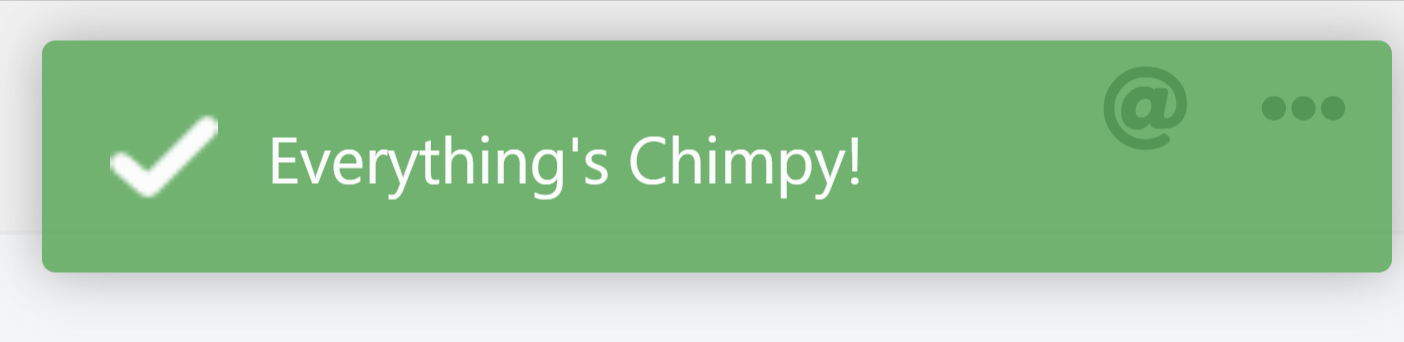
Once the system has been correctly configured, use the Check button to verify the correctness of the data entered. A successful configuration will display the following message:
After saving, the Audiences grid will be displayed, which will contain the information synchronized between the two systems. The information becomes available only after the synchronization process completes.
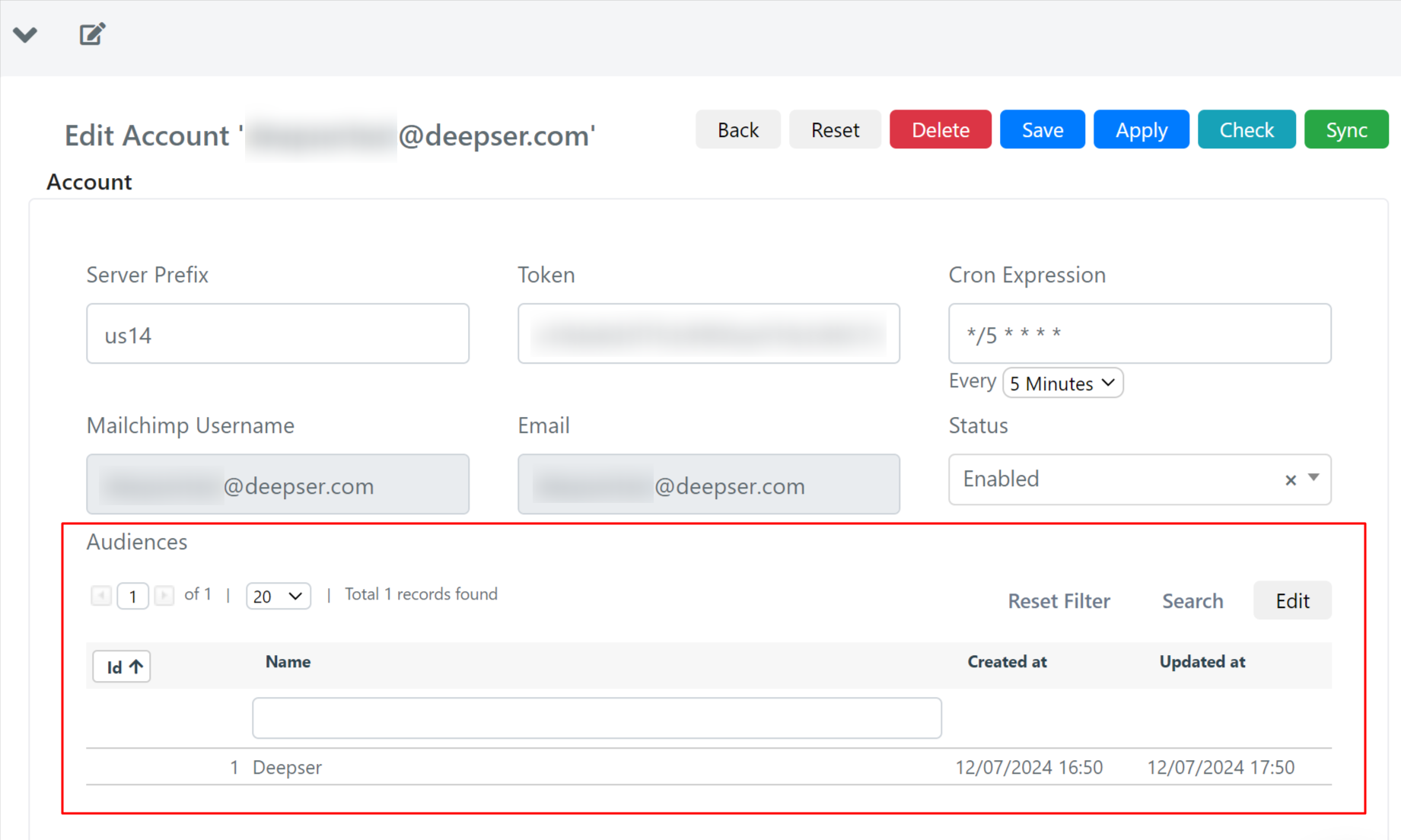
To perform the synchronization, you can proceed manually by clicking the Sync button. If you have a lot of information on your account that needs to be synced, the process may take some time to complete.
Alternatively, you can wait for the synchronization schedule to run automatically based on the configuration of the Cron Expression field.
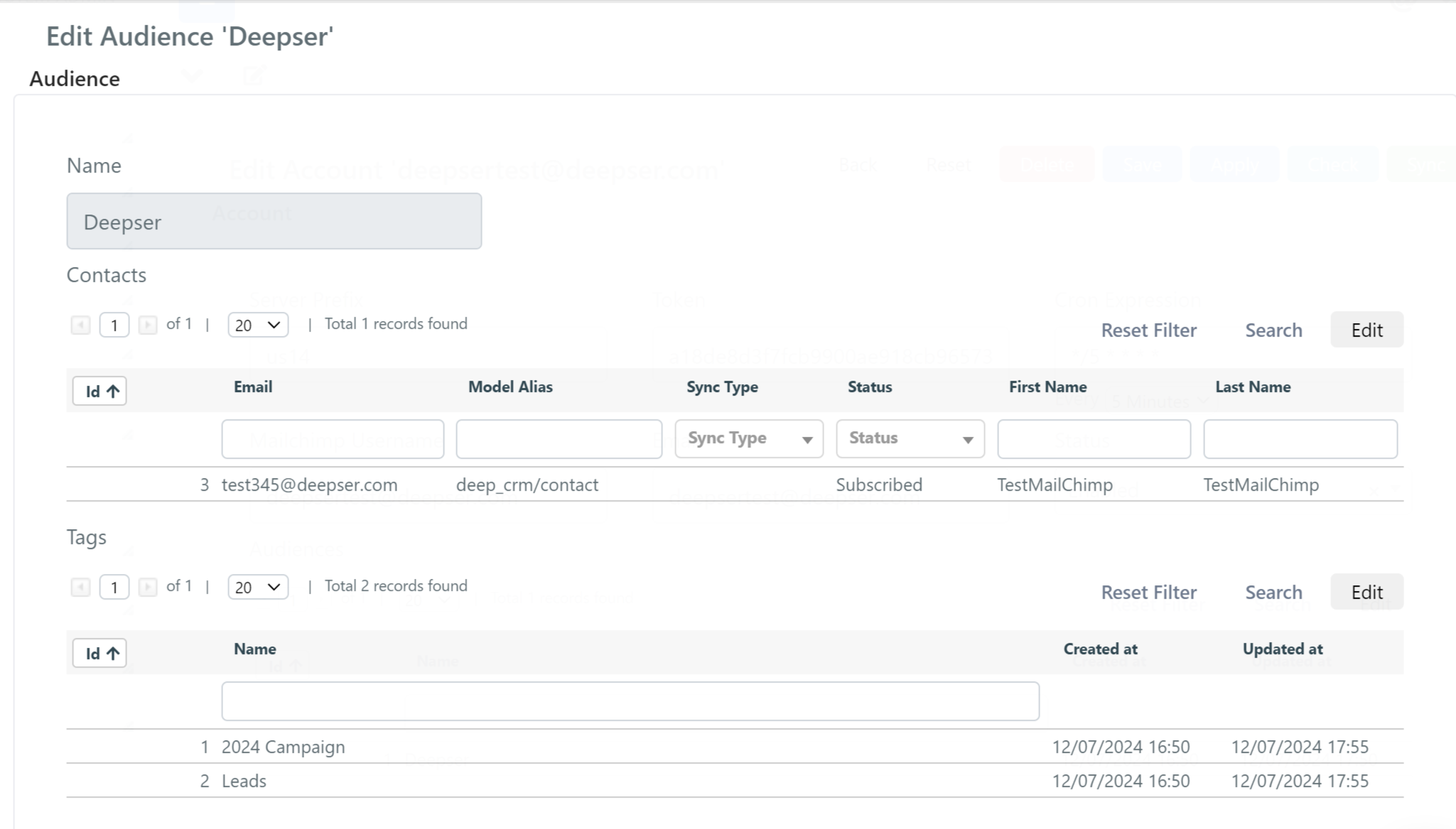
The following information is available within an Audience record:
| Field | Definition |
|---|---|
| Name | The name of the audience synced with Deepser. |
| Contacts | Within this grid, only contacts that have been synced from Deepser to Mailchimp will be available. This means that you will not see any contacts that were previously in Mailchimp. NOTE: Within this grid you will not see the standard Deepser contacts present in the CRM section. These are contacts linked to the Mailchimp form and can only be viewed through this grid. |
| Tags | Within this grid, you'll see all the Tags in Mailchimp that are synced to Deepser for the account you set up. |
Mailchimp Flow Configurations
To integrate with Mailchimp on Deepser, you need to use the Flows module for creating your own automations for Mailchimp contacts.
When searching among the actions available in the flows, you will find the following:
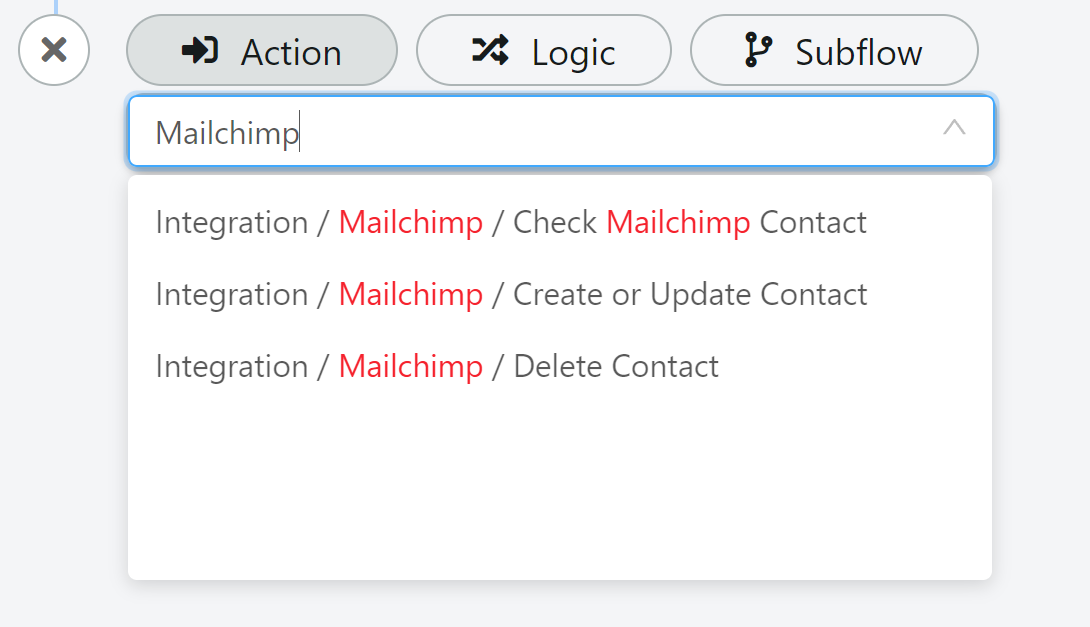
Check Mailchimp Contact
Through this action, you can verify the existence of a particular Mailchimp contact present within an account previously configured on Deepser.
The action returns a Boolean value (true/false) that can be used in a conditional block (if, if-else, or others).
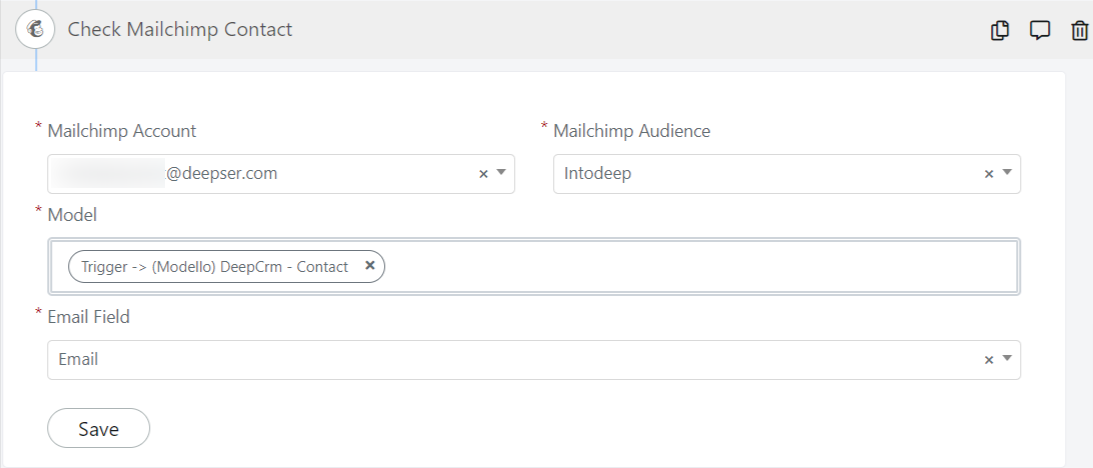
The following information is required in this type of block:
| Field | Definition |
|---|---|
| Mailchimp Account | Through this field you can select one of the accounts configured through the "Mailchimp" module. |
| Mailchimp Audience | Through this field you can select an audience linked to the selected account. |
| Model | Through this field you can associate a model to carry out the verification. For example, a record of type "Mailchimp Contacts" or a record of type "CRM Contacts." |
| Email Field | This field is prompted only if the selected template is different from "Mailchimp Contacts". |
Create or Update Contact
Through this action, you can create or edit a particular Mailchimp contact within an account previously configured on Deepser.
The action allows you to map the fields of the "Mailchimp Contacts" module and another Deepser module (typically a CRM Contact).
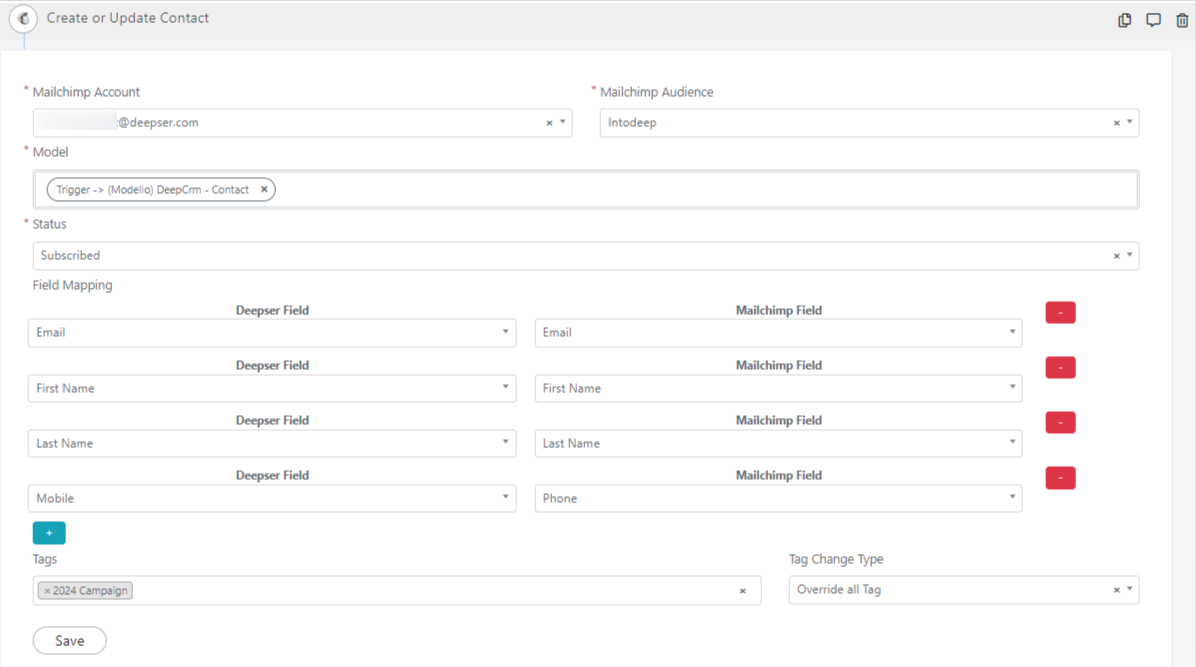
The following information is required in this type of block:
| Field | Definition |
|---|---|
| Mailchimp Account | Through this field you can select one of the accounts configured through the "Mailchimp" module. |
| Mailchimp Audience | Through this field you can select an audience linked to the selected account. |
| Model | Through this field you can associate a model to carry out the verification. For example, a record of type "Mailchimp Contacts" or a record of type "CRM Contacts." |
| Status | Through this field you can update the status of the contact on Mailchimp, indicating whether they are subscribed to an audience or not. |
| Field Mapping | Using this multivalue field, you can map the fields between the "Mailchimp Contacts" module and another Deepser module (e.g., "CRM Contacts"). |
| Tags | Through this field, you can add one or more tags to the contact, among those defined and synchronized with Mailchimp. |
| Tag Change Type | Through this field, you can update the tags in the following ways: – Override all Tags: Deletes the old tags related to the contact and adds only those indicated through the "Tags" field. – Add Tag: Adds the tags indicated through the "Tags" field without deleting any existing tags. – Remove Tag: Removes tags specified via the "Tags" field from the contact. |
When a Mailchimp contact is created or edited, the originating model used will be tied to the record via a 1:1 relationship. For example, if you create a Mailchimp contact from a CRM Contacts record, the two records (CRM Contacts and Mailchimp Contacts) will be linked to each other.
Delete Contact
Through this action, you can delete a particular Mailchimp contact present within an account previously configured on Deepser.
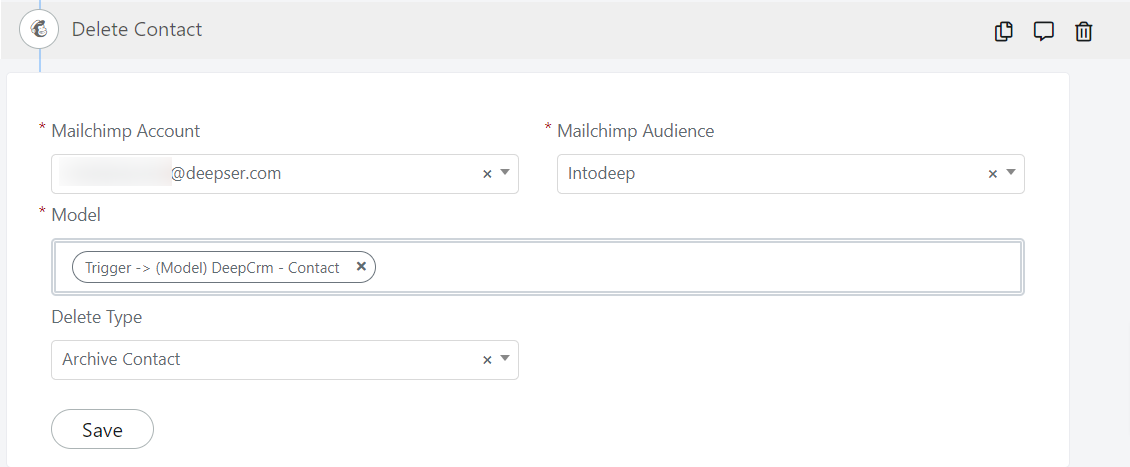
The following information is required in this type of block:
| Field | Definition |
|---|---|
| Mailchimp Account | Through this field you can select one of the accounts configured through the "Mailchimp" module. |
| Mailchimp Audience | Through this field you can select the target audience linked to the selected account. |
| Model | Through this field you can associate the Mailchimp contact template to be deleted or its linked template (e.g., the CRM Contacts record used for creation/update). The deletion will only be performed on the Mailchimp contact and never on the linked template. |
| Delete Type | Through this field, you can indicate the method of contact deletion: – Archive Contact: Archives the contact on Mailchimp. – Permanent Delete Contact: Performs a permanent deletion on Mailchimp. |
Permanent deletion cannot be undone. Use the Archive Contact option if you may need to restore the contact later.