Microsoft Teams Integration
The Microsoft Teams integration allows you to use Teams as an alternative channel for interacting with Deepser. You can create and manage Service Operations, receive notifications, and collaborate with your team directly from the Teams interface.
Through the Teams integration, you can perform the following activities with Deepser:
- Open new Service Operations
- Modify basic information (Status, Assigned User, Priority)
- Read and add comments
- Receive notifications
The key aspect of this integration is that it functions as an alternative notification channel. Additionally, it can be used by those in customer service. The opening and updating of Service Operations through this integration is designed exclusively for internal use and not for customers.
- End users can only add comments to a Service Operation.
- Other types of users can also modify Status, Assigned User, and Priority.
After the configuration, each user who has access to the Deepser app on Teams will receive notifications about their respective Service Operations.
Enable API for a User
The Teams integration is based on the Deepser API, so the creation of a Service Operation from Microsoft Teams must be associated with an existing and well-configured admin user.
You need to enable the Token for the user you want to authenticate.
To do that, log in to Deepser as a System Admin. Go to the Configuration for the user you want to enable for token authentication through API. The menu in Deepser is System > Permissions > Users, then select the user you need to enable for token authentication.
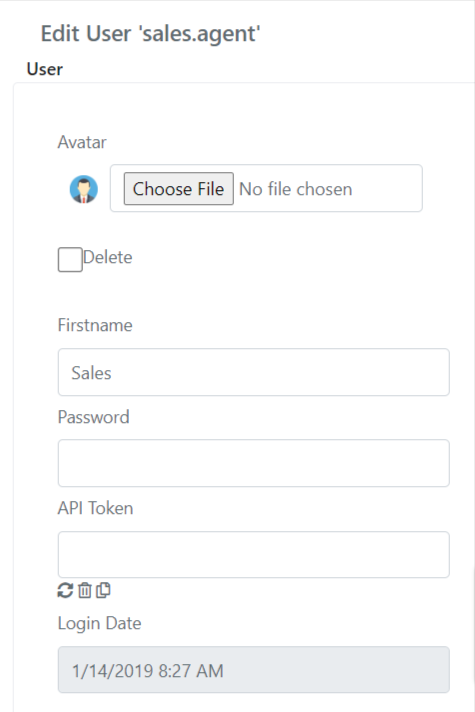
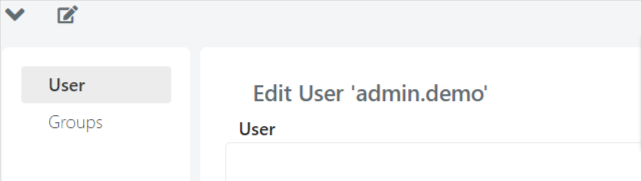
If the "API Token" field is not visible, expose it by pressing the edit form button.
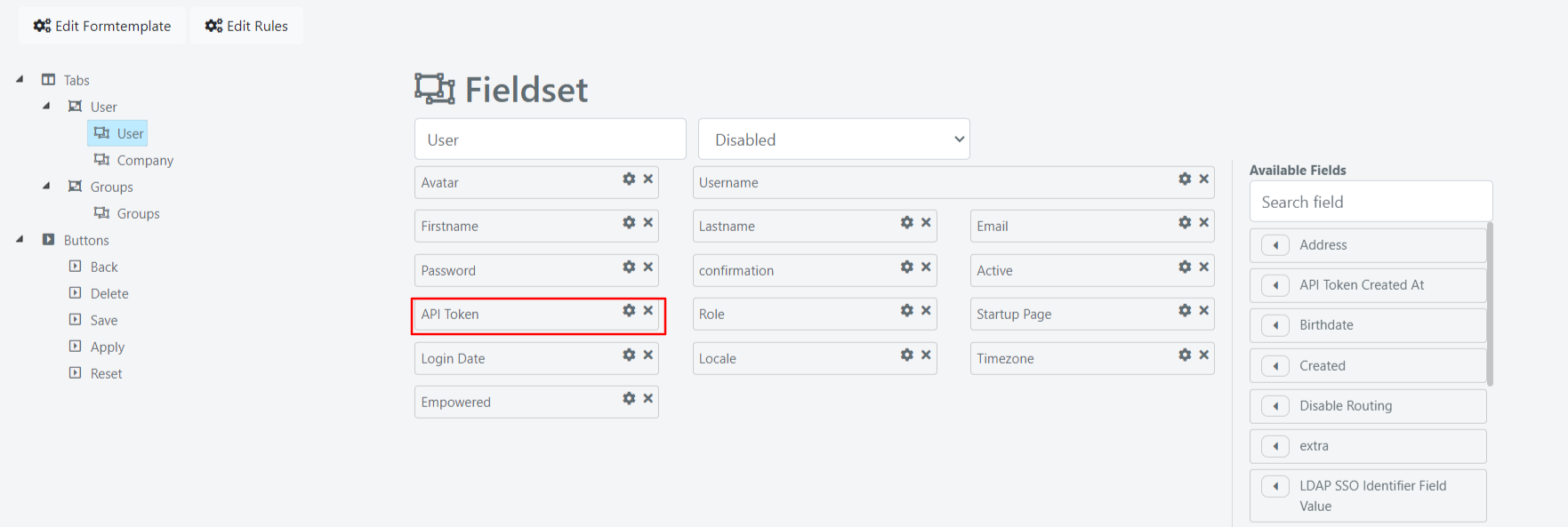
Then expose the field by using drag and drop.
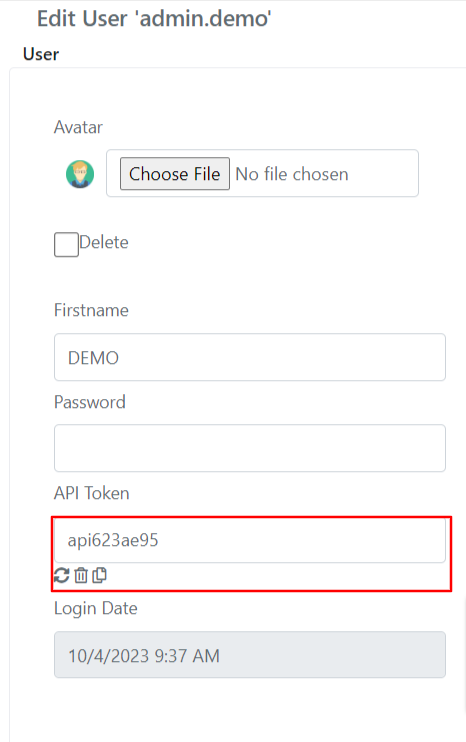
You can use the three buttons to perform automatic actions on the Token: generate, delete or copy to clipboard.
Enable Teams Integration
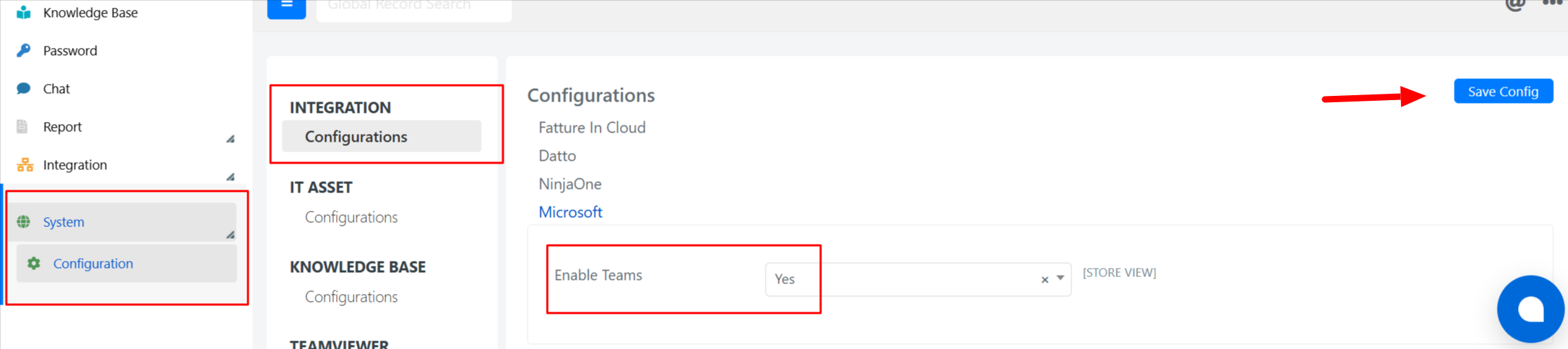
In the Configuration menu of Deepser accessible from System > Configuration > INTEGRATION – Configurations, you can set Teams integration as enabled and save:
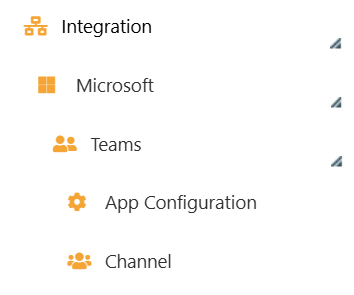
Once the integration is enabled, a new item will be available in the menu:
Deepser Configurations
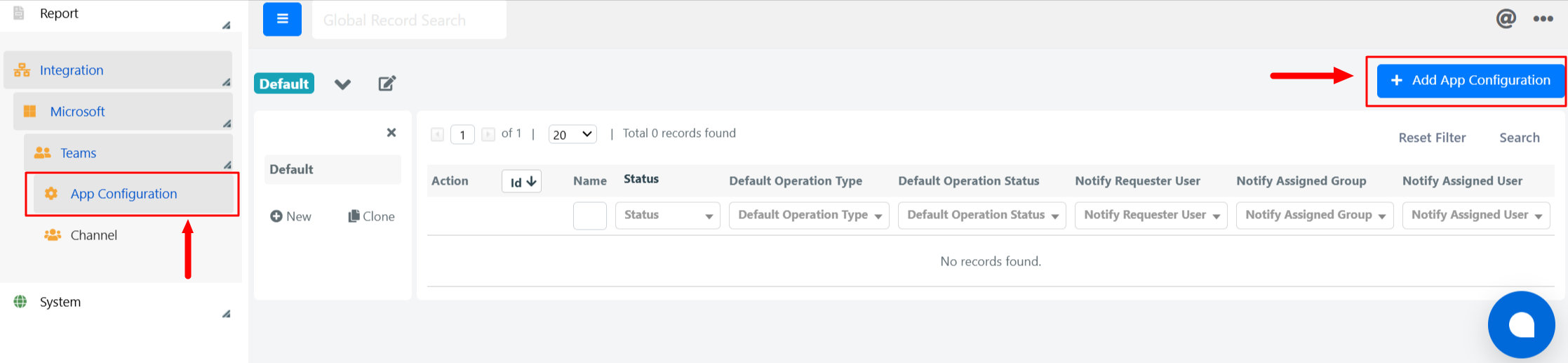
To proceed with the integration configuration, you first need to create an 'App Configuration'.
Click on Integration > Microsoft > Teams > App Configuration, and then on the '+ Add App Configuration' button:
The configuration screen for your app will open:
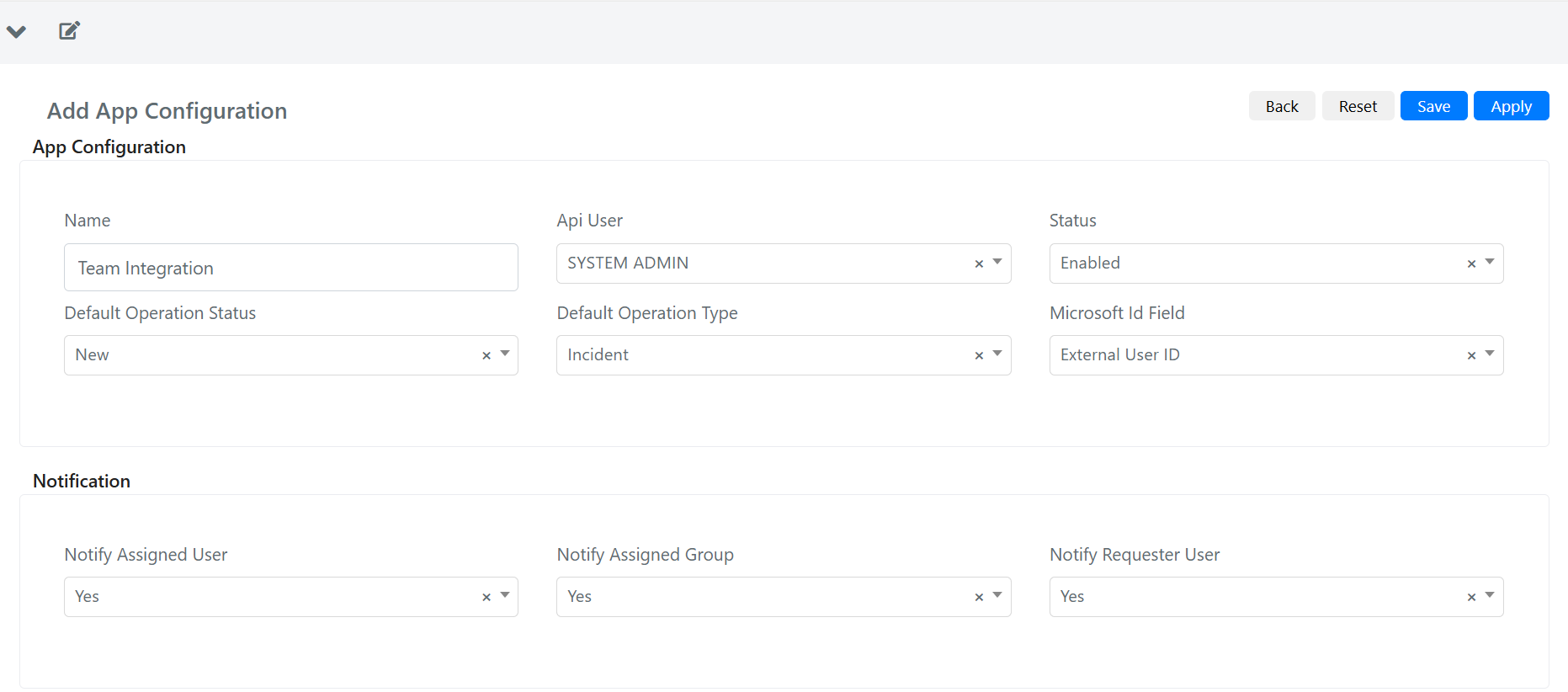
When you create a new app configuration, you will be asked for the following information:
| Field | Definition |
|---|---|
| Name | You can set your own custom name for the integration. |
| Api User | The Teams integration is based on the Deepser API, so the creation of a Service Operation must be associated with an existing and well-configured admin user. Follow the instructions in the "Enable API for a User" section. |
| Status | Enables or disables the Teams integration with the current app. |
| Default Operation Status | Determines the default status of a Service Operation when created through Teams. |
| Default Operation Type | Determines the default type of a Service Operation when created through Teams. |
| Microsoft Id Field | Associates a Deepser user with a Microsoft Teams user. The Microsoft ID is the main field used for user association. In a standard configuration with provisioning enabled, the field will always have the value 'External User ID'. To have the Microsoft ID correctly populated in Deepser users, you need to set up user provisioning. Otherwise, you must manually input the Microsoft ID in Deepser users or use a custom automation. |
| Notify Assigned User | Indicates whether the assigned user of the Service Operation should be notified via Teams. |
| Notify Assigned Group | Indicates whether the assigned group of the Service Operation should be notified via Teams. Check the "Channels" section of this article for more information. |
| Notify Requester User | Indicates whether the requester user of the Service Operation should be notified via Teams. |
After compiling and saving the app, two green buttons will appear at the top right of the screen:
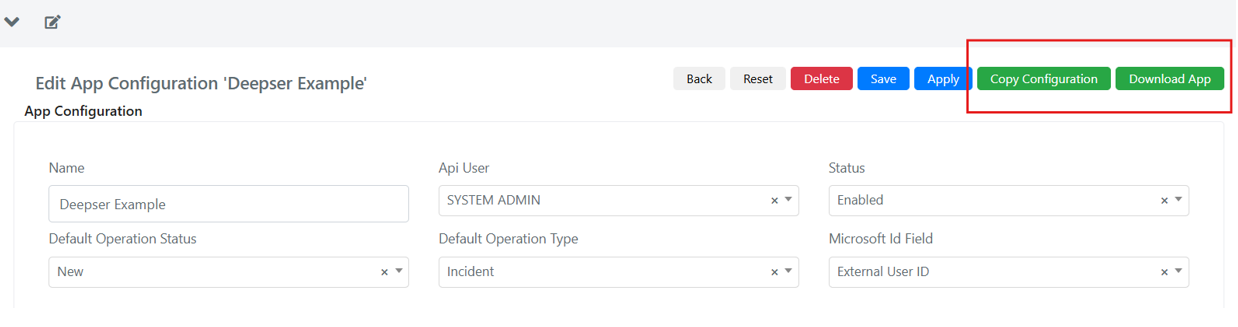
The first step involves downloading the app to be installed on Teams. By clicking on 'Download App', the zip package will be downloaded for upload to your organization on Teams.
Teams Admin Center Configurations
After downloading the zip package, you need to upload it as an app in the Microsoft Teams admin center.
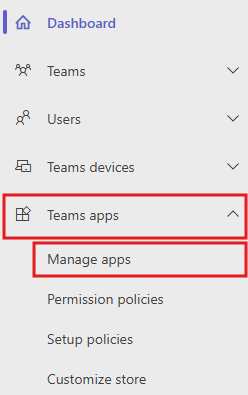
Access https://admin.teams.microsoft.com/ and navigate to the section: Teams apps > Manage Apps.
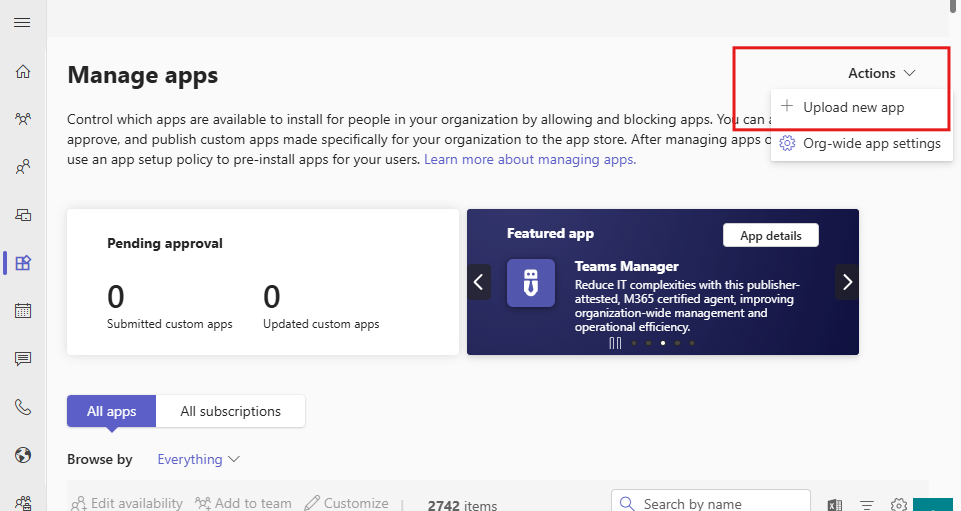
Next, upload the zip file previously downloaded from Deepser by clicking on Actions > + Upload new app:
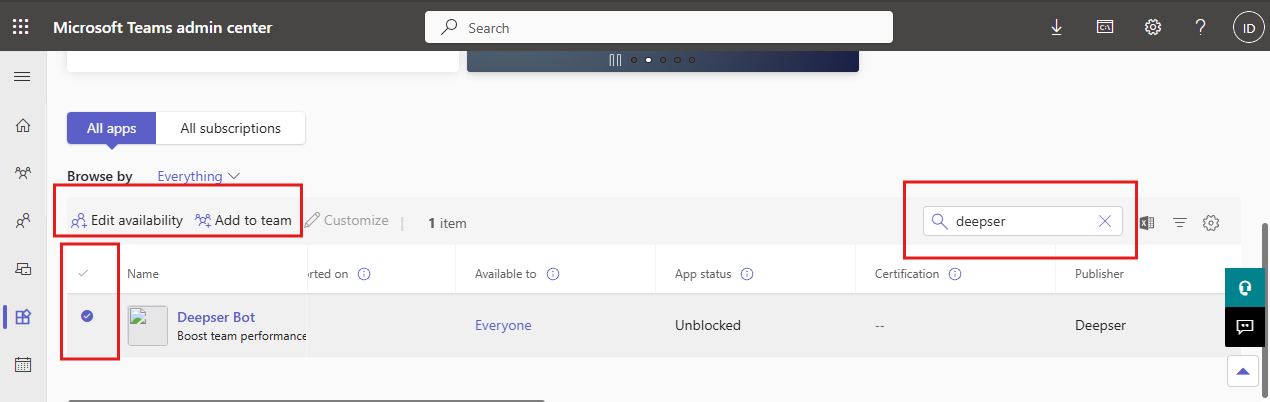
Once the app is uploaded, you can search for it among your apps to set the app's availability (to everyone or to specific users or groups):
After doing this, you will need to wait for the app to propagate in Microsoft Teams. Propagation typically takes a few minutes to an hour, but may take longer depending on your organization's settings.
You can now apply visibility policies:
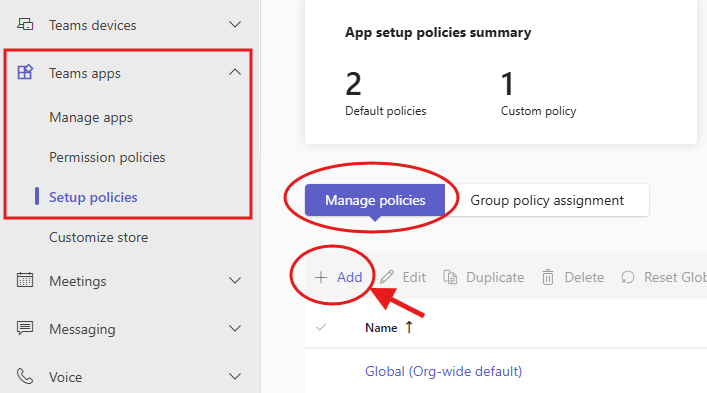
- Go to Teams apps > Setup policies.
- Click "Add" to add a new policy.
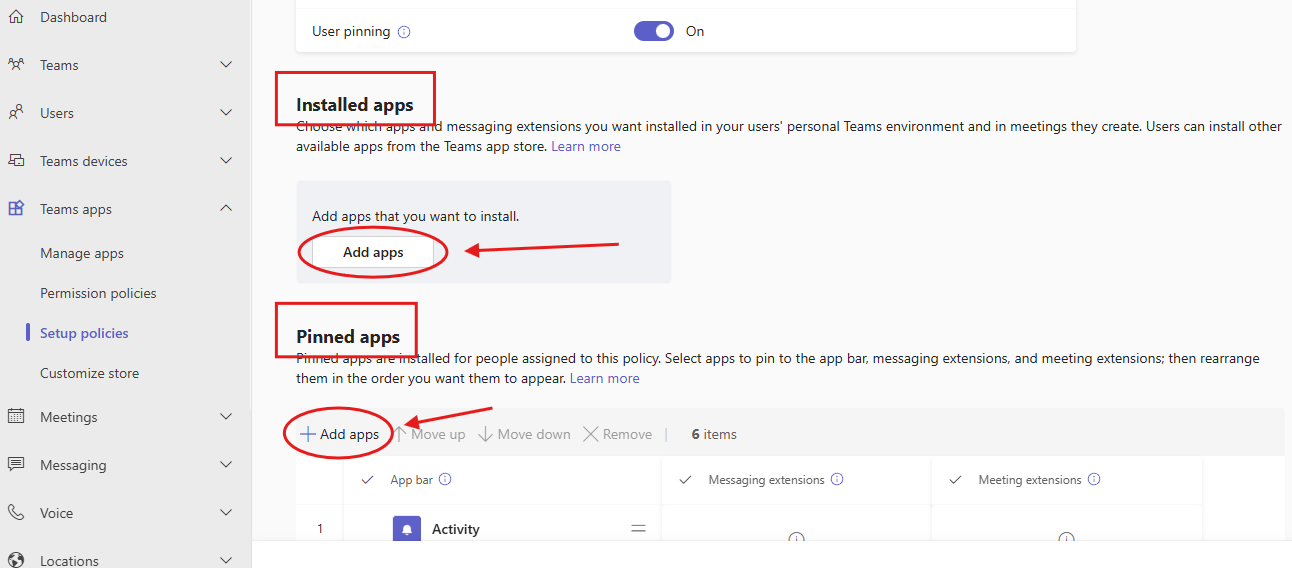
Under "Installed apps," add "Deepser Bot."
Under "Pinned apps," add "Deepser Bot" and place it where it is most convenient.
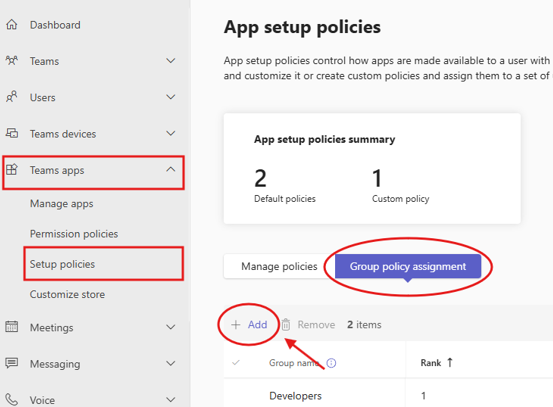
Once the policy is created, switch tabs and go to "Group policy assignment", click "Add" and add the group to which you want to apply the policy:
Adding the Deepser Bot App to the menu is important because users can receive notifications and create new Service Operations within it. Policy propagation in Microsoft Teams typically takes a few minutes to an hour, but may take longer depending on your organization's settings.
Final Configurations in Teams and Deepser
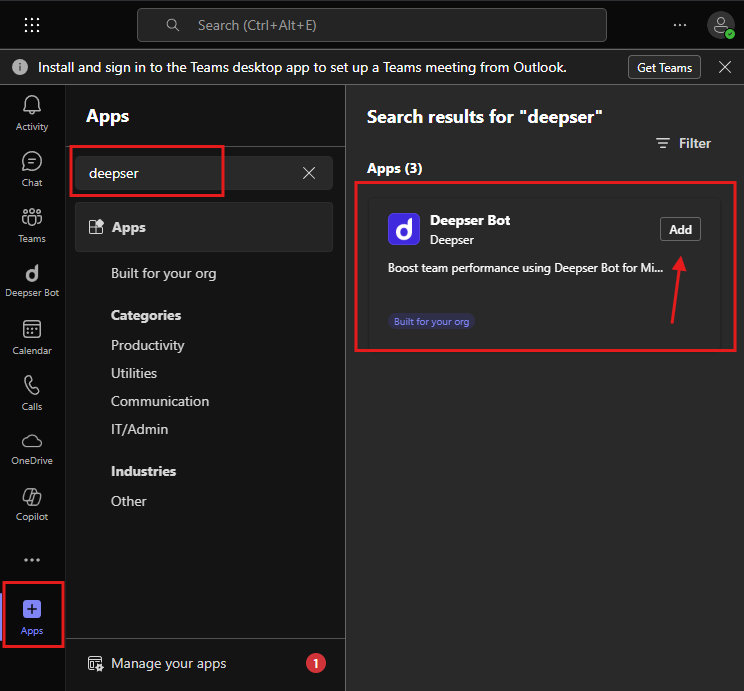
Once the app has propagated, access Teams and search for 'Deepser Bot' among your apps, then add it to Teams and the navigation bar:
Now that you can access the app from the Menu, click on it and proceed with the configuration. After accessing Deepser Bot from Teams, execute the "config" prompt:
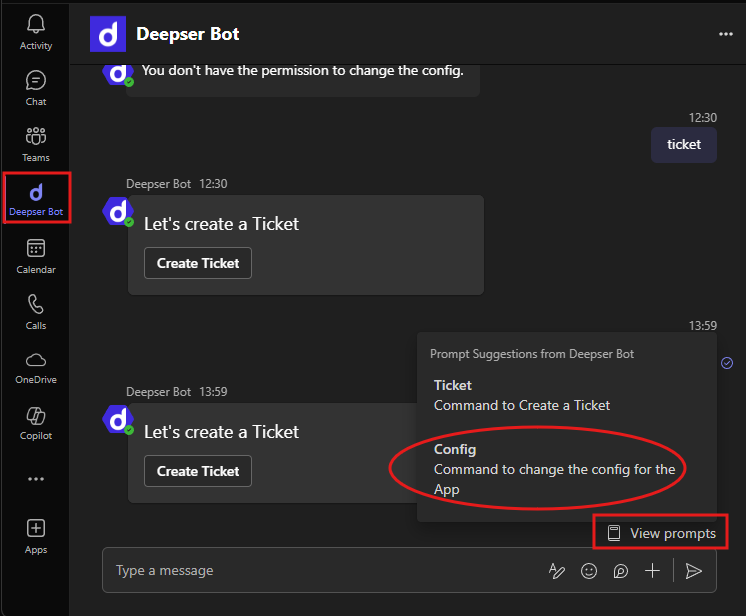
And send it:

The following form will open:
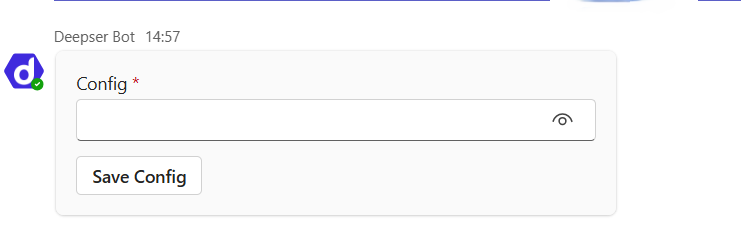
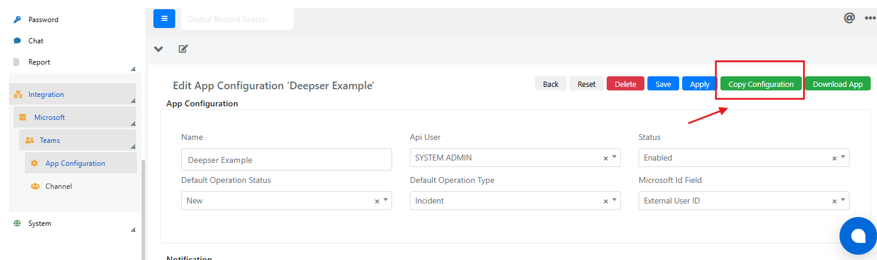
As input for the prompt, you need to provide the configuration from Deepser. Return to the configuration screen of your app in Deepser and click the 'Copy Configuration' button:
Once this step is complete, return to the Deepser Bot in Teams, paste what you copied from Deepser, and save it:
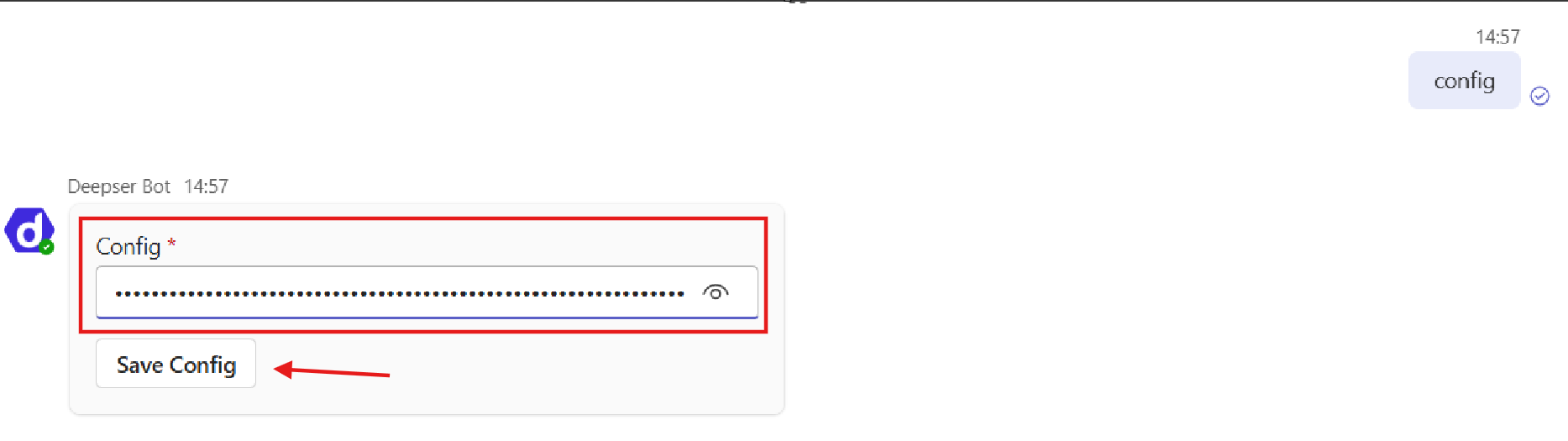
The configuration is now complete.
- The configuration procedure on the Teams App side is enabled for all users for the initial setup, but only for Deepser administrators for subsequent configurations.
- On every change of the Deepser App Configuration (for example, a status change, operation type change, or other), you must repeat this procedure to apply the configuration changes on the Teams side.
Service Operation Creation from Teams
Now that everything is configured, authorized users can create Service Operations by sending the 'ticket' prompt:
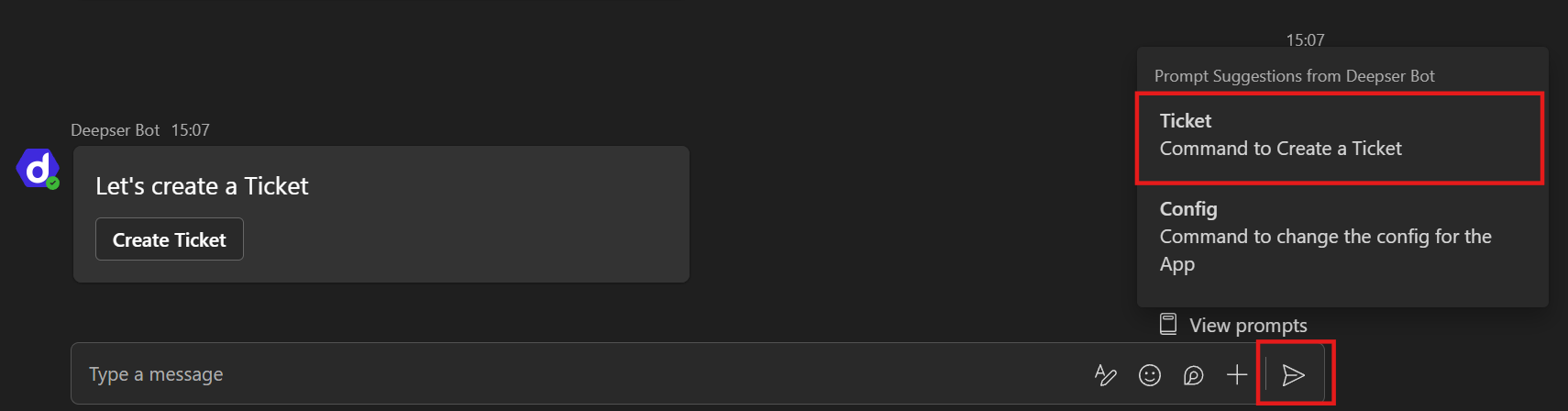

The app will respond with a message through which you can open a Service Operation by clicking the "Create Ticket" button:
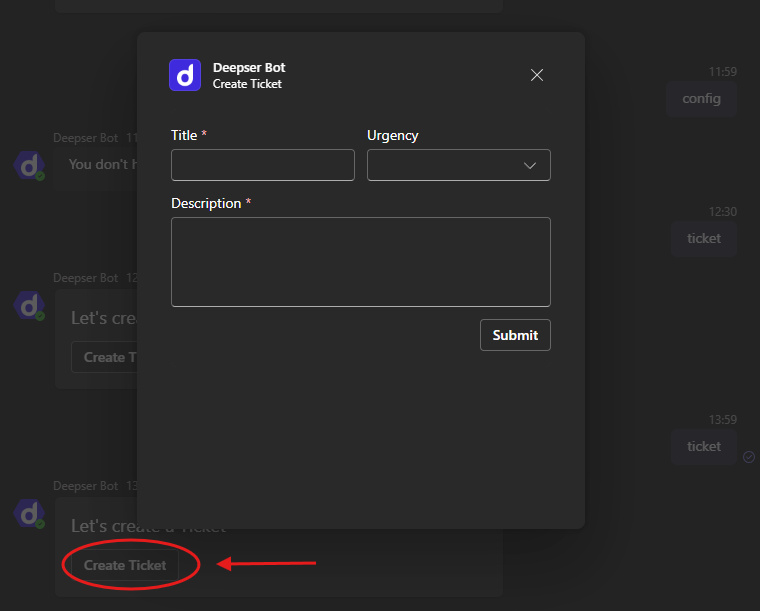
You can set "Title", "Urgency" and a brief "Description" for the Service Operation. Clicking the "Submit" button will create the Service Operation in Deepser.
When a change is made to the Service Operation or a comment is added in Deepser, users receive a notification (based on the Deepser App Configuration). Below is an example:
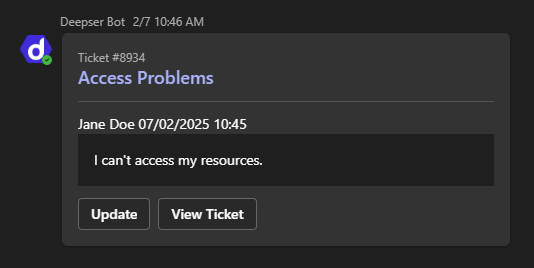
Clicking the "Update" button allows you to access the Service Operation edit form from Teams:
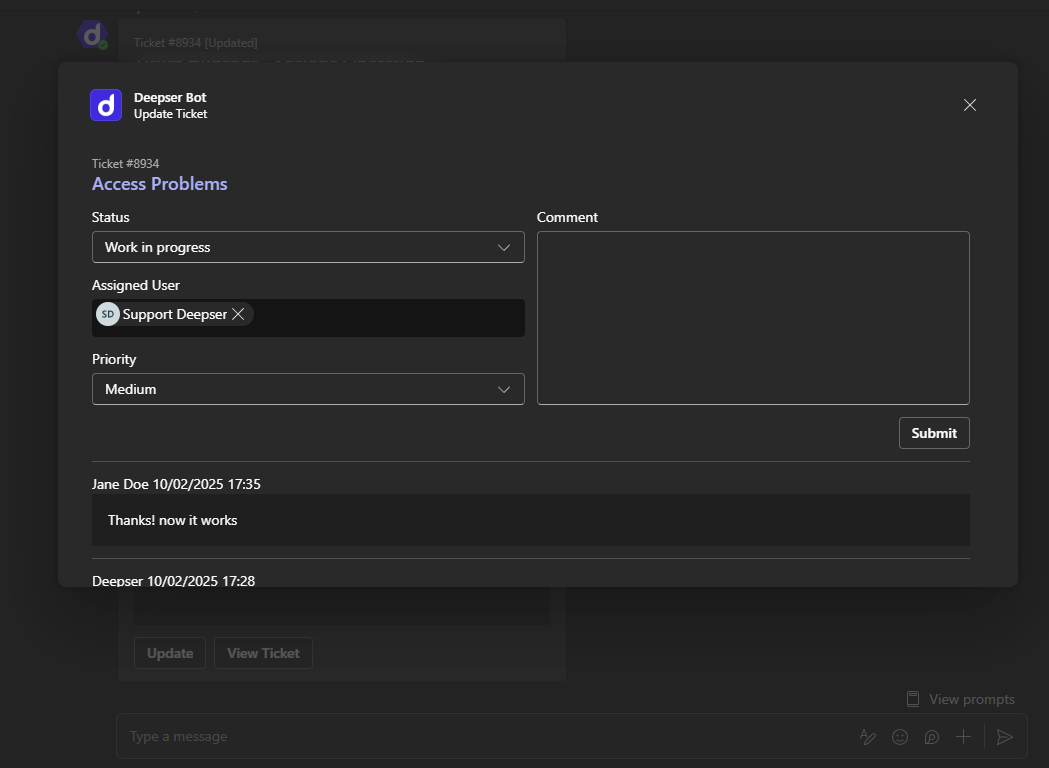
On this form, if the user is a Deepser "End-User", they can only add a comment as a response.
If the user is an admin, Operator, or key user, they can edit basic fields like "Status", "Assigned User", "Priority" and Comments.
They can also read the list of all related Service Operation comments.
Clicking the "View Ticket" button will open the Service Operation in the Deepser User Portal.
Channels
In the Teams integration for Deepser, adding the app to a specific Teams channel also creates a "Channel" record within Deepser.
Channels created in this way serve to convey notifications directly to a specific group:
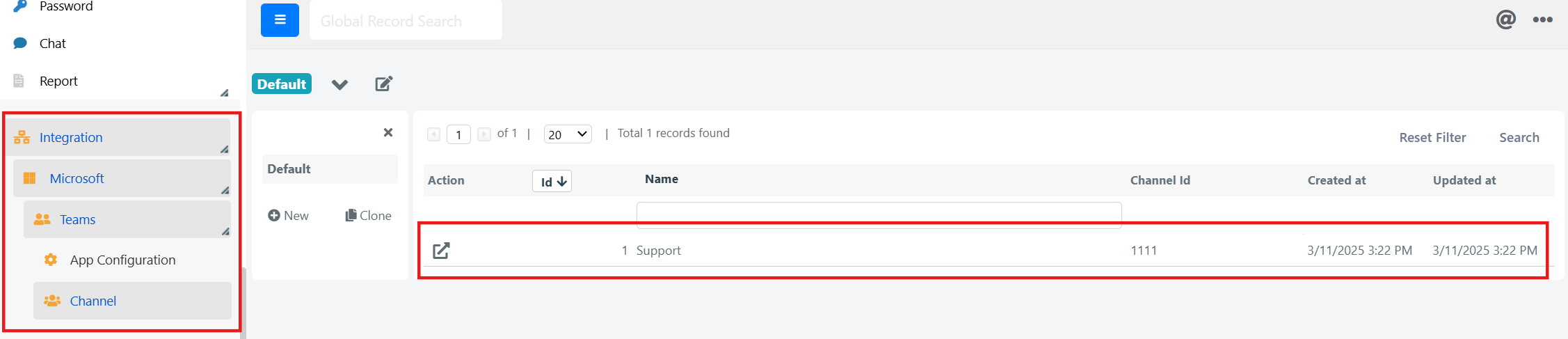
You can configure channels in the following ways:
- During setup, if after configuring the app you add it to a Teams channel, the entity is created.
- Through a command to be executed within the channel (upload channels).
Once the channel records have been created in Deepser, you need to configure them by adding related groups:
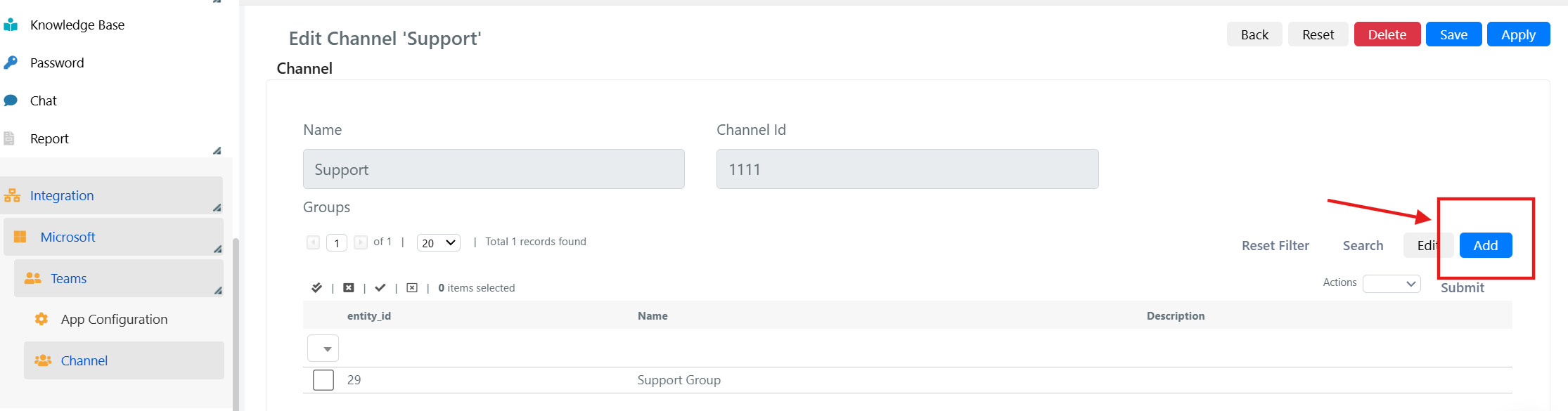
In the example above, the "Support Group" is linked to the "Support" channel in Teams. Consequently, any Service Operation assigned to the "Support Group" in Deepser will be notified through Teams in the corresponding "Support" channel (only if no Assigned User is specified for the Service Operation).