NinjaOne RMM Integration
Deepser provides a dedicated module for integrating with NinjaOne RMM. Through flow configuration, you can synchronize organizations, locations, devices, and activities between both platforms to streamline your IT management workflows.
The integration enables the following functionalities:
- Download all Organizations listed in NinjaOne RMM
- Download all Locations listed in NinjaOne RMM
- Download all Devices listed in NinjaOne RMM
- Download the latest Activities created in NinjaOne RMM
- Receive new Activities created in NinjaOne RMM in real-time
- Create or Update an Organization
- Create or Update a Location
- Create or Update a Device
Below is a summary of the available actions on the flow side regarding the integration:
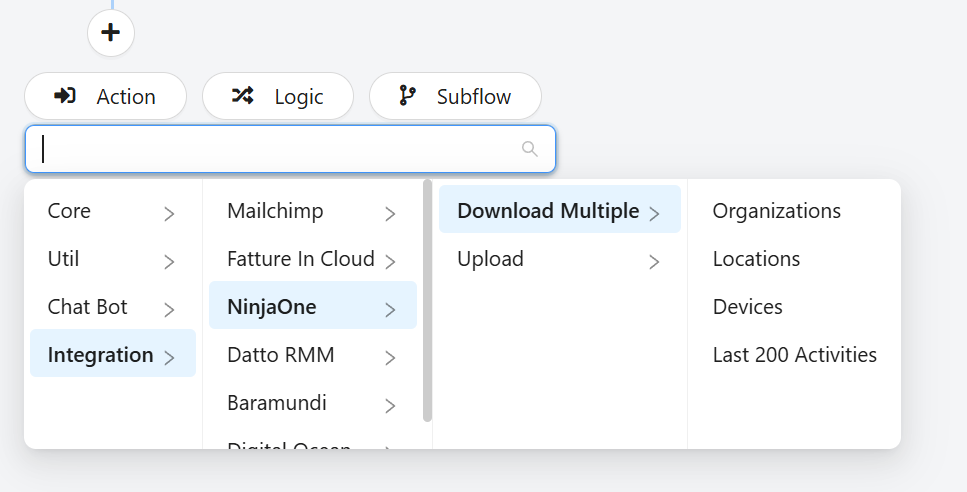
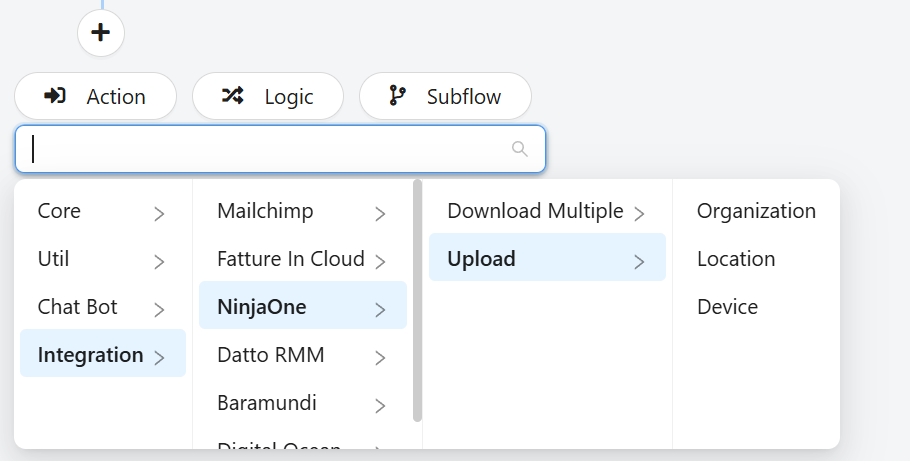
Enable NinjaOne RMM Integration on Deepser
To enable the integration module, navigate to the Deepser Backend menu at System > Configurations > Integrations – Configurations, select and enable NinjaOne, then Save.
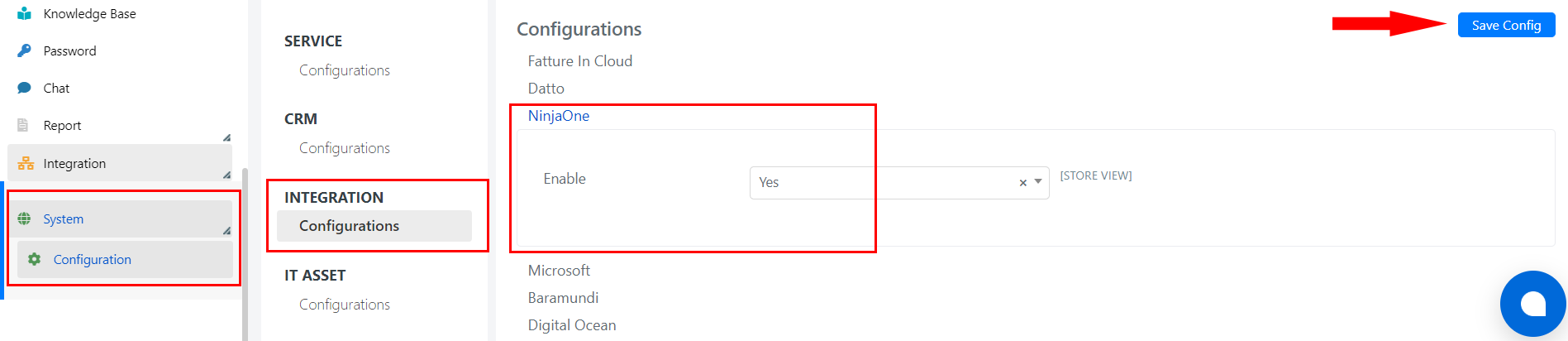
Once the integration is enabled in the menu, you will see the new item.

Organization
An "organization" in NinjaOne RMM represents a logical division within the platform, designed to group devices, users, and configurations associated with a specific client, department, or any organizational unit.
Within Deepser, in the Integration > NinjaOne > Organization section, you will find the organizations created in NinjaOne RMM and synchronized via the integration.
Below are the main fields provided and synchronized in Deepser:
| Field | Definition |
|---|---|
| Organization Id | The unique identifier automatically assigned by NinjaOne RMM to the organization. |
| Name | The descriptive name of the organization. |
| Description | A more detailed description of the organization. |
| User Data | Additional data related to the organization, such as contact information, specific notes, or other customized metadata. |
| Node Approval Mode | Defines the method by which devices (or "nodes") are approved for inclusion within the organization. |
| Tags | Labels or keywords assigned to the organization to facilitate classification, search, and grouping. |
| Fields | Custom fields associated with the organization, allowing additional tailored information to be stored and managed. |
With specific configurations, you can link Organizations with other similar entities in Deepser, such as "Account" or "Company."
Location
A location in NinjaOne RMM represents a logical or physical grouping used to organize devices and resources within a specific area of an organization.
In Deepser, under the Integration > NinjaOne > Location section, you can find the locations that were created in NinjaOne RMM and synchronized through the integration.
Below are the main fields provided and synchronized in Deepser:
| Field | Definition |
|---|---|
| Location Id | The unique identifier of the location within the system. |
| Organization | The organization to which the location belongs. |
| Name | The descriptive name of the location. |
| Address | The physical address of the location (such as street, city, postal code, country, etc.). |
| Description | Additional details and descriptive notes about the location. |
| User Data | Additional and customized data. |
| Tags | Labels or keywords used to categorize the location. |
| Fields | Custom fields associated with the location, allowing tailored information specific to the location to be stored and managed. |
With specific configurations, you can link Locations with other similar entities in Deepser, such as "CI" (Configuration Items) of the "Location" class.
Device
A device in NinjaOne RMM refers to any endpoint (physical or virtual) managed and monitored by the platform.
In Deepser, under the Integration > NinjaOne > Device section, you will find the devices created in NinjaOne RMM and synchronized via the integration.
Below are the main fields provided and synchronized in Deepser:
| Field | Definition |
|---|---|
| Device Id | Unique identifier assigned to each device within the system. |
| Parent Device | The ID of the "parent" device to which the current device belongs. |
| Organization | The organization (logical division or client) the device is associated with. |
| Address | The physical address of the location (e.g., street, city, postal code, country, etc.). |
| Location | The site or location (physical or logical) where the device is located. |
| Device Type | The hardware type of the device. |
| Node Class | A general classification of the device at the "node" level. |
| Node Role | The operational role the device plays within the infrastructure. |
| Role Policy | The set of rules associated with the device's role. |
| Policy | The configurations, rules, or automations applied to the device. |
| Approval Status | The approval status of the device within the system. |
| Offline | The device's connectivity status, indicating whether the device is currently offline. |
| Display Name | The name displayed in the NinjaOne RMM user interface to identify the device. |
| System Name | The operating system name or internal asset name as recorded by the system. |
| DNS Name | The domain name associated with the device, useful for network resolutions and DNS-level identification. |
| Netbios Name | The NetBIOS name (typical in Windows environments) used to identify the device on the local network. |
| Created | The date and time the device was registered. |
| Last Contact | The last time the device communicated with the NinjaOne RMM server. |
| Last Update | The date and time of the last update to the device's data or configuration. |
| User Data | Additional or customized data associated with the device. |
| Tags | Tags or keywords assigned to the device. |
| Fields | Custom fields associated with the device to extend the basic information. |
| Maintenance Status | Whether the device is currently under maintenance or scheduled for planned interventions. |
| Maintenance Start | The start date and time of the scheduled maintenance window for the device. |
| Maintenance End | The end date and time of the maintenance window, after which the device returns to a normal operational state. |
| IP Addresses | List of IP addresses assigned to the device. |
| MAC Addresses | List of MAC addresses associated with the device's network interfaces. |
| Public IP | The public IP address associated with the device. |
| Notes | Annotations or comments related to the device. |
| Disks | Information related to the device's physical or virtual disks, including details like capacity, status, and configuration. |
| Operating Systems | The operating system installed on the device. |
With specific configurations, you can link Devices with other similar entities in Deepser, such as "CI" (Configuration Items) of the "Device" class.
Activity
An activity in NinjaOne RMM represents an event logged in the system, such as the execution of a script, software update, remote action, status change, or error report.
Within Deepser, under the Integration > NinjaOne > Activity section, you can find activities created in NinjaOne RMM and synchronized through the integration.
Here are the main fields provided and synchronized in Deepser:
| Field | Definition |
|---|---|
| Activity Id | Unique identifier of the activity in the system. |
| Device | The device on which the activity was performed. |
| Activity Time | Date and time when the activity occurred. |
| Severity | Severity of the activity, indicating the importance or urgency of the event. |
| Priority | Priority assigned to the activity, useful for determining the order of management. |
| Series Uid | Identifier of the series of related activities, useful for tracking operations composed of multiple steps. |
| Activity Type | Type of activity, such as "Script Execution," "Software Installation," or "Remote Session." |
| Status Code | Numerical code representing the activity's state, such as completed or failed. |
| Status | Textual description of the activity's state, e.g., "Success" or "Failed." |
| Activity Result | Result of the activity, providing details on the outcome. |
| Source Config Uid | Identifier of the source configuration that generated the activity, such as a policy or a trigger. |
| Source Name | Name of the source that originated the activity. |
| Subject | Object or title of the activity, useful for quick identification. |
| User | User who executed or initiated the activity. |
| Message | Message associated with the activity, providing additional details or descriptions. |
| Type | Category of the activity, such as "Automated" or "Manual." |
| Data | Additional data related to the activity, which may include specific parameters or detailed results. |
With specific configurations, you can link Activities with other similar entities in Deepser, such as "Service Operations".
Connection and OAuth Client Configuration
To proceed with the integration setup, you need to create a new connection and an OAuth client.
Navigate to System > Integration > NinjaOne > Connection and click the "Add Connection" button.
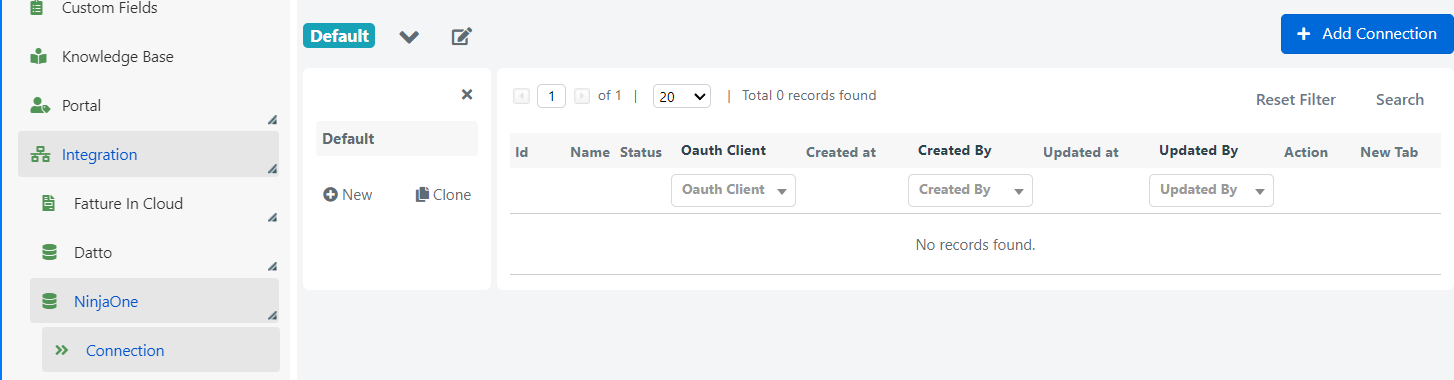
The Connection Configuration screen will open:
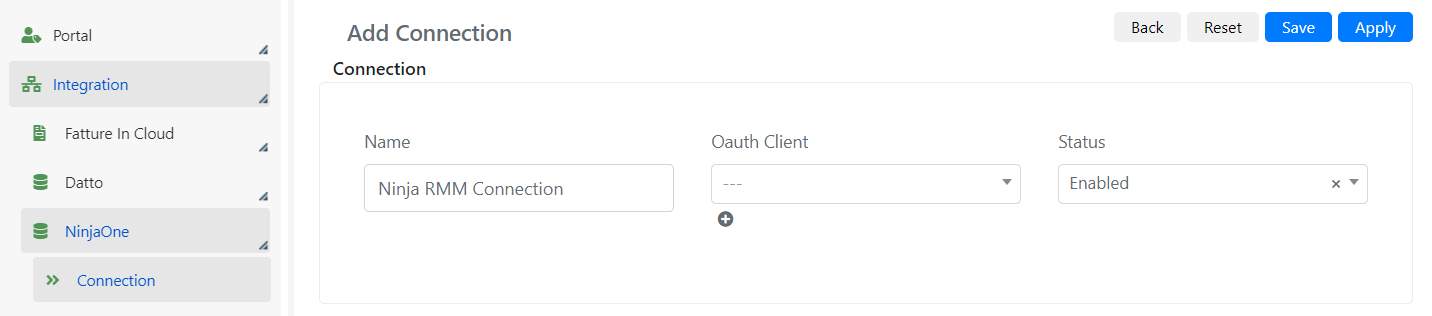
The following information is required:
| Field | Definition |
|---|---|
| Name | Set a custom name for the connection |
| OAuth Client | Select the OAuth client to be used for the connection with NinjaOne RMM. By clicking the "+" icon below, a window will open to create a new OAuth client. The fields related to this form are described in the next table. |
| Status | Enables or disables the connection |
For the creation of a new OAuth Client, the following information is required:
| Field | Definition |
|---|---|
| Redirect Uri | OAuth Client URI generated by Deepser, required by the NinjaOne RMM app. The URI will be generated and displayed after the first creation. |
| Name | Set a custom name for the OAuth Client. |
| Status | Field to enable or disable the OAuth client. |
| Provider | Select "NinjaOne RMM." |
| Domain | Select the domain of your "NinjaOne RMM" instance. For installations in Europe, the standard domain is EMEA. |
| Client ID | Enter the Client ID generated by the NinjaOne RMM app. |
| Client Secret | Enter the Client Secret generated by the NinjaOne RMM app. |
The creation of the app in NinjaOne RMM is described in the following section.
NinjaOne RMM API Configuration
On NinjaOne RMM, navigate to Administration > Apps > API.
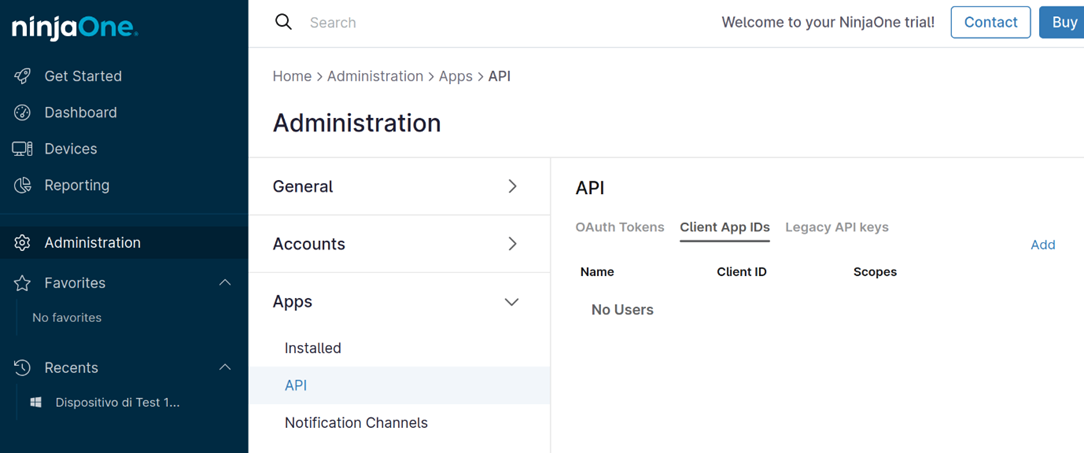
From the API screen, click "Add" and the following screen will open:
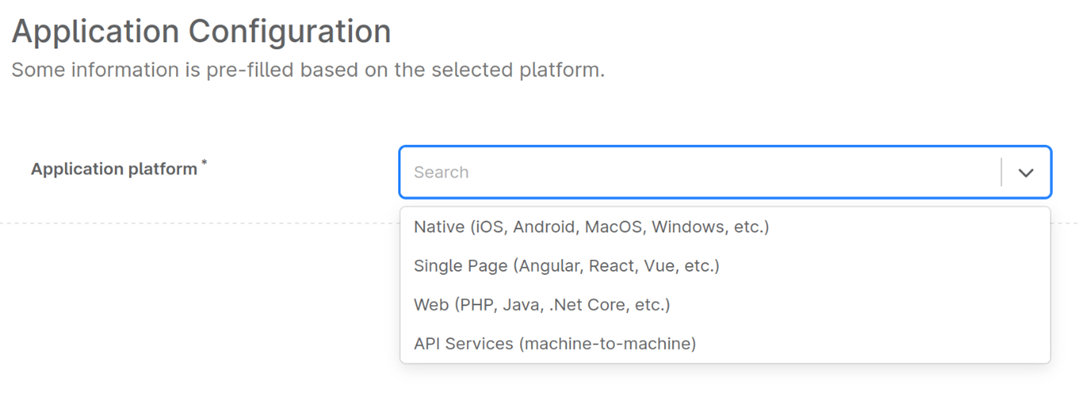
Select the "Web (PHP, Java, .Net Core, etc.)" option.
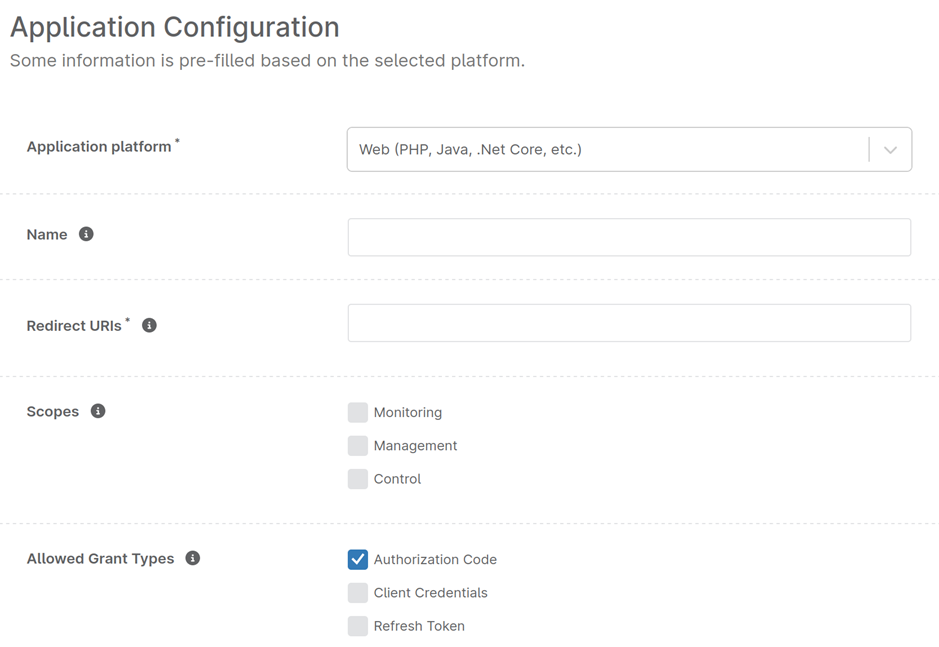
Fill in the form with the following information:
- The Redirect URI of Deepser's OAuth Client.
- The Scopes needed.
- Authorization Code and Refresh Token as Allowed Grant Types.
Below is an example configuration:
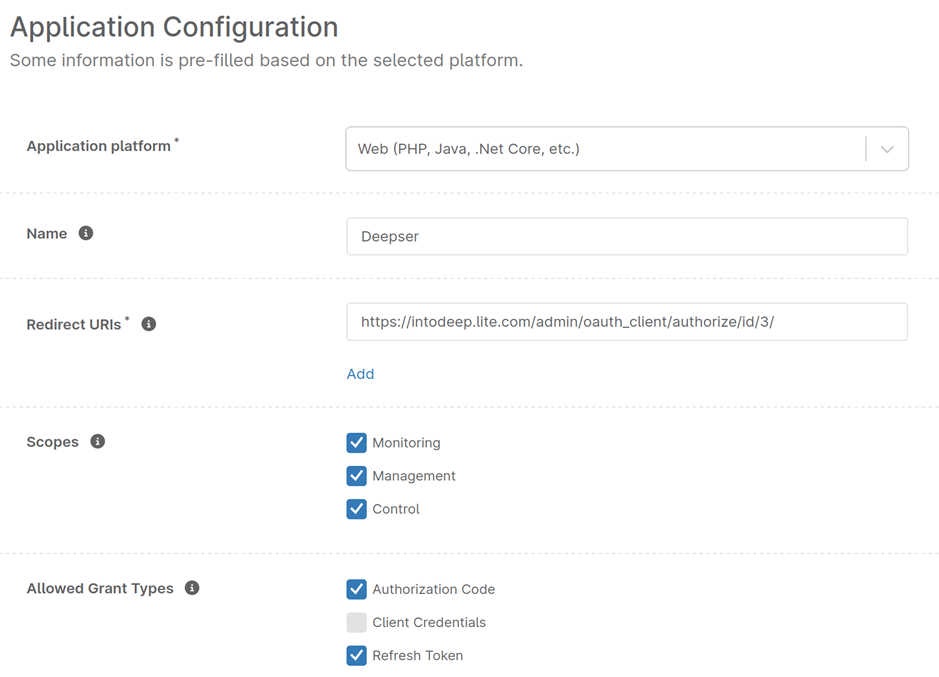
By clicking the Save button in the upper right corner, NinjaOne RMM will generate the Client Secret.
Copy this value and enter it in the Client Secret field of Deepser's OAuth Client.
Make sure to copy and save the Client Secret value. It will no longer be available once you leave this page.
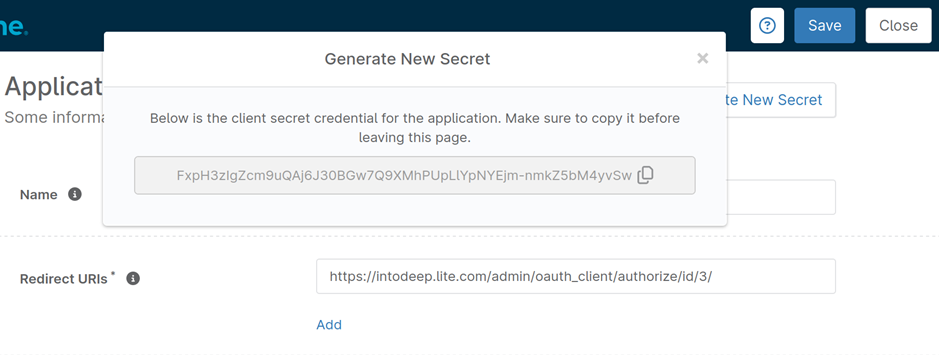
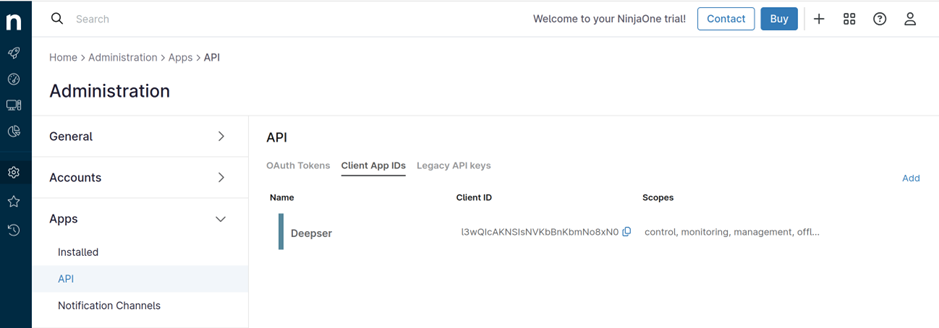
Click the Close button, and you will return to the Administration / Apps / API screen.
From there, copy the Client ID generated by NinjaOne RMM and paste it into the Client ID field of Deepser's OAuth Client.
Below is an example configuration of a Deepser OAuth Client:
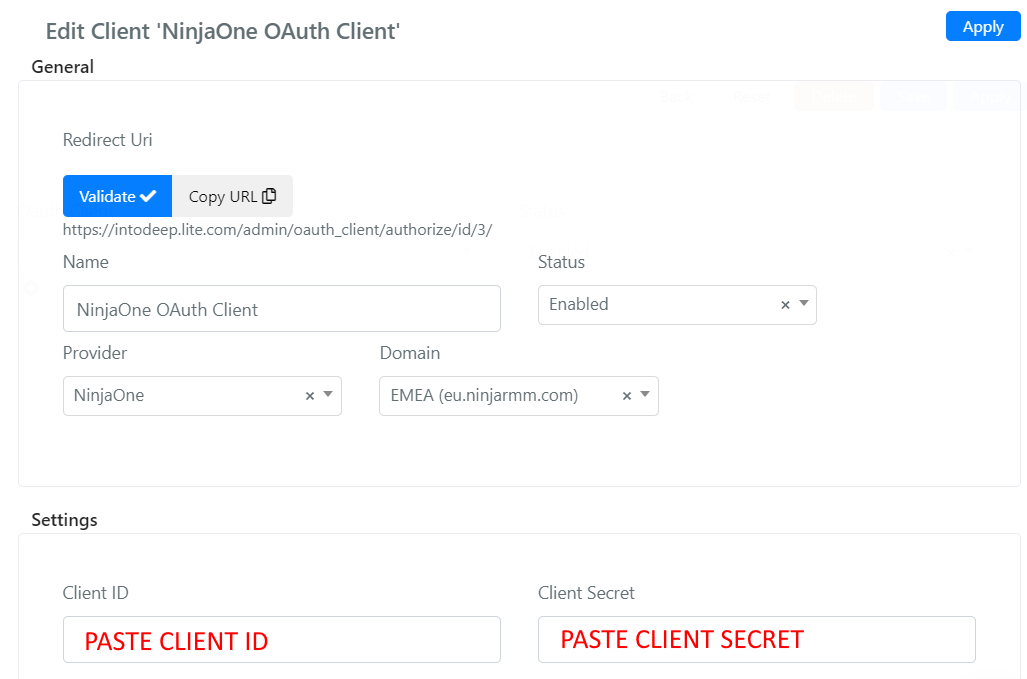
Click the Validate button in the Deepser OAuth Client form.
In the screen that opens, click Authorize:
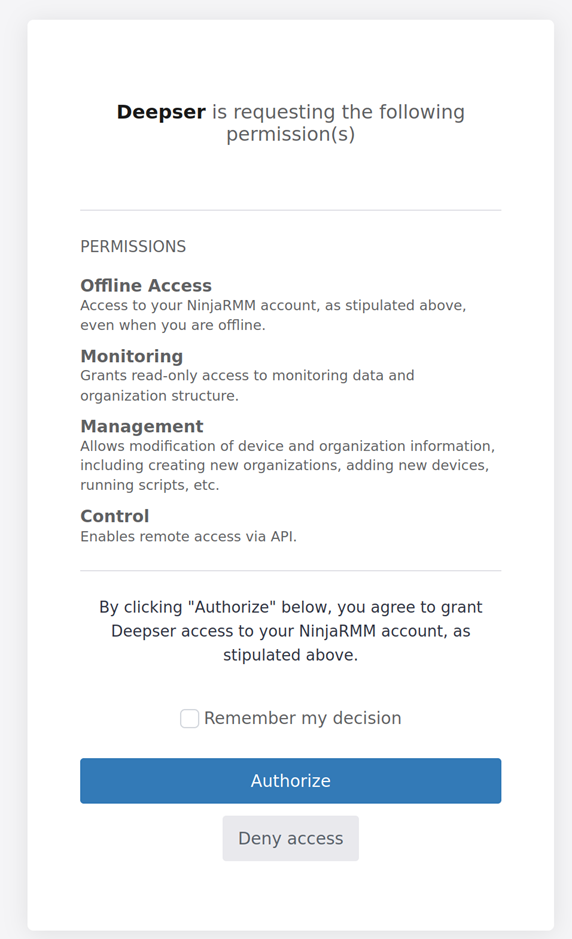
If the authentication returns the message "Client was successfully authorized", the NinjaOne RMM Client is correctly configured and ready to be used within a Connection.
Download Data from NinjaOne RMM
To retrieve all objects in NinjaOne RMM and create them in Deepser, you use a dedicated flow that handles the creation and/or updating of Organization, Location, Device, and Activity. These flows are typically used during the initial setup phase to establish a working foundation, but you can also use them to retrieve information from NinjaOne RMM on an ongoing basis.
Proceed with creating a new Flow:
- First, configure a trigger by setting the automatic execution of the flow once per day:
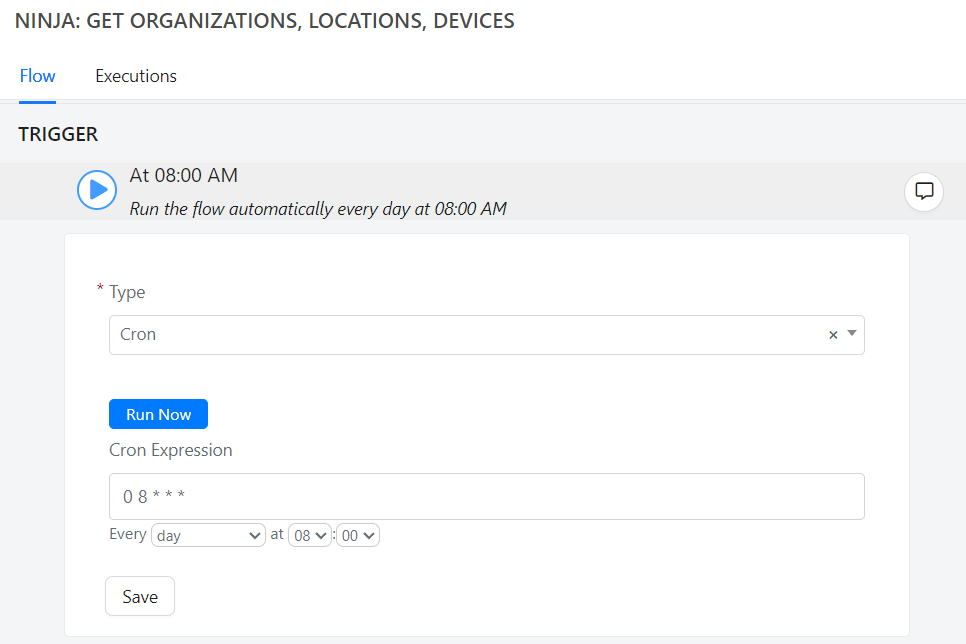
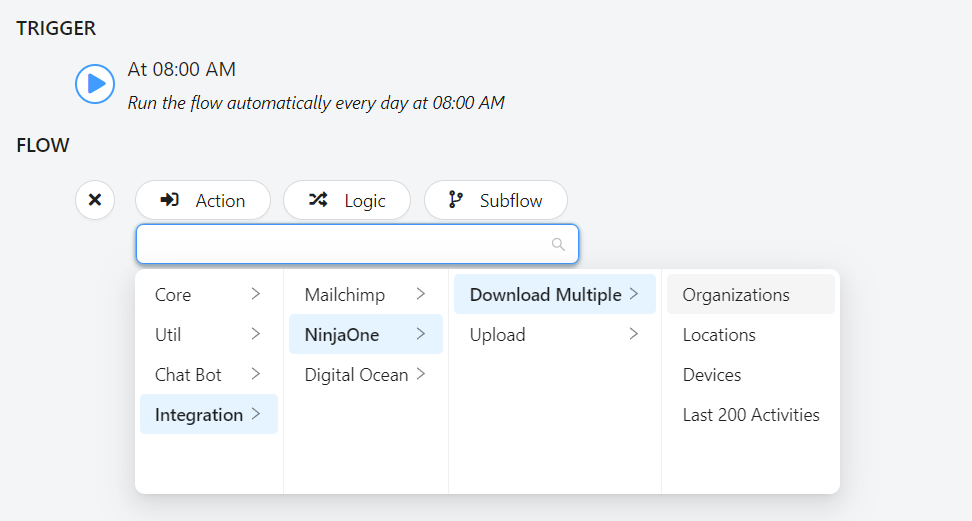
- By clicking the "+" icon, proceed to configure a node to download all organizations via: Action > Integration > NinjaOne > Download Multiple > Organizations:
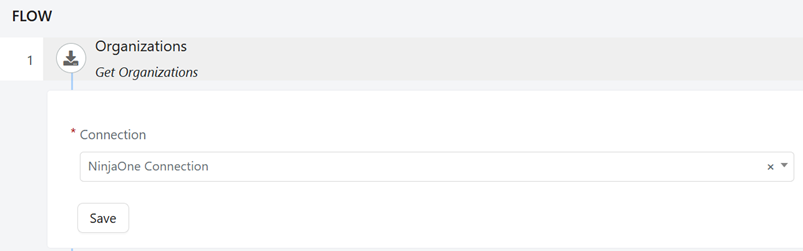
Once the action has been added, select the previously configured connection to NinjaOne:
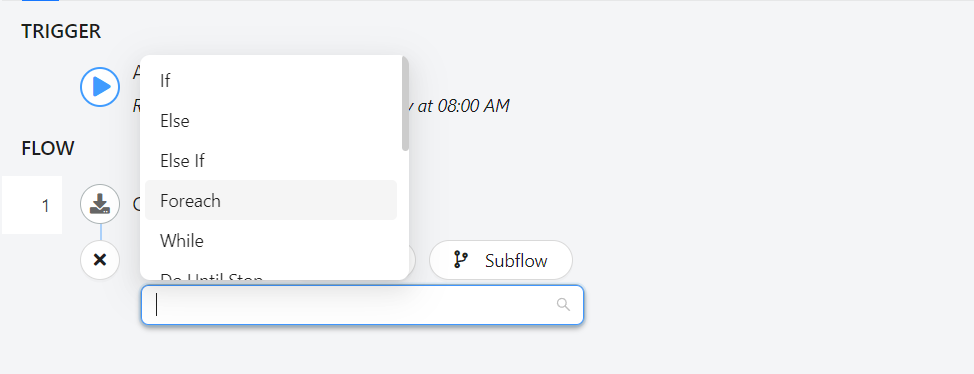
- Once the Organizations have been retrieved, you can proceed to iterate through them. Add a new node by clicking the "+" button, then select Logic > Foreach:
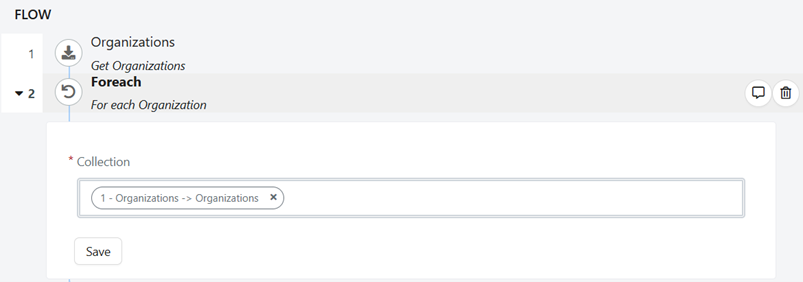
Select the collection of organizations created earlier (from the right-hand menu):
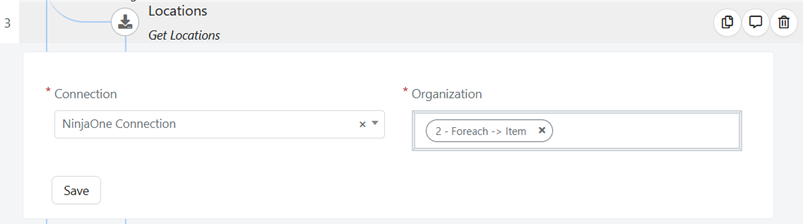
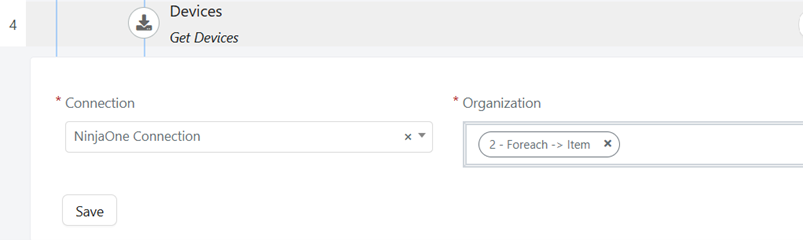
Finally, based on each Organization obtained through Foreach, retrieve the Locations and Devices associated with each Organization.
- Additionally, you can retrieve part of the Activities as a historical record. To do this, you need to iterate through the Devices:
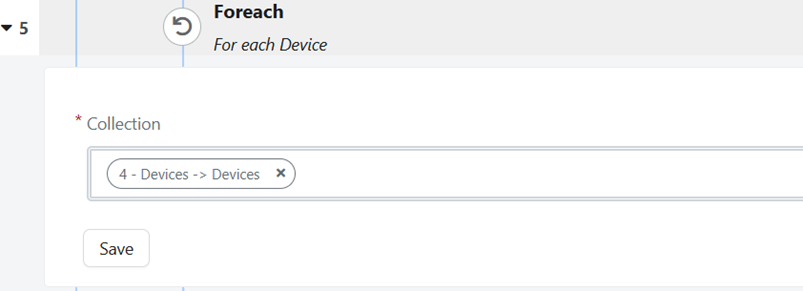
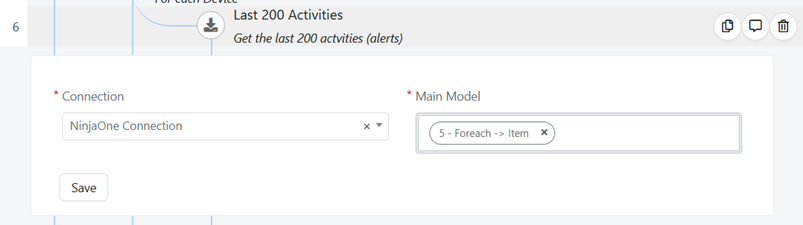
Then retrieve the latest 200 Activities associated with each Device.
The complete flow will look as follows:
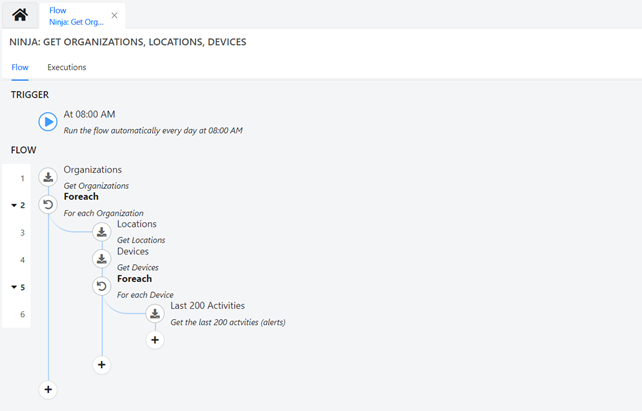
The flow handles the creation and updating of objects retrieved from NinjaOne RMM in Deepser, including Organizations, Locations, Devices, and Activities.
The example flow automatically executes every day at 8:00 AM (you can modify this parameter in the Trigger settings).
You can manually run the flow by clicking the Run Now button in the Trigger section of the flow.
- For the nodes in rows 1, 3, 4, and 6, ensure that the selected Connection is the one you configured earlier.
- Node 6 retrieves the latest 200 Activities (alerts) generated for each Device. It is recommended to keep this node only for the first execution of the flow. Future Activities created in NinjaOne will also be created in Deepser through an additional flow. Alternatively, you may choose to remove this node (along with Node 5).
- Enable the flow once it has been imported.