Warehouse
The Warehouse module is the foundation of Deepser's inventory system. It links the Item and Movement modules together, ensuring accurate and up-to-date management of goods stocks and transactions.
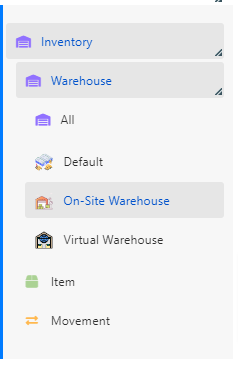
Once you have created a warehouse type in the configuration, you can create a Warehouse entity from the Inventory > Warehouse menu.
Warehouse Fields
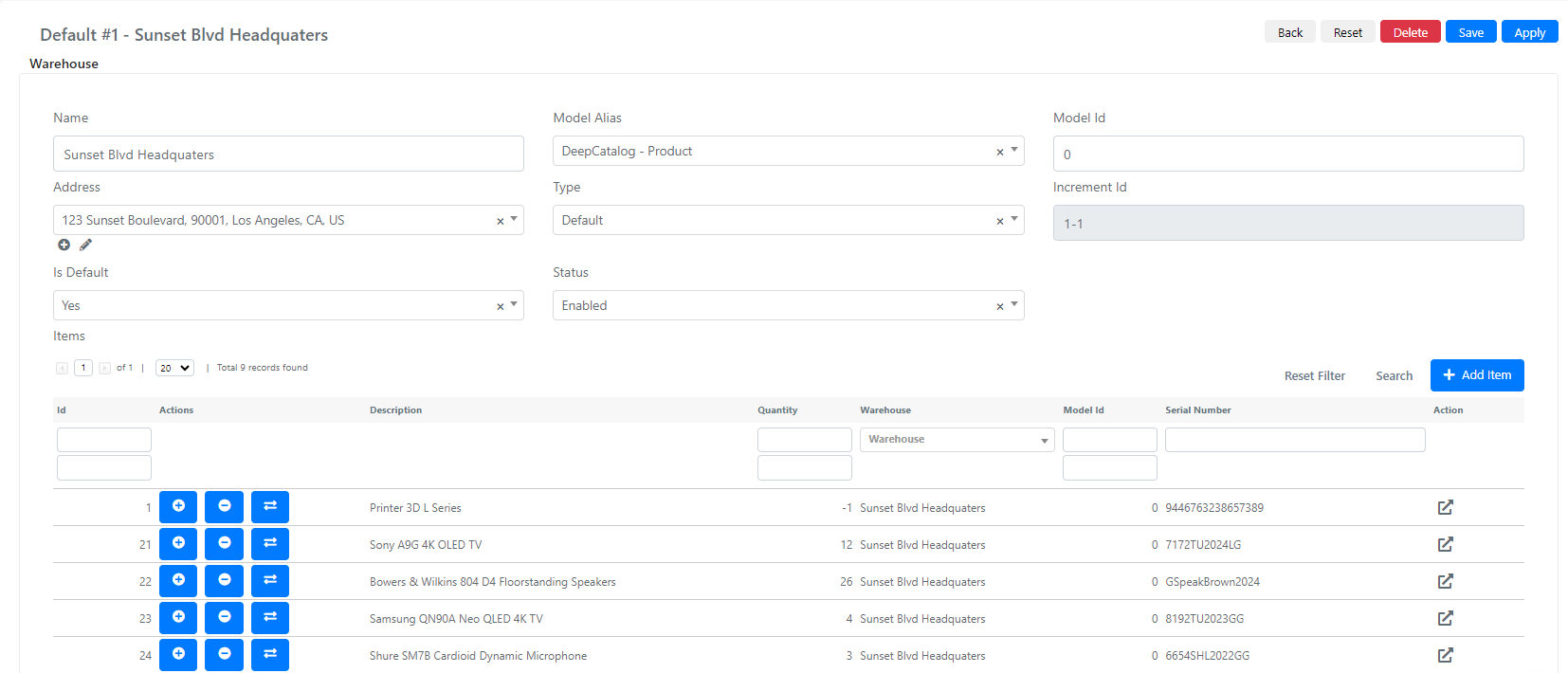
Below is the list of available fields on the Warehouse entity:
| Field | Description |
|---|---|
| Name | Warehouse name. |
| Model Alias | Select field to choose a Deepser model connected to this warehouse. |
| Model Id | ID of a record from the selected model. |
| Address | Address associated with the warehouse. Use the + icon to create a new address. |
| Type | Select field with the warehouse type. |
| Increment Id | Auto-populated based on the automatic numbering configuration defined in the warehouse type settings. |
| Is Default | Checkbox that designates the main default warehouse. At least one warehouse should be set as default. |
| Status | Enables or disables the warehouse and its use within connected modules. |
At least one warehouse must be marked as the default. The default warehouse is used as the fallback location when no specific warehouse is selected.
Items Grid
This grid shows all items connected to the warehouse. You can add an item directly by clicking the Add Item button in the upper-right corner.

Within this grid, you can move item quantities using the icons in the Actions column.

- + loads a quantity of the product.
- - unloads the product.
- The transfer icon transfers a quantity from one warehouse to another.
Movements Grid
This grid shows all movements connected to the warehouse and its items. Click the Add Movement button in the upper-right corner to add a movement directly. All movements added from this warehouse form should reference one of the connected items.
