IT Asset Models
The IT Asset module in Deepser provides several models for organizing and managing your infrastructure. Each model serves a specific purpose, from tracking devices and software to managing network information and automating maintenance tasks.
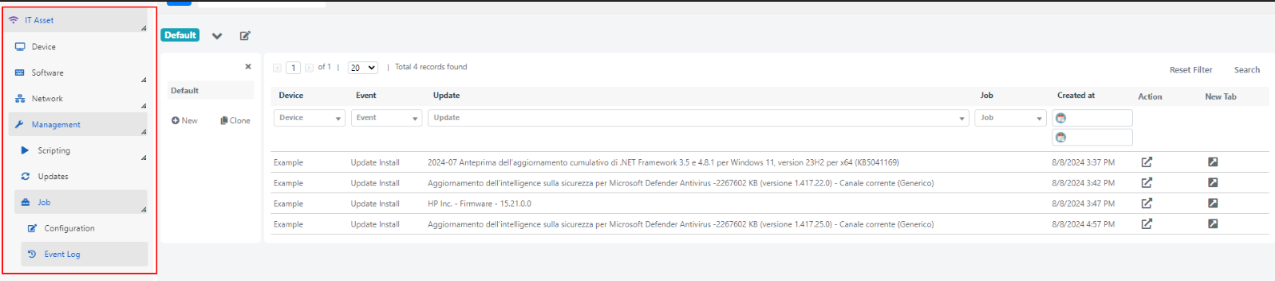
To access the available models, navigate to the IT Asset section from the main menu in the Deepser Backend:

ITAM Device
To view all devices added to the IT Asset Management module, go to Asset > Device in the Deepser Backend. From there you can organize devices using custom grids and access the form containing their data.

You can manually add a device using the Add Device button, or use the CMDB module. The IT Asset module is designed to automatically retrieve devices through agents, unlike the CMDB module where device management is manual only.
To add a new device by agent, click the Download Agent button. The agent installation procedure is described in the automatic scanning guide. Once the agent is installed and configured, your device will appear as a record on the grid.
Licenses in use: Available at the top of the page, this indicator shows the number of devices that can be added. Devices in this module are subject to licensing.
Device Tab and Fields
By clicking on a device in the grid, you can access its detailed data, including:
- CPU
- BIOS
- HDD
- Network Interfaces
- Operating System
- RAM
- Installed Software
Device Data Tab
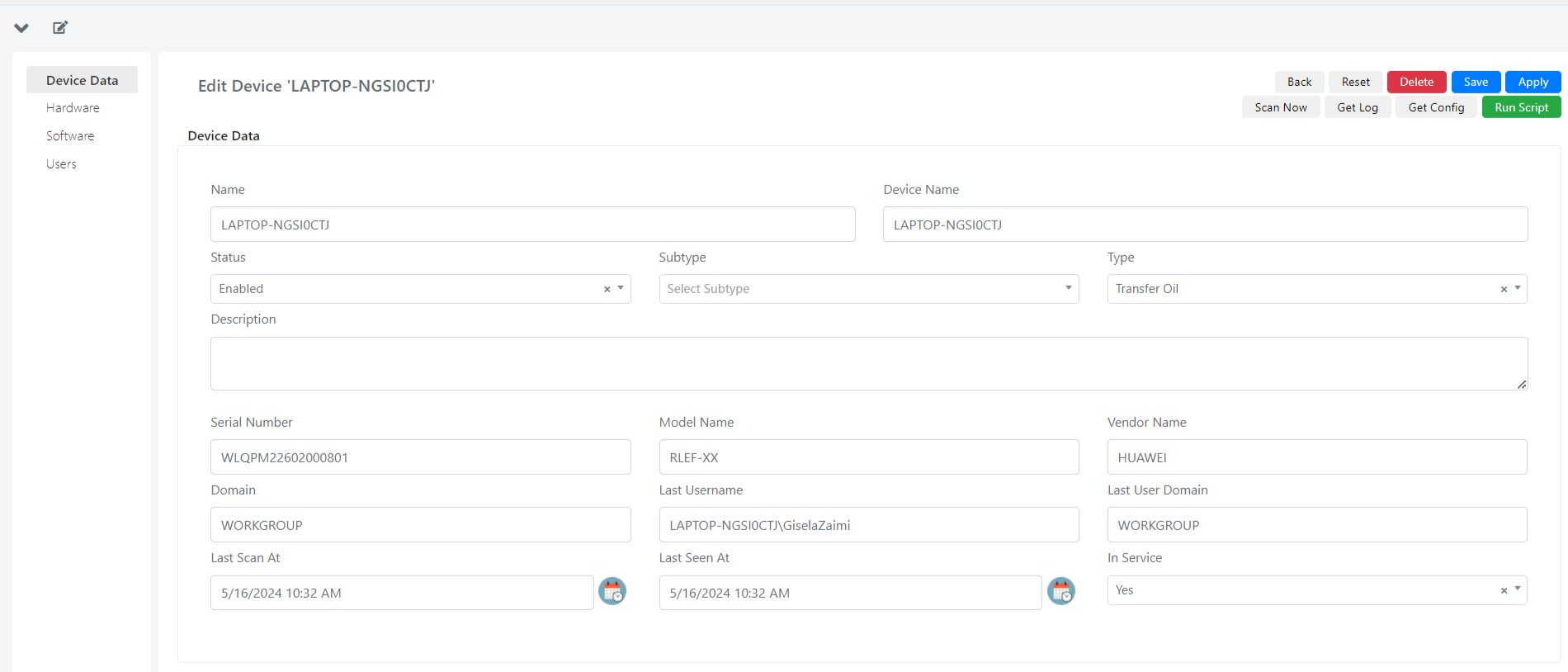
The Device Data Tab contains the main information for a device:
| Field | Description |
|---|---|
| Name | Text field with the retrieved device's name. |
| Device Name | The retrieved device's name. |
| Status | Select field: enabled or disabled. Initially set to enabled. |
| Type | Device type: physical, virtual, other, or unknown. |
| Subtype | Device subtype, linked to a type. |
| Description | Text area for a device description. |
| Serial Number, Model Name, Vendor Name, Domain, Last Username, Last User Domain | Text fields auto-populated from the agent. |
| Last Scan At | Last time this device was scanned by an agent or remote collector. |
| Last Seen At | Last time the device was observed as active and responsive. |
| In Service | Indicates whether the device still has the agent downloaded and is currently active within the network. |
Hardware Tab
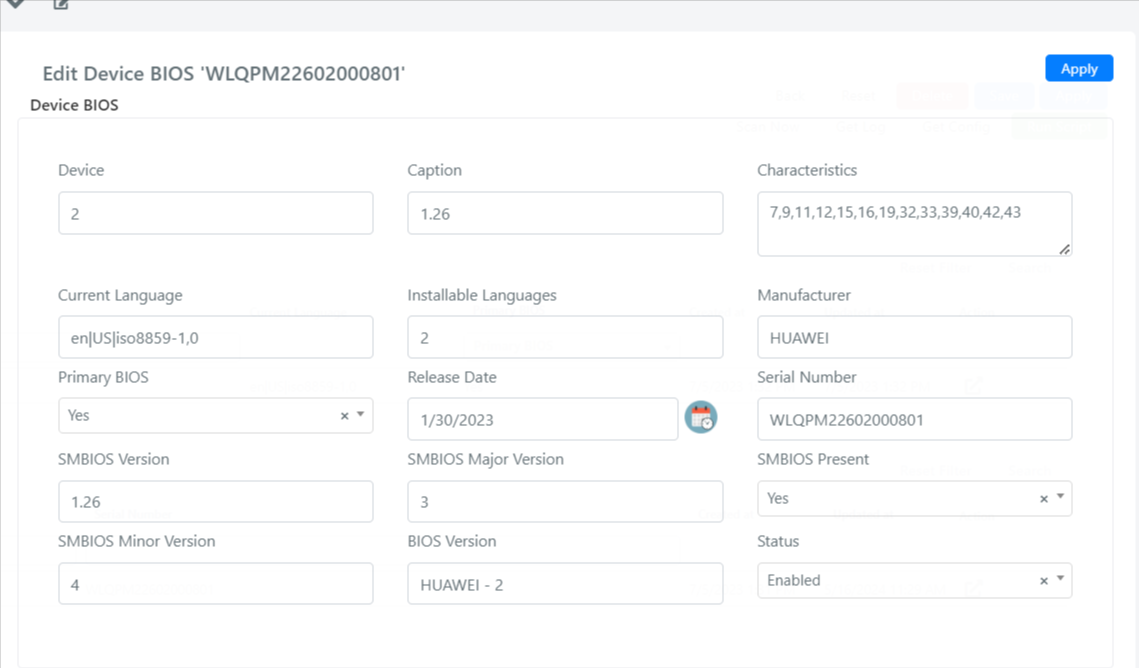
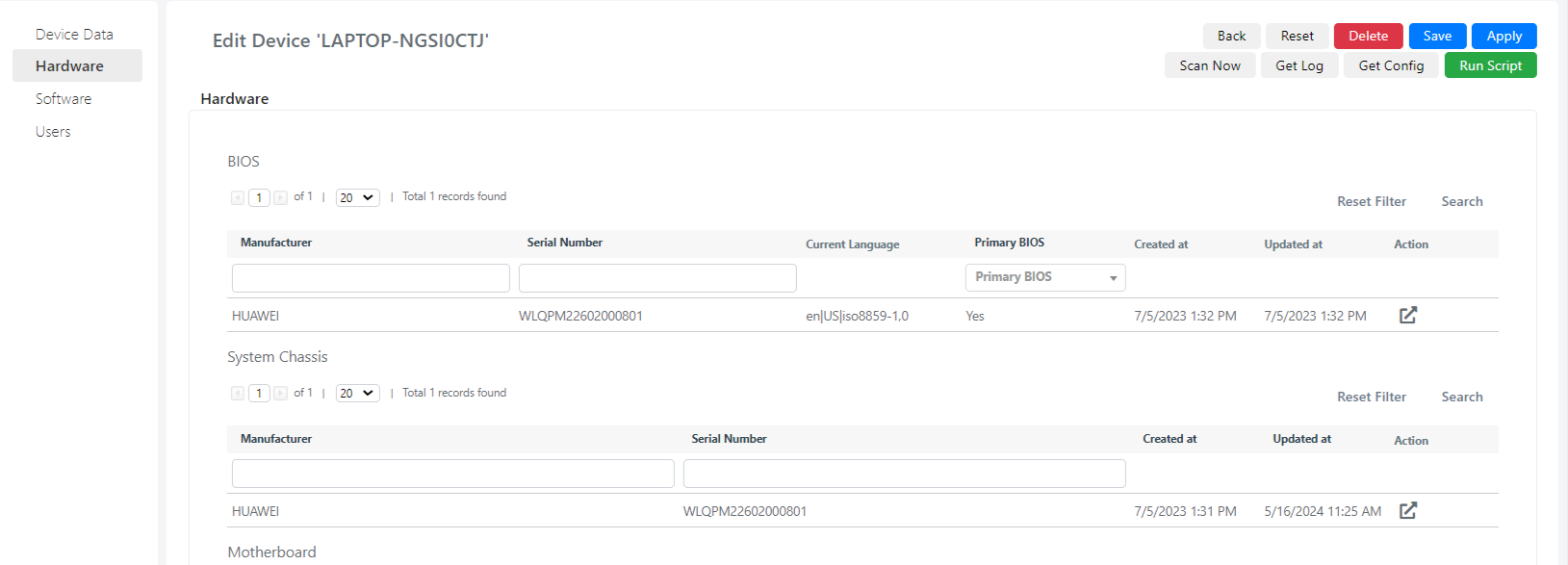
The Hardware Tab displays all device hardware information such as BIOS, System Chassis, CPU, RAM, Network Interface, and more.
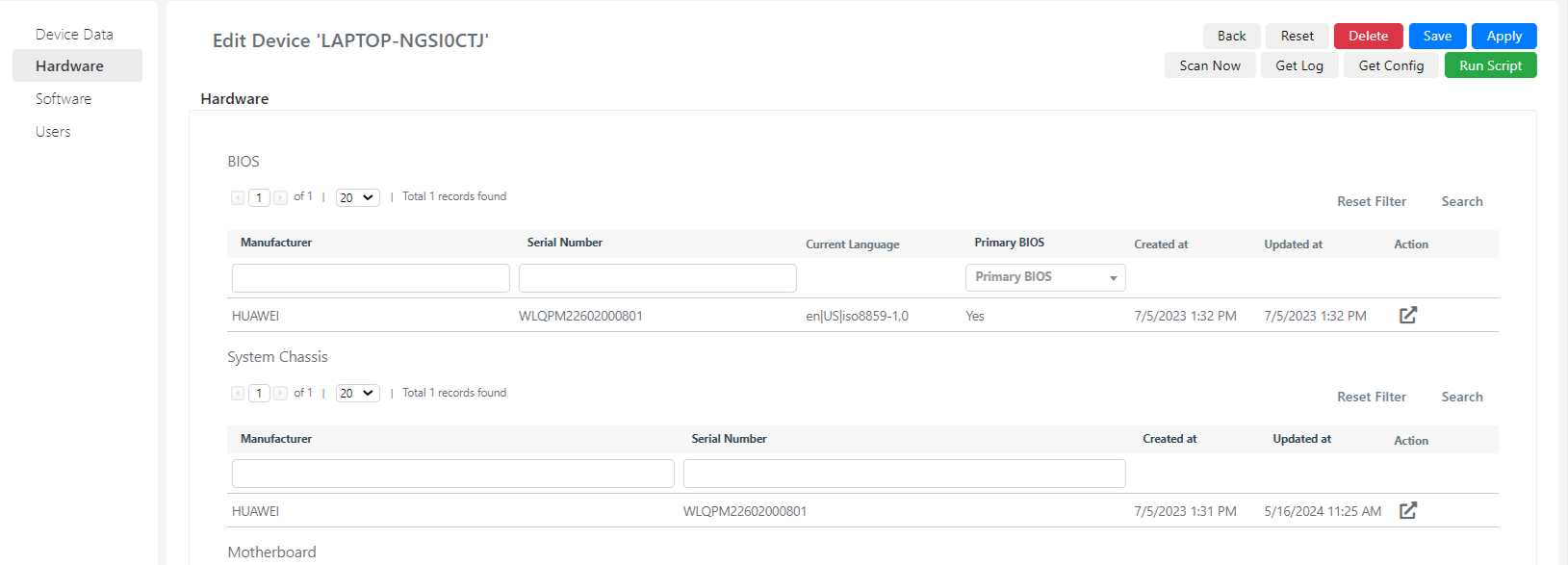
All hardware information is stored in separate grid fields. Each grid record has an action column for viewing further details.
Software Tab
The Software Tab contains all software information related to the device:
- Operating System: Grid field storing all information about the device's operating system.
- Software: Field storing all data about installed software programs.
Users Tab
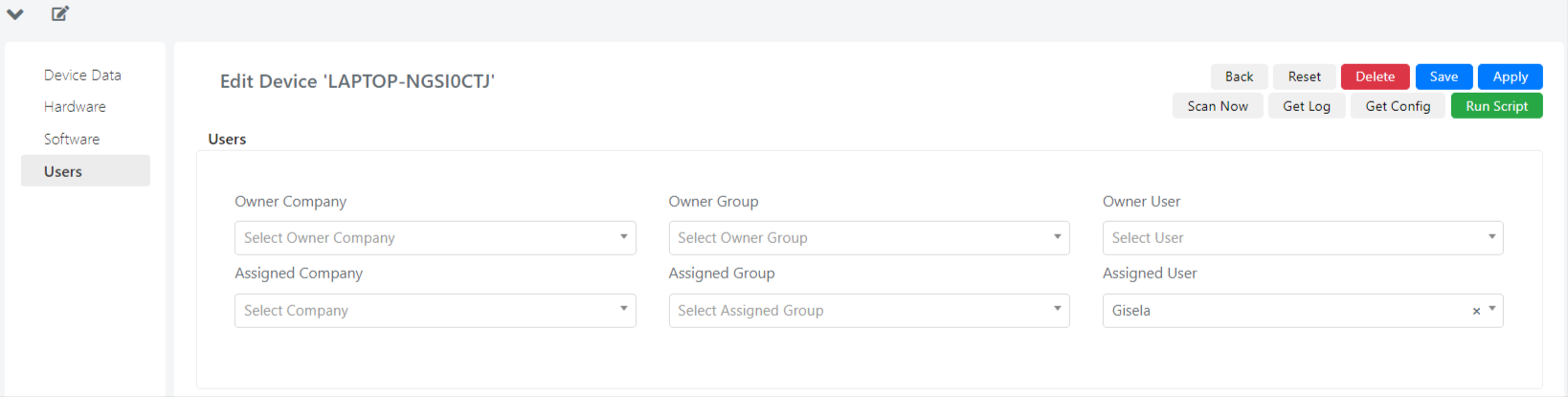
In the Users Tab you can associate client information with the device.
| Field | Description |
|---|---|
| Owner Company, Assigned Company | Select fields with values from the Company model. |
| Owner Group, Assigned Group | Select fields with values from the Group model. |
| Owner User, Assigned User | Select fields with values from the User model. |
Monitoring Tab
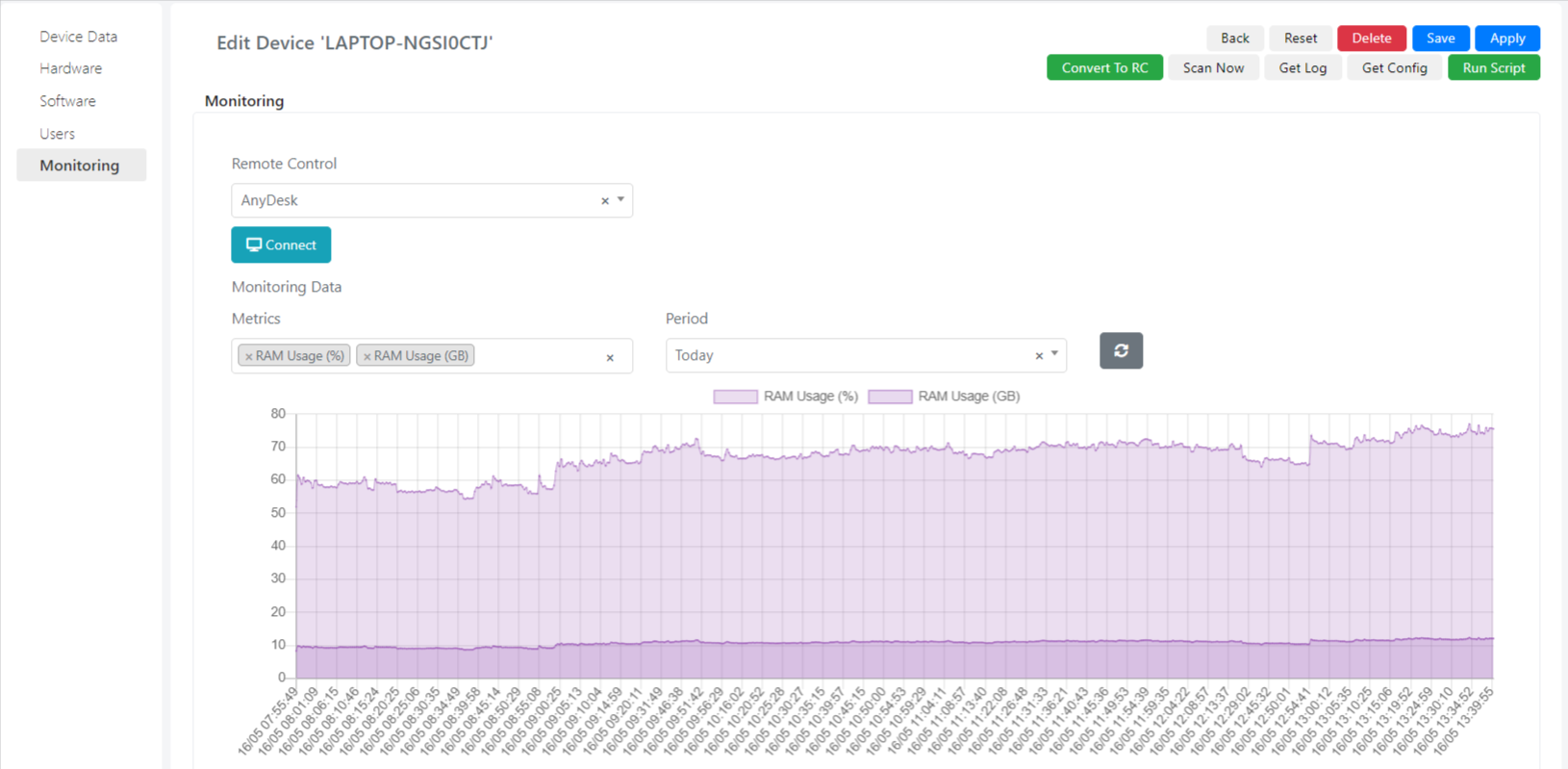
The Monitoring Tab allows you to monitor your device's resource usage:
| Field | Description |
|---|---|
| Remote Control | Select field for connecting and controlling the device remotely. |
| Monitoring Data | Graphical representation of resource usage over a period of time. |
| Metrics | Multiselect field for choosing which resource usage to display on the graph. |
| Period | Select field for choosing the display timeframe. |
ITAM Software
To view software in the IT Asset Management module, go to Asset > Software > Software in Use in the Deepser Backend. This model stores all software program data retrieved from devices.
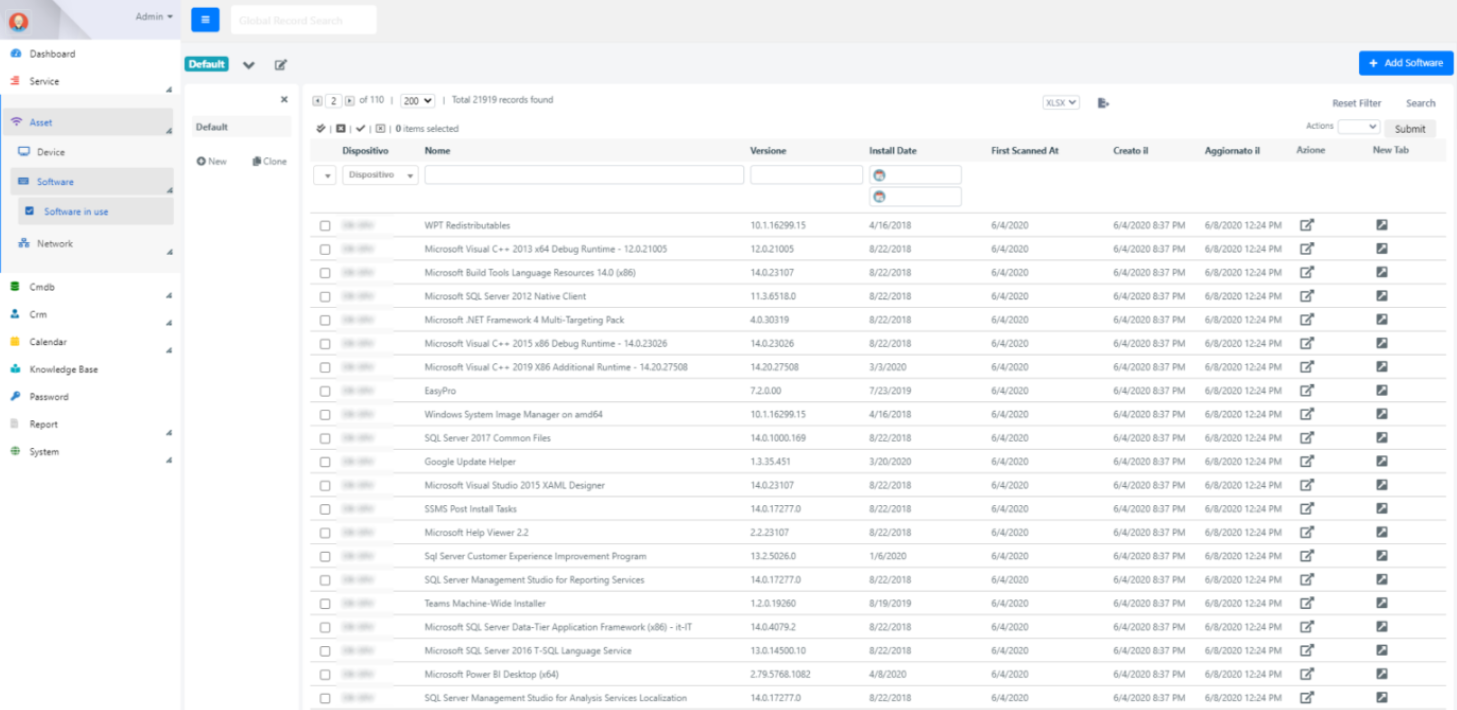
Software installed on collected devices is automatically added to Deepser. You can also organize software using custom grids and manually add new records.
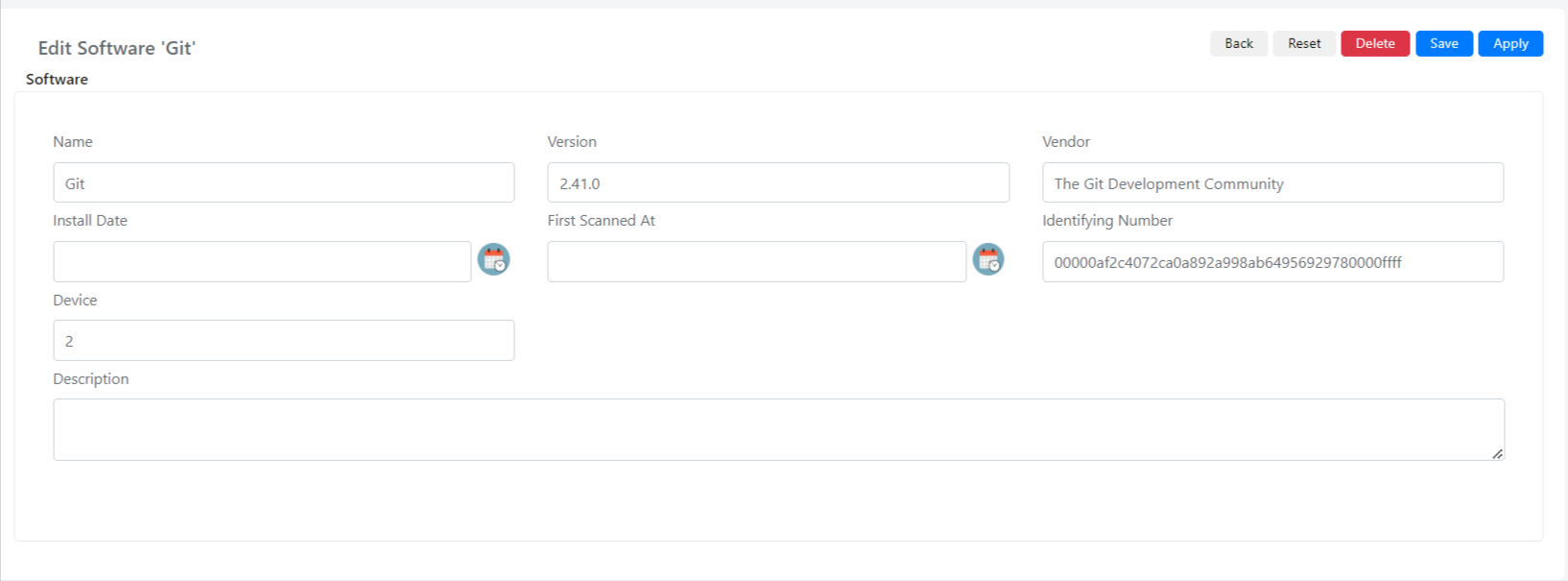
| Field | Description |
|---|---|
| Name | Retrieved software name. |
| Vendor | Related software vendor. |
| Version | Current version of the software. |
| Install Date | Date the software was installed. |
| First Scanned At | Date when the software was first scanned on the device. |
| Identifying Number | Unique identifier string for the software. |
| Device | Device ID connected to this software. |
| Description | Text area for a software description. |
ITAM Network
The Network model manages and organizes network information for assets and devices. It includes two types:
- Subnet: Stores information about network subnets, helping organize and manage large ranges of IP addresses.
- IP Address: Stores details about individual IP addresses within defined subnets, including assignment status and associated device.
Subnet
Access existing subnets or create one from the main menu: IT Asset > Network > Subnet.
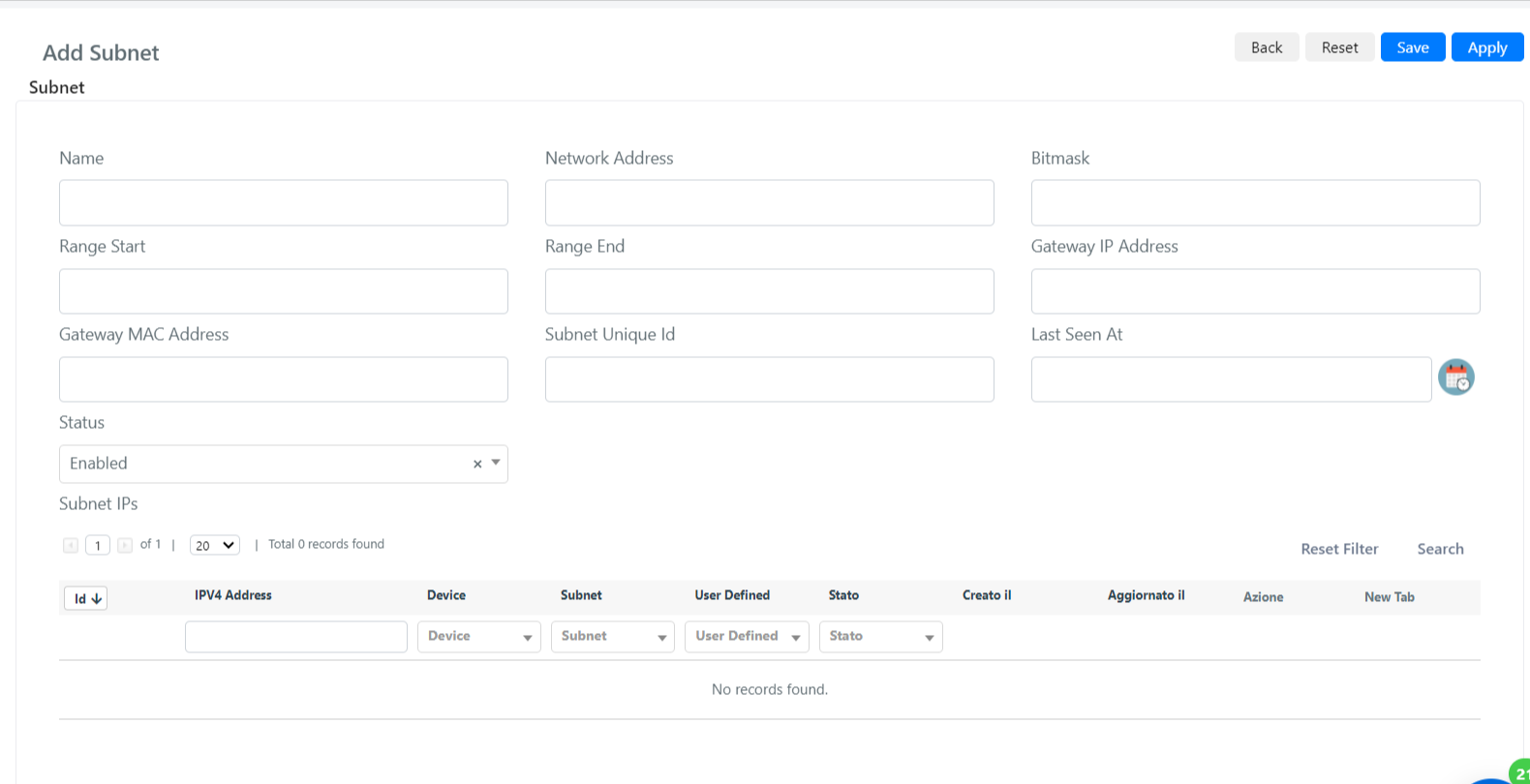
| Field | Description |
|---|---|
| Name | Name of the subnet. |
| Network Address | Base address of the subnet, populated by a CIDR IP address. |
| Bitmask | Subnet mask in bit form, indicating the number of bits for the network portion. |
| Range Start | First usable IP address in the subnet. |
| Range End | Last usable IP address in the subnet. |
| Gateway IP Address | IP address of the gateway or router for the subnet. |
| Gateway Mac Address | MAC address of the gateway or router. |
| Subnet Unique Id | Unique identifier for the subnet within the system. |
| Last Seen At | Last time this subnet was observed or updated. |
| Status | Enables or disables the subnet. |
| Subnet IPs | Grid showing all IPs connected to this subnet. |
IP Address
Access existing IP addresses or create one from the main menu: IT Asset > Network > IP Address.
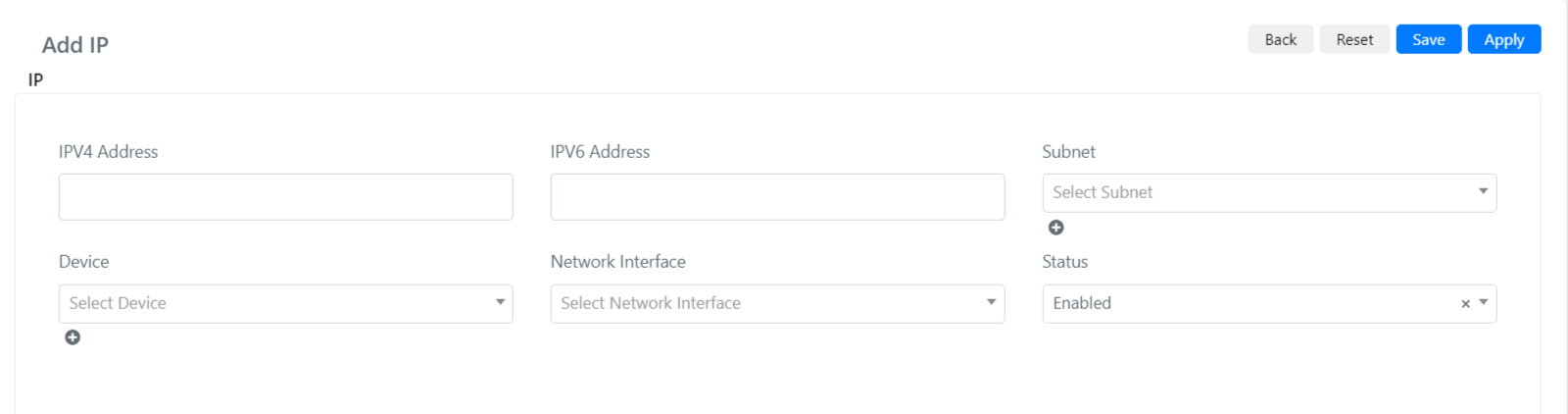
| Field | Description |
|---|---|
| IPv4 Address | IPv4 address field. |
| IPv6 Address | IPv6 address field in standard IPv6 notation. |
| Subnet | Select field for available subnets to connect to this IP. |
| Device | Select field linking a device to this IP address. |
| Network Interface | Physical or virtual network interface associated with the IP address. |
| Status | Enables or disables this IP address. |
ITAM Management
The Management model streamlines device administration through preconfigured scripts, update tracking, and scheduled jobs. It includes three types:
- Scripting automates tasks by running predefined scripts on devices.
- Updates monitors and deploys software updates across all devices.
- Jobs schedules and manages recurring tasks or maintenance operations.
Scripting
Access the Scripting type from the main menu: IT Asset > Management > Scripting.
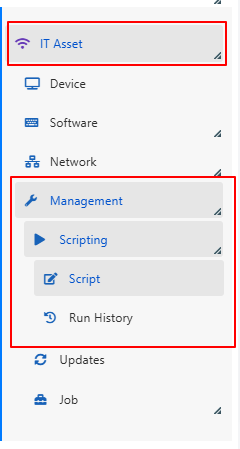
The Scripting type has two sections:
- Script: View and manage predefined scripts available for execution on devices. You can also create new scripts by clicking Add Script.
- Run History: A detailed log of all script executions, including date, time, status, and any errors encountered.
Script
Click Script to access the list of predefined scripts that can be executed on your device (predefined scripts cannot be modified):
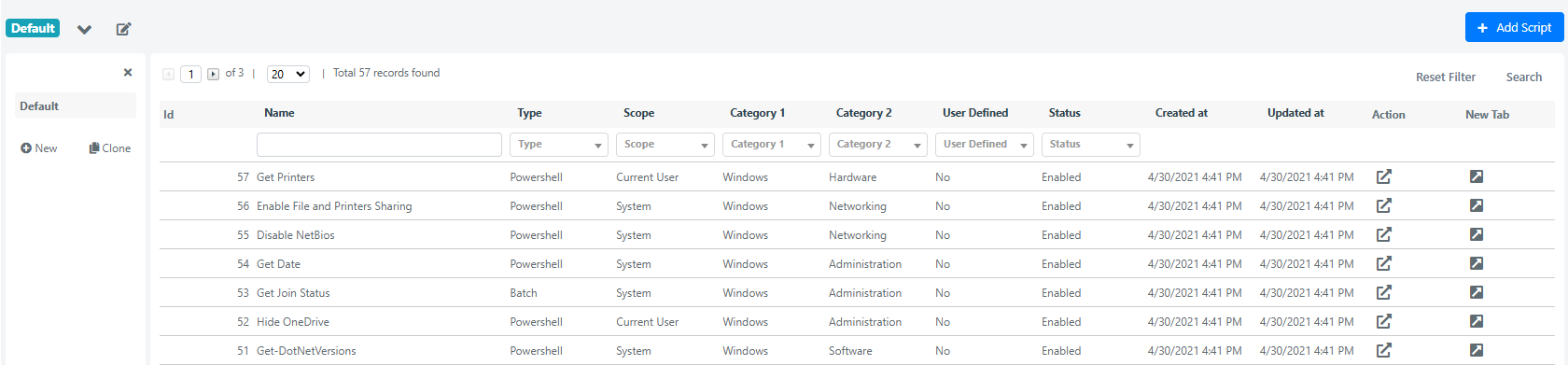
You can also create your own script by clicking the Add Script button at the top right:
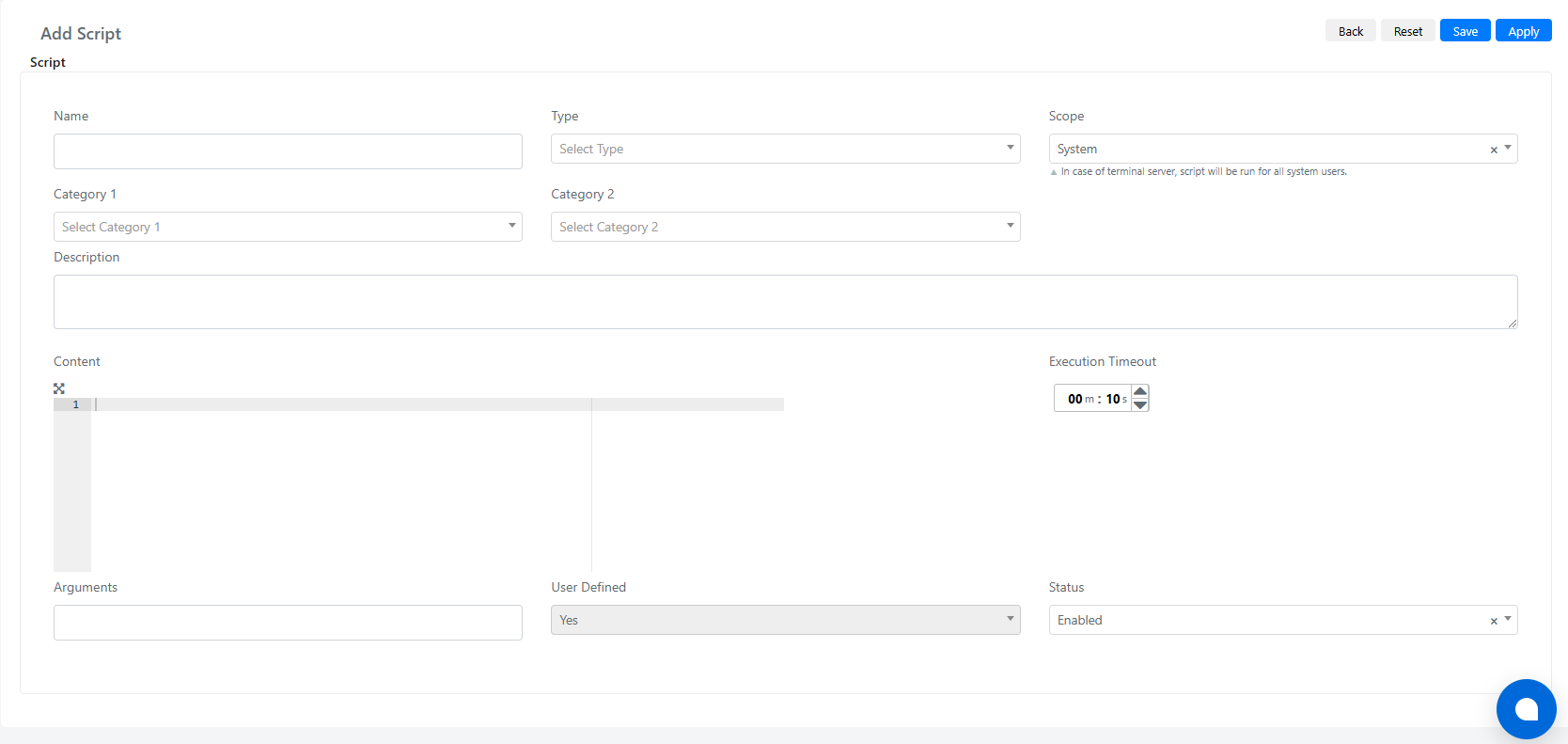
| Field | Description |
|---|---|
| Name | Name for your script. |
| Type | Script type: Batch, Powershell, or Bash (Linux/Mac). |
| Scope | Run scope: all system users or current user only. |
| Category 1 | Category for organizing the script. |
| Category 2 | Secondary category for organizing the script. |
| Description | Description of the script. |
| Content | The command to execute (Powershell, Batch, or Bash). |
| Execution Timeout | Time before the script is marked as not completed successfully. |
| Arguments | Additional parameters for the script. |
| User Defined | Read-only field indicating whether the script was manually created. |
| Status | Enables or disables the script. |
Script Example
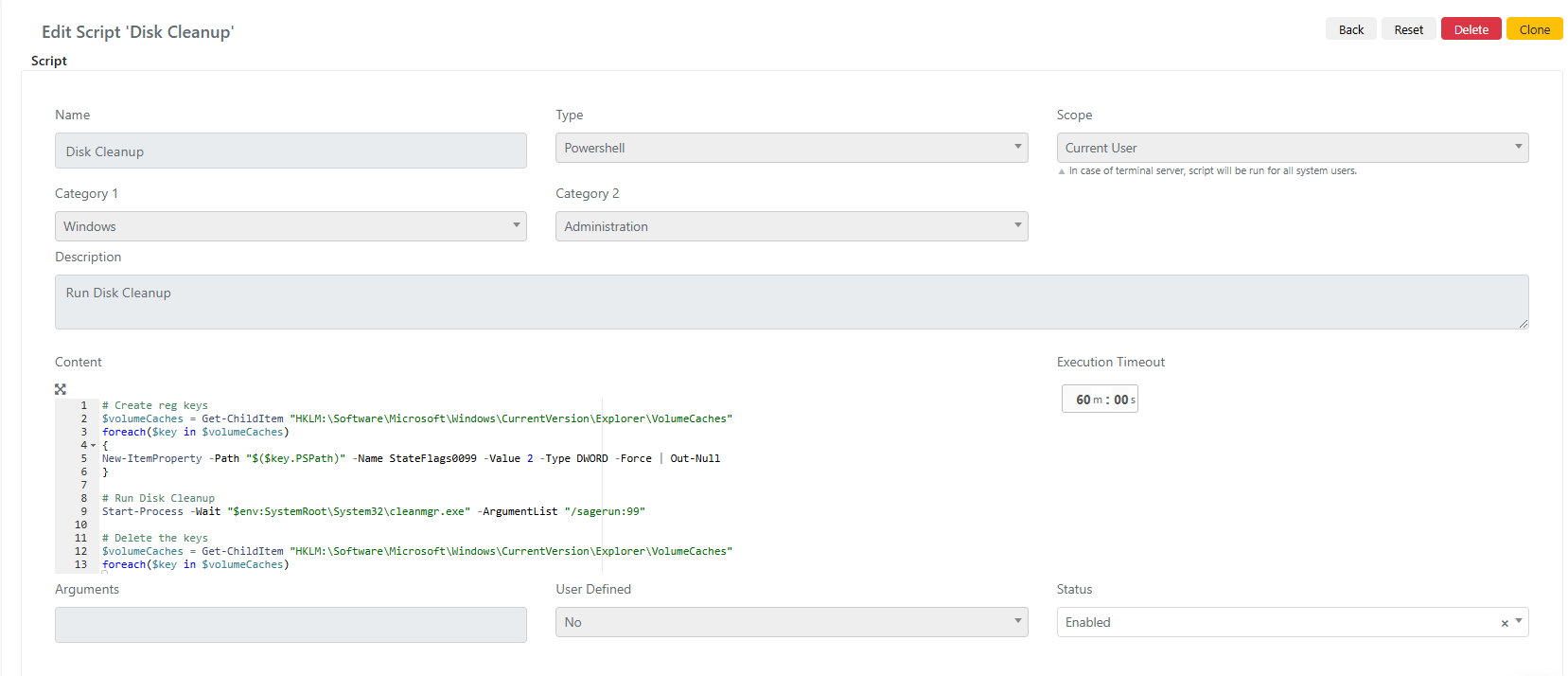
Below is an example of an existing script that performs a disk cleanup using PowerShell:
Execute Script
To execute a script on a device:
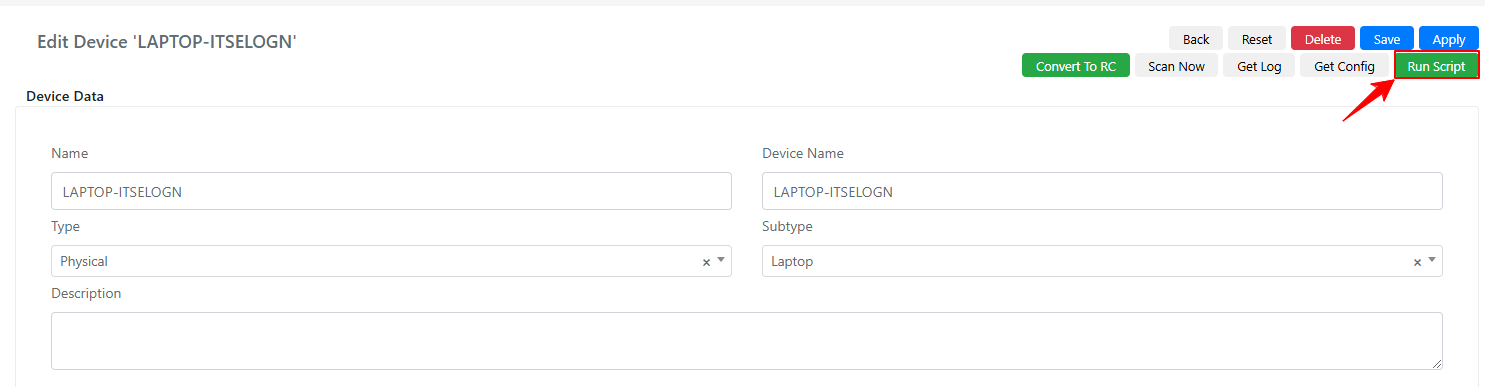
- Access the specific device form.
- Click the green Run Script button at the top right.
- Choose to execute a user-defined script (left side) or a System Library script (right side).
- Click the Run button next to the desired script.
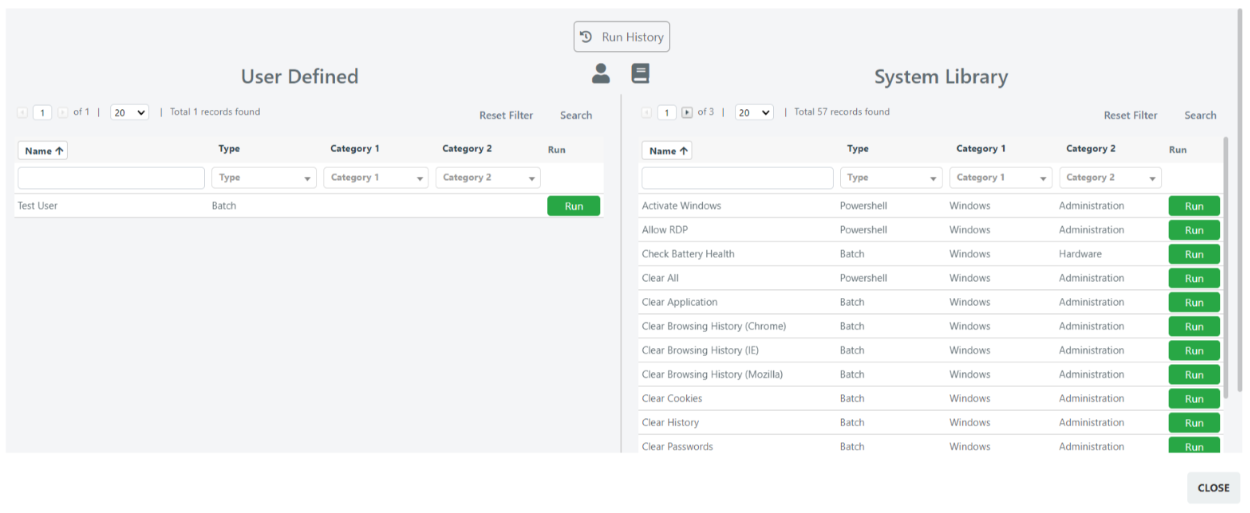
The Run History button at the top center provides access to the history of executed scripts.
Run History
The Run History section shows results of executed scripts:

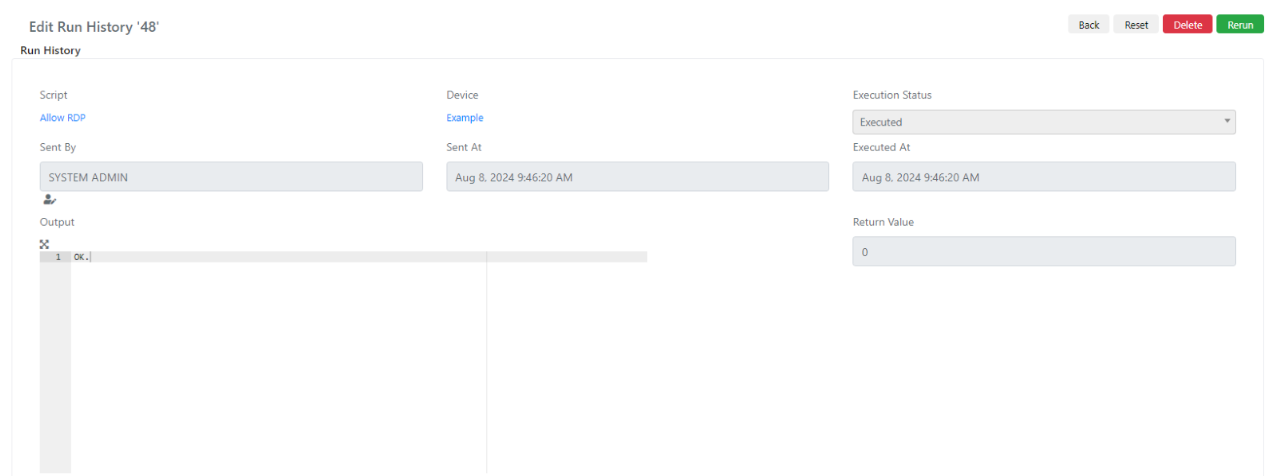
| Field | Description |
|---|---|
| Script | The related script for this history entry. |
| Device | Device on which the script was executed. |
| Execution Status | Execution status of the script. |
| Sent By | The user who sent the command. |
| Sent At | Date the command was sent to the server. |
| Executed At | Execution date. |
| Output | Output received from the sent command. |
| Return Code | Exit status or result code returned by the command. |
Updates
Access the Updates type from the main menu: IT Asset > Management > Updates.
This section lists all available updates detected by the remote collector on scanned devices, including:
- Updates Available for Installation: Detected updates not yet installed, with device targets.
- Updates Already Installed: Successfully applied updates with device information.
- Update Details: Additional information such as name, version, release date, and descriptions.
- Installation Status: Number of devices where each update is pending or installed.
- Filter and Search Options: Filter by specific updates, platforms, and other data.

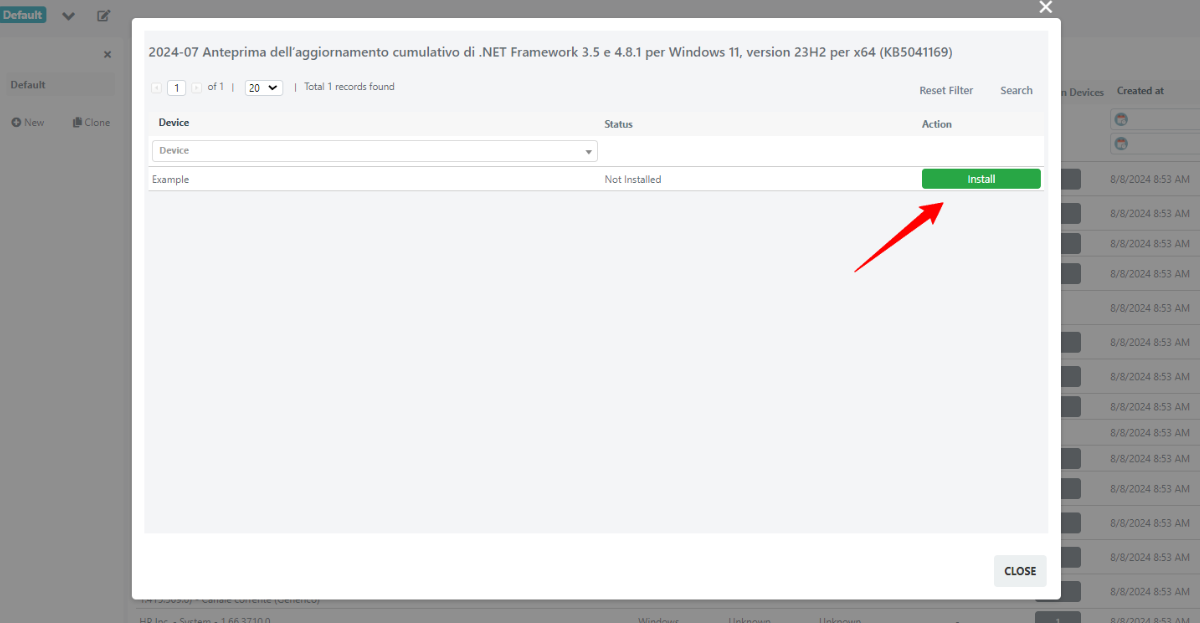
In the Available For Devices column, the blue box indicates how many devices can receive the update. Click it to view the device list:
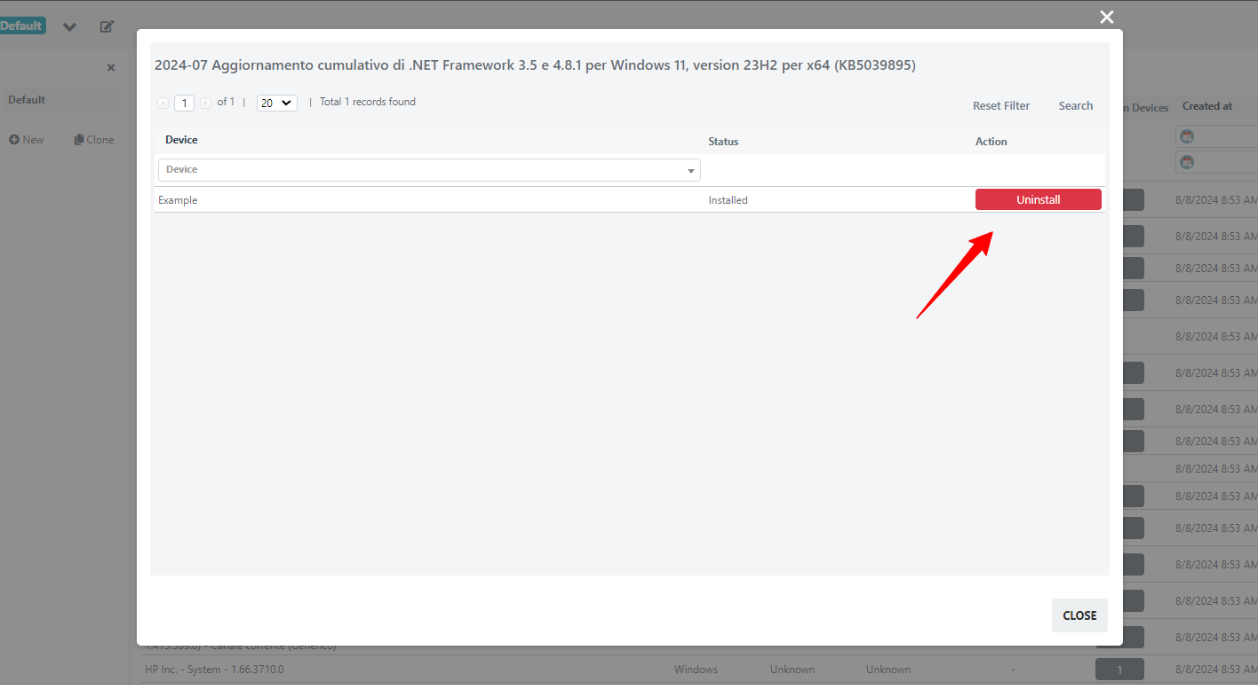
In the Installed On Devices column, the gray box indicates how many devices have received the update. Click it for details and optional uninstall:
Job
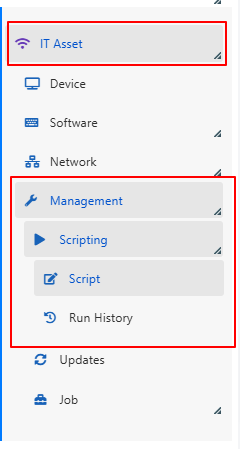
Access the Job type from the main menu: IT Asset > Management > Job. The Job type has two sections:
- Configuration: Create, view, and manage job configurations including scheduling and target devices.
- Event Log: Review the history of job executions with details on status, errors, and outcomes.
Configuration
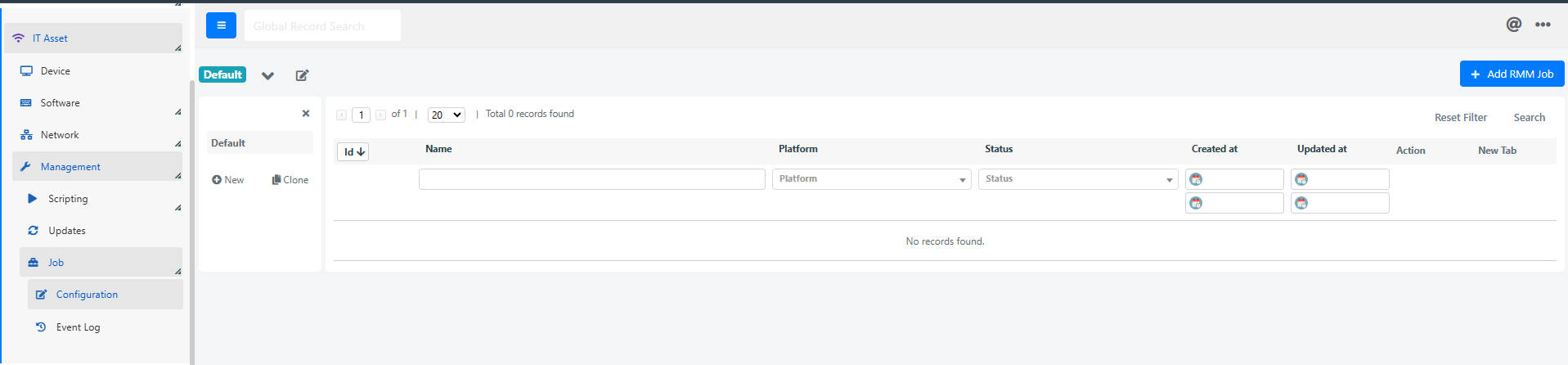
With a job, you can automate the release of updates on scanned devices. To create a new job, click Add RRM Job in the Configuration section:
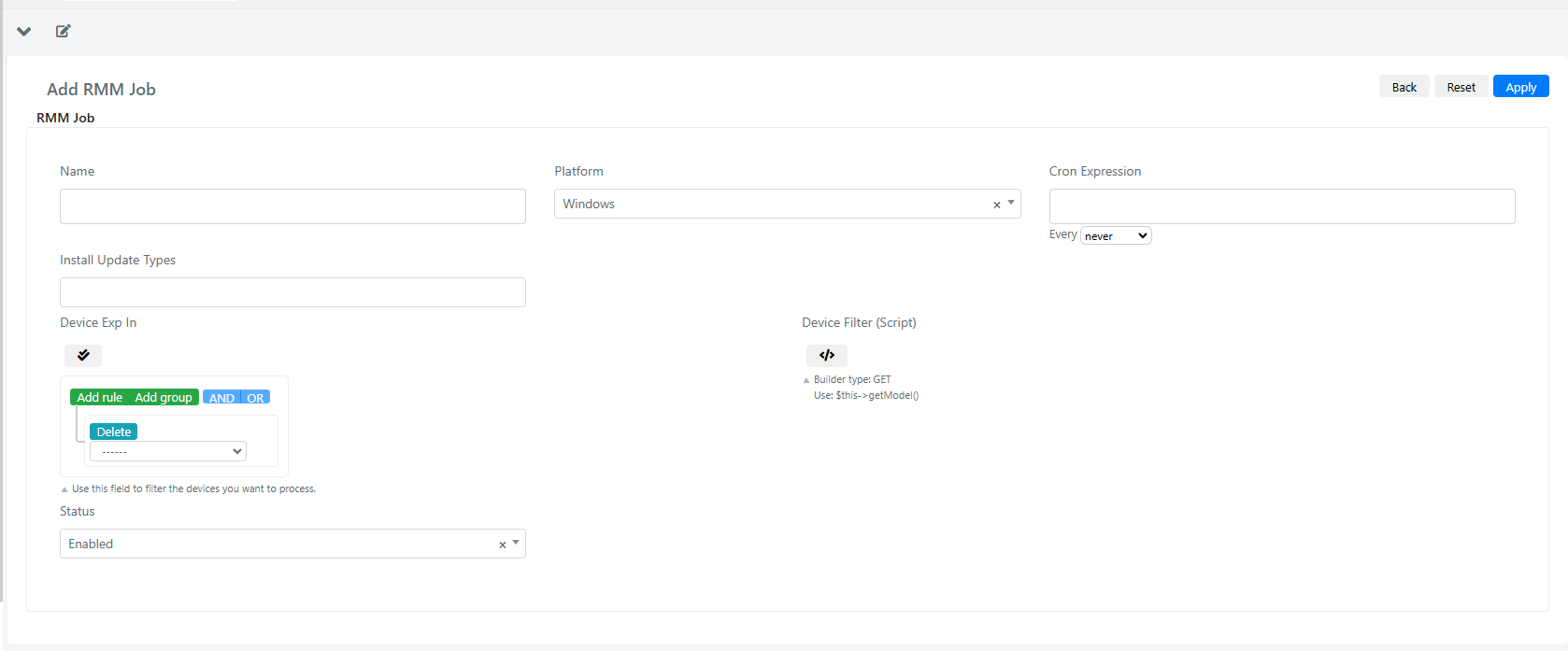
| Field | Description |
|---|---|
| Name | Job configuration name. |
| Platform | Currently only Windows platforms are supported. |
| Cron Expression | Defines the run interval of the job. |
| Install Update Types | Multiselect: Optional, Recommended, or Important. |
| Device Exp In | Query builder to filter devices for the job. |
| Device Filter (Script) | Scripting area for advanced device filtering criteria. |
| Status | Enables or disables the job configuration. |
Event Log
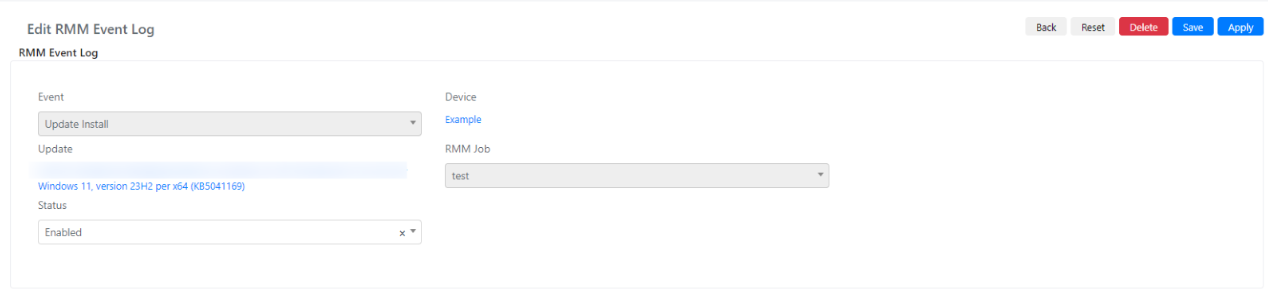
The Event Log section displays all job executions. Click a log record for details about the update, device, and related job: