Configure Automatic Scanning
This guide walks you through installing the ITAM agent, converting it to a remote collector, and configuring automated device scanning. These steps are essential for populating your IT Asset inventory in Deepser.
ITAM Agents
The first step to actively use the ITAM module is installing the agent. The agent is a lightweight Windows application that collects all available information regarding the device on which it is installed and systematically sends it to the server.
Once installed, the agent can be converted into a remote collector so you can collect data by scanning the company network or the subnet on which it is connected.
ITAM Agent Installation
To install the agent:
- Go to the Deepser Backend and navigate to Asset > Device.
- Click the Download Agent button at the top right.

- The installer will be downloaded. All information necessary to configure communication with the server (URL, port) is contained in the name of the executable.
- Run the installer (requires Administrator privileges) and, if necessary, modify the pre-filled connection parameters.
- Click the Install button to start the installation.
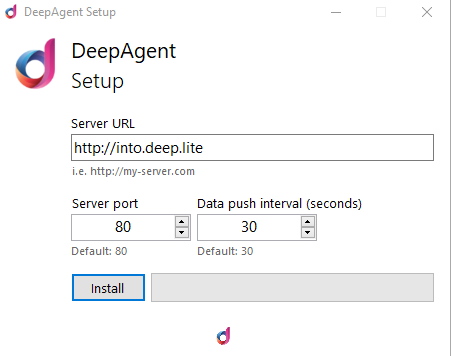
Once installation is complete, a desktop icon named Portal and a new Start Menu entry named DeepAgent will appear on the device.
Clicking the Portal icon redirects you to a new Service Operation page where the device in use is automatically set. The proposed type of Service Operation created through the agent can be changed in the User Portal configuration section.
Tip: To verify that the installation was successful, go to Asset > Device in the Deepser Backend. The record representing the device on which the agent was installed will be displayed.
To access the agent user interface, click the DeepAgent entry in the Start Menu:
- The first tile (eye icon) shows the status of the DeepAgent service.
- The second tile (wifi icon) provides the interface for converting an agent into a remote collector.
ITAM Remote Collector
A remote collector gathers data from various devices and systems within a network. In Deepser, you can configure a device as a remote collector if that device has the agent installed, by clicking the Convert to RC button within Asset > Device.

The remote collector allows you to:
- Retrieve data from devices on the same network
- Acquire data from the device on which it is installed
- Send collected data to the main appliance
You can configure more than one remote collector. This is necessary for networks organized in isolated subnets.
Install the remote collector on a Windows computer that can communicate through the network with as many devices as possible, to minimize the number of remote collectors needed.
ITAM Agent to Remote Collector Conversion
To install a remote collector, you need to have previously installed an agent. Deepser offers two conversion methods: automatic and manual.
Automatic Conversion
- Open the agent form through Asset > Device, then select the agent you want to convert.
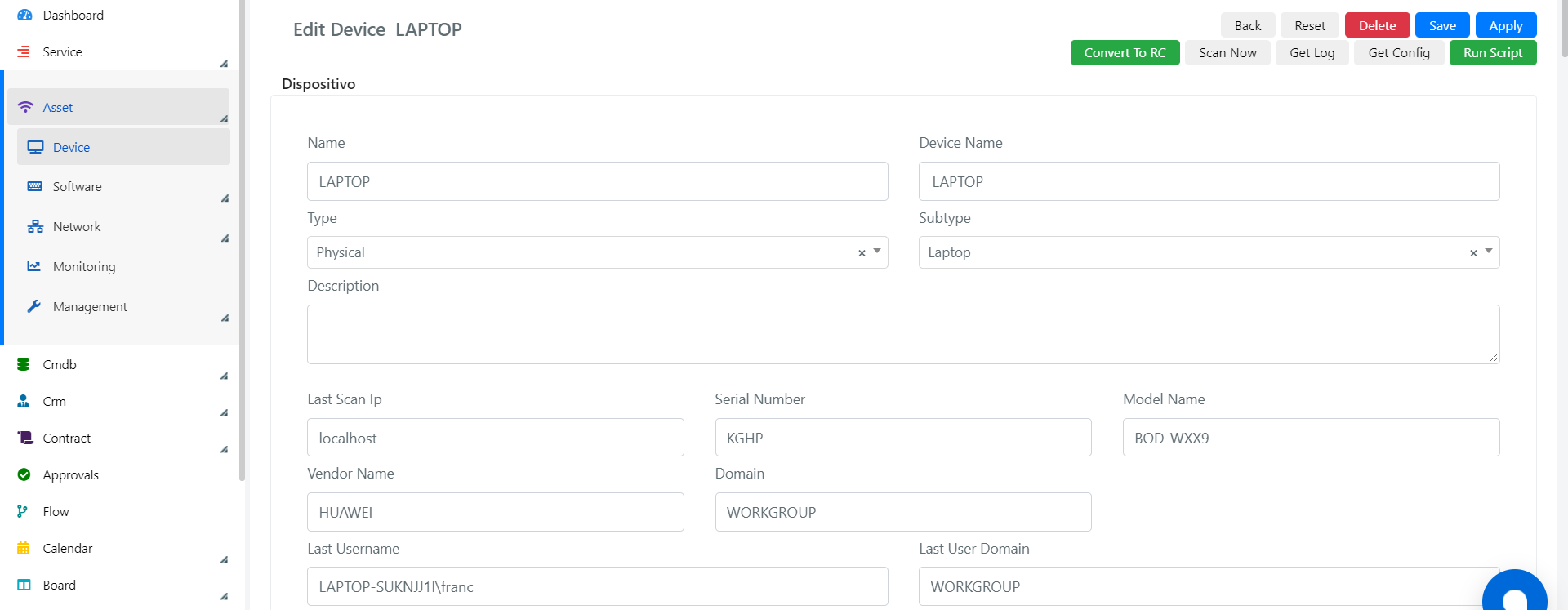
- Press the Convert to RC button to trigger the conversion request.

- A dialog will open asking for confirmation. Click YES.
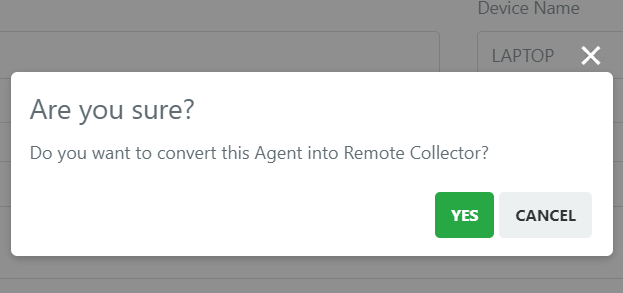
- The request will be sent. Press Enable to access the Remote Collector Grid.

- If the process finished without errors, open the remote collector.
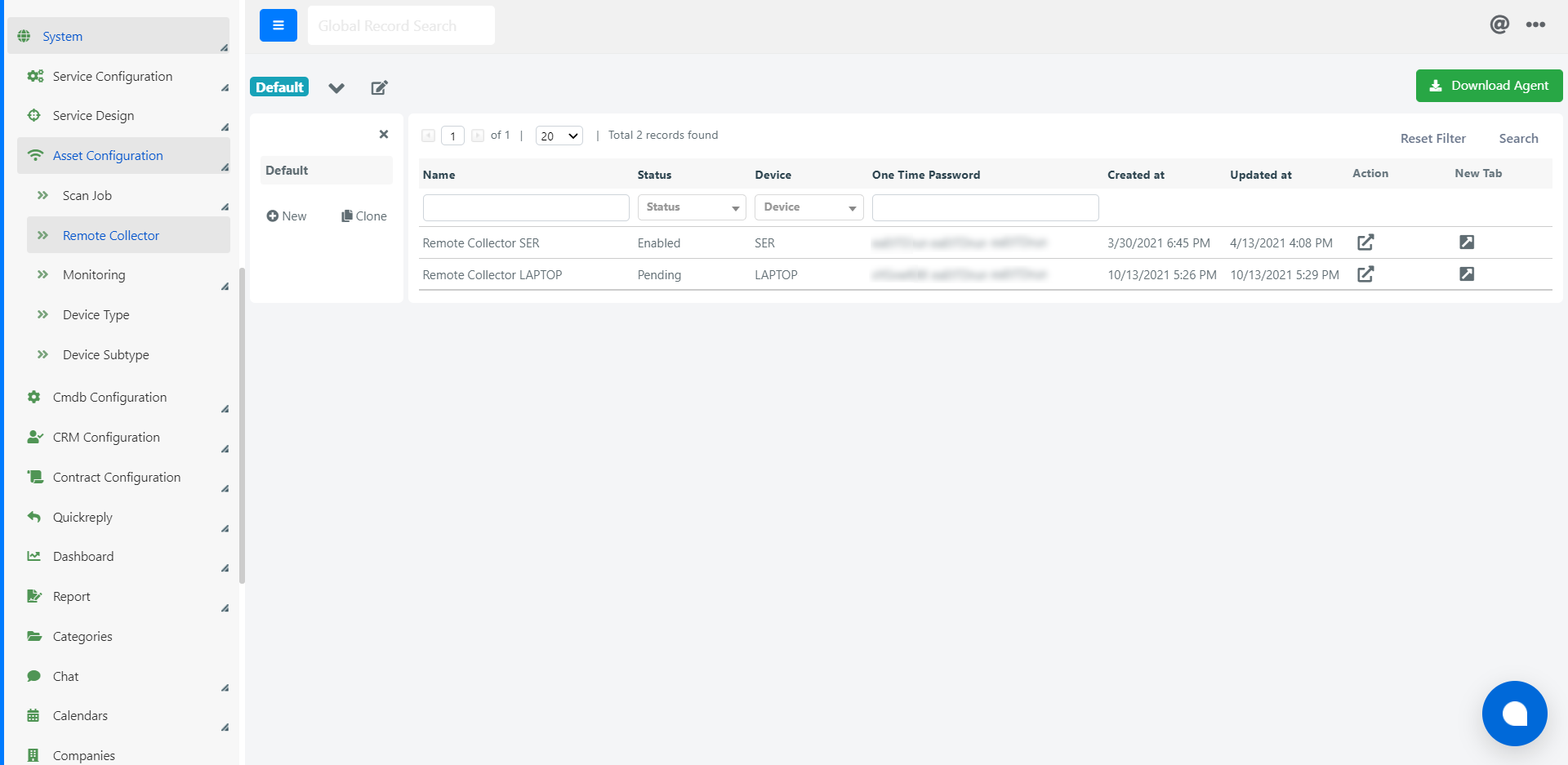
- Click the Enable button to activate the remote collector on the network.
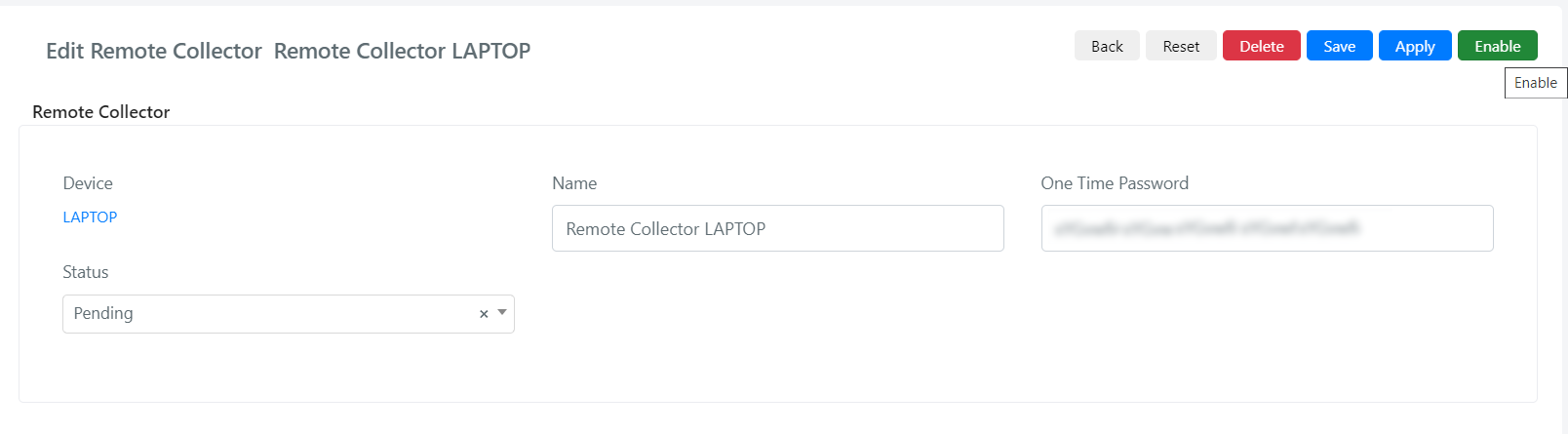
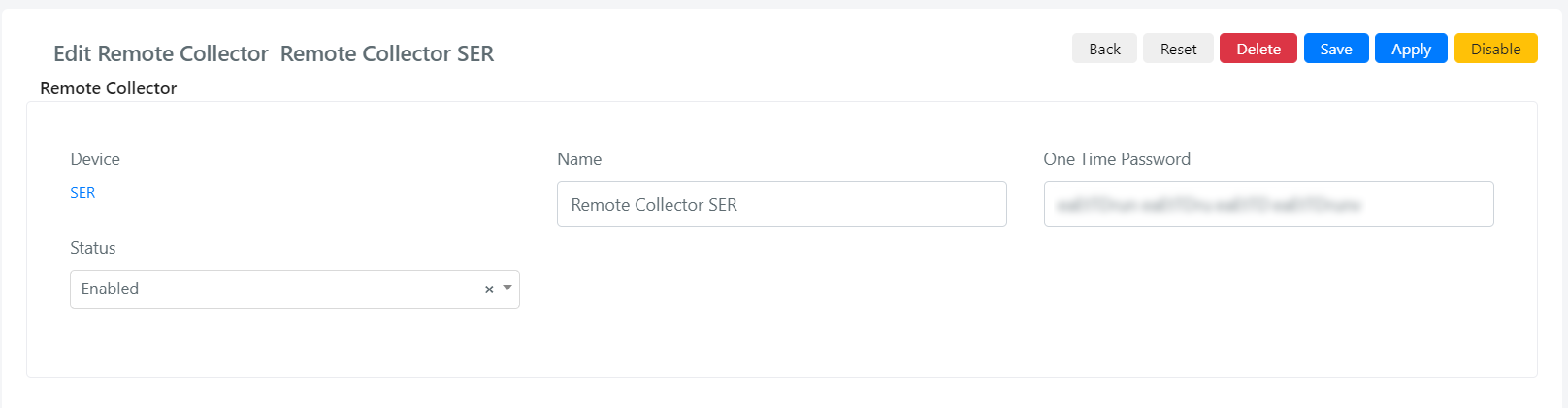
- To disable the remote collector, click Disable.
Manual Conversion
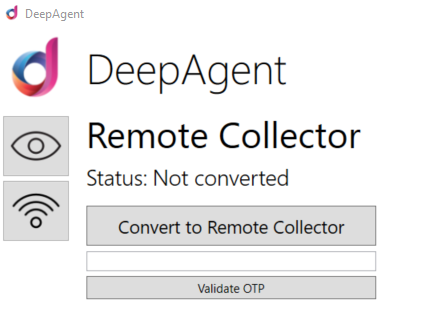
- Go to the DeepAgent entry in the Start Menu to open the agent user interface.
- In the second tile, click the Convert to Remote Collector button.
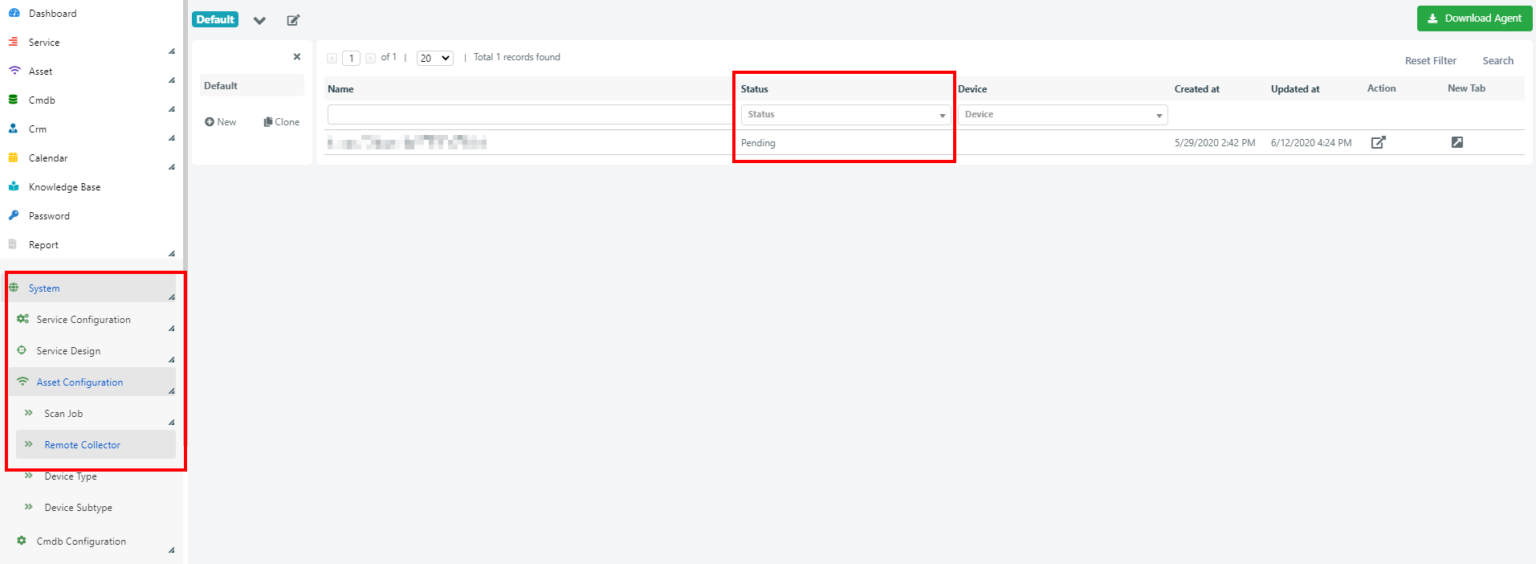
- In the Deepser Backend, go to System > Asset Configuration > Remote Collector.
- In the grid, find the conversion request with status Pending.
- Click the One Time Password cell to copy the OTP to the clipboard, or open the request form and copy it from there.
- Return to the agent user interface and paste the OTP in the text field on the Remote Collector tab.
- Click Validate OTP to proceed. The user interface will close and the background conversion will begin.
Once the conversion is complete:
- In System > Asset Configuration > Remote Collector, the request status changes from Pending to Enabled.
- The Start Menu entry is renamed to DeepAgent RC (RC = Remote Collector).
The remote collector user interface displays only the service status. All configuration tools are accessible from the Deepser Backend under System > Asset Configuration.
Once conversion is complete, you can configure scan jobs that will be performed by the remote collector to discover devices on the network.