Configure ISL Online Remote Control
Integration with ISL Online enables you to initiate remote control sessions directly from the devices managed within Deepser. This guide covers how to configure, enable, and use ISL Online for remote device access.
Prerequisites
Before configuring ISL Online, ensure the following:
- The passwords configured on target devices during the activation of unattended access must be stored in Deepser's Password Manager.
- Target devices must have unattended access enabled.
You must meet both prerequisites above before you can select the credentials in the designated fields and successfully start a remote session.
Configuring the ISL Online Integration
To configure and enable the integration, go to System > Configuration > IT ASSET > Configurations > ISL Online (Remote Control).
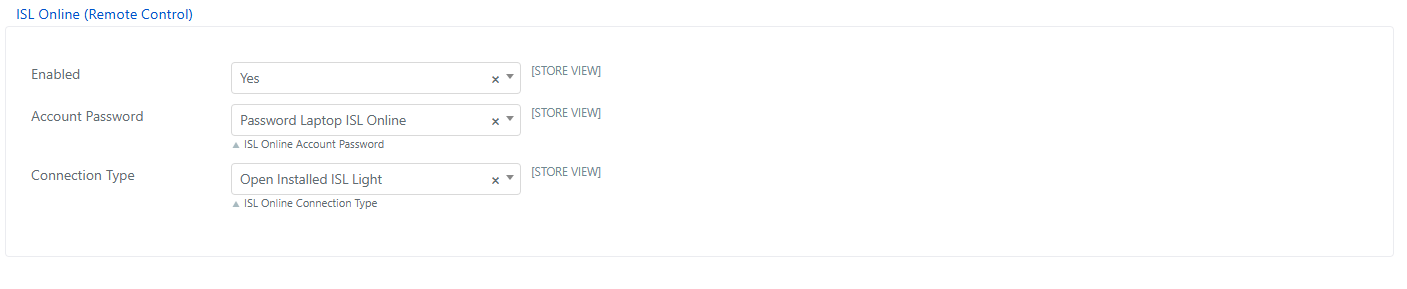
The available fields are:
- Enabled: Enables or disables the integration with ISL Online.
- Account Password: Sets a default password for connections. Select a password previously saved in the Password Manager from the drop-down menu, then click Save Config. The password is used to log in to the locally installed ISL Light instance. If no password is specified, ISL Light will prompt for login credentials.
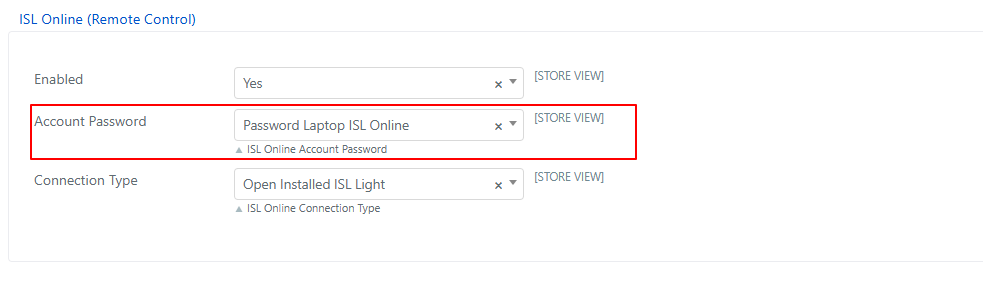
- Connection Type: Specifies the type of link to generate. Available options are:
- Download Executable: Automatically downloads the ISL Online executable to the Operator's device. If the software is already installed, the connection panel opens directly.
- Open Installed ISL Light: Checks for the presence of ISL Online software on the device. If not installed, the connection cannot be established.

Enabling ISL Remote Control
To enable remote control via ISL Online:
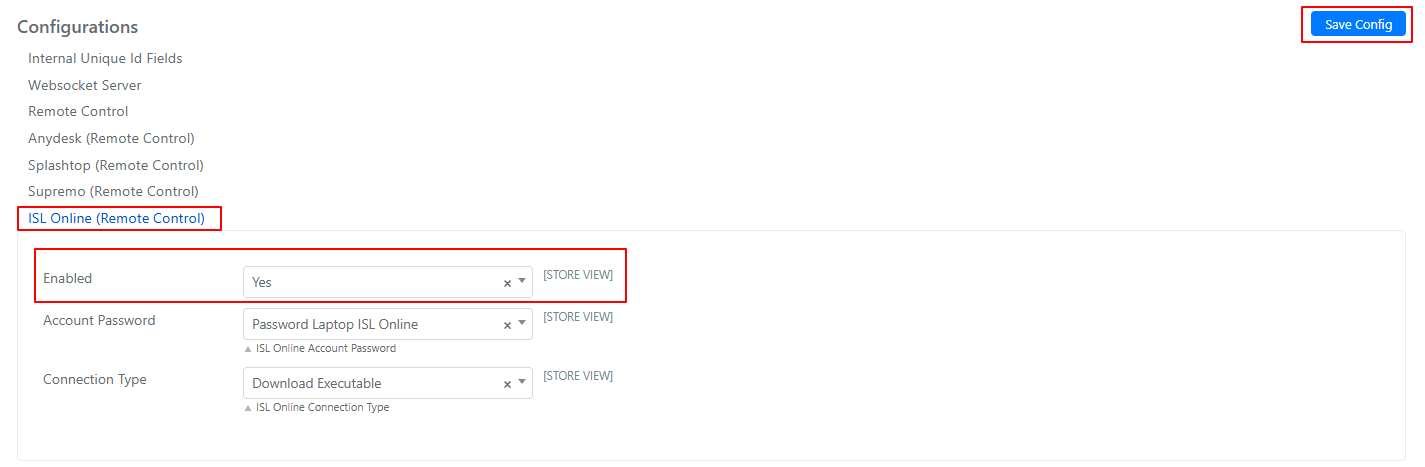
- Go to System > Configuration > IT ASSET > Configurations > ISL Online (Remote Control).
- Set the Enabled field to Yes.
Setting ISL Online as Default Remote Control Software
To define ISL Online as the default remote control software:
- Go to System > Configuration > IT ASSET > Configurations > Remote Control.
- Select ISL Online as the default software and click Save.
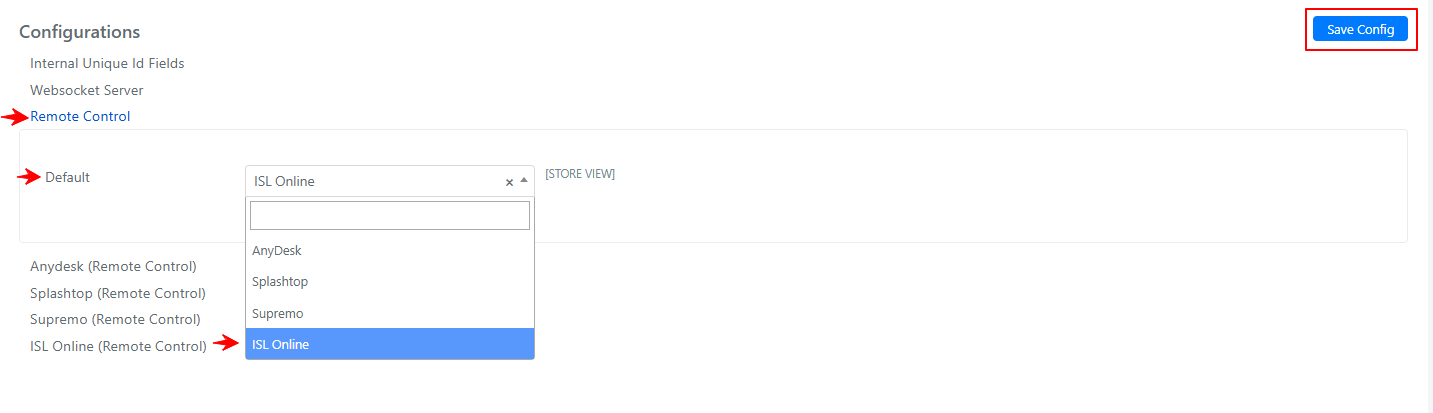
Once configured, ISL Online will be automatically selected among the available remote control options.

Connecting to the Remote Device
To start a remote session:
- Go to IT Asset > Device > Remote Control Tab.

- Fill in the following fields:
- Remote Control: Displays the software used for the connection.
- ISL Online Password: Password required to control the target device via unattended access. Select a password saved in the Password Manager from the dropdown, or click the + icon to create a new one.

The ISL Online Password field must always be filled in to allow the connection.
Starting a Remote Session
After entering the password, proceed with the session:
- Go to IT Asset > Device > Remote Control Tab.
- In the Remote Control field, click the Connect button inside the device.
