Configure Supremo Remote Control
Supremo integration allows you to establish remote desktop connections with devices managed in Deepser's IT Asset module. This guide covers enabling, configuring, and using Supremo for remote control sessions, including secondary password setup for automatic connections.
Prerequisites
Before proceeding, ensure that:
- The Deepser agent is installed on the target device. See the agent installation guide for details.
- The Supremo remote desktop software is downloaded on the device from which you will initiate the connection. On the remote computer, the Supremo software installation is managed by the Deepser agent.
To view available devices, navigate to IT Assets > Device in the Deepser Backend.
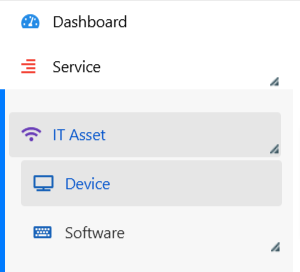

From the device management grid, select the desired device:

Enabling Supremo Remote Control
To enable remote control via Supremo:
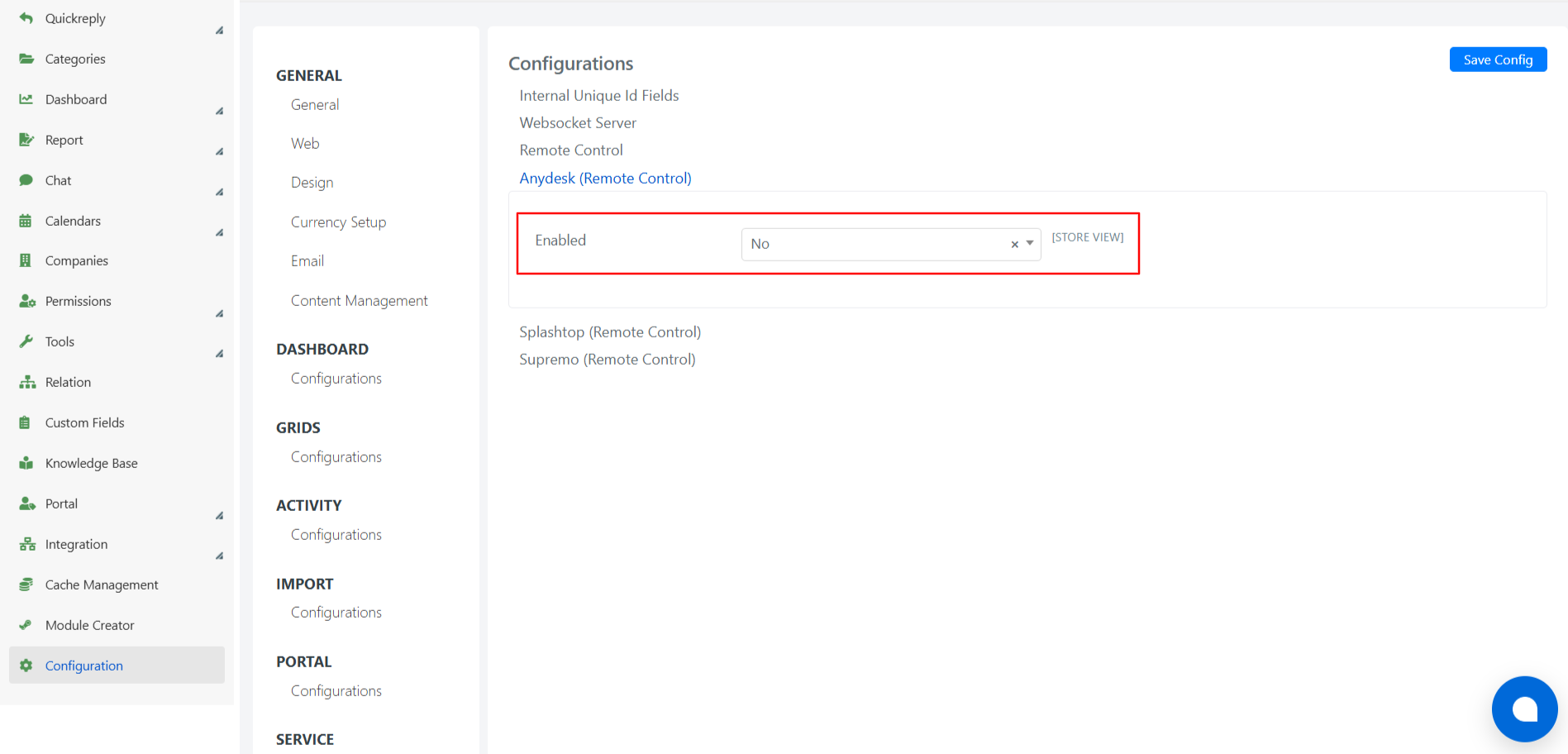
- Navigate to System > Configuration > IT ASSET > Configurations > Supremo (Remote Control).
- Set the Enabled field to 'Yes'.
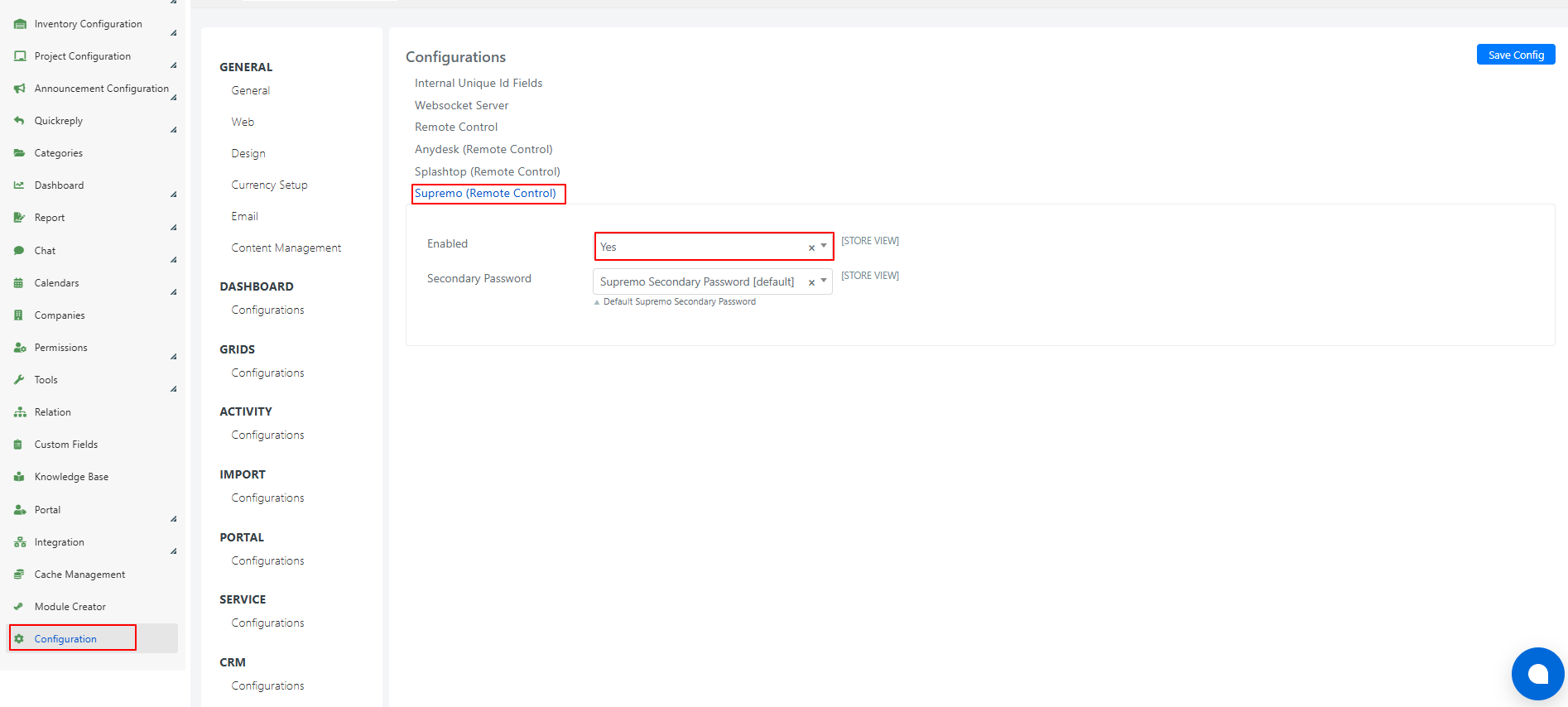
To disable Supremo, set the Enabled field to 'No'.
Setting Supremo as Default Remote Control Software
To configure Supremo as the default remote control software:
- Go to System > Configuration > IT ASSET > Configurations > Remote Control.
- Select Supremo as the default software.
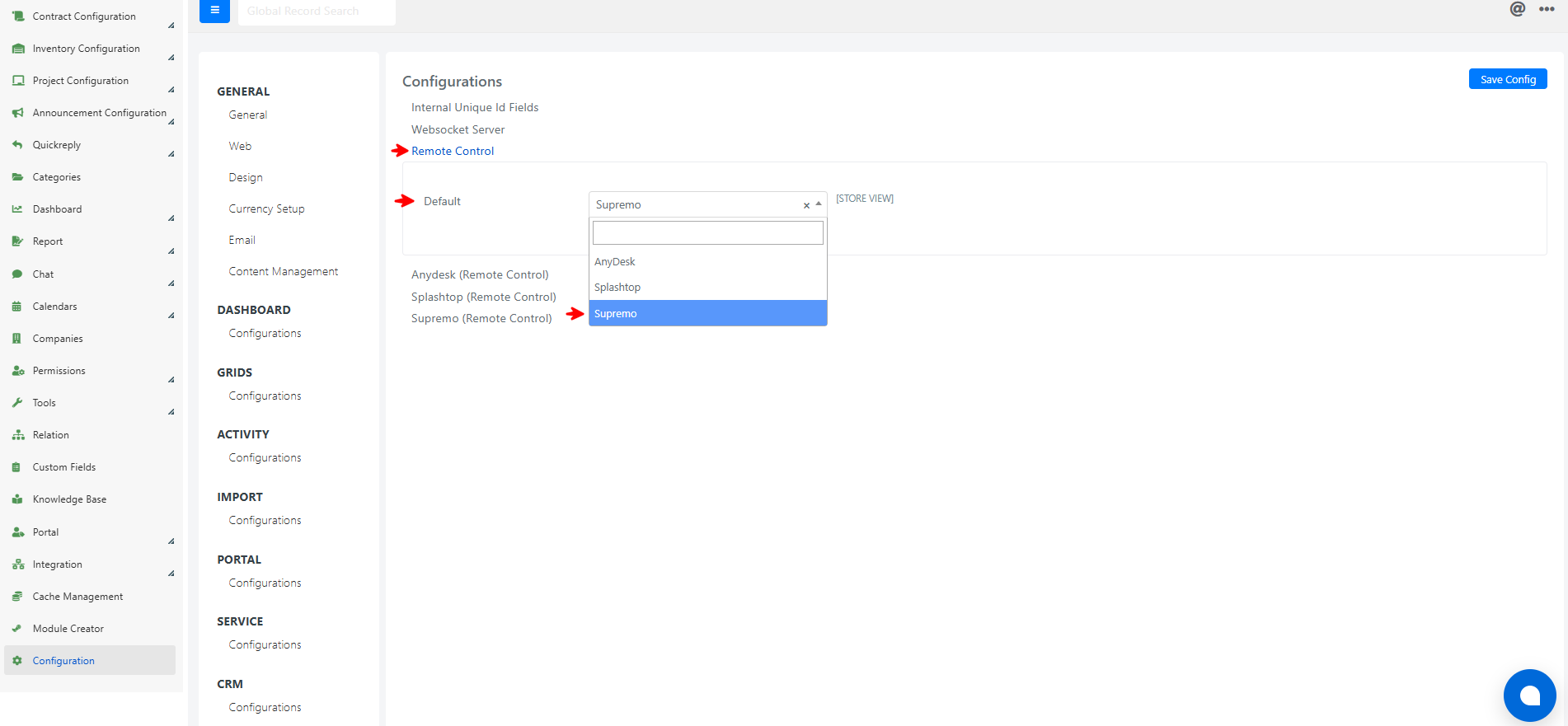
Once configured, Supremo will automatically be selected from the list of available remote control options.

Connecting to the Remote Device
To initiate a connection:
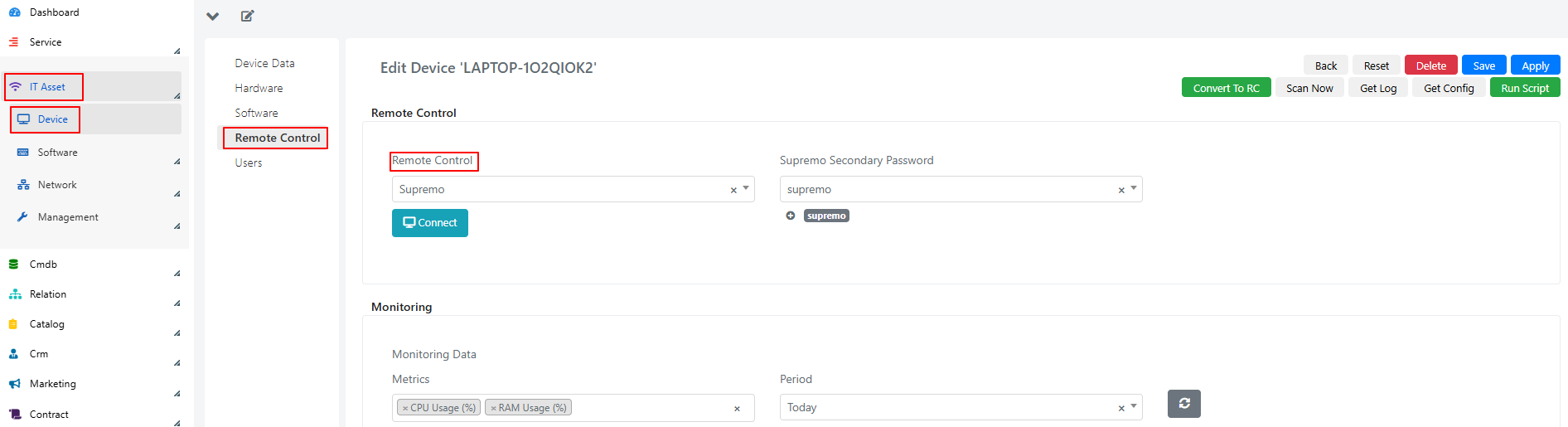
- Navigate to IT Asset > Device > Tab Remote Control.
- Fill in the following fields:
- Remote Control: Displays the remote desktop software being used.
- Supremo Secondary Password: A dropdown menu to select the secondary password.
Starting a Remote Session
After entering the password generated by Supremo:
- Go to IT Asset > Device > Tab Remote Control.
- In the Remote Control field, click the Connect button within the device.

Alternatively, initiate the connection directly from the grid under IT Asset > Device.

Configuring the Secondary Password
The Secondary Password allows remote connections without requiring a one-time password for each session, enabling automatic remote connections.
To configure the Secondary Password in Deepser:
- Go to IT Asset > Device > Tab Remote Control.
- Under the Supremo Secondary Password entity, click the + icon.

- A form will appear for creating the password.
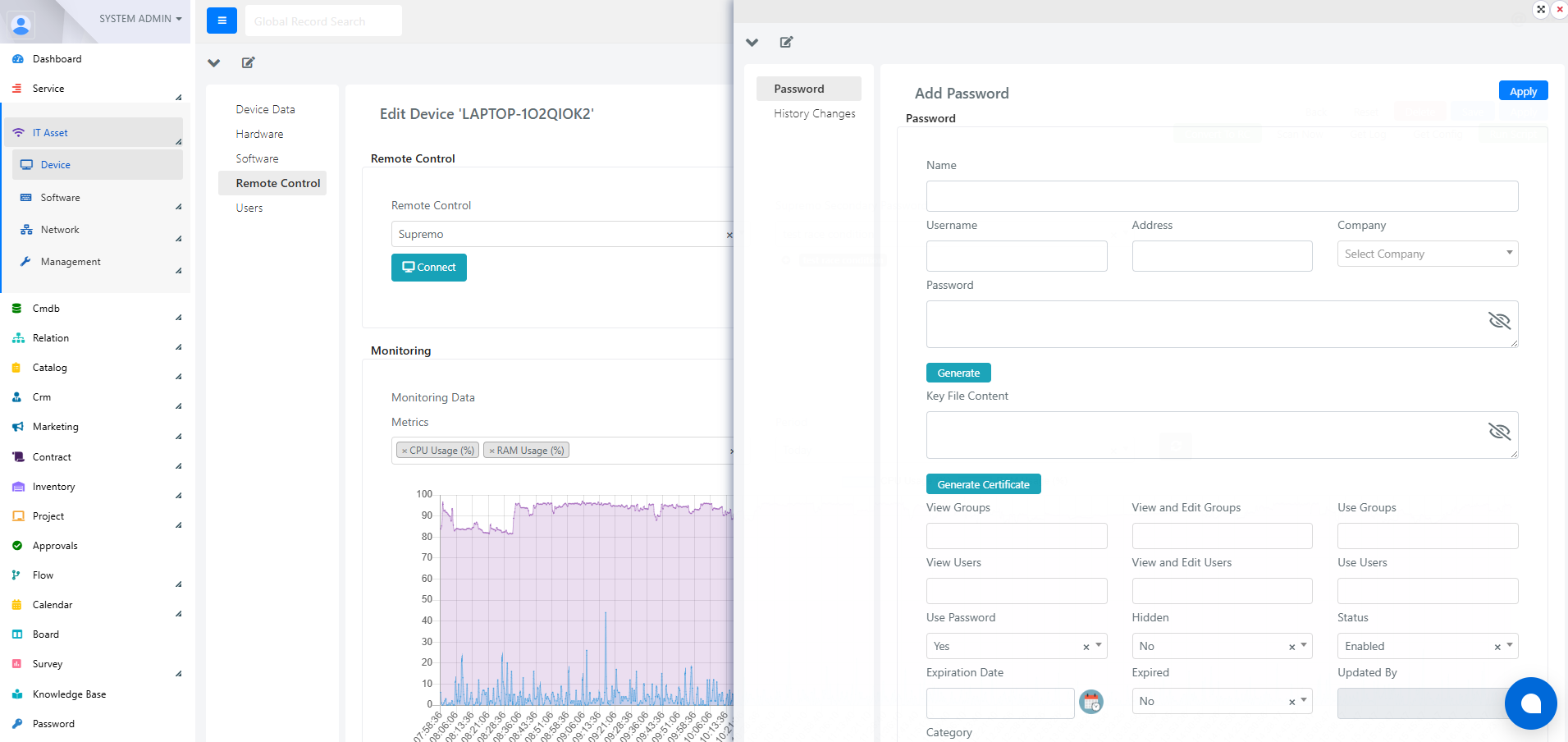
- Once saved, select the password in the Supremo Secondary Password field of the device.

Setting a Default Secondary Password
To define a default secondary password:
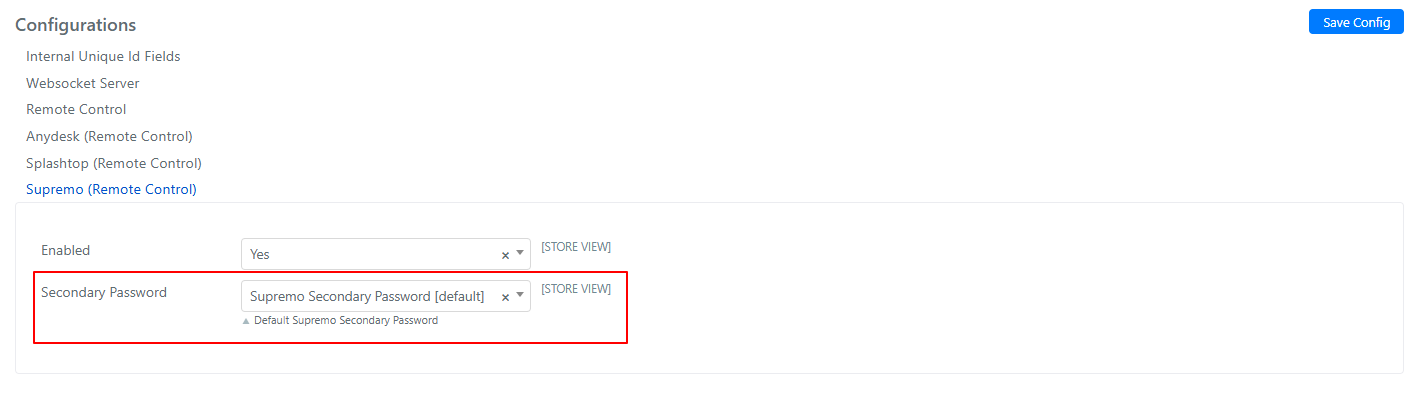
- Navigate to System > Configuration > IT ASSET > Configurations > Supremo (Remote Control).
- In the Secondary Password field, select the desired default password from the dropdown.
This ensures the configured default password is automatically used for all remote connections.