Configure Knowledge Base Articles
You can add or modify an existing article both from the Deepser Backend (for Operators) and from the User Portal. This guide walks you through the available actions and the article form fields.
Managing Articles
After clicking on the View button of a Knowledge Base, if you have the necessary privileges you can:
- Consult the articles in the KB
- Copy (add to clipboard) links to the article
- Delete the article
- Print the article
- Add a new article by clicking the (+) icon above the left-hand summary
- Edit the selected article by clicking the pencil icon at the top right
- Attach files to the article
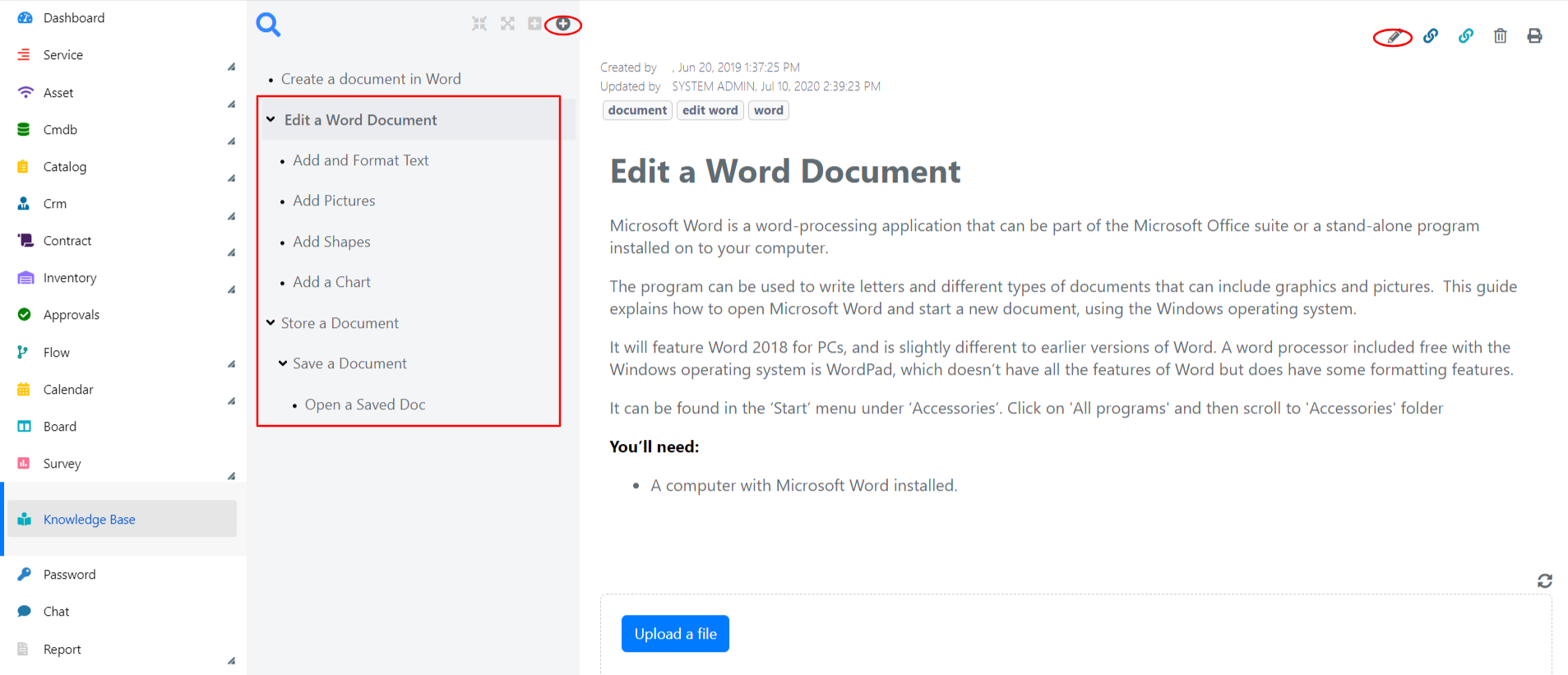
By pressing the pencil icon, the form for creating or editing an article will open:
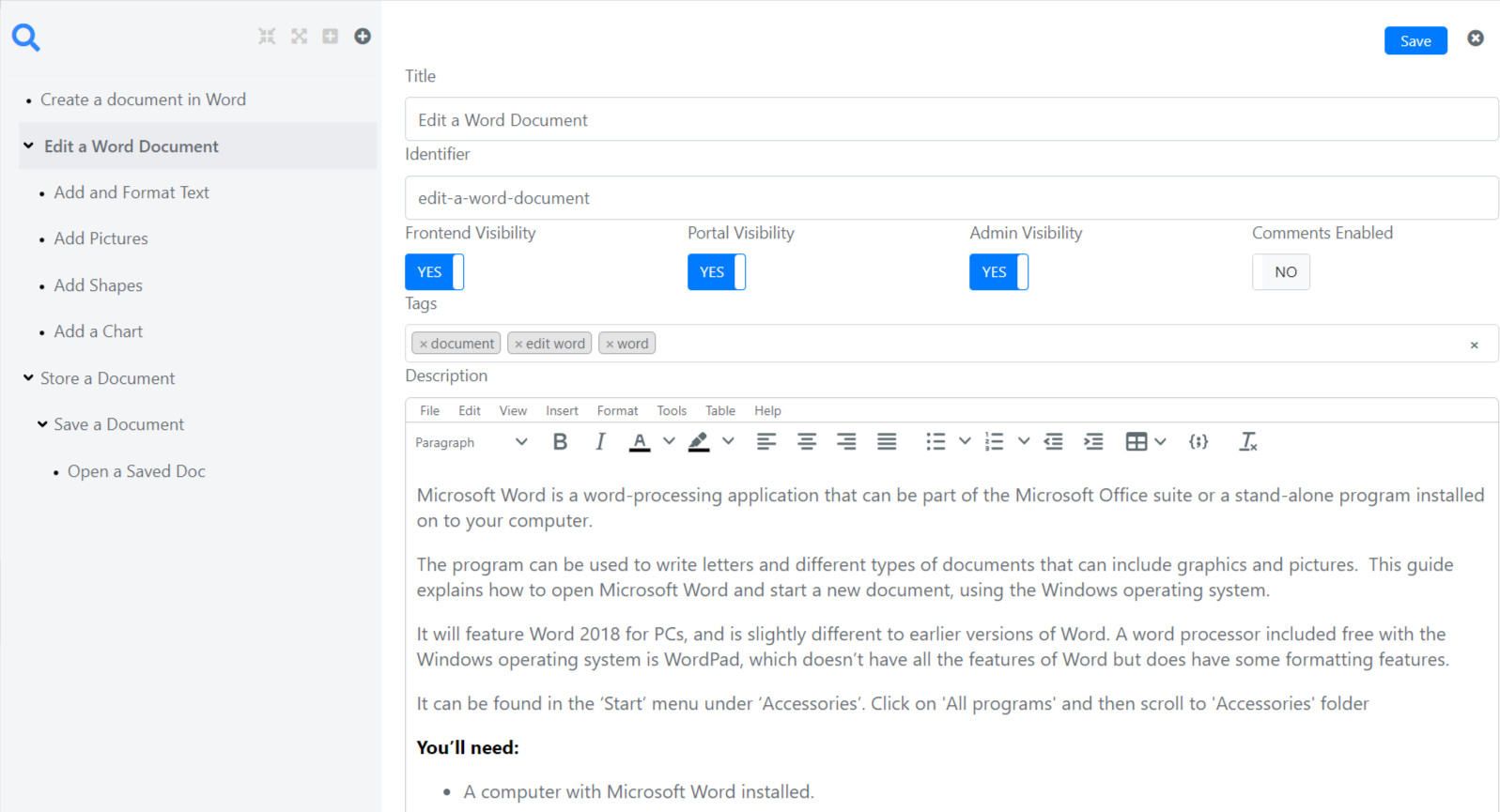
Article Form Fields
The form fields have the following meaning:
| Field | Description |
|---|---|
| Title | Title of the article. |
| Identifier | Identification code of the article. It is used in the composition of the article URL if it and the KB to which it belongs have been made visible in the Guest Portal. |
| Category | Category. You can use it to configure suggestions to KB articles from a Service Operation. |
| Visibility in Frontend | If set to YES, the article will be visible and searchable by unauthenticated users in the Deepser Guest Portal. |
| Visibility in the Portal | If set to YES, the article will be visible and searchable by authenticated users in the Deepser User Portal. |
| Visibility Administrators | If set to YES, the article will be visible and searchable by Operators from the Deepser Backend. |
| Comments Enabled | Allow comments on an article. |
| Tags | Tags of the article. By default, it is through tags that KB articles are offered in Service Operations. |
| Description | Body of the article. |
tip
Use meaningful tags on your articles to ensure they are suggested accurately when users create Service Operations.